
1. Introduction
The YAGALA MAX Android TV Box 12.0 is a smart streaming media player designed to transform your television into a smart entertainment hub. Featuring the latest Android 12.0 operating system, an Allwinner H618 Quad-core processor, 4GB RAM, and 32GB ROM, this device offers smooth performance for streaming 6K video, playing games, and running various applications. It supports dual-band Wi-Fi (2.4GHz/5GHz) and Bluetooth 4.0 for versatile connectivity.

Figure 1: YAGALA MAX Android TV Box and included IR Remote Control.
2. Package Contents
Please verify that all items listed below are included in your package:
- 1 x YAGALA MAX Android TV Box
- 1 x Power Charger (DC 5V/2A)
- 1 x HD Cable (HDMI)
- 1 x User Manual (this document)
- 1 x IR Remote Control
3. Product Features
The YAGALA MAX Android TV Box is equipped with advanced features for an enhanced media experience:
- Operating System: Android 12.0, offering a modern and intuitive user interface.
- Processor: Allwinner H618 Quad-core Cortex-A53 CPU for fast and stable operation.
- Graphics: Mali-G31 MP2 GPU with hardware 3D graphics acceleration.
- Memory & Storage: 4GB DDR RAM and 32GB EMMC Flash storage, expandable via Micro SD card slot.
- Wireless Connectivity: 2.4GHz/5GHz Dual-band WiFi 6 for faster speeds and lower latency, and Bluetooth 4.0.
- Video Output: HDMI 2.0 supporting up to 6K resolution at 30fps, with HDR, CEC, and HDCP 2.2.
- USB Ports: Two high-speed USB 2.0 ports for connecting USB devices such as external hard drives, USB flash drives, keyboards, or mice.
- Ethernet: Standard 10/100M Ethernet port for wired network connection.
- Media Decoding: Supports 6K H.265 Hardware Video Decode and a wide range of audio/video formats including Avi, Rm, Mkv, Mov, MP3, WAV, etc.

Figure 2: Key features of the YAGALA MAX Android TV Box, including Android 12, WiFi 5GHz, Bluetooth 4.0, 6K Decoding, HDR 10, and 4K60FPS support.

Figure 3: The Android 12 operating system, codenamed "Snow Cone," provides a modern user interface and supports popular applications like Google Play, Netflix, YouTube, and more.

Figure 4: The Allwinner H618 Quad-Core Cortex-A53 processor ensures strong performance, supporting 6K video at 30fps and 4K at 60fps with H.265/VP9/AVS2 decoding.
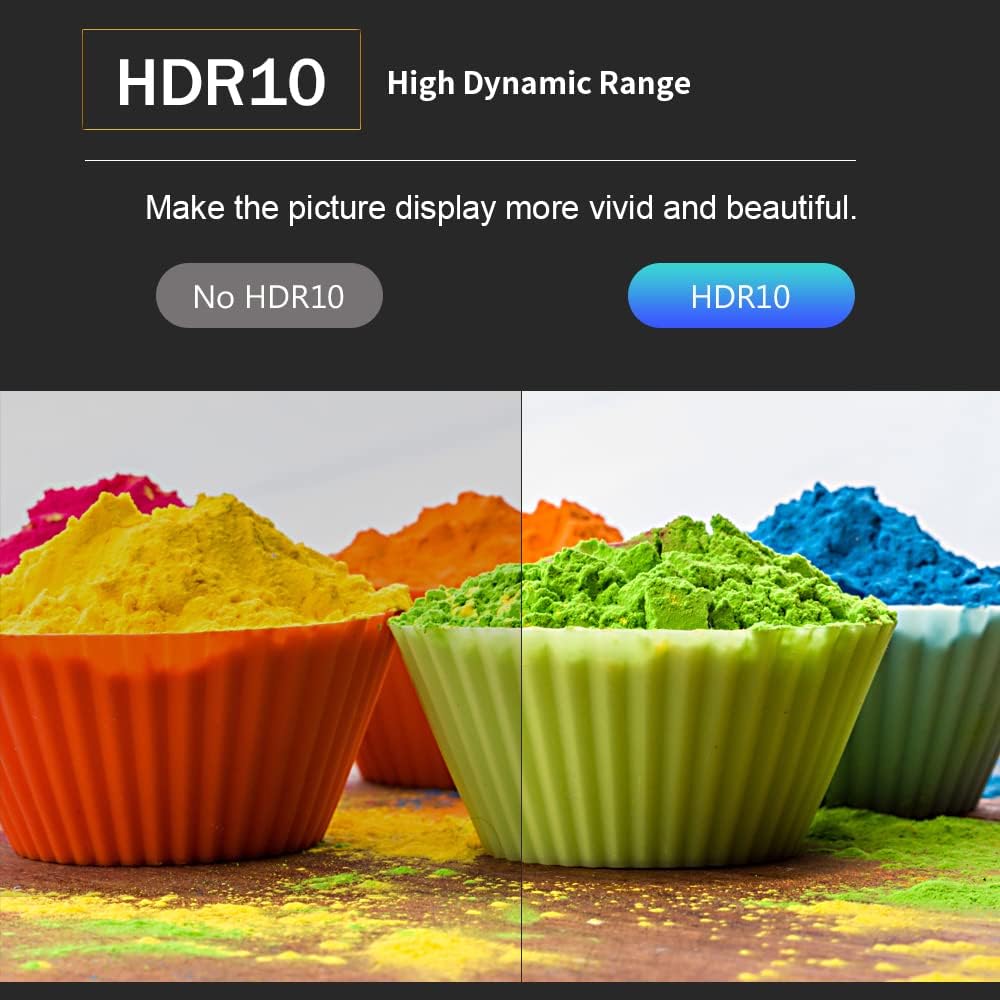
Figure 5: HDR10 (High Dynamic Range) technology enhances picture quality, making colors more vivid and images more detailed compared to standard dynamic range.

Figure 6: The device supports dual-band WiFi (2.4GHz and 5GHz), providing better network compatibility and smoother streaming. 5GHz offers faster speeds for demanding applications.

Figure 7: Experience powerful 6K video decoding, delivering higher definition and more realistic image effects for an immersive viewing experience.
4. Device Overview: Ports and Controls
Familiarize yourself with the various ports and indicators on your YAGALA MAX Android TV Box:

Figure 8: Diagram illustrating the ports and dimensions of the YAGALA MAX Android TV Box. Ports include AV, Ethernet, HD out (HDMI), Power adapter input, USB ports, and TF card slot.
- AV Port: For connecting to older televisions using an AV cable (not included).
- Ethernet Port (RJ45): For a stable wired internet connection.
- HD Out (HDMI): Connects to your TV or display via the included HDMI cable.
- DC 5V/2A Power Input: Connect the provided power adapter here.
- USB 2.0 Ports: Two ports for connecting USB devices such as external hard drives, USB flash drives, keyboards, or mice.
- TF Card Slot: For expanding storage using a Micro SD/TF card.
- Power Indicator LED: Displays blue/green/Grey-blue when the device is powered on.
5. Setup Guide
5.1 Initial Connection
- Connect to TV: Insert one end of the provided HD Cable (HDMI) into the "HD Out" port on the TV Box and the other end into an available HDMI input on your television.
- Connect Power: Plug the DC 5V/2A power adapter into the "DC 5V/2A" port on the TV Box, then plug the adapter into a wall outlet. The power indicator LED on the box should illuminate.
- Select Input: Turn on your television and use its remote control to select the correct HDMI input source that corresponds to where you connected the TV Box.
- Initial Boot: The TV Box will automatically power on and begin the boot-up process. This may take a few moments.
5.2 Network Connection
You can connect your TV Box to the internet via Wi-Fi or Ethernet.
Wi-Fi Connection:
- From the main screen, navigate to Settings.
- Select Network & Internet.
- Turn on Wi-Fi.
- Select your desired Wi-Fi network from the list of available networks (2.4GHz or 5GHz).
- Enter the Wi-Fi password using the on-screen keyboard and the remote control, then select Connect.
Ethernet Connection:
For a more stable connection, connect an Ethernet cable (not included) from your router to the Ethernet port on the TV Box. The device will automatically detect and connect to the wired network.
5.3 Connecting Peripherals
You can connect a 2.4GHz wireless mouse and keyboard via a USB dongle to the USB 2.0 ports for easier navigation and input, especially for web browsing or app usage.
6. Operating Instructions
6.1 Navigating the Interface
Use the included IR remote control to navigate the Android TV Box interface. The directional pad (up, down, left, right) and the "OK" button are used for selection. The "Back" button returns to the previous screen, and the "Home" button returns to the main launcher.
Note: For certain applications, especially those not optimized for TV interfaces, using a USB mouse (wired or wireless with dongle) may provide a more fluid navigation experience.
6.2 Installing and Managing Applications
The YAGALA MAX Android TV Box comes with the Google Play Store pre-installed, allowing you to download and install a wide variety of applications.
- From the main screen, open the Google Play Store application.
- You may need to sign in with your Google account.
- Use the search function or browse categories to find desired applications.
- Select an app and choose Install to download and install it.
- Installed apps can be found in the "Apps" section of your home screen.
6.3 Media Playback
The device supports various media formats and resolutions up to 6K. You can play media from connected USB storage, TF cards, or stream content from online services.

Figure 9: Enjoy stunning Ultra HD 4K output, providing a large screen and impactful picture quality for your entertainment.
- Supported Video Formats: Avi, Rm, Rmvb, Ts, Vob, Mkv, Mov, ISO, wmv, asf, flv, dat, mpg, mpeg, mp4, rm.
- Supported Audio Formats: MP3, WMA, AAC, WAV, OGG, AC3, DDP, TrueHD, DTS, DTS/HD, FLAC, APE.
- Supported Image Formats: JPG.
7. Maintenance
7.1 Software Updates
Periodically check for system updates to ensure optimal performance and access to the latest features and security patches. Navigate to Settings > About > System Update to check for and install available updates.
7.2 Cleaning
To clean the device, use a soft, dry cloth. Do not use liquid cleaners or aerosols, as they may damage the device. Ensure the device is unplugged before cleaning.
7.3 Storage Management
To maintain optimal performance, regularly manage your device's storage. You can uninstall unused applications or clear cache data from apps via Settings > Apps. For additional storage, utilize the TF card slot or connect a USB external hard drive.
8. Troubleshooting
This section addresses common issues you might encounter with your YAGALA MAX Android TV Box.
| Problem | Possible Cause | Solution |
|---|---|---|
| No power / Device does not turn on. | Power adapter not connected or faulty; power outlet issue. | Ensure the power adapter is securely connected to the device and a working power outlet. Try a different outlet. |
| No signal on TV / Blank screen. | Incorrect HDMI input selected on TV; loose HDMI cable; TV Box not powered on. | Verify your TV is set to the correct HDMI input. Check HDMI cable connections at both the TV Box and the TV. Ensure the TV Box is powered on (check LED indicator). |
| Wi-Fi connection issues / Slow internet. | Incorrect Wi-Fi password; weak signal; router issues. | Re-enter Wi-Fi password carefully. Move the TV Box closer to the router or use a wired Ethernet connection for better stability. Restart your router and the TV Box. |
| Applications not installing or running correctly. | App compatibility issues with Android 12.0 or device hardware; insufficient storage; app not optimized for TV interface. | Clear cache and data for the Google Play Store app. Ensure sufficient storage space. Some apps may not be fully compatible or optimized for this specific Android TV Box model. Consider using a USB mouse for apps that are difficult to navigate with the remote. |
| Remote control not responding. | Low battery; obstruction between remote and box; remote not paired (if Bluetooth). | Replace batteries in the remote. Ensure no obstructions are blocking the IR sensor on the TV Box. Point the remote directly at the TV Box. |
9. Specifications
| Feature | Detail |
|---|---|
| Operating System | Android 12.0 |
| CPU | Allwinner H618 Quad-core Cortex-A53 |
| GPU | Mali-G31 MP2 |
| RAM | 4GB DDR |
| ROM | 32GB EMMC |
| Wi-Fi | 2.4G + 5G WiFi 6 |
| Bluetooth | BT4.0 |
| HDMI Output | HDMI 2.0, up to 6K@30fps, HDR, CEC, HDCP 2.2 |
| USB Host | 2 x High speed USB 2.0 |
| Ethernet | Standard 10/100M RJ-45 |
| Card Reader | SD/SDHC/MMC cards (TF card slot) |
| Power Supply | DC 5V/2A |
| Product Dimensions | 3.66 x 3.66 x 0.83 inches (9.3 x 9.3 x 2.1 cm) |
| Item Weight | 0.141 ounces (4 grams) |
| Color | Black |
| Manufacturer | Yingfu |
10. Warranty and Support
For warranty information or technical support, please refer to the contact details provided by your retailer or the manufacturer's official website. Keep your purchase receipt as proof of purchase for any warranty claims.
For further assistance, please contact YAGALA customer service.