1. Introduction
This manual provides essential information for the proper use and maintenance of your Huiyuan 4.5x3.0 mm DC Power Male Tip Plug Connector with Cord/Cable. This cable is designed for compatibility with Dell laptop power adapter chargers, providing a reliable connection for power delivery. Please read this manual thoroughly before use to ensure safe and efficient operation.
2. Safety Information
Always observe the following safety precautions:
- Ensure the power adapter is disconnected from the main power source before connecting or disconnecting the DC cable.
- Do not use the cable if it appears damaged, frayed, or has exposed wires.
- Avoid bending or crimping the cable excessively, as this can damage internal wiring.
- Keep the cable away from water, excessive heat, and direct sunlight.
- This cable is intended for use with compatible Dell laptop power adapters only. Using it with incompatible devices may cause damage.
- If the cable becomes unusually hot during use, disconnect it immediately and discontinue use.
3. Product Overview
The Huiyuan DC Power Cable is a replacement or extension cable for Dell laptop power adapters. It features a 4.5mm x 3.0mm male tip plug on one end and exposed wires on the other for connection to a power adapter circuit board.
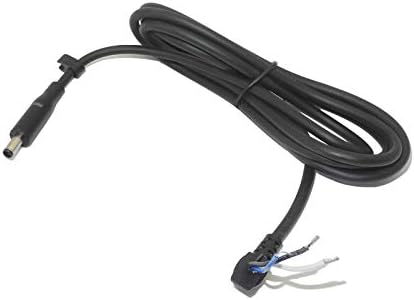
Figure 3.1: Overview of the Huiyuan 4.5x3.0 mm DC Power Cable. The cable is black, coiled, and shows both the male tip plug and the exposed wire end.
Key components include:
- 4.5mm x 3.0mm Male DC Tip: This end connects to the Dell laptop's power input port.
- Cable: Approximately 1.8 meters (5.9 feet) in length, designed to be tangle-free.
- Exposed Wires: The other end of the cable features exposed wires (typically positive, negative, and possibly a signal wire) for soldering or connecting to the internal circuitry of a power adapter.

Figure 3.2: Close-up view of the 4.5x3.0 mm DC male tip plug and the exposed wire end of the cable, showing the internal wiring for connection.
4. Setup and Installation
This cable is primarily intended for repair or custom power adapter projects. Installation typically involves soldering the exposed wires to a compatible power adapter's circuit board. Professional installation is recommended if you are not experienced with electronics repair.
- Identify Wire Polarity: Before connecting, carefully identify the positive, negative, and any signal wires on both the cable and the power adapter's circuit board. Incorrect polarity can damage your laptop or adapter. Consult the original adapter's wiring diagram or a multimeter if unsure.
- Prepare Connections: Strip the insulation from the exposed wires if necessary, ensuring clean copper ends.
- Solder Wires: Carefully solder the cable's wires to the corresponding points on the power adapter's circuit board. Ensure strong, clean solder joints.
- Insulate Connections: After soldering, insulate all exposed connections using heat shrink tubing or electrical tape to prevent short circuits.
- Test Connection: Before reassembling the power adapter, use a multimeter to verify correct voltage and polarity at the DC tip.
- Final Assembly: Reassemble the power adapter casing, ensuring no wires are pinched.
Once the cable is securely attached to the power adapter, you can connect the 4.5x3.0 mm male tip to your compatible Dell laptop's power input port.
5. Operating Instructions
Once the cable is properly installed into a compatible power adapter:
- Connect the 4.5x3.0 mm male tip of the cable to the DC input port on your Dell laptop.
- Plug the power adapter into a suitable electrical outlet.
- Verify that your laptop begins charging or receives power.
Always ensure a snug fit between the cable's tip and the laptop's port. Avoid forcing the connector.
6. Maintenance and Care
To ensure the longevity and optimal performance of your DC power cable:
- Storage: When not in use, coil the cable loosely. Avoid tight coiling or sharp bends, which can damage the internal wires.
- Cleaning: Wipe the cable with a soft, dry cloth to remove dust. Do not use liquid cleaners or abrasive materials.
- Handling: Always grasp the plug when connecting or disconnecting, not the cable itself, to prevent strain on the wire connections.
- Inspection: Periodically inspect the cable for any signs of wear, cuts, fraying, or exposed wires. Discontinue use if damage is observed.
7. Troubleshooting
| Problem | Possible Cause | Solution |
|---|---|---|
| Laptop not charging. |
|
|
| Cable gets hot during use. |
|
|
If troubleshooting steps do not resolve the issue, contact the seller or a qualified technician for assistance.
8. Specifications
| Feature | Detail |
|---|---|
| Product Type | DC Power Male Tip Plug Connector with Cord/Cable |
| Brand | Huiyuan |
| Model Number | LlxxxyyyUz |
| Connector Type | 4.5mm (Outside Diameter) x 3.0mm (Inside Diameter) Male DC Tip |
| Cable Length | Approx. 1.8 meters (5.9 feet) |
| Color | Black |
| Compatible Devices | Dell Laptops (with compatible power adapters) |
| Special Features | Tangle Free |
| Power Source Type | Corded Electric (when connected to adapter) |
9. Warranty and Support
Specific warranty information for this product is not provided in this manual. For details regarding warranty coverage, returns, or technical support, please refer to the product listing on the retailer's website or contact the seller directly. Keep your purchase receipt as proof of purchase.
For general inquiries or further assistance, you may visit the Huiyuan brand page on Amazon.