
1. Introduction
This manual provides comprehensive instructions for the HP Chromebox G2 Mini PC. It covers essential information regarding product setup, operation, maintenance, and troubleshooting. Please read this manual thoroughly before using your device to ensure proper functionality and longevity.
The HP Chromebox G2 is a compact, high-performance mini PC designed for various computing tasks, powered by Chrome OS. Its small form factor makes it suitable for environments where space is limited, while offering robust connectivity and performance.
2. Product Overview
The HP Chromebox G2 is a versatile mini PC featuring an Intel Celeron 3867U processor, 4 GB of RAM, and a 32 GB SSD, running on Chrome OS. It is designed for efficiency and ease of use.
2.1 Device Components
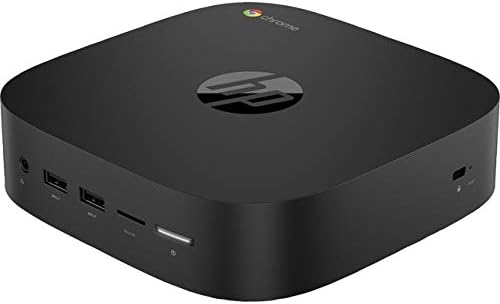
Image: Front and side view of the HP Chromebox G2 Mini PC, highlighting its compact design and accessible ports.
The image above displays the HP Chromebox G2. On the front/side, you can observe several ports for connectivity:
- Headphone/Microphone Combo Jack: For audio input and output.
- USB-A Ports: Multiple ports for connecting peripherals such as keyboards, mice, or external storage devices.
- Micro SD Card Slot: For expanding storage or transferring data from memory cards.
- USB-C Port: A versatile port for data transfer, video output, or power delivery (depending on specific functionality).
- Power Button: To turn the device on or off.
Additional ports, including Ethernet, HDMI, and more USB ports, are typically located on the rear of the device for a clean setup.
3. Setup Instructions
3.1 Connecting to Power
- Connect the power adapter to the power input port on the HP Chromebox G2.
- Plug the power adapter into a wall outlet.
3.2 Connecting to a Display
- Connect an HDMI cable from the HDMI port on the Chromebox G2 to an HDMI input on your monitor or TV.
- Ensure your display is set to the correct HDMI input source.
3.3 Connecting Peripherals
- Keyboard and Mouse: Connect a USB keyboard and mouse to the available USB-A ports. Alternatively, pair Bluetooth peripherals via the Chrome OS settings after initial setup.
- Network: For a wired connection, connect an Ethernet cable from your router to the Ethernet port on the Chromebox G2. For wireless, connect via Wi-Fi during the initial Chrome OS setup.
3.4 Initial Chrome OS Setup
- Press the power button to turn on the device.
- Follow the on-screen prompts to select your language, connect to a Wi-Fi network, and sign in with your Google account.
- Chrome OS will guide you through the remaining setup steps.
4. Operating Instructions
4.1 Powering On and Off
- To Power On: Press the power button located on the device.
- To Power Off: Click the time in the bottom-right corner of the screen, then click the power icon. Alternatively, press and hold the power button for a few seconds.
- To Restart: Click the time in the bottom-right corner, then click the power icon, and select 'Restart'.
4.2 Basic Chrome OS Navigation
Chrome OS is designed for simplicity. Use your connected mouse and keyboard to navigate the desktop, launch applications from the launcher, and browse the web using the Chrome browser.
4.3 Network Connectivity
- Wi-Fi: Click the time in the bottom-right corner, then click the Wi-Fi icon. Select your desired network and enter the password if prompted.
- Bluetooth: Click the time in the bottom-right corner, then click the Bluetooth icon. Ensure Bluetooth is enabled and select 'Pair new device' to connect Bluetooth peripherals.
4.4 Using USB and Micro SD Ports
Insert USB drives into the USB-A or USB-C ports. Insert Micro SD cards into the Micro SD card slot. The Chrome OS Files app will automatically detect and allow you to access the contents of these devices.
5. Maintenance
5.1 Cleaning the Device
- Ensure the device is powered off and unplugged before cleaning.
- Use a soft, lint-free cloth slightly dampened with water or a mild cleaning solution to wipe the exterior.
- Avoid spraying liquids directly onto the device or into any openings.
5.2 Software Updates
Chrome OS automatically manages system updates in the background. You will be prompted to restart your device to apply updates when they are ready. Ensure your device is connected to the internet regularly to receive the latest security patches and features.
5.3 Storage Management
The HP Chromebox G2 comes with 32 GB of SSD storage. While Chrome OS is optimized for cloud storage, regularly check your local storage usage through the Files app. Delete unnecessary files or utilize cloud services like Google Drive to free up space.
6. Troubleshooting
- No Display: Ensure the HDMI cable is securely connected to both the Chromebox and the monitor. Verify the monitor is powered on and set to the correct input source. Try a different HDMI cable or monitor if available.
- No Power: Check that the power adapter is firmly connected to the device and the wall outlet. Test the outlet with another device to confirm it has power.
- Network Connectivity Issues: For Wi-Fi, ensure you are connected to the correct network and have entered the password accurately. For wired connections, check the Ethernet cable and your router's status. Restarting your router and the Chromebox can often resolve temporary network problems.
- Peripheral Not Responding: Ensure USB devices are fully inserted into the ports. For Bluetooth devices, verify they are charged and correctly paired in Chrome OS settings. Try connecting the peripheral to a different port or another computer to rule out device issues.
- Slow Performance: Close unnecessary browser tabs or applications. Ensure Chrome OS is up to date. If issues persist, consider performing a factory reset (Powerwash), which will erase all local data.
For more complex issues or technical support, please refer to the official HP support website or contact HP customer service.
7. Specifications
| Model Number | 7LJ57UT#ABA |
| Operating System | Chrome OS |
| Processor | Intel Celeron 3867U |
| Graphics | Intel HD Graphics 610 (Integrated) |
| RAM | 4 GB |
| Storage | 32 GB SSD |
| Max Screen Resolution | 3840 x 2160 |
| Wireless Connectivity | Bluetooth |
| Ports | USB 3.0, USB-C, Micro SD Card Slot, Ethernet, HDMI, Headphone/Microphone Combo Jack |
| Dimensions (LxWxH) | 5.9 x 5.9 x 1.6 inches |
| Item Weight | 1.3 pounds |
| Power Source | Corded-Electric |
8. Warranty and Support
For information regarding the product warranty, please refer to the documentation included with your HP Chromebox G2 or visit the official HP support website. Warranty terms and conditions may vary by region and purchase date.
For technical assistance, driver downloads, or further support, please visit www.hp.com/support.