
MASO B07VRHZN2J
MASO 10-inch Dual Lens Car DVR Dash Cam User Manual
Model: B07VRHZN2J
1. Safety Information
Please read all instructions carefully before using the device. Improper use may result in damage to the product or vehicle, and may void the warranty. Keep this manual for future reference.
- Do not expose the device to extreme temperatures, direct sunlight for prolonged periods, or high humidity.
- Ensure the device is securely mounted and does not obstruct the driver's view or interfere with vehicle safety features.
- Use only the provided power adapter and cables. Using unauthorized accessories may cause damage or fire.
- Do not attempt to disassemble or repair the device yourself. Contact customer support for assistance.
- Always format the microSD card regularly to ensure optimal recording performance.
2. Package Contents
Verify that all items listed below are included in your package:
- 1 x MASO 10-inch Dual Camera Car DVR Dash Cam (Mirror Unit)
- 1 x Rear Camera
- 1 x Car Charger (Power Cable)
- Mounting Straps (for mirror unit)
- User Manual
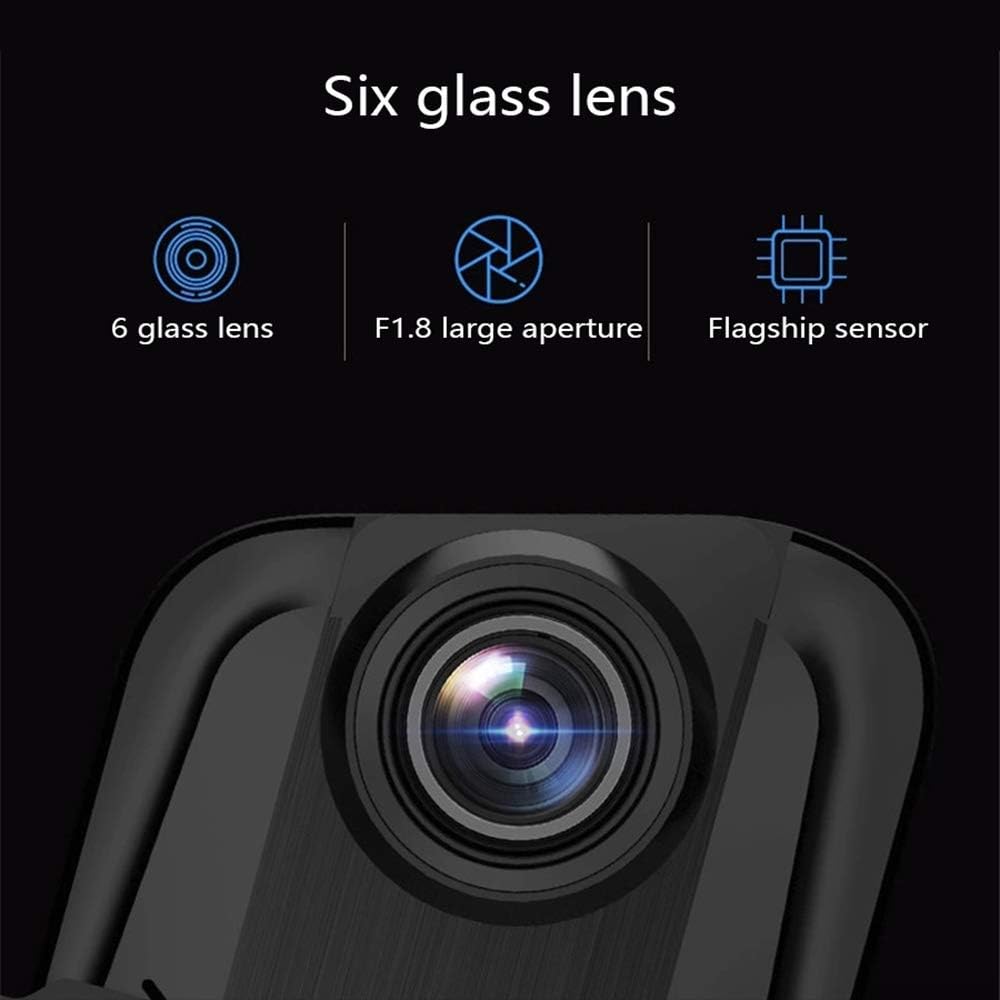
Image: Contents of the MASO 10-inch Dual Lens Car DVR Dash Cam package, including the mirror dash cam, rear camera, car charger, and mounting accessories.
3. Product Overview
The MASO 10-inch Dual Lens Car DVR Dash Cam is designed to provide comprehensive video recording for your vehicle, featuring both front and rear cameras, a large touchscreen display, and advanced recording functionalities.
Key Features:
- Dual Camera Recording: Captures front and rear views simultaneously in 1080P resolution.
- 10-inch Touchscreen Display: Large and intuitive interface for easy operation and video playback.
- G-Sensor Technology: Automatically detects collisions and locks footage to prevent overwriting.
- Loop Recording: Seamlessly overwrites older footage with new recordings to optimize storage space.
- Wide Viewing Angle: Provides a broad field of view, minimizing blind spots.
- Night Vision & WDR: Enhanced low-light performance and Wide Dynamic Range for clear recordings in various lighting conditions.

Image: Front view of the MASO 10-inch Dual Lens Car DVR Dash Cam mounted on a rearview mirror, displaying a live feed.

Image: Various product views of the MASO dash cam, showing the front, top, and bottom perspectives of the mirror unit.
4. Installation
4.1 Front Camera (Mirror Unit) Installation
- Secure the dash cam mirror unit over your existing rearview mirror using the provided rubber straps. Ensure it is firmly attached and does not vibrate.
- Connect the car charger cable to the dash cam's power input port and plug the other end into your vehicle's 12V power outlet (cigarette lighter socket).
- Route the power cable neatly along the windshield trim and dashboard to avoid obstructing your view or interfering with driving.
4.2 Rear Camera Installation
The rear camera can be installed in two primary ways:
Method 1: Inside the Rear Windshield
- Choose a central location on the inside of your rear windshield that provides a clear view.
- Clean the mounting surface thoroughly.
- Attach the rear camera using its adhesive pad.
- Route the rear camera cable to the front mirror unit, typically along the headliner and A-pillar trim.

Image: Diagram illustrating the installation of the rear camera inside the rear windshield of a car.
Method 2: Above the Rear License Plate Light (External)
- Mount the rear camera above your vehicle's rear license plate light using screws or adhesive, ensuring it has a clear view of the road behind.
- Route the rear camera cable into the vehicle's interior, typically through a grommet or existing wiring channel, and then forward to the front mirror unit.
- Connect the rear camera cable to the designated input port on the main mirror unit.

Image: Diagram illustrating the installation of the rear camera externally, positioned above the rear license plate light of a car.
5. Setup
5.1 Inserting the MicroSD Card
Before first use, insert a high-speed (Class 10 or higher) microSD card (not included) into the designated slot on the side of the mirror unit. Ensure the card is inserted correctly until it clicks into place.
5.2 Initial Power On and Formatting
- Once powered, the device will typically turn on automatically with your vehicle's ignition.
- Upon first use or after inserting a new card, the device may prompt you to format the microSD card. It is highly recommended to format the card directly on the device for optimal performance and compatibility.
- Follow the on-screen instructions to complete the formatting process.
5.3 Basic Settings
Access the settings menu via the touchscreen to configure:
- Date and Time: Set the correct date and time for accurate video timestamps.
- Language: Select your preferred language.
- Video Resolution: Confirm 1080P for both front and rear cameras.
- G-Sensor Sensitivity: Adjust the sensitivity of the G-Sensor (impact detection).
- Loop Recording Duration: Set the length of video segments (e.g., 1, 3, or 5 minutes).

Image: A close-up view of the MASO dash cam's 9.66-inch IPS touchscreen display, showing a user interacting with the interface.
6. Operating Instructions
6.1 Automatic Recording
The dash cam automatically begins recording when the vehicle's ignition is turned on and power is supplied. Recording stops when the ignition is turned off.
6.2 Loop Recording
The device records video in continuous loops (e.g., 1, 3, or 5-minute segments). When the microSD card is full, the oldest unlocked files are automatically overwritten by new recordings. This ensures continuous recording without manual intervention.
6.3 G-Sensor (Emergency Recording)
In the event of a sudden impact or collision, the built-in G-Sensor will detect the event and automatically lock the current video segment, preventing it from being overwritten by loop recording. These emergency files are stored in a separate folder on the microSD card.
6.4 Night Vision and WDR
The dash cam features a large aperture lens for improved low-light performance (Night Vision) and Wide Dynamic Range (WDR) technology. WDR helps balance exposure in scenes with high contrast, ensuring clearer video quality in both bright and dark areas.

Image: Illustration of the dash cam's large aperture lens for night vision and a comparison demonstrating the effect of WDR technology on video clarity in varied lighting conditions.
6.5 Touchscreen Operation
Navigate the device's menus, settings, and playback functions by tapping and swiping on the 10-inch touchscreen display. Specific icons and gestures will be displayed on-screen for various controls.
6.6 Playback
To review recorded footage:
- Tap the playback icon on the touchscreen.
- Browse through the video files (normal recordings, locked files).
- Select a file to play it back on the screen.
7. Maintenance
7.1 Cleaning the Device
- Use a soft, dry cloth to clean the dash cam's screen and lens.
- Do not use abrasive cleaners or solvents, as they may damage the surface.
- Ensure the lenses are free of dust and smudges for clear recordings.
7.2 MicroSD Card Management
- Regularly format the microSD card (at least once a month) to maintain optimal performance and prevent data corruption.
- Back up important video files to a computer before formatting.
- Replace the microSD card if it shows signs of degradation or error messages.
8. Troubleshooting
If you encounter issues with your MASO Dash Cam, refer to the following common solutions:
- Device not powering on: Check the car charger connection and ensure the vehicle's 12V outlet is functioning. Try a different power source if available.
- Recording issues (e.g., stops recording, corrupted files): Format the microSD card in the device. Ensure you are using a high-speed (Class 10 or higher) microSD card. Replace the card if issues persist.
- Screen not responding to touch: Restart the device. Ensure the screen is clean and dry.
- Rear camera not displaying: Check the cable connection between the rear camera and the main unit. Ensure the cable is not damaged.
- Poor video quality: Clean the camera lenses. Ensure the protective film has been removed from the lenses. Check settings for correct resolution.
For further assistance, please contact MASO customer support.
9. Specifications
| Feature | Specification |
|---|---|
| Screen Size | 10 inches (Touchscreen) |
| Video Capture Resolution | 1080p (Front & Rear) |
| Recording Format | AVI |
| Storage | Supports MicroSD card (not included) |
| G-Sensor | Yes |
| Loop Recording | Yes |
| Special Features | G-Sensor, Loop Recording, Night Vision, WDR |
| Connectivity Technology | USB |
| Field Of View | 170 Degrees |
| Control Method | Touch |
| Product Dimensions | 0.59"D x 10.04"W x 2.76"H |
| Item Weight | 1.83 pounds |
| Manufacturer | MASO |
10. Warranty and Support
This product comes with a standard manufacturer's warranty. Please refer to the warranty card included in your package or contact MASO customer support for detailed warranty terms and conditions.
For technical support, troubleshooting, or warranty claims, please visit the official MASO website or contact their customer service department using the contact information provided with your purchase.
Ask a question about this manual
Ask about setup, troubleshooting, compatibility, parts, safety, or missing instructions. Manuals+ will review the question and use this page’s manual context to help answer it.