
1. Introduction
The SGEYR HDMI 2.0 Switch Splitter is designed to connect up to three HDMI source devices to a single HDMI display. This device simplifies your home theater setup by allowing you to switch between multiple sources without constantly plugging and unplugging cables. It supports high-resolution video up to 4K@60Hz, including Ultra HD, 3D, and Full HD audio, ensuring no loss of quality.
2. Features
- 3-in-1-Out HDMI Switching: Connects up to three HDMI source devices to one HDMI display.
- IR Remote Control: Conveniently switch between sources from a distance.
- Manual Switching: Features a physical button on the device for direct source selection.
- 4K@60Hz Support: Delivers high-resolution video up to 3840x2160 at 60Hz, compatible with lower resolutions like 4K@30Hz and Full HD 1080P@60Hz.
- HDCP 2.2 Compliant: Ensures compatibility with the latest content protection standards.
- Premium Build: Constructed with a durable metal casing for efficient heat dissipation and enhanced performance.
- Gold-Plated Connectors: 24K gold-plated HDMI input and output ports for improved transmission performance.
- Plug and Play: No software installation required for easy setup and immediate use.
3. Package Contents
- SGEYR HDMI 2.0 Switch Splitter 3 Port
- IR Remote Control
- USB Power Cable (DC 5V)
- User Manual

Image: The package contents, showing the SGEYR HDMI switch, a USB power cable, a user manual, and the IR remote control.
4. Setup Instructions
- Connect HDMI Sources: Plug your HDMI source devices (e.g., gaming console, Blu-ray player, streaming box) into the HDMI Input ports (IN1, IN2, IN3) on the SGEYR switch.
- Connect to Display: Connect an HDMI cable from the HDMI Output port on the SGEYR switch to the HDMI input on your TV or monitor.
- Power Connection: Connect the provided USB power cable to the DC 5V port on the switch and then to a USB power source (e.g., TV USB port, USB wall adapter). The power indicator light will illuminate.
- IR Remote Setup: Ensure the IR receiver on the switch is unobstructed for optimal remote control functionality. Insert batteries into the IR remote control (batteries not included).

Image: A visual representation of the SGEYR HDMI switch connected to a laptop, gaming console, and TV box as input sources, with a single output going to a television. The remote control is also shown.
5. Operating Instructions
The SGEYR HDMI switch offers two methods for switching between your connected HDMI sources:
5.1. Using the IR Remote Control
- Point the IR remote control directly at the IR receiver on the front of the HDMI switch.
- Press the corresponding number button (1, 2, or 3) on the remote to select your desired HDMI input source.
- The LED indicator on the switch will light up to show the currently active input.
5.2. Using the Manual Select Button
- Press the "Select" button on the front of the HDMI switch to cycle through the available input sources (IN1, IN2, IN3).
- Each press will advance to the next active input. The corresponding LED indicator will illuminate.

Image: The SGEYR HDMI switch showing its input and output ports, power connection, and the manual select button with corresponding LED indicators for each input.
Video: An official product video demonstrating the SGEYR HDMI 2.0 Switch Splitter with its remote control, showcasing how to switch between different HDMI sources.
6. Maintenance
- Keep the device in a cool, dry place away from direct sunlight and heat sources.
- Clean the device with a soft, dry cloth. Avoid using liquid or aerosol cleaners.
- Ensure all cables are securely connected to prevent signal loss or flickering.
- The metal casing is designed for efficient heat dissipation. Ensure proper ventilation around the device.
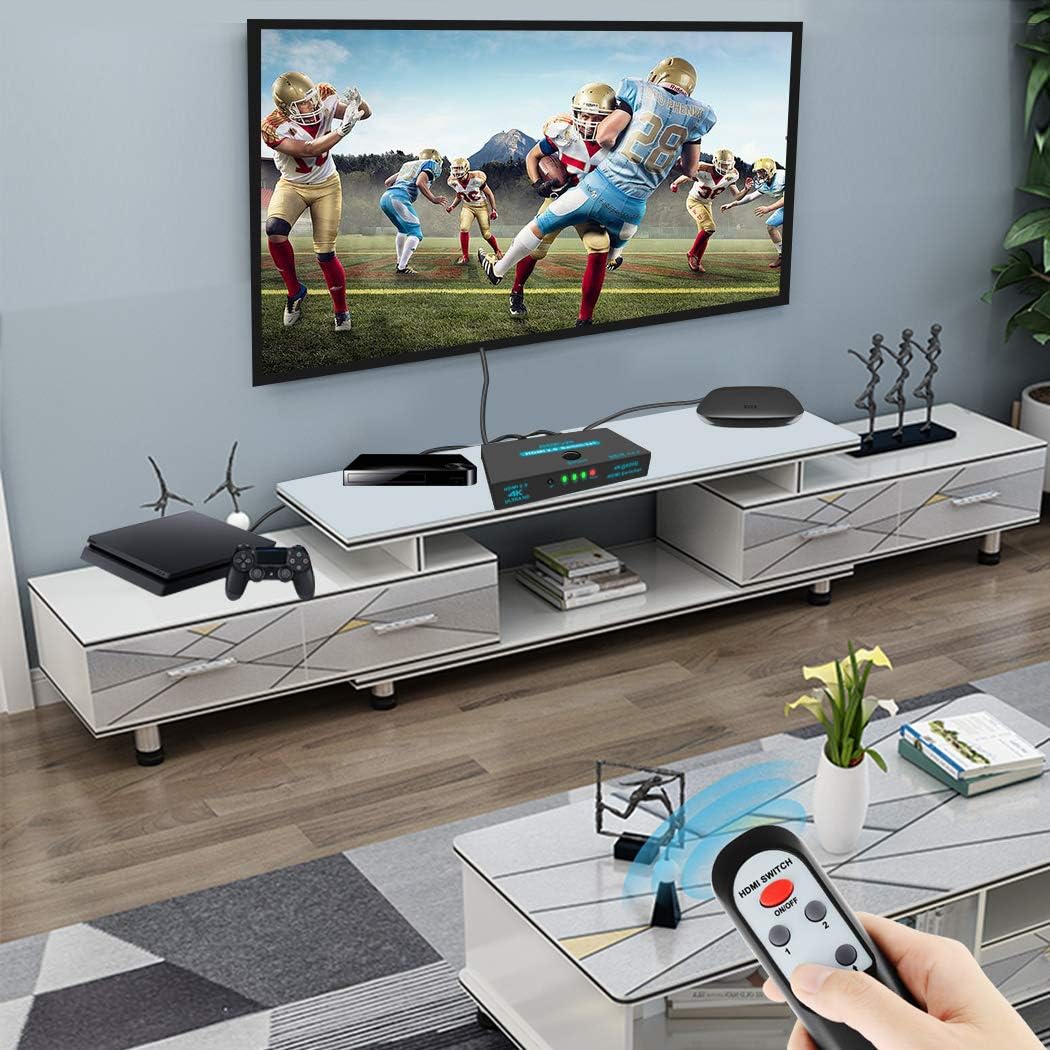
Image: A detailed view of the SGEYR HDMI switch, highlighting the professional venting holes on both sides of the product, designed for faster heat dissipation and enhanced performance.
7. Troubleshooting
- No Picture/Signal:
- Ensure the HDMI switch is powered on and the power LED is lit.
- Verify all HDMI cables are securely connected to both the source devices and the display.
- Try selecting the input source manually using the button on the switch.
- Test with different HDMI cables, as faulty cables can cause signal issues.
- Ensure your display is set to the correct HDMI input channel.
- Flickering Screen/Poor Picture Quality:
- Check if the HDMI cables are high-quality and support 4K resolution.
- Reduce the length of HDMI cables if possible, especially for 4K signals.
- Ensure the power supply is stable.
- IR Remote Not Working:
- Check and replace the batteries in the remote control.
- Ensure there are no obstructions between the remote and the IR receiver on the switch.
- Confirm the remote is pointed directly at the IR receiver.
- Automatic Switching Issues:
- Some devices may not provide a strong enough signal to trigger automatic switching. Use the manual button or remote in such cases.
- If the switch is constantly changing inputs, ensure only one source device is active at a time, or use manual switching.
8. Specifications
| Feature | Specification |
|---|---|
| Product Dimensions | 4.33 x 1.57 x 0.79 inches |
| Item Weight | 10.6 ounces |
| Color | Black |
| Connector Type | HDMI |
| Compatible Devices | Television, Gaming Consoles, Blu-ray Players, Streaming Devices |
| HDMI Standard | HDMI 2.0, HDCP 2.2 |
| Supported Resolutions | 4K x 2K, 1080P, Ultra HD, 3D (up to 4K@60Hz) |
| Power Supply | DC 5V (via USB cable) |
| Manufacturer | SGEYR US |
9. Warranty and Support
SGEYR provides a worry-free 12-month technical support for this product. If you encounter any problems with the HDMI Switch or its accessories (such as the IR Remote) during use, please feel free to contact SGEYR customer support for assistance.
For further support, please visit the SGEYR Store on Amazon.