
1. Introduction
The JWCOM Smart Wi-Fi Switch SA-01 is a compact and efficient module designed to transform your home into a smart, connected environment. This device allows you to remotely control various electrical appliances through a dedicated mobile application, integrating seamlessly with your existing Wi-Fi network. It provides convenience and energy management capabilities for modern smart homes.
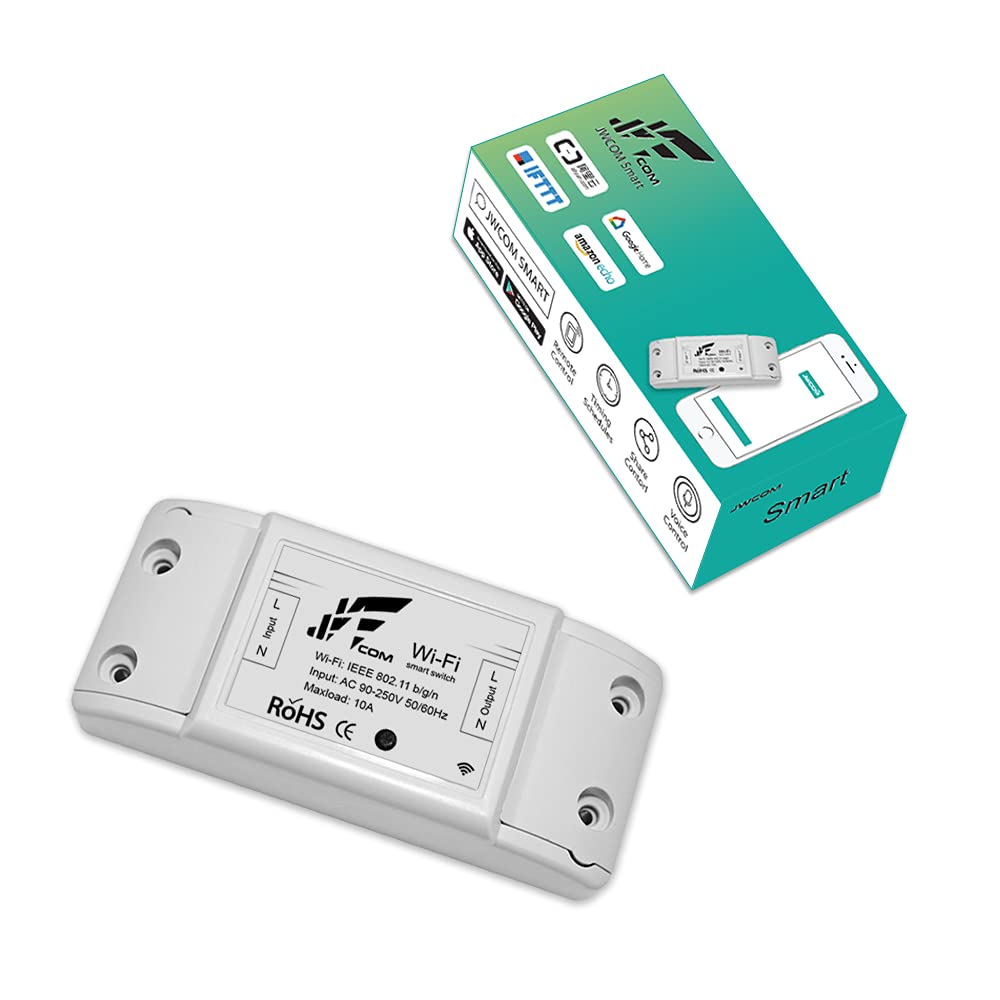
Figure 1: Front view of the JWCOM Smart Wi-Fi Switch SA-01, showing input/output terminals and Wi-Fi indicator.
2. Safety Information
- Electrical Hazard: Installation should only be performed by qualified personnel. Ensure power is disconnected at the circuit breaker before installation or maintenance.
- Voltage Compatibility: This device operates with AC 90-250V. Verify your electrical system's voltage before connecting.
- Load Capacity: Do not exceed the maximum load of 10A or 1270W (at 127V) / 2200W (at 220V). Overloading can cause damage or fire.
- Environmental Conditions: Operate within 0°C to 40°C and 5% to 90% humidity (non-condensing). Avoid exposure to extreme temperatures, moisture, or direct sunlight.
- Indoor Use Only: This device is designed for indoor use.
3. Product Features
The JWCOM Smart Wi-Fi Switch SA-01 offers a range of features for smart home integration:
- Universal Compatibility: Connects to various types and brands of electrical appliances.
- Remote Control: Control connected devices from anywhere using the JWCOM Smart mobile application.
- Voice Control: Compatible with voice assistants like Amazon Alexa for hands-free operation.
- Scheduling & Timers: Create custom schedules, countdown timers, and loop timers for automated operation.
- Real-time Status: Monitor the on/off status of connected appliances in real-time via the app.
- Local Control: Includes a physical button for manual on/off control directly on the module.
- Robust Connectivity: Supports Wi-Fi 802.11 b/g/n (2.4GHz) with WPA/WPA2 security.
- Compact Design: Small form factor (9 x 4 x 2.5 cm) for easy integration into existing electrical boxes or installations.

Figure 2: Exploded view illustrating the internal components and compact design of the smart switch.
4. Specifications
| Model | SA-01 |
| Brand | JWCOM |
| Input Voltage | AC 90-250V, 50/60Hz |
| Max Current | 10A |
| Max Power | 1270W (127V) / 2200W (220V) |
| Standby Power | Approx. 0.5W |
| Wi-Fi Standard | IEEE 802.11 b/g/n |
| Wi-Fi Frequency | 2.4GHz |
| Operating Temperature | 0°C to 40°C |
| Operating Humidity | 5% to 90% (non-condensing) |
| Dimensions (L x W x H) | 9 cm x 4 cm x 2.5 cm |
| Weight | 50 g |
| Material | ABS (Flame Retardant) |
5. Setup and Installation
5.1 Wiring Diagram
Before proceeding with installation, ensure the main power supply is turned off at the circuit breaker to prevent electrical shock. Connect the JWCOM Smart Wi-Fi Switch SA-01 according to the following diagram:
- Identify the Live (L) and Neutral (N) wires from your power source.
- Connect the Live (L) wire from the power source to the Input L terminal on the switch.
- Connect the Neutral (N) wire from the power source to the Input N terminal on the switch.
- Connect the Live (L) wire of your appliance to the Output L terminal on the switch.
- Connect the Neutral (N) wire of your appliance to the Output N terminal on the switch.
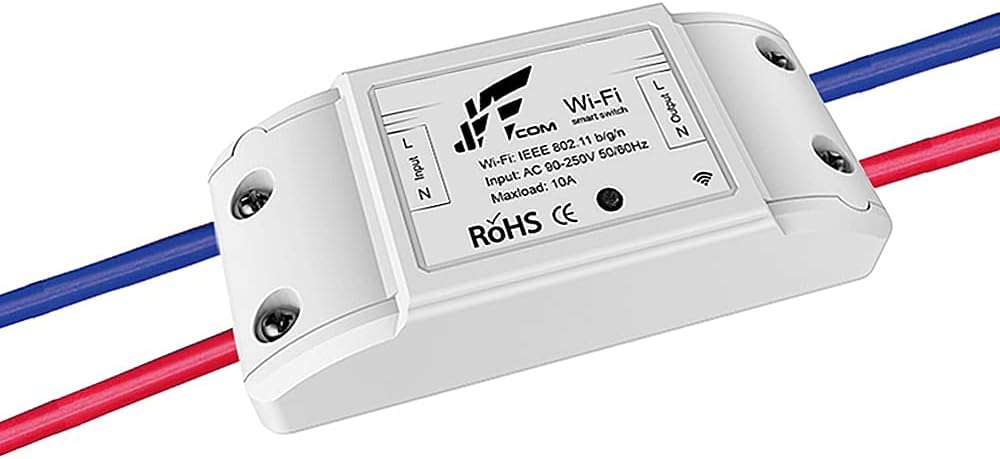
Figure 3: Wiring connections for the smart switch, showing input and output terminals for Live (L) and Neutral (N) wires.
Ensure all connections are secure. After wiring, you can restore power to the circuit.
5.2 App Download and Pairing
- Download the App: Search for "JWCOM Smart" in the Apple App Store (for iOS) or Google Play Store (for Android) and download the application.
- Register/Login: Open the app and create a new account or log in with an existing one.
- Enter Pairing Mode: With the device powered on, press and hold the physical button on the SA-01 switch for approximately 5-7 seconds until the Wi-Fi indicator light starts blinking rapidly. This indicates it's in pairing mode.
- Add Device in App: In the JWCOM Smart app, tap the "+" icon (usually in the top right corner) to add a new device. Select "Electrical Switch" or a similar category.
- Connect to Wi-Fi: Follow the on-screen instructions to connect the device to your 2.4GHz Wi-Fi network. Enter your Wi-Fi password when prompted.
- Completion: Once successfully paired, the Wi-Fi indicator light will stop blinking and remain solid. You can then rename your device in the app for easy identification.

Figure 4: Conceptual diagram illustrating the smart switch's connection to a router and remote control via a smartphone application.
6. Operating Instructions
6.1 Manual Control
The JWCOM Smart Wi-Fi Switch SA-01 features a physical button for direct control. Press the button once to toggle the connected appliance on or off. This is useful when remote control is not available or preferred.
6.2 App Control (JWCOM Smart App)
After successful pairing, you can control your device using the JWCOM Smart app:
- On/Off Toggle: Tap the device icon in the app to turn the connected appliance on or off. The app will display the real-time status.
- Scheduling: Set daily or weekly schedules for automatic on/off operations.
- Timers: Use countdown timers for temporary operations or loop timers for repetitive tasks.
- Scenes: Create custom scenes to control multiple smart devices simultaneously with a single tap or command.
- Device Sharing: Share control of the device with family members through the app.
6.3 Voice Control (Alexa)
The JWCOM Smart Wi-Fi Switch SA-01 is compatible with Amazon Alexa. To enable voice control:
- Enable Skill: Open the Alexa app, go to "Skills & Games," and search for "JWCOM Smart" (or a similar skill name if specified by JWCOM). Enable the skill.
- Link Account: Link your JWCOM Smart account with your Alexa account by following the on-screen prompts.
- Discover Devices: Ask Alexa to "Discover devices" or manually initiate device discovery in the Alexa app.
- Voice Commands: Once discovered, you can use voice commands such as:
- "Alexa, turn on [Device Name]"
- "Alexa, turn off [Device Name]"
- "Alexa, is [Device Name] on?"
7. Maintenance
- Cleaning: Disconnect power before cleaning. Use a soft, dry cloth to wipe the device. Do not use liquid cleaners or sprays.
- Firmware Updates: Periodically check the JWCOM Smart app for available firmware updates to ensure optimal performance and security.
- Environmental Check: Ensure the operating environment remains within specified temperature and humidity ranges to prolong device lifespan.
8. Troubleshooting
| Problem | Possible Cause | Solution |
|---|---|---|
| Device not powering on. | No power supply; incorrect wiring; faulty device. | Check circuit breaker. Verify wiring connections (Live and Neutral). If issues persist, contact support. |
| Cannot connect to Wi-Fi. | Incorrect Wi-Fi password; 5GHz Wi-Fi network; device too far from router; device not in pairing mode. | Ensure correct 2.4GHz Wi-Fi password. Move device closer to router. Put device into pairing mode (rapidly blinking light). |
| App shows device offline. | Wi-Fi disconnected; device lost power; router issues. | Check Wi-Fi router and internet connection. Verify device has power. Try restarting the device and router. |
| Alexa not responding to commands. | Skill not enabled; account not linked; device not discovered; incorrect device name. | Ensure "JWCOM Smart" skill is enabled and accounts are linked in the Alexa app. Ask Alexa to "Discover devices." Use the exact device name configured in the app. |
9. Warranty and Support
For warranty information and technical support, please refer to the documentation included with your purchase or visit the official JWCOM website. You may also contact JWCOM customer service directly for assistance with product issues or inquiries.
Manufacturer: JWCOM
ASIN: B07VMZBLJC