
1. Introduction
This manual provides comprehensive instructions for the setup, operation, maintenance, and troubleshooting of your Creality Ender 3 V3 KE 3D Printer. Please read this manual thoroughly before operating the printer to ensure safe and efficient use.

Figure 1: Creality Ender 3 V3 KE 3D Printer Overview.
2. Key Features
The Creality Ender 3 V3 KE 3D Printer is designed for high-speed, high-quality 3D printing with user-friendly features. Key features include:
- Faster Intuitive Printing Experience: Achieves print speeds up to 500mm/s with 8000mm/s² acceleration, significantly reducing print times. Features a responsive touch UI screen with real-time model preview and vivid motion graphics.
- "Sprite" Direct Extruder: Equipped with a 60W ceramic heater, bi-metal heatbreak, and copper nozzle, enabling printing temperatures up to 300°C. Supports a wide range of filaments including PLA, PETG, ABS, TPU, and ASA.
- Ultra-Smooth Motion and Stable Structure: Features a stiff steel linear rail on the X-axis with ball bearings for smooth, accurate, and steady movement. Rigid dual Z-axis lead screws reduce Z-wobbling, and the Y-axis uses two 8mm linear shafts for wear resistance.
- Upgraded Design with Smart Algorithms: Incorporates smart algorithms to mitigate printer vibrations, reducing ringing or ghosting. Optimizes feeding flow to minimize blobs and oozes. Dual cooling fans on the print head ensure rapid and even model cooling.
- Convenient Printing Methods: Supports CR Touch auto-leveling for precise first layer adhesion. Offers multiple printing methods including phone control, WiFi, and USB drive.

Figure 2: Visual representation of key features.

Figure 3: Core components and their functions.
Video 1: Overview of main features and advantages of the Ender 3 V3 KE 3D printer.
3. Setup Guide
The Creality Ender 3 V3 KE is designed for quick assembly, making it user-friendly even for beginners.
3.1 Unpacking and Initial Assembly
Carefully remove all components from the packaging. Follow the included quick assembly guide for step-by-step instructions. Ensure all screws are tightened securely.
3.2 Power Connection
Connect the power cable to the printer and a suitable power outlet. Ensure the voltage switch (if present) is set correctly for your region (100-120V or 200-240V).
3.3 Auto-Leveling with CR Touch
The printer features CR Touch for automatic bed leveling. Power on the printer and navigate to the auto-leveling function on the touch screen UI. The printer will perform multi-point detection to accurately map the print surface, ensuring a perfect first layer without manual adjustments.
3.4 Filament Loading
The Ender 3 V3 KE supports automatic filament loading. Insert the filament into the extruder's input port. Follow the on-screen prompts or refer to the quick start guide for specific instructions on initiating the auto-loading process.

Figure 4: Getting started with quick assembly and auto-features.
4. Operating Instructions
Operating your Ender 3 V3 KE is streamlined through its intuitive interface and multiple connectivity options.
4.1 User Interface (UI) Navigation
The printer features a 4.3-inch color touch screen UI. Navigate through menus using the intuitive tab bar. The UI provides real-time model preview and vivid motion graphics of printing parameters.

Figure 5: Smart UI for easy control.
4.2 Printing Methods
You can initiate prints using three primary methods:
- Phone Control: Utilize the Creality Cloud app on your smartphone for remote control and monitoring.
- WiFi (LAN Printing): Connect the printer to your local network for data-secure LAN printing.
- USB Drive: Transfer G-code files to a USB drive and insert it into the printer's USB port for direct printing.

Figure 6: Multiple ways to initiate printing.
4.3 Slicing Software
Prepare your 3D models for printing using compatible slicing software such as Creality Print, Cura, or Simplify3D. These programs convert your 3D models (STL, OBJ, AMF) into G-code, which the printer understands.
4.4 High-Speed Printing
The Ender 3 V3 KE is capable of extraordinary printing speeds up to 500mm/s. For optimal results at high speeds, especially with Hyper PLA, ensure your filament is properly dried and the printer's settings are configured for speed.

Figure 7: Speed comparison of the Ender 3 V3 KE.
5. Maintenance
Regular maintenance ensures the longevity and optimal performance of your 3D printer.
5.1 Cleaning the Build Plate
The PEI flexible build plate is easy to adhere to and remove prints from. After each print, allow the plate to cool and gently flex it to pop off the print. Clean the surface with isopropyl alcohol to remove any residue and ensure good adhesion for subsequent prints.
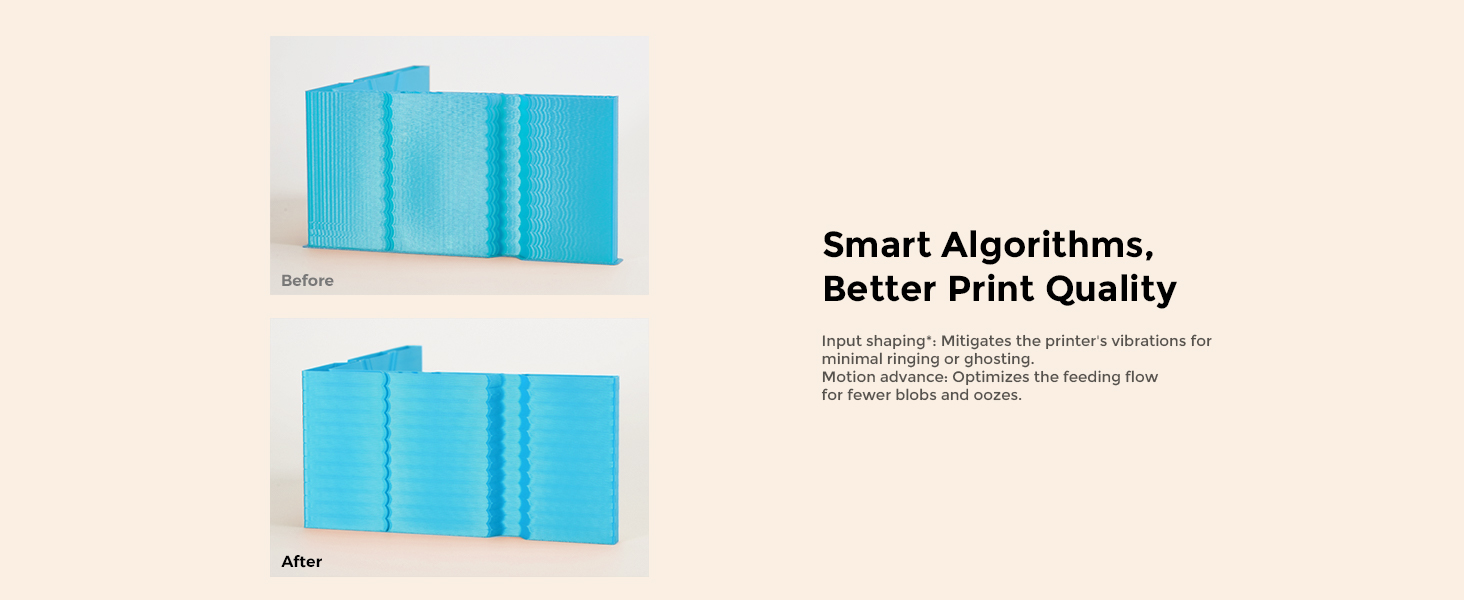
Figure 8: PEI Flexible Plate for easy print removal.
5.2 Extruder and Nozzle Care
The "Sprite" Direct Extruder is robust, but regular inspection of the nozzle for wear or clogs is recommended. The 60W ceramic heater and bi-metal heatbreak are designed for high temperatures, but ensure proper cooling after prints. The dual cooling fans on the print head help cool models rapidly and evenly; keep these fans free from dust and debris.

Figure 9: Dual fans for rapid model cooling.
5.3 Linear Rail and Lead Screw Lubrication
The X-axis linear rail and dual Z-axis lead screws are critical for smooth motion. Periodically inspect them for dust or filament debris. Apply a small amount of appropriate lubricant (e.g., lithium grease for lead screws, light machine oil for linear rails) as needed to maintain smooth operation and prevent wear.

Figure 10: X-axis linear rail for ultra-smooth motion.
6. Troubleshooting
This section addresses common issues you might encounter and their potential solutions.
6.1 Print Quality Issues (Ringing, Ghosting, Blobs, Oozes)
The Ender 3 V3 KE features smart algorithms to improve print quality. If you observe issues like ringing (vibrations appearing as ripples), ghosting (faint duplicates of features), blobs (excess material), or oozes (unwanted filament leakage), ensure the printer's firmware is up to date. Verify that the "Input Shaping" and "Motion Advance" functions are enabled in the settings, as these are designed to mitigate such artifacts.

Figure 11: Improved print quality with smart algorithms.
6.2 Poor First Layer Adhesion
If prints are not sticking to the build plate:
- Re-run Auto-Leveling: Even with CR Touch, it's good practice to re-run the auto-leveling process if adhesion issues persist.
- Clean Build Plate: Ensure the PEI flexible plate is clean and free of grease or dust. Use isopropyl alcohol.
- Z-Offset Adjustment: Fine-tune the Z-offset if the nozzle is too far or too close to the bed. A slight adjustment can significantly improve adhesion.
- Bed Temperature: Verify the bed temperature is appropriate for the filament type being used.
6.3 Filament Not Extruding / Clogging
If filament is not coming out of the nozzle or is extruding inconsistently:
- Check for Clog: Heat the hotend to printing temperature and try to manually push filament through. If resistance is high, the nozzle might be clogged. Use a needle or cold pull method to clear it.
- Verify Extruder Gear: Ensure the extruder gear is clean and gripping the filament properly.
- Filament Path: Check for any kinks or obstructions in the filament path from the spool to the extruder.
- Temperature Settings: Confirm the hotend temperature is sufficient for the filament type.
7. Specifications
Detailed technical specifications for the Creality Ender 3 V3 KE 3D Printer:
| Feature | Specification |
|---|---|
| Model Name | Ender 3 V3 KE |
| Build Volume | 220x220x240mm (8.66 x 8.66 x 9.44 inches) |
| Product Dimensions | 17.32"D x 17.32"W x 18.31"H (433*366*490mm) |
| Item Weight | 17.2 pounds (7.8kg Net Weight) |
| Extruder | Upgraded 'Sprite' direct drive extrusion |
| Leveling Mode | Hands-free auto leveling (CR Touch) |
| Display Screen | 4.3" color touch screen |
| Mainboard | 32-bit silent mainboard (Creality OS based on Klipper) |
| Typical Printing Speed | 300mm/s |
| Max. Printing Speed | 500mm/s (with Hyper PLA) |
| Max. Acceleration | 8000mm/s² |
| Printing Accuracy | ±0.1mm |
| Layer Height | 0.1-0.35mm |
| Filament Diameter | 1.75mm |
| Nozzle Diameter | 0.4mm (default) |
| Nozzle Temperature | ≤300°C |
| Heated Bed Temperature | ≤100°C |
| Build Surface | PEI flexible build plate |
| Supported Filaments | PLA, PETG, ABS, TPU(95A), ASA |
| File Transfer | USB Drive, LAN, Creality Cloud APP |
| Slicing Software | Creality Print, Cura, Simplify3D |
| Printable File Format | G-code |
| Power Loss Recovery | Yes |
| Filament Runout Sensor | Yes |
| Vibration Compensation Sensor | Optional |
| UI Languages | English, Español, Deutsche, Français, Русский, Português, Italiano, Türk, 日本語, 中文 |
| Rated Voltage | 100-120V~, 200-240V~ 50/60Hz |
| Rated Power | 350W (On-mode power consumption: 60.0 watts) |

Figure 12: Detailed specifications table.
8. Warranty and Support
Comgrow, as the first seller of Creality 3D on Amazon, is committed to providing high-quality products and excellent after-sales service. For any technical assistance, warranty claims, or support inquiries, please contact Comgrow's technical staff. They have over 20 technical staff dedicated to providing professional support to all customers.
For further information and resources, please visit the official Comgrow store: Comgrow Store on Amazon.


