1. Introduction
This manual provides instructions for the XPPen Deco 01 V3 Drawing Tablet. The Deco 01 V3 is designed for digital art, remote teaching, and animation, offering a large active area and advanced stylus technology. It features an upgraded X3 Smart Chip stylus with 16,384 pressure levels and 60° tilt support, aiming to provide a natural drawing experience. The tablet is compatible with various operating systems and software applications.

2. What's in the Box
Verify that all components are present in the package:
- 1 x Deco 01 V3 Drawing Tablet
- 1 x Stylus
- 10 x Replacement Nibs
- 1 x Stylus Stand
- 1 x Anti-fouling Drawing Glove
- 1 x Protective Film
- 1 x USB-C to USB-A Cable
- 1 x USB to USB-C Adapter
- 1 x Quick Guide

3. Setup Guide
3.1 Driver Installation
- Before connecting the tablet, uninstall any existing tablet drivers from your computer.
- Download the latest driver for the Deco 01 V3 from the official XP-Pen website (www.xp-pen.com/download/index).
- Run the installer and follow the on-screen instructions. Restart your computer if prompted.
3.2 Connecting the Tablet
- For Windows/macOS/Linux/Chrome OS: Connect the Deco 01 V3 to your computer using the provided USB-C to USB-A cable.
- For Android Devices: Connect the tablet to your Android phone or tablet using the USB-C to USB-A cable and the USB to USB-C adapter. Ensure your Android device supports OTG function.
Note: For optimal performance, ensure your Windows is updated to version 11 or your Mac to version 12 or newer.


4. Operating Instructions
4.1 Stylus Usage
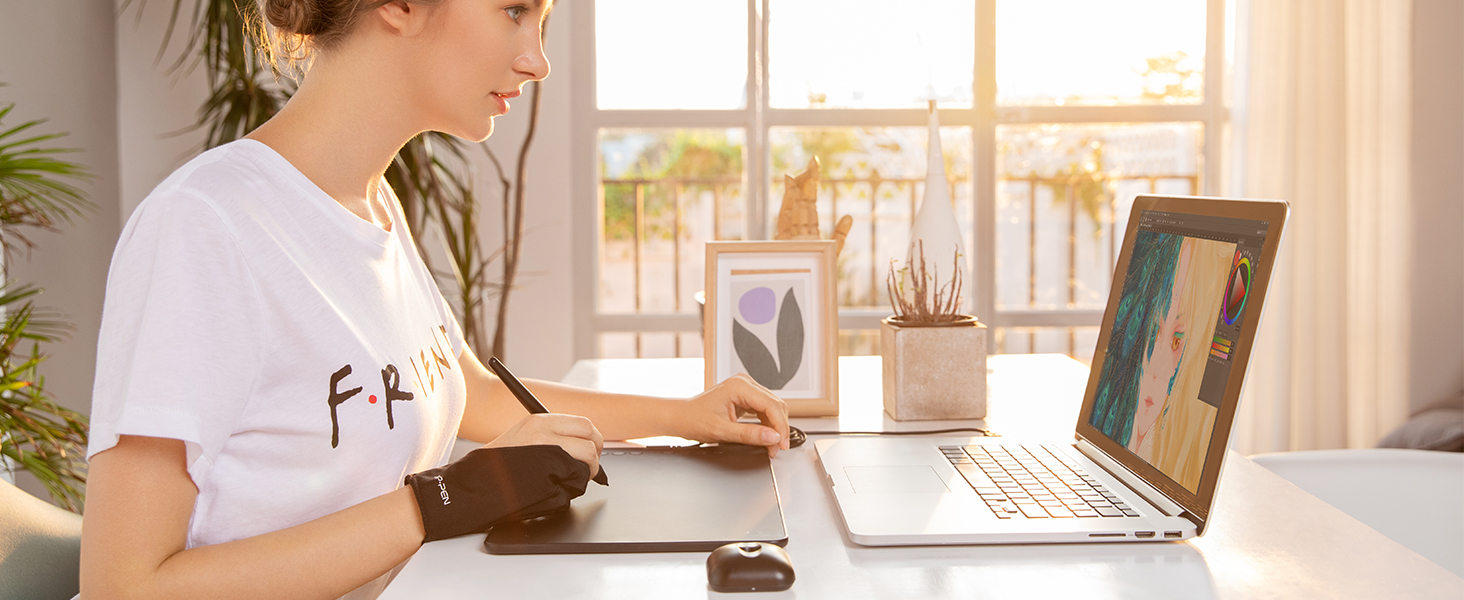
The X3 Smart Chip stylus is battery-free and offers 16,384 pressure levels, allowing for precise control over line thickness and opacity. It also supports up to 60° of tilt brush effect for natural shading. The stylus includes two programmable buttons that can be customized via the driver settings for functions like right-click or quick-switch between pen and eraser modes.
4.2 Shortcut Keys
The Deco 01 V3 tablet features 8 customizable shortcut keys on its side. These keys can be programmed through the driver interface to perform various functions, such as zoom in/out, undo/redo, brush size adjustment, or switching tools. Customizing these keys can significantly improve workflow efficiency.

4.3 Android Mode
When connected to an Android device, the tablet automatically adjusts its active area to match the aspect ratio of your smartphone or tablet. For precise mapping and screen aspect ratio adjustments, it is recommended to download the XPPen Tools app.
5. Key Features
- X3 Smart Chip Stylus: Delivers 16,384 pressure levels and 60° tilt support for enhanced precision and natural drawing.
- Ambidextrous Design: Suitable for both left and right-handed users, with programmable keys for efficient workflow.
- Large Active Area: A 10 x 6.25 inch workspace provides ample room for creative tasks.
- Ultra-Slim and Portable: With an 8mm thickness, the tablet is lightweight and easy to transport.
- Wide Compatibility: Supports Windows 7+, Android 10.0+, macOS 10.13+, Chrome OS 88+, and Linux. Works with popular design software like Photoshop, Corel Painter, Illustrator, and Clip Studio.


6. Maintenance
- Cleaning: Use a soft, dry cloth to clean the tablet surface and stylus. Avoid abrasive cleaners or solvents.
- Nib Replacement: Replace the stylus nib when it becomes worn to maintain optimal drawing performance. Use the included nib remover tool to carefully pull out the old nib and insert a new one.
- Storage: Store the tablet and stylus in a cool, dry place away from direct sunlight and extreme temperatures.
7. Troubleshooting
- No Pen Pressure: Ensure the latest driver is installed correctly. Check if other tablet drivers are conflicting. Reinstall the driver if necessary.
- Tablet Not Responding: Verify that the USB cable is securely connected to both the tablet and the computer/Android device. Try a different USB port or cable.
- Stylus Not Working: Confirm the stylus nib is properly inserted. Since the stylus is battery-free, no charging is required.
- Android Connection Issues: Ensure your Android device supports OTG functionality. Test with the XPPen Tools app for aspect ratio adjustments.
- Software Compatibility: If experiencing issues with specific software, check the software's preferences for tablet input settings.
8. Specifications
| Feature | Specification |
|---|---|
| Product Dimensions | 13.8 x 8.5 x 0.3 inches |
| Item Weight | 1.26 pounds |
| Item Model Number | DECO01V3 |
| Connectivity Technology | USB |
| Pressure Sensitivity | 16384 Levels (X3 Smart Chip) |
| Tilt Support | 60 Degrees |
| Report Rate | 220 RPS |
| Active Area | 10 x 6.25 inches |
| Operating System Compatibility | Windows 7+, Android 10.0+, macOS 10.13+, Chrome OS 88+, Linux |
| Special Features | 8 Custom Shortcuts, Battery-Free Stylus, 8mm Ultra-Slim Design |
9. Warranty and Support
XPPen offers a 1-year protection plan for all products. For support, returns, and refunds, please contact XPPen customer service. You can reach out via Amazon Message for any product-related inquiries.
XPPen is committed to providing support and service to its users. For further assistance, visit the official XP-Pen website or contact their customer support channels.