Introduction
This manual provides comprehensive instructions for the installation, operation, and maintenance of your hizpo Android 12 Car Stereo. Please read this manual thoroughly before using the product to ensure proper functionality and safety. Keep this manual for future reference.
Vehicle Compatibility
This hizpo Android 12 Car Stereo is designed for specific Mercedes-Benz models:
- Mercedes-Benz A-Class W169 (2004-2012): A150 / A160 / A170 / A180 / A200
- Mercedes-Benz B-Class W245 (2004-2012): B160 / B170 / B180 / B200
- Mercedes-Benz V-Class W639 (2006-2014): Vito / Viano
- Mercedes-Benz Sprinter W906 (2006-2012): Sprinter 2500 / Sprinter 3000
Important Note: If your vehicle is equipped with an amplification system (e.g., Bose, JBL), additional wiring harnesses may be required. Please contact hizpo support for further assistance before installation.
Setup and Installation
Professional installation is recommended for this car stereo system. Incorrect installation can lead to damage to the unit or your vehicle's electrical system. Ensure the vehicle's battery is disconnected before beginning installation.
1. Unpacking and Inspection
Carefully unpack all components and verify that all items listed in the packing list are present and undamaged. Report any discrepancies or damage to your retailer immediately.

Figure 1: The hizpo Android 12 Car Stereo unit. This image displays the front view of the car stereo, featuring an 8-inch touchscreen display, physical buttons on the left and right sides for functions like Menu, Navigation, Band, EQ, Mode, and volume knobs.
2. Wiring Connections
Connect the provided wiring harnesses to the corresponding ports on the car stereo and your vehicle's wiring system. Pay close attention to power, speaker, and accessory connections. Refer to your vehicle's specific wiring diagram if necessary.
- Power: Connect the constant power (B+), accessory power (ACC), and ground wires.
- Speakers: Connect each speaker wire to its corresponding output on the stereo. Ensure correct polarity.
- Antenna: Connect the radio antenna cable.
- GPS Antenna: Mount the GPS antenna in a location with a clear view of the sky, typically on the dashboard.
- USB Cables: Route USB extension cables to an accessible location for connecting external devices.
- Rear View Camera: If installing a rear view camera, connect its video input and power wires as per the camera's instructions.

Figure 2: Visual comparison of the car's dashboard before and after the hizpo car stereo installation. The left panel shows the original factory radio, while the right panel displays the new Android 12 unit seamlessly integrated into the dashboard, highlighting the improved display and interface.
3. Initial Power-On and Configuration
After all connections are secure, reconnect the vehicle's battery. Turn on the ignition. The stereo should power on. Follow the on-screen prompts for initial setup, including language selection, time zone, and Wi-Fi connection.
Operating Instructions
1. Basic Interface Navigation
The stereo operates on Android 12. Navigate the interface using the touchscreen. Swipe left/right to access different home screens or app drawers. Tap icons to open applications. The physical buttons on the unit provide quick access to common functions like volume, menu, and navigation.

Figure 3: A detailed view of the Android car stereo's home screen, illustrating various features such as navigation, weather display, local music playback, split-screen functionality, customizable app icons, Bluetooth phone interface, and radio functions. This image demonstrates the intuitive layout and accessibility of key features.
2. Apple CarPlay and Android Auto
The unit supports both wired and wireless Apple CarPlay and Android Auto. Connect your smartphone via USB or Wi-Fi to access phone functions directly on the stereo display.
- Wired Connection: Connect your phone to the stereo's USB port using a compatible cable.
- Wireless Connection: Enable Wi-Fi and Bluetooth on your phone and connect to the stereo's hotspot. Follow the on-screen prompts to initiate CarPlay or Android Auto.

Figure 4: This image showcases the Apple CarPlay and Android Auto interfaces running on the hizpo car stereo. It highlights how phone applications like navigation, music, and messaging are integrated into the car's display, making driving safer and more convenient. The image also illustrates both wired and wireless connection options.
3. Navigation
Utilize the built-in GPS module for navigation. The unit supports online navigation applications like Google Maps. Ensure the GPS antenna is properly installed for optimal signal reception.
4. Media Playback (Music, Video, Radio)
- Music: Play audio files from USB, internal storage, or streaming apps. Supports MP3, WMA, FLAC, and other formats.
- Video: Play video files from USB or internal storage. Supports AVI, MP4, MKV, and other formats up to 1920x1080 pixels.
- Radio: Access FM/AM radio stations. The RDS function provides station information.
5. Bluetooth Connectivity
The unit features Bluetooth 5.0 for stable and long-distance connections.
- Bluetooth Music: Stream audio from your phone. Control playback (play/pause, next/previous) from the stereo.
- Phone Calls: Make and receive calls hands-free. Download your phonebook to the unit for easy access. View dialed, received, and missed calls.
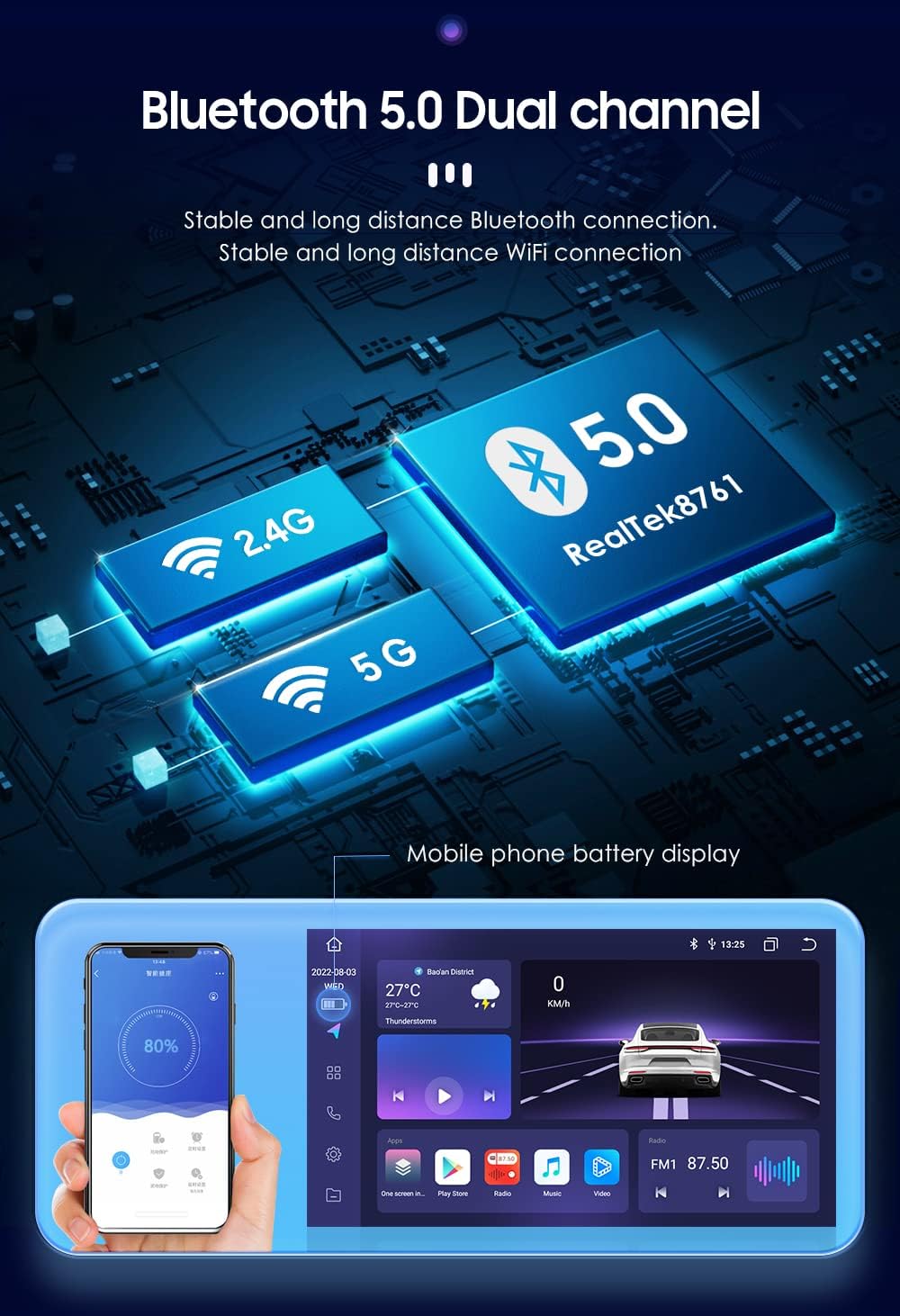
Figure 5: This image illustrates the advanced connectivity features of the hizpo car stereo, specifically Bluetooth 5.0 and dual-band Wi-Fi (2.4G and 5G). It highlights the RealTek8761 chip for stable connections and shows a mobile phone battery display feature, emphasizing seamless integration with mobile devices.
6. Split Screen Functionality
Utilize the split-screen feature to run two applications simultaneously, such as navigation and music playback, or a camera feed and music.

Figure 6: A demonstration of the split-screen functionality on the hizpo car stereo. The image shows two common use cases: navigation running alongside music playback, and an ADAS camera feed displayed simultaneously with music, illustrating the multitasking capabilities of the unit.
7. Rear View Camera System
When a compatible rear view camera is connected and reverse gear is engaged, the stereo automatically switches to the camera display, providing a clear view of the area behind your vehicle. This assists in parking and avoiding obstacles.
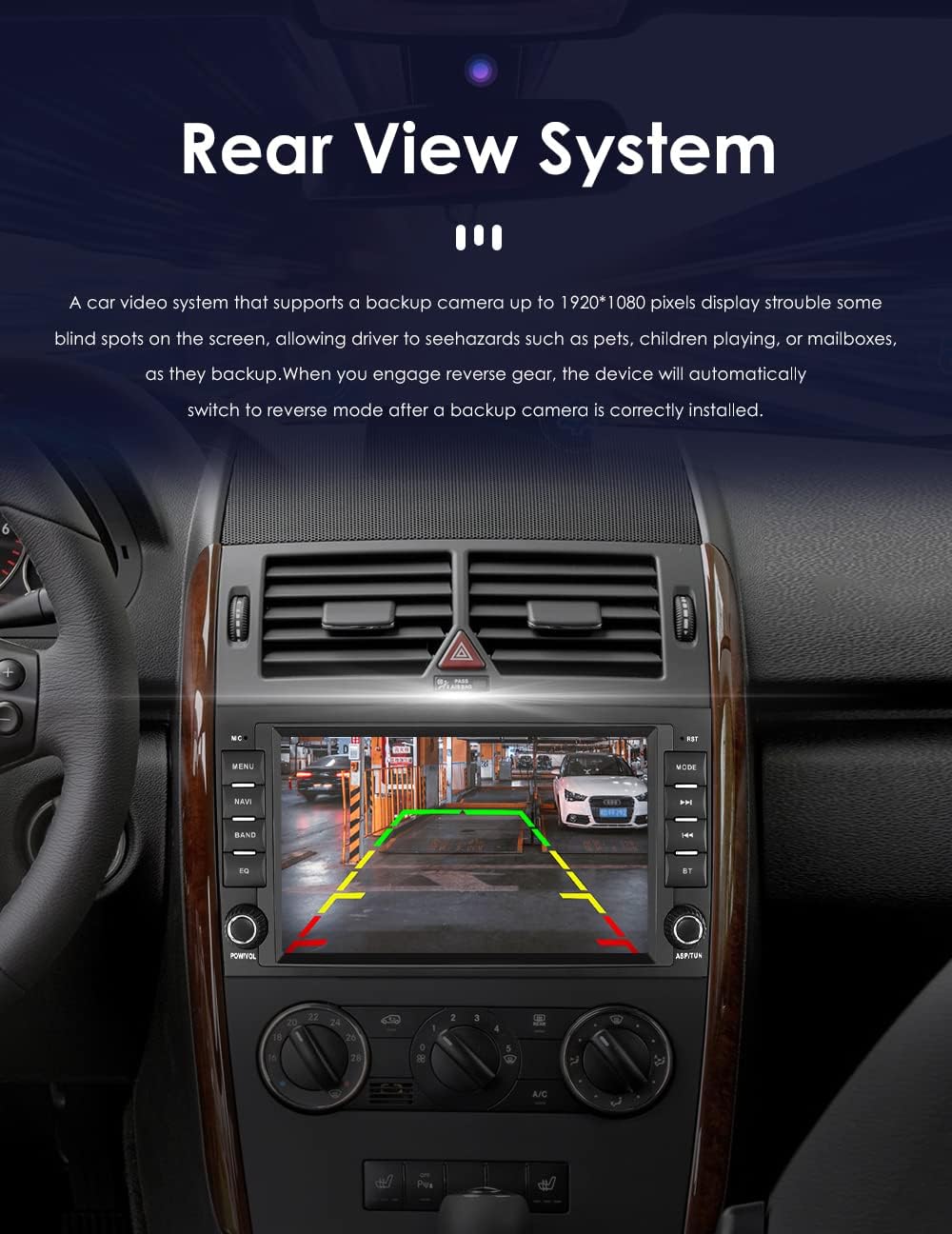
Figure 7: The display of the rear view camera system on the car stereo. The image shows a clear, wide-angle view of the area behind the vehicle, complete with dynamic parking guidelines, enhancing safety during reversing maneuvers.
8. Steering Wheel Control
The unit supports steering wheel controls, allowing you to manage music playback, volume, and other functions without taking your hands off the wheel. This enhances driving safety and convenience. Configuration may be required in the system settings.

Figure 8: An illustration of the steering wheel control interface on the hizpo car stereo. The screen displays various customizable button assignments for functions like volume, track skipping, and mode selection, demonstrating how the unit integrates with the vehicle's existing controls for enhanced user experience.
9. Digital Sound Processor (DSP)
The built-in DSP (BU32107EFV / BD37534FV) allows for advanced audio customization. Access the EQ settings to adjust sound profiles, balance, fader, and other audio enhancements to optimize your listening experience.

Figure 9: Screenshots of the Digital Sound Processor (DSP) settings interface. This image displays various audio adjustment options, including a graphic equalizer, sound field settings, bass enhancement, and speaker configuration, allowing users to fine-tune the audio output for optimal sound quality.
Maintenance
1. Cleaning the Unit
Use a soft, dry cloth to clean the screen and exterior of the unit. For stubborn smudges, lightly dampen the cloth with water or a screen-safe cleaner. Avoid abrasive materials or harsh chemicals, which can damage the screen or finish.
2. Software Updates
Periodically check for software updates to ensure optimal performance and access to new features. Updates can typically be performed via Wi-Fi through the system settings menu. Follow the on-screen instructions carefully during the update process.
3. General Care
Avoid exposing the unit to extreme temperatures, direct sunlight for prolonged periods, or excessive moisture. Ensure proper ventilation around the unit to prevent overheating.
Troubleshooting
If you encounter issues with your hizpo car stereo, refer to the following common troubleshooting steps:
- No Power:
- Check all power connections (B+, ACC, Ground) for secure contact.
- Verify the vehicle's fuse for the stereo is not blown.
- Ensure the vehicle's battery is charged.
- No Sound:
- Check speaker wire connections for correct polarity and secure contact.
- Verify the volume is not muted or set to minimum.
- Check audio settings (balance, fader, EQ) to ensure they are not misconfigured.
- GPS Signal Loss:
- Ensure the GPS antenna is mounted in a location with a clear view of the sky.
- Check the GPS antenna connection to the unit.
- Bluetooth Connection Issues:
- Ensure Bluetooth is enabled on both the stereo and your mobile device.
- Delete previous pairings and attempt to re-pair the devices.
- Restart both the stereo and your mobile device.
- Touchscreen Unresponsive:
- Perform a soft reset by pressing the RST button (if available) or by turning off the vehicle's ignition and restarting.
- Ensure the screen is clean and free of debris.
- Accessing Factory Settings (e.g., "Code usine"):
Some advanced settings, including factory settings, may require a specific password or code. This code is typically provided by the manufacturer or retailer. If you require access to these settings and do not have the code, please contact hizpo support for assistance. Do not attempt to guess codes, as this may lock the device or cause unintended configuration changes.
If the problem persists after attempting these steps, please contact hizpo customer support for further assistance.
Specifications
| Operating System | Android 12 |
| CPU | CORTEX-A7 4*1.2GHz |
| RAM | 6 GB |
| Internal Storage (Flash) | 64 GB |
| Screen Size | 8 inches |
| Screen Resolution | 1280*720 QLED FHD |
| Radio Tuner | FM/AM, RDS |
| FM Frequency Range | 87.5-108MHz |
| AM Frequency Range | 522KHz-1620KHz |
| GPS | Built-in, supports online navigation |
| Wi-Fi | Built-in Modem, 802.11b/g/n (2.4G/5G support) |
| Bluetooth | Bluetooth 5.0 (Music, Phonebook, Calls) |
| Video Playback | Up to 1920*1080 Pixels, supports AVI, MP4, MKV, etc. |
| Audio Playback | Supports MP3, WMA, FLAC, WAV, etc. |
| Dual Zone Function | Yes (navigation while music playing) |
| Mirror Link | Yes (iPhone and Android smartphone) |
| Apple CarPlay / Android Auto | Supported (wired/wireless) |
| Digital Sound Processor (DSP) | Built-in (BU32107EFV / BD37534FV) |
| Power Output | 200 Watts |
| Number of Channels | 4 |
| Optional Accessories (Not Included) | 4G Dongle, Bluetooth OBD2 Scanner, USB Camera (DVR) |
Warranty and Support
1. Product Warranty
This hizpo car stereo unit comes with a 1-year manufacturer's warranty from the date of purchase. This warranty covers defects in materials and workmanship under normal use. It does not cover damage caused by improper installation, accident, misuse, abuse, neglect, unauthorized modification, or normal wear and tear.
2. Customer Support
For technical assistance, warranty claims, or any questions regarding your hizpo product, please contact our customer support team. Refer to your purchase documentation or the hizpo official website for contact information.


