1. Introduction and Overview
The ZHIYUN Crane M2 is a compact 3-axis gimbal stabilizer designed for a wide range of devices, including light mirrorless cameras, action cameras, and smartphones. It features an easy-to-use quick setup system, smart lock design, and multiple creative operation modes to enhance your videography. This manual provides detailed instructions for setting up, operating, and maintaining your Crane M2 gimbal.

Figure 1: ZHIYUN Crane M2 Gimbal Stabilizer with included accessories.
2. What's in the Box
The ZHIYUN Crane M2 package includes the following items:
- 1 x Crane M2 Gimbal
- 1 x USB 3.0 to Type-C Cable
- 1 x Hand Strap
- 1 x Tripod
- 1 x 1/4 Camera Mount Screw
- 1 x Phone Holder
- 1 x Quick Release Plate
- 1 x Quick Start Guide
- 1 x Quality Card
- 1 x Carrying Case
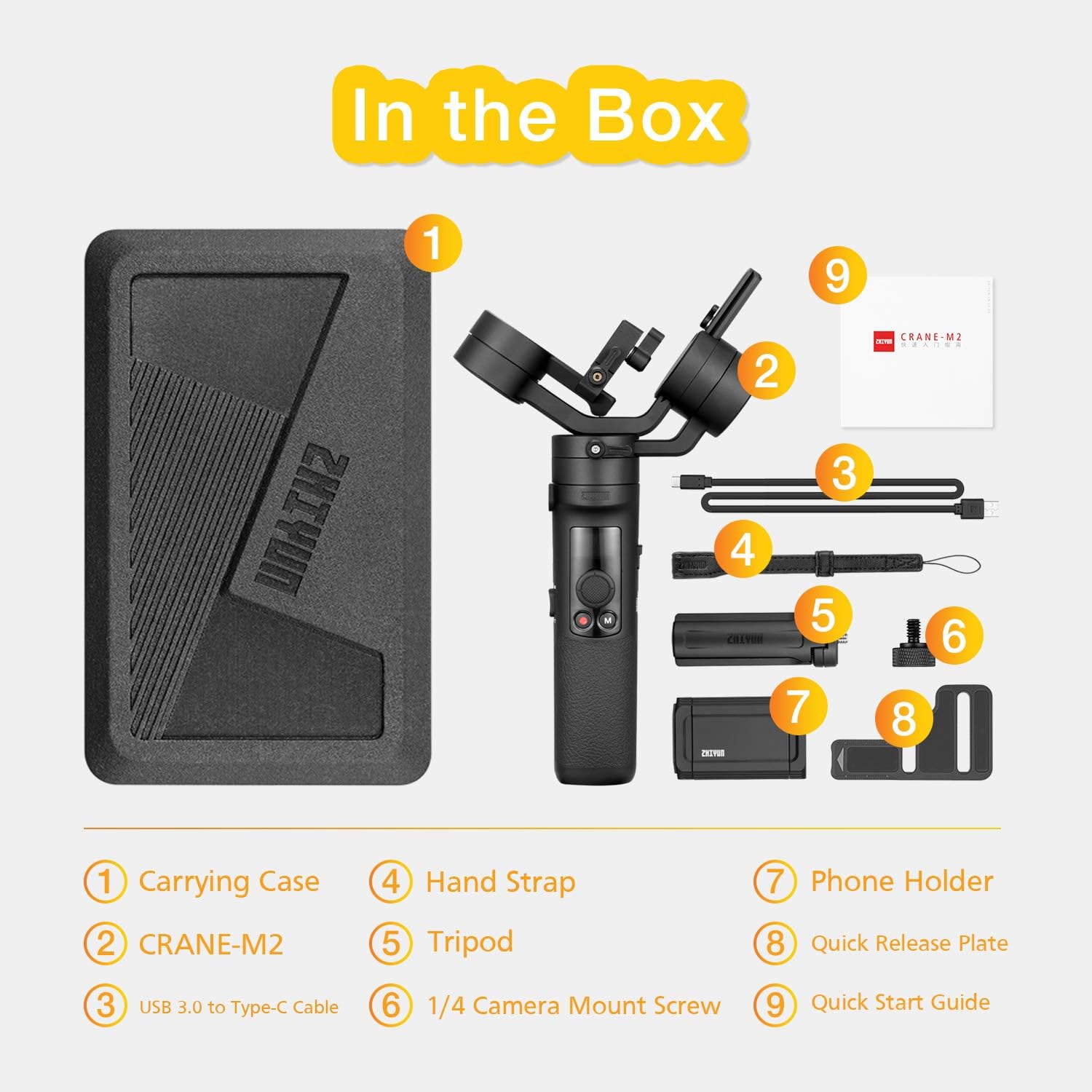
Figure 2: All items included in the ZHIYUN Crane M2 package.
3. Setup and Balancing
Proper balancing of the gimbal is crucial for optimal performance and to prevent motor strain. Follow these steps to set up and balance your Crane M2:
- Attach the Tripod: Screw the included tripod onto the 1/4-inch thread at the bottom of the gimbal handle. This allows the gimbal to stand stably during balancing.
- Unlock All Axes: Before mounting your camera, unlock all three axes (pan, tilt, and roll) of the gimbal. This allows for free movement and easier adjustment.
- Mount the Quick Release Plate: Attach the quick release plate to the bottom of your camera using the 1/4-inch camera mount screw. Ensure it is securely fastened.
- Mount the Camera: Slide the quick release plate with your camera into the gimbal's mounting slot. Secure it by tightening the red lever.
- Balance Each Axis: Adjust your camera's position on each axis until it remains level when released. The better balanced the camera, the less work the gimbal motors have to do, resulting in smoother footage and longer battery life. Refer to the operation guide video for visual assistance.
- Power On: Once balanced, hold the power switch up to turn on the gimbal. The OLED display will show the current mode and battery life.

Figure 3: The quick release plate system for easy camera mounting.
Video Guide: Crane M2 Operation
Video 1: Official ZHIYUN Crane M2 Operation Guide, demonstrating setup, balancing, and basic functions.
4. Camera Compatibility
The ZHIYUN Crane M2 offers broad compatibility with various cameras and devices. It supports a maximum payload of 0.72kg (1.58 lbs).
Supported Device Types:
- Light Mirrorless Cameras (e.g., Sony A6000, A6300, A6500, RX100M; Panasonic GX85)
- Action Cameras (e.g., GoPro Hero 5/6/7)
- Smartphones (e.g., iPhone Xs XR)
Important Notes on Compatibility:
- Some Canon light cameras (e.g., M5, M6, M100, PowerShot G3 X, G7 X Mark II, G9 X Mark II) can be mounted, but control functions may not be supported.
- For Sony ILCE-6000, video recording is not available on Crane M2.
- Sony ILCE-6400 requires zoom lenses (e.g., Sony E PZ 16-50MM F3.5-5.6 OSS) for zoom control.
- GoPro HERO5 does not support zoom.
- When balancing Canon M50 and M5, the viewfinder may interfere with the roll axis motor. Adjust the pitch axis to avoid interference.

Figure 4: The Crane M2's versatility across different camera types.
5. Operating Modes
The Crane M2 offers several intelligent modes to enhance your shooting experience. Use the mode button (M) and trigger button to switch between them.
- Pan Follow (PF) Mode: The default mode. The camera pans left and right following the gimbal's horizontal movement, while the tilt and roll axes remain locked.
- Follow (F) Mode: Press the trigger button once from PF mode. All three axes (pan, tilt, and roll) follow the gimbal's movement, providing dynamic and fluid shots.
- Locked (L) Mode: Press the mode button once. All three axes are locked, keeping the camera pointed in a fixed direction regardless of gimbal movement. You can use the joystick to adjust the camera's position.
- Point of View (POV) Mode: Press the mode button again from L mode. All three axes follow the gimbal's movement, including roll, allowing for immersive, first-person perspective shots.
- Go Mode: Press the mode button twice from POV mode. This mode offers faster response for quick pan movements, ideal for capturing fast-paced action scenes.
- Vortex Mode: Press the mode button twice from GO mode. The camera rotates 360 degrees along the roll axis, creating unique barrel roll effects.
- Selfie Mode: Triple-click the trigger button to quickly rotate the camera 180 degrees towards you, ideal for vlogging or self-recording.

Figure 5: The control panel with mode button and joystick for various operations.
6. App Control and Connectivity
The ZHIYUN Crane M2 can be controlled remotely via the ZY Play app, available for smartphones. This app allows for seamless camera control and access to advanced features.
- Download ZY Play App: Download and install the ZY Play app from your smartphone's app store.
- Enable Bluetooth/WiFi: Ensure Bluetooth and WiFi are enabled on your smartphone and camera (if applicable). The app may require permission to access these features.
- Connect to Gimbal: Open the ZY Play app. It should automatically detect the Crane M2. Select your gimbal from the list to connect.
- Camera Control: Once connected, you can control basic camera functions like video recording, photo capture, and zoom directly from the app. Ensure your camera is in video mode for full control.
- Advanced Features: The app unlocks features such as panorama, time-lapse, and trajectory photography, allowing you to program complex camera movements.

Figure 6: Wireless connectivity for enhanced control via the ZY Play app.
7. Firmware Updates
To ensure your Crane M2 operates with the latest features and bug fixes, regularly check for and install firmware updates. Firmware updates are typically performed by connecting the gimbal to a computer via the USB-C port and using the ZHIYUN software, or through the ZY Play app.
8. Maintenance
Proper maintenance extends the lifespan of your ZHIYUN Crane M2:
- Cleaning: Use a soft, dry cloth to clean the gimbal body. Avoid harsh chemicals or abrasive materials.
- Storage: Store the gimbal in its protective carrying case when not in use to prevent dust and damage.
- Battery Care: Charge the battery regularly, even if not in use, to maintain battery health. Avoid overcharging or completely draining the battery.
Video Guide: Grip Hack
Video 2: A user-submitted video demonstrating a grip modification for enhanced handling.
9. Troubleshooting
Encountering issues with your Crane M2? Here are some common problems and solutions:
- Gimbal Vibrates After Power On: This indicates improper balancing. Re-balance your camera on all axes. Refer to the setup and balancing section or the operation guide video.
- Camera Control Not Working: Ensure your camera is compatible and in video mode. Check WiFi/Bluetooth connection settings in the ZY Play app. For GoPro 7/6, set WiFi to 2.4GHz.
- App Connection Failure: Grant necessary WiFi and Bluetooth permissions to the ZY Play app during its first installation.
- Slow Charging: The Crane M2 does not support quick charge. Use a 5V 2A or 5V 1A charger for optimal charging.
- Motor Torque Adjustment: Different devices with varying weights may require motor torque adjustment for perfect operation. Refer to page 11 of the user guide for details.
10. Specifications
| Product Dimensions | 10.2 x 2.7 x 5.3 inches (2.72"D x 5.31"W x 10.2"H) |
| Item Weight | 1.1 pounds |
| Folded Size | 259.0 mm (W) * 69.0 mm (D) * 135.0 mm (H) |
| Batteries | 1 AA batteries required (included) |
| Compatible Devices | Camera, Cellphone |
| Compatible Camcorder Models | GoPro HERO5 Black |
| Color | Black |
| Manufacturer | zhi yun |
| Date First Available | July 22, 2019 |
| ASIN | B07VHCT873 |
| UPC | 753940530808 |
11. Warranty and Support
Your ZHIYUN Crane M2 comes with a Quality Card and a Service Card. For any technical assistance, warranty claims, or further inquiries, please refer to the contact information provided on these cards or visit the official ZHIYUN website for support resources.