1. Introduction
The ZHIYUN Crane-M2 is a versatile 3-axis handheld gimbal stabilizer designed for a wide range of devices, including smartphones, action cameras, and light mirrorless cameras. It provides smooth, stable footage and offers various creative shooting modes. This manual provides essential instructions for setup, operation, maintenance, and troubleshooting to ensure optimal performance of your device.
2. Safety Information
- Do not immerse the gimbal in water or expose it to rain.
- Avoid dropping or subjecting the gimbal to strong impacts.
- Keep the gimbal away from heat sources and direct sunlight.
- Ensure all axes are unlocked before powering on the gimbal.
- Always balance the gimbal correctly before use to prevent motor strain and ensure stable operation.
- Use only approved charging cables and power adapters.
3. Package Contents
Verify that all items are present in your package:
- ZHIYUN Crane-M2 Gimbal Stabilizer
- Quick Release Plate
- Mini Tripod
- USB Type-C Charging Cable
- Smartphone Holder
- Camera Control Cables (various types)
- Storage Case
- User Manual

4. Product Overview
Familiarize yourself with the main components and controls of the Crane-M2 gimbal.

- OLED Display: Shows current mode, battery level, and connection status.
- Joystick: Controls pan and tilt movements.
- Mode Button (M): Switches between different gimbal modes.
- Record Button: Starts/stops video recording or takes photos (requires camera connection).
- Power Button: Turns the gimbal on/off.
- Trigger Button: Activates follow mode or selfie mode.
- Locking Pins: Secure the axes for transport and storage.
5. Setup
5.1 Charging the Gimbal
Connect the USB Type-C charging cable to the gimbal's charging port and a 5V 1A or 5V 2A USB power adapter. The OLED display will indicate the charging status. A full charge typically takes approximately 2 hours.
5.2 Mounting Your Device
The Crane-M2 supports smartphones, action cameras, and light mirrorless cameras. Ensure your device is within the valid payload range of 130g to 720g.
- Attach the quick release plate to your camera or smartphone holder.
- Slide the camera or smartphone holder onto the gimbal's mounting plate.
- Secure the device by tightening the locking screw.

5.3 Balancing the Gimbal
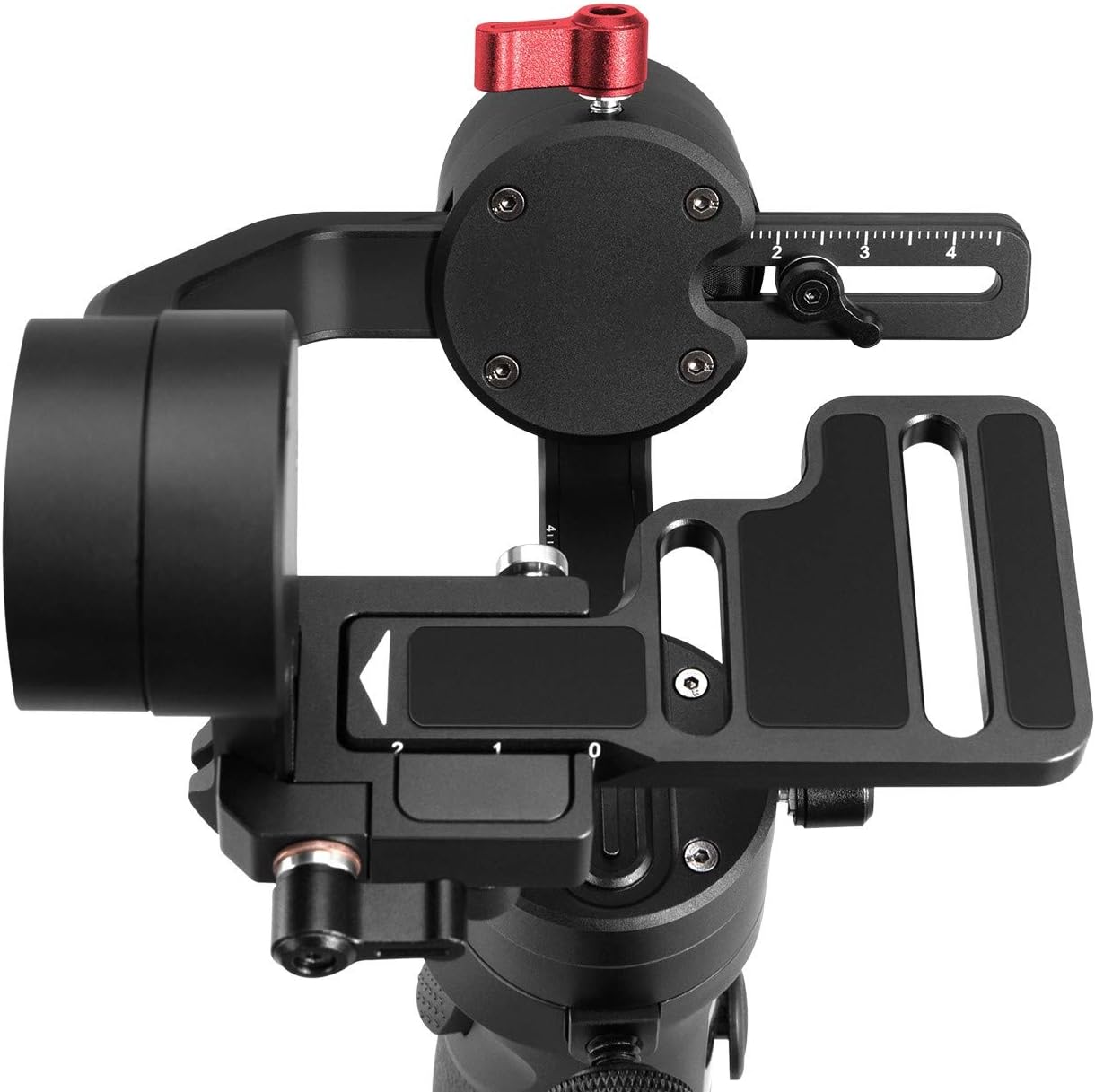
Proper balancing is crucial for optimal performance and to prevent motor overload. Balance the gimbal before each use.
- Unlock all axes: Release the locking pins on the pan, tilt, and roll axes.
- Tilt Axis Balance: Adjust the camera forward or backward on the quick release plate until the camera remains level when tilted at any angle.
- Roll Axis Balance: Loosen the Roll (Y) Axis Thumb Screw (located on the back) and slide the horizontal arm until the camera remains level horizontally.
- Pan Axis Balance: Hold the gimbal horizontally and adjust the pan arm until the camera remains stable without drifting.
Tip: The gimbal is balanced when the mounted device stays in position without motor assistance when the gimbal is powered off.
5.4 App Installation and Connection
Download the ZY Play App from your device's app store. The app allows for advanced control and firmware updates.
- Enable Bluetooth on your smartphone.
- Open the ZY Play App and follow the on-screen instructions to connect to the Crane-M2 via Bluetooth.
- For camera control (e.g., recording, zoom), connect your camera to the gimbal via Wi-Fi (2.4 GHz) and/or a control cable. Refer to the ZHIYUN compatibility list for specific camera models.
6. Operation
6.1 Power On/Off
- Power On: Press and hold the Power button until the ZHIYUN logo appears on the OLED display.
- Power Off: Press and hold the Power button until the OLED display turns off.
6.2 Gimbal Modes
Press the Mode (M) button to cycle through the following modes:
- PF (Pan Follow Mode): The camera pans left/right following the handle's movement, while tilt and roll axes are locked.
- L (Lock Mode): All three axes are locked, keeping the camera pointing in a fixed direction.
- POV (Point of View Mode): All three axes follow the handle's movement, providing a first-person perspective.
- Go Mode (Double click M button once): Provides faster follow response for dynamic shots.
- Vortex Mode (Double click M button second time): Allows for 360-degree barrel rolls.
Selfie Mode: Triple-press the Trigger button to rotate the camera 180 degrees to face the user.
6.3 Controls
- Joystick: Push up/down to control tilt, left/right to control pan.
- Trigger Button: Press once for follow mode, press and hold for temporary follow mode. Triple-press for selfie mode.
- Record Button: Press once to start/stop recording or take a photo (functionality depends on camera compatibility and connection).
7. Compatibility
The ZHIYUN Crane-M2 is designed for broad compatibility. However, specific camera control functions (e.g., video recording, zoom) may vary depending on the camera model and lens. Always refer to the official ZHIYUN website's compatibility list for the most up-to-date information regarding supported cameras and their functionalities.
Supported Devices (Examples):
- Sony: ILCE-5100/6000/6300/6400/6500, DSC-RXO/RXOM2/RX100M4/RX100M5/RX100M6/WX500/HX90/HX99
- Panasonic: DMC-GX85/ZS110GK/LX10GK, GF10KGK, DC-GX9KGK/GX9GK/GF9KGK/GF9XGK/ZS70GK/ZS220GK/LX100M2GK
- Canon: M50
- GoPro: HERO 5/6/7
- Mobile Phone: Most popular mobile phones on the market.
Note: If your camera is not on the compatibility list, it may still be physically mountable and balanceable, but remote control functions might be limited or unavailable.

8. Maintenance
- Cleaning: Use a soft, dry cloth to clean the gimbal. Do not use liquid cleaners or solvents.
- Storage: When not in use, engage the locking pins on all axes and store the gimbal in its protective case in a cool, dry place.
- Battery Care: For long-term storage, charge the battery to approximately 50-60% every three months to prolong battery life.
9. Troubleshooting
This section addresses common issues you might encounter with your Crane-M2 gimbal.
| Problem | Possible Cause | Solution |
|---|---|---|
| Gimbal vibrates or motors are hot. | Improper balancing; payload too heavy. | Re-balance the gimbal carefully. Ensure your device is within the payload limits. Adjust motor torque via the ZY Play App if necessary (refer to user guide page 11). |
| "Axis Locked" error on OLED display. | Axes are locked or obstructed. | Ensure all three axes are unlocked before powering on. Restart the gimbal. |
| Cannot connect to ZY Play App. | Bluetooth off; app permissions denied; interference. | Ensure Bluetooth is enabled. Grant Wi-Fi and Bluetooth permissions to the ZY Play App. Try restarting both the gimbal and your smartphone. |
| Camera control not working. | Incorrect connection; camera not compatible; camera settings. | Verify camera is connected via Wi-Fi (2.4GHz) or control cable. Check ZHIYUN compatibility list. Ensure camera is in video mode and Wi-Fi is set to 2.4GHz (e.g., GoPro). |
| Gimbal does not power on. | Low battery. | Charge the gimbal for at least 30 minutes. |
10. Specifications
| Feature | Detail |
|---|---|
| Valid Payload | 130g - 720g (0.29 lbs - 1.58 lbs) |
| Tilt Mechanical Range | 310° |
| Roll Mechanical Range | 324° |
| Pan Mechanical Range | 360° (Infinite Rotation) |
| Bluetooth | Bluetooth 4.2 |
| Wi-Fi | 2.4 GHz |
| Battery Capacity | 1100mAh |
| Battery Runtime | Up to 7 hours (Laboratory data) |
| Charging Time | Approx. 2 hours (Laboratory data) |
| Product Dimensions | 10.5 x 2.7 x 5.4 inches (26.7 x 6.9 x 13.7 cm) |
| Item Weight | 1.1 pounds (0.5 kg) |
11. Warranty and Support
ZHIYUN products typically come with a limited warranty. Please refer to the warranty card included in your package or visit the official ZHIYUN website for detailed warranty terms and conditions. For technical support, firmware updates, or further assistance, please visit the ZHIYUN support page or contact their customer service directly.
Online Resources:
- ZHIYUN Official Website: www.zhiyun-tech.com
- ZY Play App: Available on iOS App Store and Android Google Play Store.