
1. Introduction
This manual provides essential information for the installation, operation, and maintenance of your FORTINET FortiGate 601E Network Security/Firewall Appliance. The FortiGate 601E is designed to deliver next-generation firewall capabilities for mid-sized to large enterprises, offering robust protection against cyber threats with high performance and deep visibility. Please read this manual thoroughly before using the device to ensure proper setup and functionality.
2. Safety Information
Observe the following safety precautions to prevent damage to the device or injury to personnel.
- Ensure the device is installed in a well-ventilated area to prevent overheating.
- Use only the power supply provided or specified by FORTINET.
- Do not expose the device to moisture or extreme temperatures.
- Disconnect power before performing any maintenance or installation procedures.
- This device is intended for indoor use only.
3. Package Contents
Verify that all items are present in the package:
- FORTINET FortiGate 601E Appliance
- Power Cable(s)
- Rack-mount Kit (if applicable)
- Quick Start Guide
Note: The provided product information only lists "Base" as package contents. This list includes typical accessories for such a device.
4. Product Overview
The FortiGate 601E is a rack-mountable network security appliance. Below are descriptions of its front and rear panels.
4.1 Front Panel

Image Description: This image displays the front panel of the FortiGate 601E appliance. It is a white, rectangular device with various ports and indicator lights. From left to right, it features ventilation grilles, status LEDs (Power, Alarm, HA, Status), two USB ports, two console ports (RJ45 and USB), two management ports (MGMT1, MGMT2), multiple RJ45 Ethernet ports (labeled 1-10), and several SFP/SFP+ ports (labeled 1-10). The Fortinet logo and "FortiGate 601E" model name are visible on the left side.
The front panel includes:
- Status LEDs: Indicate power, system status, and alarm conditions.
- USB Ports: For connecting external storage or other USB devices.
- Console Ports: RJ45 and USB for local management access.
- Management Ports (MGMT1, MGMT2): Dedicated Ethernet ports for device management.
- Ethernet Ports (RJ45): 10 x 1000Base-T ports for network connectivity.
- SFP/SFP+ Ports: 10 x 1000Base-X / 10GBase-X expansion slots for fiber or high-speed copper modules.
4.2 Rear Panel
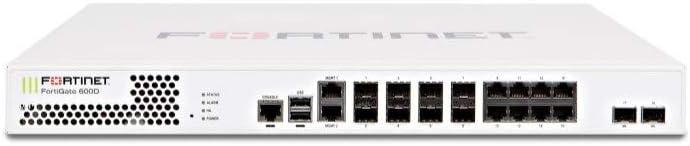
Image Description: This image shows the rear panel of the FortiGate 601E appliance. It is a white, rectangular device. The rear panel primarily features two power supply unit (PSU) bays, each with a power input connector and a retention clip. There are also ventilation grilles on both sides. The overall design is clean, indicating a focus on power redundancy and cooling.
The rear panel typically includes:
- Power Supply Units (PSUs): Dual redundant power supply bays for high availability.
- Ventilation: Exhaust vents for cooling.
5. Setup
Follow these steps to properly install and power on your FortiGate 601E appliance.
- Rack Installation:
- Attach the provided rack-mount ears to the sides of the FortiGate unit using the screws.
- Secure the FortiGate unit into a standard 19-inch equipment rack using appropriate rack screws. Ensure adequate airflow around the unit.
- Connect Power:
- Connect the power cable(s) to the power supply unit(s) at the rear of the appliance.
- Plug the other end of the power cable(s) into a grounded electrical outlet or a power distribution unit (PDU).
- The power LED on the front panel should illuminate.
- Connect Network Cables:
- Connect your network cables to the appropriate Ethernet or SFP/SFP+ ports on the front panel as per your network design.
- For initial configuration, connect a management workstation to one of the MGMT ports or a console port.
- Initial Configuration:
- Refer to the FortiGate documentation for detailed instructions on initial configuration via the web-based manager or command-line interface (CLI).
- Typically, you will access the device via a web browser using a default IP address (e.g., 192.168.1.99) or via a serial console connection.
6. Operating the FortiGate 601E
Once the FortiGate 601E is powered on and initially configured, you can manage its operations through the FortiGate web-based manager or CLI.
- Web-based Manager: Access the FortiGate GUI by entering its IP address in a web browser. This interface allows for comprehensive configuration of security policies, network settings, VPNs, and more.
- Command Line Interface (CLI): For advanced configurations and troubleshooting, connect via SSH or the console port.
- Firmware Updates: Regularly update the FortiGate firmware to ensure optimal performance and security. Download firmware from the Fortinet support portal.
- Security Policies: Configure firewall policies to control traffic flow and apply security profiles (antivirus, intrusion prevention, web filtering) to protect your network.
7. Maintenance
Regular maintenance ensures the longevity and optimal performance of your FortiGate 601E.
- Environmental Control: Maintain a stable operating environment with appropriate temperature and humidity.
- Ventilation: Ensure that the ventilation grilles are clear of obstructions to allow for proper airflow.
- Firmware and Signature Updates: Keep the device's firmware and security signatures up-to-date to protect against the latest threats.
- Configuration Backups: Regularly back up your FortiGate configuration to a secure location.
- Physical Inspection: Periodically inspect cables and connections for any signs of wear or damage.
8. Troubleshooting
This section addresses common issues you might encounter.
| Problem | Possible Cause | Solution |
|---|---|---|
| Device does not power on. | No power, faulty power cable, or PSU issue. | Check power cable connections. Ensure the power outlet is functional. Test with a different power cable or PSU if available. |
| Cannot access web-based manager. | Incorrect IP address, network connectivity issue, or firewall blocking access. | Verify the FortiGate's IP address. Check network cable connections. Ensure your workstation is on the same subnet or has a route to the FortiGate. Try accessing via console. |
| Network traffic not flowing. | Incorrect firewall policies, interface configuration errors, or cable issues. | Review firewall policies. Check interface status and configuration. Verify network cable integrity. |
9. Specifications
Key technical specifications for the FortiGate 601E appliance:
- Model: FG-601E
- Dimensions: 15 x 17 x 2 inches (Product Dimensions)
- Ethernet Ports: 10 x 1000Base-T (RJ-45)
- Expansion Slots: 10 x 10GBase-X / 1000Base-X (SFP/SFP+)
- Form Factor: 1U Rack-mountable
- Manufacturer: Fortinet
10. Warranty and Support
For warranty information and technical support, please refer to the official FORTINET website or contact your authorized FORTINET reseller.
- FORTINET Support Portal: https://support.fortinet.com
- Documentation: https://docs.fortinet.com
Product registration may be required to activate your warranty and access full support services.


