
Introduction
Thank you for choosing Brightown Smart Fairy Lights. These 33-foot string lights feature 100 LED beads, offering a versatile and energy-efficient lighting solution. Control your lights via a dedicated app, remote control, or the integrated USB button. Designed for both indoor and outdoor use, these lights are perfect for creating various lighting effects for any occasion.

Image: The flexible design of the Brightown Smart Fairy Lights allows them to be easily shaped for diverse decorative purposes, such as wrapping around plants or filling glass jars.
Package Contents
- 2 x 33FT 100LEDs Smart Fairy Lights with USB Controller
- 1 x Remote Control
- User Manual
Specifications
| Length | 33 Feet (per string) |
| LED Count | 100 LEDs (per string) |
| Power Source | USB (Corded Electric) |
| Connectivity | Bluetooth |
| Control Methods | App Control, Remote Control, USB Button Control |
| Special Features | Adjustable, Timer, Twinkling, Dimmable (1-100%), Music Sync, Group Control |
| Water Resistance | IP44 (Water-resistant) |
| Light Color | Multicolor |
| Material | Copper, LED |
| Wattage | 5 watts |
Setup
- Unpack the Lights: Carefully uncoil the string lights. The copper wire is delicate, so avoid excessive pulling or tangling.
- Power Connection: Connect the USB plug of the fairy lights to a compatible USB power source. This can be a USB wall adapter (not included), a power bank, a computer USB port, or a USB socket.
- App Installation: Download the "Hello Fairy" app from your smartphone's app store (iOS or Android).
- Bluetooth Pairing:
- Ensure Bluetooth is enabled on your smartphone.
- Open the "Hello Fairy" app.
- The app should automatically detect nearby Brightown Smart Fairy Lights. Follow the in-app instructions to pair your device.

Image: Illustration of compatible USB power sources for the fairy lights, including a power bank, USB wall socket, computer, and a standard USB adapter.
Operating Instructions
Your Brightown Smart Fairy Lights can be controlled using three methods: the Hello Fairy app, the included remote control, or the button on the USB controller.
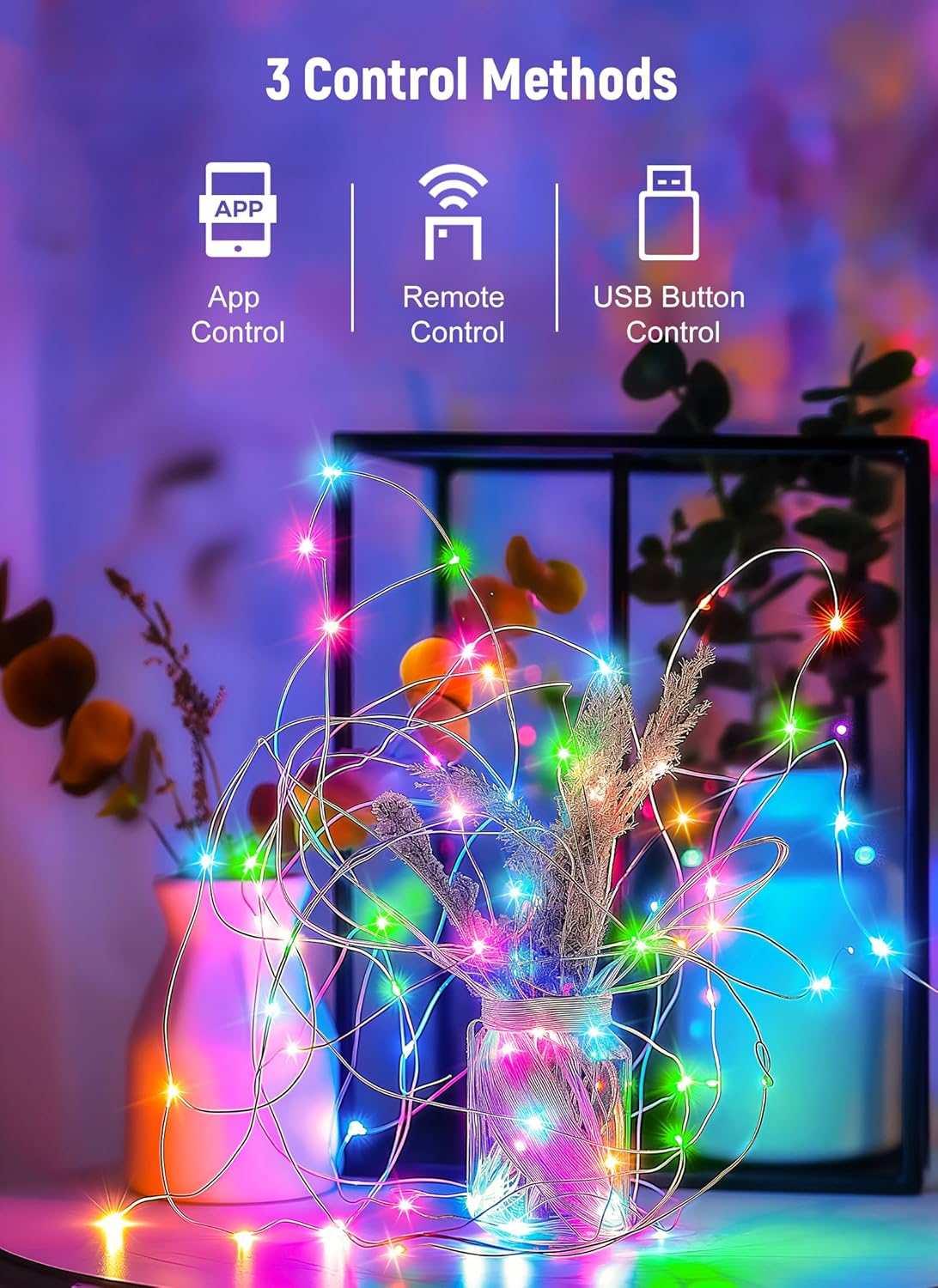
Image: Visual representation of the three available control methods: smartphone app, dedicated remote, and the button located on the USB connector.
App Control
The "Hello Fairy" app provides the most comprehensive control over your lights.
- Power On/Off: Toggle the lights on or off directly from the app.
- Color Options & Modes: Select from various preset color options and lighting modes (e.g., flashing, running, wave, twinkle).
- Brightness Adjustment: Adjust brightness from 1% to 100%.
- Schedule & Timer: Set custom schedules for the lights to turn on/off automatically. Utilize the countdown function for specific durations.
- Music Sync: Activate the music sync feature to make the lights react to sound and music.
- Group Control: If you have multiple sets of Brightown Smart Fairy Lights, create groups within the app to control them simultaneously.

Image: A visual comparison of the fairy lights at different brightness levels (25%, 50%, 75%, 100%), illuminating a small decorative house.

Image: A person playing a guitar in a room, with the fairy lights actively syncing to music, creating a dynamic light display.

Image: A bedroom illuminated by fairy lights, with a smartphone screen demonstrating the app's group control feature for managing multiple light sets.
Remote Control
The included remote control offers convenient access to essential functions.

Image: A detailed view of the remote control, highlighting buttons for power, timer settings (2H, 4H, 6H, 8H), eight distinct lighting modes, and brightness adjustments.
- ON/OFF: Press the ON or OFF buttons to power the lights.
- TIMER: Select a timer duration (2H, 4H, 6H, 8H) for automatic shut-off.
- MODE (1-8): Cycle through 8 different lighting modes: Combination, In Waves, Sequential, Slo-Glo, Chasing/Flash, Slow Fade, Twinkle/Flash, and Steady On.
- Brightness +/-: Adjust the light intensity using the Brightness + and Brightness - buttons.
USB Button Control
A small button on the USB controller allows for basic mode cycling.
- Press the button repeatedly to cycle through the available lighting modes.
- Hold the button down for a few seconds to turn the lights off. Press again to turn them back on to the last selected mode.
Maintenance
- Cleaning: Disconnect power before cleaning. Gently wipe the lights with a soft, dry cloth. Do not use harsh chemicals or abrasive cleaners.
- Storage: When not in use, carefully coil the lights to prevent tangling. Store them in a cool, dry place away from direct sunlight and extreme temperatures.
- Water Resistance: The lights are IP44 water-resistant, suitable for outdoor use in light rain. However, avoid submerging them in water or exposing the USB connector to moisture.
Troubleshooting
| Problem | Solution |
| Lights do not turn on. |
|
| Remote control is not working. |
|
| Cannot connect to the app. |
|
| Timer function is not working. |
|
| Lights are not as bright as expected. |
|
Warranty
Brightown products are manufactured with quality and care. For specific warranty information regarding your Smart Fairy Lights, please refer to the product packaging or contact Brightown customer support.
Support
If you encounter any issues or have questions not covered in this manual, please contact Brightown customer support through their official website or the contact information provided with your purchase. Please have your product model and purchase details ready when contacting support.