
HUO JI EZ7900
Z-7900 Wired Gaming Mouse Instruction Manual
Brand: HUO JI | Model: EZ7900
1. Introduction
This manual provides comprehensive instructions for the setup, operation, and maintenance of your HUO JI Z-7900 Wired Gaming Mouse. Designed for high-performance gaming, this mouse features advanced customization options and an ergonomic design for extended comfort.
Please read this manual thoroughly before using the product to ensure optimal performance and longevity.
2. Product Features
The HUO JI Z-7900 Gaming Mouse is equipped with several features to enhance your gaming experience:
- High-Precision Sensor: Up to 10000 DPI optical gaming sensor (Pixart 3325) with advanced tracking.
- Programmable Buttons: 13 optimized programmable buttons (8+5 side buttons) for custom commands.
- Adjustable DPI: On-the-fly DPI adjustment from 200 to 10000 DPI, with preset levels (500/1000/2000/3000/5000 DPI).
- Customizable RGB Backlighting: Multiple RGB color modes and Chroma lighting, with the option to disable lighting.
- Adjustable Polling Rate: Selectable polling rates of 125/250/500/1000Hz.
- Macro Customization: Support for creating and assigning macros.
- Tunable Weights: Includes an 8-piece weight tuning set (2.4g x8) for personalized balance.
- Durable Construction: Features durable smooth TEFLON feet pads, a metal base, and a 6-foot braided fiber cable with a gold-plated USB connector.
- Ergonomic Design: Comfortable grip ergonomic optical design for right-handed users.

Figure 2.1: Overview of Z-7900 Gaming Mouse features, including DPI adjustment buttons, programmable fire button, thumb rest, 5 side buttons, ring finger rest, steel base, and braided fiber cable.
3. Setup Guide
Follow these steps to set up your Z-7900 Gaming Mouse:
- Connect the Mouse: Plug the USB connector of the Z-7900 mouse into an available USB port on your computer.
- Driver Installation: The mouse is typically plug-and-play for basic functionality. For advanced features such as macro programming, DPI customization beyond presets, and RGB lighting control, you may need to install the dedicated software. The software is usually provided on a mini-CD or can be downloaded from the manufacturer's official website.
- Software Installation (if applicable):
- Insert the mini-CD into your computer's CD drive.
- Follow the on-screen instructions to install the software.
- If no CD drive is available, visit the HUO JI support website to download the latest software and drivers for the Z-7900 model.
- System Requirements: Ensure your system meets the following requirements:
- PC with USB port
- Operating Systems: Windows 10, Windows 8, Windows 7, Windows Vista, Windows XP, or Mac OS (for normal use).

Figure 3.1: The Z-7900 Gaming Mouse connected via its braided USB cable.
4. Operating Instructions
This section details the basic operation of your Z-7900 Gaming Mouse.
4.1 Basic Mouse Functions
- Left Click: Primary action button.
- Right Click: Secondary action button, typically for context menus.
- Scroll Wheel: Used for scrolling through documents or web pages. Can also be clicked for middle-click functionality.
4.2 DPI Adjustment
The Z-7900 mouse allows for on-the-fly DPI (Dots Per Inch) adjustment, which controls cursor sensitivity and speed. Use the dedicated DPI adjustment buttons located on the top of the mouse, below the scroll wheel, to cycle through preset DPI levels.
- DPI Up Button: Increases DPI sensitivity.
- DPI Down Button: Decreases DPI sensitivity.
The default switchable DPI levels are 500, 1000, 2000, 3000, and 5000. Fine-tuning DPI from 200 to 10000 in increments of ±100 is possible via the software.
Figure 4.1: Location of DPI adjustment buttons.
4.3 Programmable Buttons
The mouse features 13 programmable buttons, including 5 side buttons, a programmable fire button, and standard mouse buttons. These buttons can be assigned custom functions, macros, or key binds using the mouse's dedicated software.
- Side Buttons: Located on the left side, accessible by the thumb.
- Programmable Fire Button: A dedicated button for rapid actions.
Refer to the software's user interface for detailed instructions on button remapping and macro creation.
4.4 Weight Tuning System
The Z-7900 includes an 8-piece weight tuning set (2.4g x8) located in a cartridge on the underside of the mouse. This allows you to customize the mouse's weight and balance to your preference.
- Locate the circular weight compartment on the bottom of the mouse.
- Twist the cover counter-clockwise to open.
- Add or remove weights as desired.
- Twist the cover clockwise to secure the compartment.
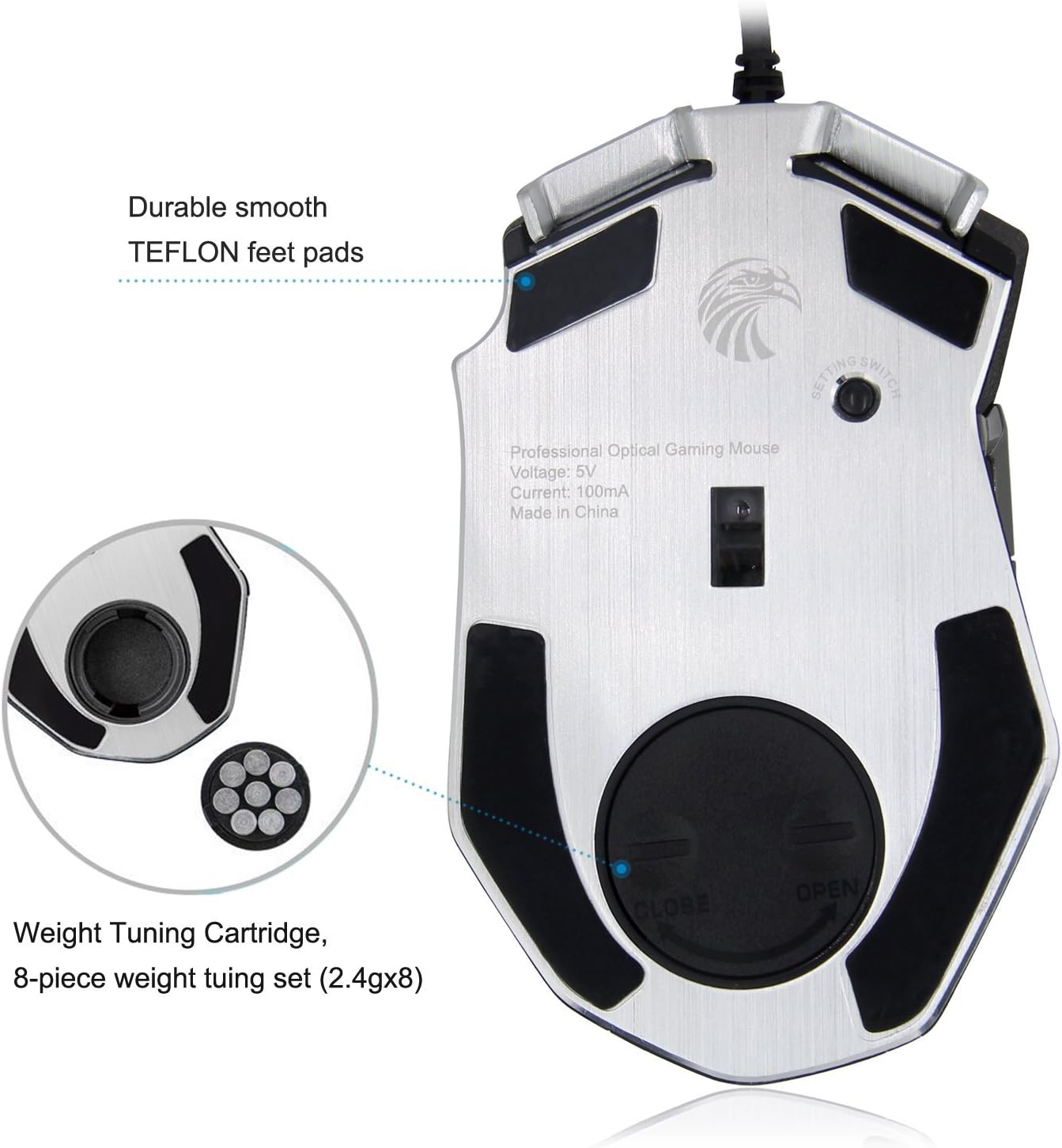
Figure 4.2: Weight tuning system on the underside of the mouse.
5. Customization (Software Dependent)
For full customization of your Z-7900 Gaming Mouse, utilize the dedicated software. This software allows you to:
- Button Assignment: Remap all 13 buttons to perform specific functions, keyboard shortcuts, or macros.
- DPI Settings: Create custom DPI stages and fine-tune DPI values from 200 to 10000.
- Polling Rate: Adjust the polling rate (125/250/500/1000Hz) to optimize responsiveness.
- RGB Lighting: Select from various RGB color modes, effects, and brightness levels. The LED lighting can also be turned off.
- Macro Editor: Record and edit complex macro sequences for in-game actions.
- Profile Management: Save up to 5 memory profiles, each with distinct settings and light colors for quick identification and switching.
Detailed instructions for using the software's features are typically found within the software's help section or a separate software manual.
6. Maintenance
Proper maintenance ensures the longevity and optimal performance of your gaming mouse.
- Cleaning:
- Disconnect the mouse from your computer before cleaning.
- Use a soft, lint-free cloth slightly dampened with water or a mild cleaning solution to wipe the surface of the mouse.
- Avoid using harsh chemicals, abrasive cleaners, or solvents.
- Use compressed air to remove dust and debris from around the buttons and scroll wheel.
- Clean the optical sensor on the underside of the mouse periodically with a cotton swab.
- Cable Care: Avoid sharp bends or kinks in the braided cable to prevent internal damage.
- Storage: Store the mouse in a clean, dry environment when not in use.
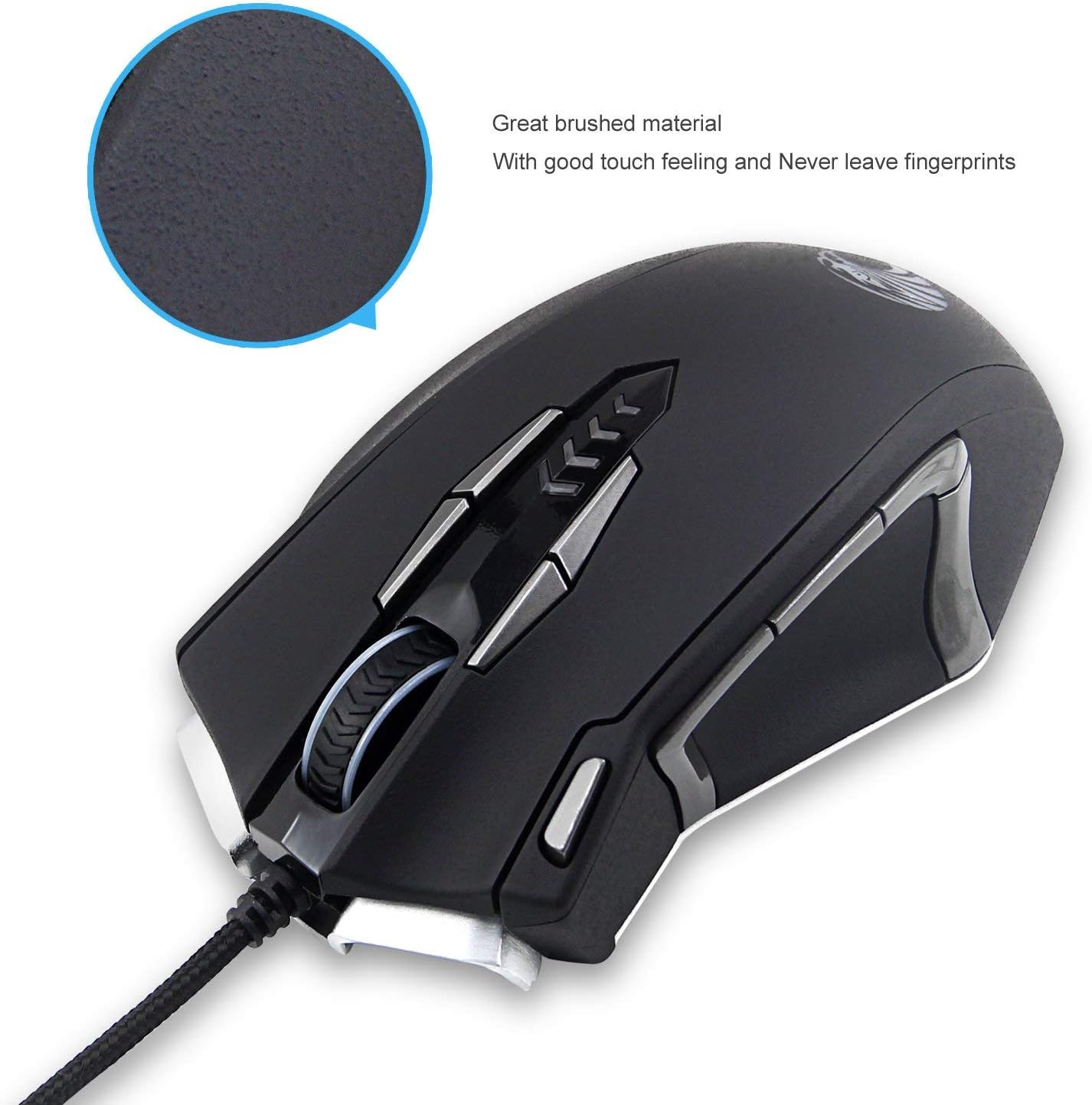
Figure 6.1: The brushed material surface is designed for good touch feeling and resistance to fingerprints, aiding in maintenance.
7. Troubleshooting
If you encounter issues with your Z-7900 Gaming Mouse, refer to the following common problems and solutions:
| Problem | Possible Cause / Solution |
|---|---|
| Mouse not responding / No cursor movement. |
|
| DPI adjustment not working. |
|
| Programmable buttons not working. |
|
| RGB lighting not functioning correctly. |
|
If the problem persists after trying these solutions, please contact HUO JI customer support for further assistance.
8. Specifications
Key technical specifications for the HUO JI Z-7900 Gaming Mouse:
| Feature | Detail |
|---|---|
| Model | EZ7900 |
| Brand | HUO JI |
| Connectivity | Wired USB (6ft braided fiber cable, gold-plated connector) |
| Sensor | Optical (Pixart 3325) |
| DPI Range | 200 - 10000 DPI (adjustable in ±100 increments) |
| Preset DPI Levels | 500/1000/2000/3000/5000 |
| Polling Rate | 125/250/500/1000Hz (adjustable) |
| Acceleration | 20G |
| Buttons | 13 programmable buttons (8+5 side buttons) |
| Memory Profiles | 5 savable profiles |
| Lighting | RGB Backlit, Chroma lighting (can be turned off) |
| Weight System | 8-piece weight tuning set (2.4g x8) |
| Material | Metal Base, Durable smooth TEFLON feet pads |
| Hand Orientation | Right-handed ergonomic design |
| Product Dimensions | 11.68 x 7.11 x 3.81 cm (4.6 x 2.8 x 1.5 inches) |
| Product Weight | 131 grams (8.5 Ounces) |
| System Compatibility | Windows 10, 8, 7, Vista, XP; Mac OS (normal use) |

Figure 8.1: Physical dimensions of the Z-7900 Gaming Mouse.
9. Warranty and Support
For warranty information and technical support regarding your HUO JI Z-7900 Gaming Mouse, please refer to the warranty card included with your product or visit the official HUO JI website.
Typically, support resources include:
- Online FAQs and knowledge base.
- Driver and software downloads.
- Contact information for customer service (email or phone).
Please retain your proof of purchase for warranty claims.
Ask a question about this manual
Ask about setup, troubleshooting, compatibility, parts, safety, or missing instructions. Manuals+ will review the question and use this page’s manual context to help answer it.