
i-Star T-7M1HD-RED
User Manual
ISTAR T-7M1HD-RED 5.25" to 3.5" 2.5" 12Gb/s HDD SSD Hot-swap Rack
Model: T-7M1HD-RED
1. Introduction
The i-Star T-7M1HD-RED is an aluminum hot-swappable mobile rack designed to convert a 5.25" drive bay into a versatile bay for 3.5" or 2.5" HDDs/SSDs. It features a high-performance SAS/SATA interface, offering robust functionality and compact design. This unit is built for durability and includes an 80mm blower fan for enhanced cooling, ensuring optimal performance even under demanding conditions. LED indicators provide real-time monitoring of power and hard drive activity.

Figure 1: Front view of the T-7M1HD-RED hot-swap rack, showing the 5.25" bay form factor and the red drive insert.
2. Key Features
- Power/Drive Activity LEDs: Visual indicators for system power and hard drive read/write operations.
- Point to Point, Free from Master/Slave Setting: Simplifies drive configuration and connectivity.
- Best Air Ventilation with 1x80mm HDD Blower Fan: Integrated fan for efficient heat dissipation, maintaining optimal drive temperatures.
- Power ON/OFF Button: Convenient control for the installed drive.
- Cableless Connection, Support Plug & Play, Hot-Swappable: Enables easy installation, removal, and replacement of drives without system shutdown.
3. Package Contents
Please verify that all items listed below are included in your package:
- ISTAR T-7M1HD-RED Hot-swap Rack Unit
- SATA Data Cable (typically red)
- Mounting Screws
- User Manual (this document)

Figure 2: Included accessories, showing the SATA data cable and mounting screws.
4. Setup and Installation
Follow these steps to properly install your T-7M1HD-RED hot-swap rack and integrate your drives.
4.1 Installing the Rack into a PC Bay
- Ensure your computer is powered off and unplugged from the wall outlet.
- Open your computer case to access the internal drive bays.
- Locate an available 5.25" drive bay. Remove any front panel covers or brackets if necessary.
- Slide the T-7M1HD-RED unit into the 5.25" bay from the front of the case until the mounting holes align.
- Secure the unit using the provided mounting screws on both sides of the rack.

Figure 3: Side view of the rack, highlighting the mounting points for installation into a 5.25" PC bay.
4.2 Connecting Power and Data Cables
- Connect a SATA power cable from your power supply unit (PSU) to the power connector on the rear of the T-7M1HD-RED unit.
- Connect one end of the provided SATA data cable to the data port on the rear of the T-7M1HD-RED unit.
- Connect the other end of the SATA data cable to an available SATA port on your motherboard.

Figure 4: Bottom view of the rack, illustrating the location of the SATA data and power connectors.
4.3 Installing a 2.5" or 3.5" HDD/SSD
- Open the front door of the T-7M1HD-RED unit.
- Carefully slide your 2.5" or 3.5" HDD/SSD into the drive bay until it firmly connects with the internal SATA/SAS connector. Ensure the drive is oriented correctly.
- Close the front door. The mechanism will secure the drive in place.
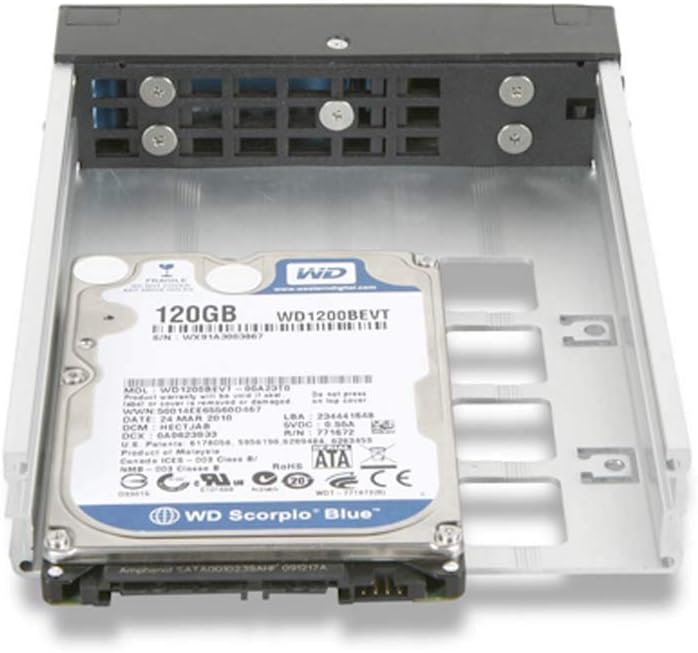
Figure 5: A 2.5" hard drive being inserted into the hot-swap rack.
5. Operating Instructions
5.1 Powering On/Off
After installing the rack and a drive, power on your computer. The T-7M1HD-RED unit has a dedicated power button on its front panel. Press this button to power on or power off the installed drive. The Power LED will illuminate when the drive is powered on.
5.2 Hot-Swapping Drives
The T-7M1HD-RED supports hot-swapping, allowing you to insert or remove drives while the computer is running, provided your operating system and motherboard support this feature (e.g., AHCI mode enabled in BIOS/UEFI). Always ensure the drive is safely ejected or unmounted through your operating system before physically removing it to prevent data loss.
5.3 LED Indicators
- Power LED: Indicates that the rack unit and the installed drive are receiving power.
- Activity LED: Flashes to indicate data read/write activity on the installed drive.
6. Maintenance
To ensure optimal performance and longevity of your T-7M1HD-RED hot-swap rack, consider the following maintenance tips:
- Dust Removal: Periodically inspect the unit's fan and ventilation openings for dust accumulation. Use compressed air to gently clear any dust, ensuring proper airflow for the integrated blower fan.
- Cleanliness: Keep the exterior of the unit clean with a soft, dry cloth. Avoid using liquid cleaners directly on the unit.
- Environmental Conditions: Operate the unit within recommended temperature and humidity ranges to prevent damage to internal components and installed drives.
7. Troubleshooting
If you encounter issues with your T-7M1HD-RED hot-swap rack, refer to the following common problems and solutions:
| Problem | Possible Cause | Solution |
|---|---|---|
| Drive not detected by system. | Loose SATA data/power cables, drive not fully seated, BIOS/UEFI settings. |
|
| Power LED is off. | No power to the unit, unit's power button off. |
|
| Drive activity LED not flashing. | No drive activity, drive not recognized, faulty LED. |
|
8. Specifications
| Feature | Detail |
|---|---|
| Brand | i-Star |
| Series | T-7M1HD-RED |
| Model Number | T-7M1HD-RED |
| Item Weight | 1.62 pounds |
| Product Dimensions (LxWxH) | 8 x 6 x 2 inches |
| Manufacturer | iStar |
| ASIN | B07V1229PF |
| Date First Available | July 5, 2019 |
| Compatibility | 5.25" PC Drive Bay, 3.5" / 2.5" SAS/SATA HDDs/SSDs |
| Interface | 12Gb/s SAS/SATA |
| Cooling | 1x 80mm HDD Blower Fan |
9. Warranty and Support
For information regarding warranty coverage and technical support for your i-Star T-7M1HD-RED hot-swap rack, please refer to the official i-Star website or contact their customer service directly. Keep your purchase receipt as proof of purchase for any warranty claims.
For further assistance, you may visit the i-Star store on Amazon: i-Star Amazon Store
Ask a question about this manual
Ask about setup, troubleshooting, compatibility, parts, safety, or missing instructions. Manuals+ will review the question and use this page’s manual context to help answer it.