
PHILIPS DVT4110
PHILIPS DVT4110 VoiceTracer Digital Recorder User Manual
Introduction
This manual provides detailed instructions for the PHILIPS DVT4110 VoiceTracer Digital Recorder. The DVT4110 is designed for high-quality audio recording, featuring an intuitive 3-microphone system for outstanding clarity. It is ideal for capturing lectures, seminars, interviews, and personal notes. The device also offers remote control and file sharing capabilities via a smartphone application.
What's in the Box
- PHILIPS DVT4110 VoiceTracer Digital Recorder
- USB Cable (Type-A to Type-C)
- Quick Start Guide
Product Overview
Familiarize yourself with the components of your PHILIPS DVT4110 VoiceTracer.

Figure 1: Front view of the PHILIPS DVT4110 VoiceTracer, showing the display, control buttons, and microphones.
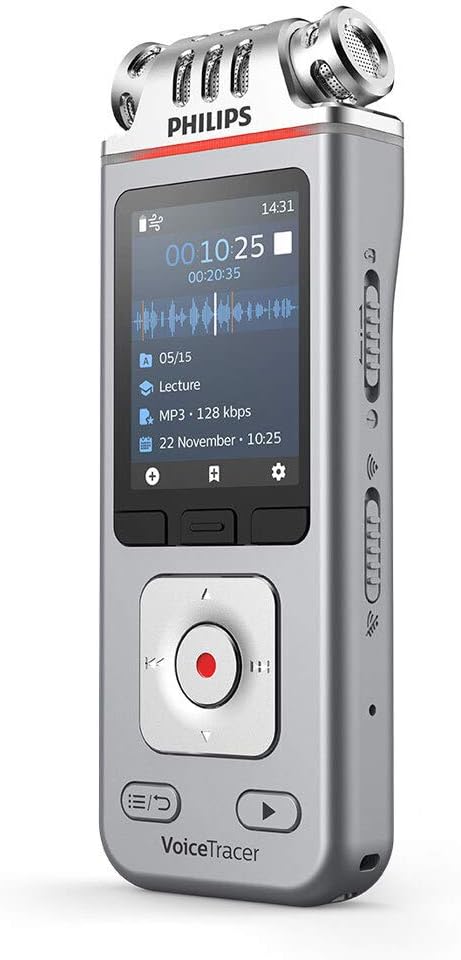
Figure 2: Angled view of the device, emphasizing the three high-fidelity microphones at the top for superior audio capture.

Figure 3: Product dimensions of the DVT4110 VoiceTracer: 0.8 inches (depth) x 1.8 inches (width) x 5.1 inches (height).
Setup
1. Charging the Device
The DVT4110 is equipped with a powerful Li-Ion rechargeable battery. Before first use, fully charge the device.
- Connect the supplied USB cable to the USB-C port on the VoiceTracer.
- Connect the other end of the USB cable to a powered USB port on a computer or a USB wall adapter.
- The battery indicator on the display will show the charging status. A full charge typically takes approximately 3 hours.
2. Powering On/Off
- To power on: Press and hold the Power button until the display illuminates.
- To power off: Press and hold the Power button until the device shuts down.
3. Inserting a Memory Card (Optional)
The device has 8 GB of built-in memory. For extended recording capacity, you can insert a microSD card (up to 32 GB).
- Locate the memory card slot on the side of the device.
- Insert the microSD card with the gold contacts facing down until it clicks into place.
- To remove, gently push the card until it pops out.
4. Initial App Connection
The Philips VoiceTracer app allows for remote control and file sharing. Download the app from your smartphone's app store.
- Enable Wi-Fi on your VoiceTracer via the device settings.
- On your smartphone, connect to the VoiceTracer's personal hotspot (Wi-Fi network).
- Open the Philips VoiceTracer app and follow the on-screen instructions to pair your device.
Operating Instructions
1. Recording Audio
The DVT4110 features three high-fidelity microphones for stereo recording in MP3 and PCM formats.
- Standard Recording: Press the Record button (red circle) to start recording. Press it again to pause/resume, and press the Stop button to end and save the recording.
- Voice-Activated Recording: Enable this feature in the device settings. Recording will automatically start when sound is detected and pause during silence.
- Pre-recording: The device can capture the last few seconds of audio before you press record, ensuring you don't miss the beginning of an important moment. This can be configured in settings.
- Audio Scenes: Select predefined audio scenes (e.g., Lecture, Meeting, Interview) from the menu to optimize recording settings for specific environments.
2. Playback
Listen to your recordings directly on the device or through headphones.
- Navigate to the file list using the directional buttons.
- Select the desired recording.
- Press the Play button to start playback.
- Adjust volume using the side buttons.
- Connect headphones to the 3.5 mm jack for private listening.
3. File Management and Sharing
Manage and transfer your recordings efficiently.
- Transfer to Computer: Connect the VoiceTracer to your computer using the USB cable. The device will appear as a removable drive, allowing you to drag and drop files.
- Sharing via App: Use the Philips VoiceTracer app to wirelessly transfer recordings to your smartphone and share them via email, messaging apps, or cloud services.
- Editing: Recordings can be edited on the device, including overwriting sections or adding new audio at the end.
Maintenance
To ensure the longevity and optimal performance of your VoiceTracer, follow these guidelines:
- Keep the device dry. Avoid exposure to water or excessive humidity.
- Clean the device with a soft, dry cloth. Do not use abrasive cleaners or solvents.
- Avoid extreme temperatures. Store the device in a cool, dry place.
- Protect the display from scratches.
- Do not attempt to disassemble the device, as this will void the warranty.
Troubleshooting
If you encounter issues with your PHILIPS DVT4110 VoiceTracer, refer to the following common solutions:
- Device does not power on: Ensure the battery is charged. Connect the device to a power source and try again.
- Poor recording quality: Check microphone settings (e.g., sensitivity, audio scene). Ensure the microphones are not obstructed. Record in a quiet environment.
- Cannot transfer files to computer: Ensure the USB cable is securely connected. Try a different USB port or cable. Verify the device is recognized as a storage device.
- App connection issues: Ensure Wi-Fi is enabled on the VoiceTracer and your smartphone is connected to its hotspot. Restart both the device and the app.
- Device is unresponsive: Perform a soft reset by pressing and holding the Power button for an extended period (e.g., 10-15 seconds) until the device restarts.
Specifications
| Feature | Detail |
|---|---|
| Product Dimensions | 0.8"D x 1.8"W x 5.1"H (2 x 4.5 x 13 cm) |
| Item Weight | 5 ounces (141 grams) |
| Display | 2" / 6 cm color LCD, 240 x 320 pixels |
| Microphone Form Factor | Built-In (3 high-fidelity microphones) |
| Recording Formats | MP3, PCM (WAV) |
| Recording Quality | MP3 (8, 32, 64, 96, 128, 192, 256, 320 kbps), PCM (22 kHz/16 bit, 44.1 kHz/16 bit, 48 kHz/16 bit, 96 kHz/24 bit) |
| Internal Memory | 8 GB NAND Flash |
| Memory Card Slot | MicroSD card support, up to 32 GB |
| Battery | 1 Lithium Polymer (1000 mAh), rechargeable |
| Battery Life (Recording) | Up to 36 hours (MP3, 8 kbps) |
| Charging Time | Approx. 3 hours |
| Connectivity | USB Type-C, High-speed USB 2.0, Wi-Fi (802.11 b/g/n/e/i 2.4 GHz) |
| Headphones Jack | 3.5 millimeters |
| Compatible Devices | Earphone, Personal Computer |
| System Requirements | Free USB port, Operating System: Windows 10/8/7, macOS, Linux |
Warranty and Support
For detailed warranty information and technical support, please visit the official PHILIPS website or contact their customer service. Keep your proof of purchase for warranty claims.
Online resources may include FAQs, software updates, and additional user guides.
Related Documents - DVT4110
 |
Philips VoiceTracer Audio Recorder Quick Start Guide - DVT4110, DVT6110, DVT7110, DVT8110 Concise guide to setting up and using your Philips VoiceTracer audio recorder, covering basic operations, recording, playback, and app connectivity for models DVT4110, DVT6110, DVT7110, and DVT8110. |
 |
Philips VoiceTracer DVT4110, DVT6110, DVT7110, DVT8110 User Manual Comprehensive user manual for Philips VoiceTracer audio recorders (models DVT4110, DVT6110, DVT7110, DVT8110). Learn about setup, recording, playback, settings, device management, troubleshooting, and technical specifications. |
 |
Philips VoiceTracer Audio Recorder Quick Start Guide A quick start guide for the Philips VoiceTracer Audio Recorder, covering models DVT4110, DVT6110, DVT7110, and DVT8110. Includes instructions on basic operation, charging, and connecting to a computer and smartphone. |
 |
Philips VoiceTracer Troubleshooting Guide Find solutions to common problems with your Philips VoiceTracer audio recorder, including issues with power, recording, playback, audio quality, and device response. This guide provides step-by-step solutions for common issues. |
 |
Philips VoiceTracer DVT4110, DVT6110, DVT7110, DVT8110 User Manual Comprehensive user manual for the Philips VoiceTracer digital audio recorders (models DVT4110, DVT6110, DVT7110, DVT8110), covering setup, recording, playback, settings, app connectivity, troubleshooting, and technical specifications. |
 |
Philips VoiceTracer DVT1160: מדריך למשתמש מדריך מקיף למשתמש עבור מקליט הקול הדיגיטלי Philips VoiceTracer DVT1160. למד כיצד להקליט, לנהל קבצים ולהשתמש בכל תכונות המכשיר. |
Ask a question about this manual
Ask about setup, troubleshooting, compatibility, parts, safety, or missing instructions. Manuals+ will review the question and use this page’s manual context to help answer it.