
MT-VIKI MT-000KL
MT-VIKI KVM Switch VGA User Manual
Model: MT-000KL
Brand: MT-VIKI
Introduction
This manual provides detailed instructions for the setup, operation, and maintenance of your MT-VIKI KVM Switch VGA. This device allows up to four computers to share a single monitor, keyboard, mouse, and other USB peripherals, enhancing workspace efficiency and reducing cable clutter.
Product Overview

Image: The MT-VIKI 4-Port VGA KVM Switch, showcasing its compact design and the included 2-in-1 VGA and USB cables.
The MT-VIKI KVM Switch (Model MT-000KL) is a compact device designed to manage multiple computers from a single console. It features VGA video input/output and multiple USB 2.0 ports for peripheral sharing. The unit is built with a durable metal casing for longevity.
Key Features
- Allows 4 computers to share one monitor, keyboard, mouse, and printer/U disk.
- Includes 4 KVM cables (VGA and USB 2-in-1) for power and data transfer.
- Supports HD display output up to 1920 x 1440 resolution (including 1080P, 720P, 480P).
- Supports DDC and Automatic Identification for high-quality output.
- Compatible with Windows 10/8/7/XP/Vista (32/64-bit), Mac, Linux, DOS, Win3, WINNT, Netware, and Unix.
- Supports online games and DVR.
- Supports USB keyboard & mouse or combo.
Package Contents
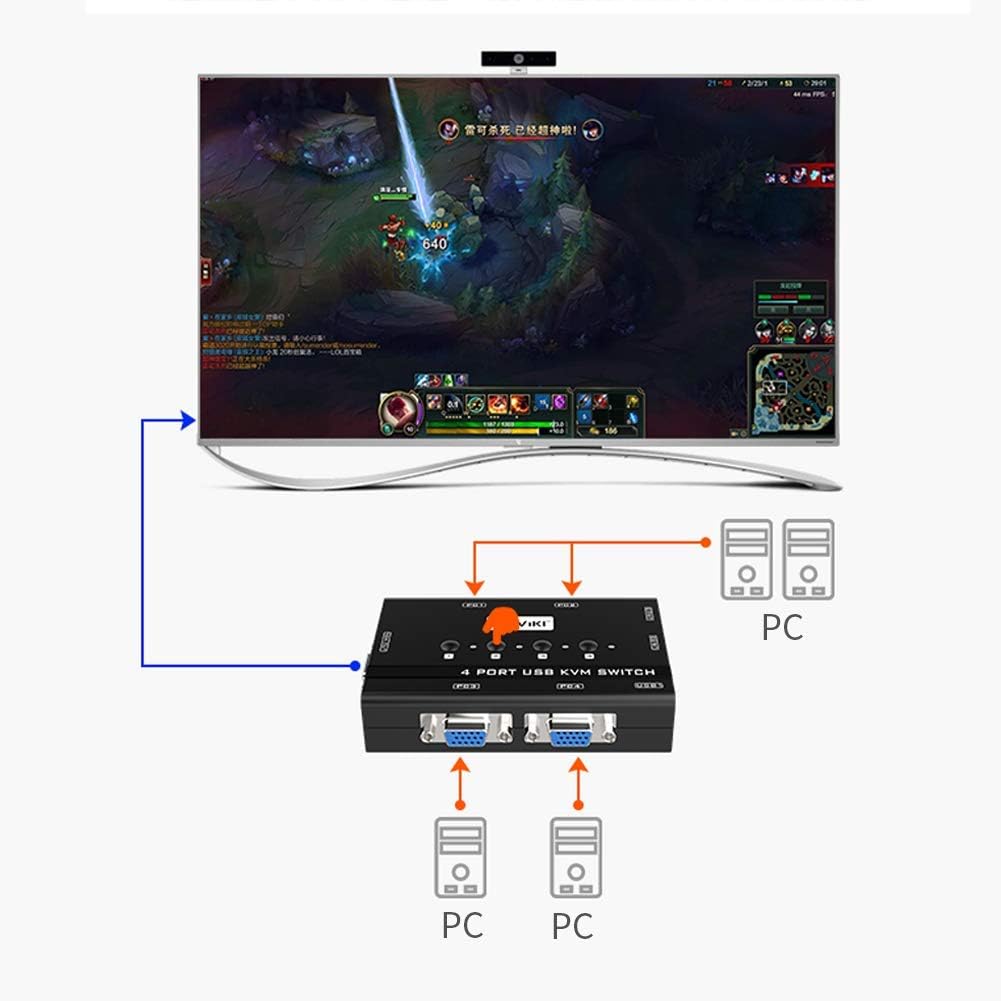
Image: A visual representation of the items included in the product package, such as the KVM switch unit, cables, and user manual.
The package includes the following items:
- 1x MT-VIKI KVM Switch (Model MT-000KL)
- 4x VGA KVM Cables (2-in-1, 1.2m length)
- 1x User Manual
Setup Instructions
Connecting the KVM Switch
Follow these steps to connect your KVM switch:
- Ensure all computers and the monitor are powered off before making any connections.
- Connect the VGA and USB ends of the provided 2-in-1 KVM cables to the respective VGA output and USB 2.0 ports on each computer. Important Note: Please plug the USB head of the VGA cable into the computer's USB port, preferably a primary USB 2.0 port, as it supplies power to the KVM switch.
- Connect the other end of these 2-in-1 KVM cables to the corresponding PC input ports (PC1, PC2, PC3, PC4) on the KVM switch.
- Connect your monitor's VGA cable to the "Output" VGA port on the KVM switch.
- Connect your keyboard and mouse to the dedicated USB ports on the KVM switch. If using a wireless keyboard/mouse, connect its USB receiver to one of the USB 2.0 hub ports.
- Power on your monitor and then your computers.

Image: A hand connecting the integrated VGA and USB cable to the back panel of a computer, illustrating the proper connection method.

Image: A detailed view of the KVM switch's front and rear panels, showing the VGA input/output ports and USB 2.0 connections.

Image: A wireless mouse receiver and a USB drive plugged into the KVM switch's USB ports, demonstrating peripheral connectivity.
Operating Instructions
Switching Between Computers
The MT-VIKI KVM Switch allows you to switch between connected computers using the physical buttons on the device.
- To switch to a specific computer, press the corresponding numbered button (1, 2, 3, or 4) on the front panel of the KVM switch. The LED indicator for the active computer will illuminate.
Video: This video demonstrates the package contents, product details, connection process, and how to use the KVM switch to switch between computers.
Maintenance
- Keep the KVM switch in a dry, well-ventilated area.
- Avoid exposing the device to extreme temperatures or humidity.
- Clean the exterior with a soft, dry cloth. Do not use liquid cleaners or aerosols.
- Ensure cables are securely connected to prevent signal loss or intermittent issues.
Troubleshooting
- No display on monitor after switching.
- Ensure all VGA and USB cables are securely connected to both the computers and the KVM switch.
- Verify that the USB cable from the computer is plugged into the primary USB input (often labeled USB 1 or the first available USB port) on the computer, as this often supplies power to the KVM switch.
- Try restarting the computer that is not displaying.
- Check the monitor's input source to ensure it is set to the correct VGA input.
- Keyboard or mouse not responding.
- Ensure the keyboard and mouse are connected to the dedicated KVM USB ports, not the USB hub ports (unless using a wireless receiver).
- Disconnect and reconnect the keyboard/mouse cables.
- If using a wireless setup, ensure the receiver is properly connected and has power.
- Intermittent signal or flickering display.
- Check for loose cable connections.
- Ensure the KVM cables are not excessively long or coiled, which can degrade signal quality.
- Reduce interference from other electronic devices.
Specifications
| Feature | Detail |
|---|---|
| Brand | MT-VIKI |
| Model Number | MT-000KL |
| Connectivity Protocol | VGA |
| Number of Positions | 4 |
| USB Ports | 3 USB 2.0 Hub |
| Max Resolution | 1920 x 1440 |
| Item Dimensions (L x W x H) | 47.28 x 30.72 x 12 inches |
| Item Weight | 1 pounds |
| Color | Black |
| Material | Metal |
| Control Method | Push Button |
| Date First Available | July 3, 2019 |
Warranty and Support
For warranty information and technical support, please refer to the contact details provided in the included user manual or visit the official MT-VIKI website.