
1. Introduction
Thank you for choosing the QPAD QH-92 Stereo Gaming Headset. This headset is designed to provide high-quality audio and clear communication across multiple platforms, including PC, PlayStation 4, Xbox One, Nintendo Switch, and mobile devices. Please read this manual carefully to ensure proper setup and optimal performance.
Package Contents:
- QPAD QH-92 Stereo Gaming Headset
- Detachable Microphone
- PC Splitter Cable (for separate audio/mic jacks)
2. Setup
2.1 Attaching the Microphone
The QPAD QH-92 features a flexible, detachable microphone. To attach, align the microphone connector with the port on the left earcup and push firmly until it clicks into place. To detach, gently pull the microphone straight out from the port.

Figure 2.1: QPAD QH-92 Headset with the detachable microphone connected to the left earcup.
2.2 Connecting to Devices
The headset connects via a 3.5mm jack. The included cable features an in-line control unit and terminates in a single 4-pole 3.5mm jack, suitable for most modern consoles, laptops, and mobile devices. A PC splitter cable is provided for computers with separate audio input and output ports.
2.2.1 Connecting to PC (Separate Audio/Mic Jacks)
- Connect the headset's single 3.5mm jack into the female end of the PC splitter cable.
- Plug the green-colored jack of the splitter cable into your PC's audio output (headphone) port.
- Plug the pink-colored jack of the splitter cable into your PC's microphone input port.
2.2.2 Connecting to Consoles, Laptops, and Mobile Devices (Combined Audio/Mic Jack)
- Plug the headset's single 4-pole 3.5mm jack directly into the combined audio/microphone port on your device.
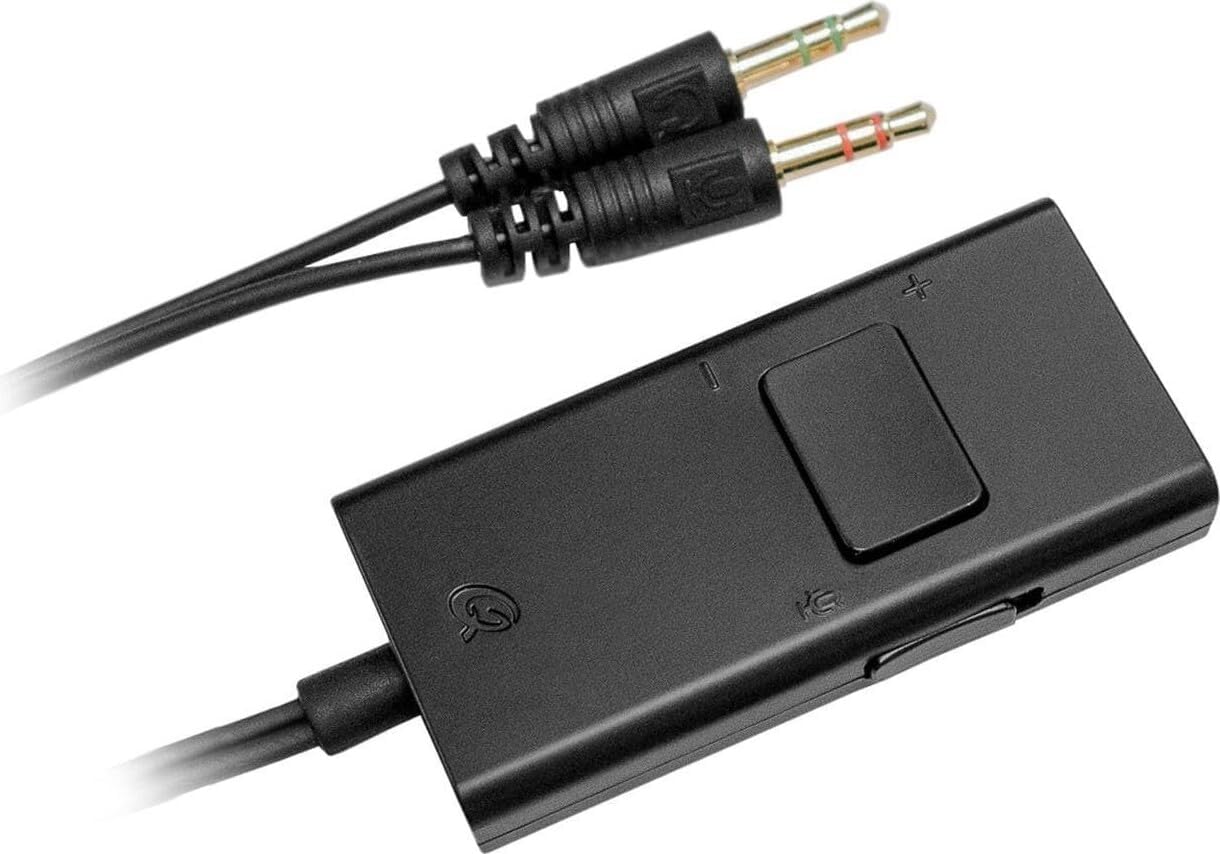
Figure 2.2: The in-line control unit and the PC splitter cable with separate audio and microphone jacks.
3. Operating Instructions
3.1 Wearing the Headset
Adjust the headband to comfortably fit your head. The earcups are designed to fully cover your ears for optimal sound isolation and comfort. The soft, padded leather headband and memory foam earcups ensure extended comfort during use.

Figure 3.1: Top view of the QPAD QH-92 Headset, illustrating the adjustable headband and comfortable earcups.
3.2 Volume Control
The headset features an integrated in-line volume control unit on the cable. Use the slider or wheel on this unit to adjust the audio volume to your preferred level. Ensure your device's volume is also set appropriately.
3.3 Microphone Usage
Once attached, position the flexible microphone approximately 1-2 inches from your mouth for clear voice pickup. If the microphone is not needed, it can be easily detached.
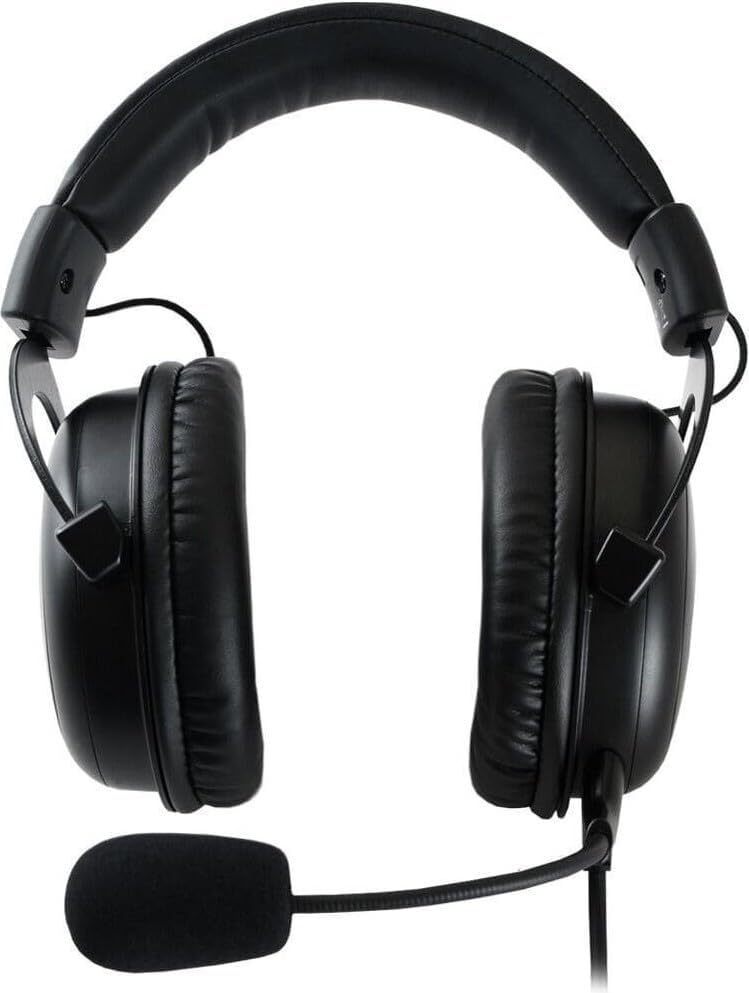
Figure 3.2: Side view of the QPAD QH-92 Headset, showing the position of the flexible microphone.
4. Maintenance
4.1 Cleaning
- Use a soft, dry cloth to clean the headset's surfaces.
- For earcups, gently wipe with a slightly damp cloth and allow to air dry completely before use.
- Do not use harsh chemicals or abrasive cleaners.
4.2 Storage
When not in use, store the headset in a clean, dry place away from extreme temperatures and direct sunlight. Avoid wrapping the cable tightly to prevent damage.
5. Troubleshooting
5.1 No Sound from Headset
- Ensure the 3.5mm jack(s) are fully inserted into the correct ports on your device.
- Check the in-line volume control on the headset cable and increase the volume.
- Verify that your device's audio output settings are configured to use the headset.
- Test the headset with another device to rule out a device-specific issue.
5.2 Microphone Not Working
- Ensure the detachable microphone is securely attached to the headset.
- If using a PC, confirm the pink microphone jack of the splitter cable is connected to the correct microphone input port.
- Check your device's microphone input settings and ensure the headset is selected as the default input device.
- Verify that the microphone is not muted in your device's settings or within the application you are using.
5.3 Poor Sound Quality
- Ensure all connections are secure and free from debris.
- Test with different audio sources or devices to determine if the issue is with the headset or the source.
- Adjust audio settings on your device, such as equalizer settings, if available.
6. Specifications
| Model Name | QH-92 |
| Connectivity Technology | Wired |
| Headphone Jack | 3.5 mm Jack |
| Driver Size | 53 mm High-Fidelity |
| Material | Aluminum, Leather |
| Weight | 350 Grams |
| Special Features | Integrated Volume Control, Detachable Microphone, Closed-Cup Design, Padded Headband |
| Compatible Devices | PC, PS4, Xbox One, Nintendo Switch, Mobile Devices, Laptop, Tablet |
7. Warranty and Support
For warranty information and technical support, please refer to the documentation provided with your purchase or visit the official QPAD website. Keep your proof of purchase for any warranty claims.