
Wodgreat WG-N300R Wi-Fi Signal Amplifier User Manual
Model: WG-N300R
1. Product Overview
The Wodgreat WG-N300R Wi-Fi Signal Amplifier is a versatile networking device designed to extend your existing Wi-Fi coverage, eliminate dead zones, and provide strong, stable wireless signals. It supports a high transmission speed of 300 Mbps on the 2.4 GHz band, making it suitable for various environments including bedrooms, multiple floors, garages, and gardens.

Image: Wodgreat WG-N300R Wi-Fi Signal Amplifier. This image shows the Wodgreat Wi-Fi Signal Amplifier, a compact white device with two adjustable external antennas. It features LED indicators for WAN, LAN, Link, and Wi-Fi status, and a standard power plug for wall outlet connection. The device is designed to extend Wi-Fi coverage.
Key features include:
- Extends existing Wi-Fi range and improves signal strength.
- High-speed 2.4 GHz, 300 Mbps transmission.
- Supports three operational modes: Repeater Mode, AP Mode, and Router Mode.
- Equipped with two Ethernet ports for wired connections.
- External antennas for enhanced performance and intelligent LED indicators for optimal placement.
- Complies with IEEE802.11N, G, B standards.
2. Package Contents
Please check the package contents upon unboxing:
- 1 x Wodgreat WG-N300R Wi-Fi Signal Amplifier
- 1 x Ethernet Cable
- 1 x User Manual (this document)
3. Setup Guide
Follow these steps to set up your Wodgreat Wi-Fi Signal Amplifier:
- Power On: Plug the amplifier into a working power outlet. Wait for the device to power on and its Wi-Fi indicator to light up.
- Connect to Device Wi-Fi: On your computer or mobile device, connect to the Wi-Fi network named "Wodgreat-xxx" (where xxx is a unique identifier for your device).
- Access Web Interface: Open a web browser (e.g., Chrome, Firefox) and enter the IP address 192.168.188.1 in the address bar.
- Login: When prompted, enter the default password "admin" and click "Login".
- Select Mode: Choose your desired operating mode (Repeater, AP, or Router). For most users, Repeater Mode is recommended to extend an existing network.
- Scan for Networks (Repeater Mode): If in Repeater Mode, click on "Network" → "WISP" → "Scan" to search for available Wi-Fi networks. Select the Wi-Fi network you wish to extend.
- Enter Password: Enter the Wi-Fi password of your home router's network that you selected.
- Save & Apply: Click "Save & Apply" to confirm your settings. The device will restart and connect to your network.

Image: Mobile Setup Interface. This series of screenshots demonstrates the step-by-step setup process for the Wodgreat Wi-Fi amplifier using a mobile phone. It shows connecting to the device's Wi-Fi, accessing the web interface via IP address 192.168.188.1, logging in with 'admin', scanning for available Wi-Fi networks, selecting a network, entering its password, and saving the settings.
4. Operating Modes
The Wodgreat WG-N300R supports three main operating modes to suit various networking needs:

Image: Working Modes Diagram. This diagram illustrates the three operational modes of the Wodgreat Wi-Fi amplifier. In Router Mode, the device connects to the internet and broadcasts a Wi-Fi signal. In Repeater Mode, it extends an existing Wi-Fi network. In AP Mode, it converts a wired connection into a wireless access point.
4.1. Repeater Mode (Range Extender)
In Repeater Mode, the device extends the coverage of an existing wireless network. It receives the wireless signal from your main router and re-transmits it, effectively expanding the Wi-Fi range to areas with weak or no signal. This is ideal for large homes or offices with Wi-Fi dead zones.
4.2. AP Mode (Access Point)
In AP Mode, the device transforms a wired network connection into a wireless one. Connect an Ethernet cable from your router or modem to the amplifier's WAN/LAN port, and the amplifier will create a new wireless network, allowing wireless devices to connect to the internet.
4.3. Router Mode
In Router Mode, the device functions as a primary router, connecting directly to your modem via an Ethernet cable. It then broadcasts a new wireless network and manages network traffic, providing internet access to all connected devices. This mode is suitable for small networks or as a temporary router solution.
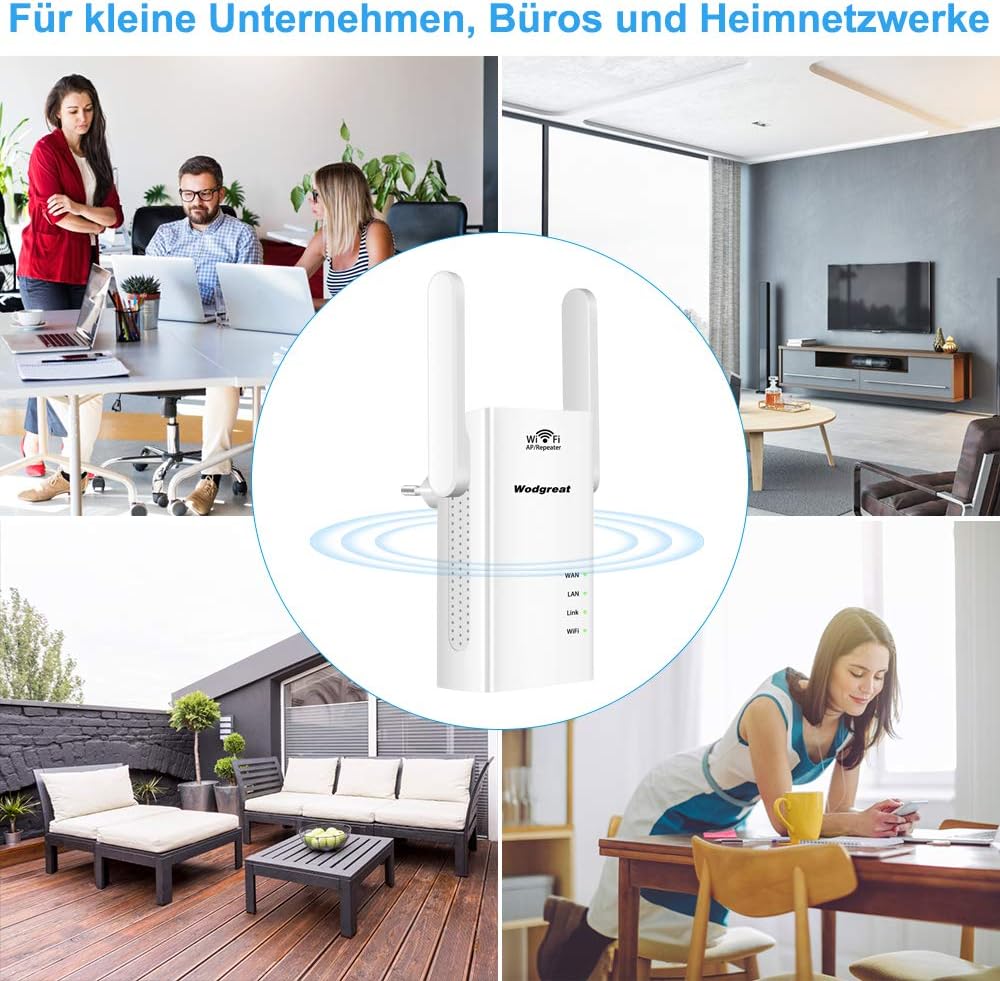
Image: Application Scenarios. This image collage shows the Wodgreat Wi-Fi amplifier in different usage scenarios, including a busy office, a comfortable living room, and an outdoor patio, highlighting its versatility for small businesses, offices, and home networks.
5. Maintenance
To ensure optimal performance and longevity of your Wodgreat Wi-Fi Signal Amplifier, follow these maintenance guidelines:
- Cleaning: Gently wipe the device with a soft, dry cloth. Do not use liquid cleaners or aerosols.
- Placement: Place the device in a well-ventilated area, away from direct sunlight, heat sources, and excessive moisture. Avoid placing it near large metal objects or other electronic devices that may cause interference.
- Firmware Updates: Periodically check the manufacturer's website for any available firmware updates to ensure the device has the latest features and security patches.
- Reset: If the device becomes unresponsive or experiences persistent issues, you may perform a factory reset using the reset button (refer to Troubleshooting section).
6. Troubleshooting
If you encounter issues with your Wodgreat Wi-Fi Signal Amplifier, please refer to the following common problems and solutions:
| Problem | Possible Solution |
|---|---|
| No power/Device not turning on. | Ensure the amplifier is securely plugged into a working power outlet. Try a different outlet. |
| Cannot connect to "Wodgreat-xxx" Wi-Fi. | Ensure the device is powered on and within range. Try restarting the amplifier. |
| Cannot access the web interface (192.168.188.1). | Verify your device is connected to the amplifier's Wi-Fi. Clear your browser's cache or try a different browser. Ensure you typed the IP address correctly. |
| Weak signal or frequent disconnections after setup. | Reposition the amplifier closer to your main router but still within a good signal area. Avoid obstacles like thick walls or large metal objects. Check the Link LED indicator for signal strength. |
| Internet connection is slow or intermittent through the amplifier. | This can happen if the amplifier is too far from the main router or if there's interference. Try moving the amplifier to a location where it receives a stronger signal from your main router. Ensure no other devices are causing interference. |
| Forgot login password for the web interface. | Perform a factory reset. With the device powered on, use a pin to press and hold the Reset button for about 5-10 seconds until the LEDs flash. The device will revert to default settings (password: "admin"). |

Image: Ports and Buttons. This image highlights the key physical features of the Wodgreat Wi-Fi amplifier, including the recessed Reset Button, the WAN (Wide Area Network) port, the LAN (Local Area Network) port, and the LED indicators for WAN, LAN, Link, and Wi-Fi status.
7. Specifications
| Feature | Detail |
|---|---|
| Brand | Wodgreat |
| Model Number | WG-N300R |
| Wireless Standard | IEEE 802.11n/g/b |
| Data Transfer Rate | Up to 300 Mbps |
| Frequency Band | 2.4 GHz |
| Operating Modes | Repeater, AP, Router |
| Ports | 2 x RJ45 Ethernet Ports (WAN/LAN) |
| Antennas | External Antennas |
| Special Feature | Portable Design |
| Compatible Devices | All Wi-Fi devices (routers, smartphones, tablets, laptops, computers, smart TVs, game consoles, printers, and security cameras) |
| Weight | 160 Grams |
| Included Components | Ethernet Cable |

Image: Product Dimensions. This image provides a dimensional overview of the Wodgreat Wi-Fi amplifier, indicating its height as 102mm, width as 60mm, and the height of its external antennas as 80mm. It also shows the front and back views of the device.
8. Warranty and Support
For warranty information and technical support, please refer to the documentation provided with your purchase or visit the official Wodgreat website. Keep your purchase receipt as proof of purchase for any warranty claims.
If you encounter issues not covered in this manual, please contact Wodgreat customer support for assistance.