
Bticino 344682
Bticino 344682 Smart Indoor Monitor WiFi Video Intercom User Manual
Model: 344682 | Brand: Bticino
1. Introduction
This manual provides detailed instructions for the installation, operation, and maintenance of your Bticino 344682 Smart Indoor Monitor WiFi Video Intercom. Please read this manual carefully before using the product to ensure proper functionality and safety.
The Bticino 344682 is a sophisticated 2-wire video intercom system featuring a 5-inch color touch screen display, speakerphone functionality, and integrated Wi-Fi for smartphone connectivity. It allows for convenient communication with visitors and remote control of access points.
2. Product Overview
The Bticino 344682 Smart Indoor Monitor is designed for seamless integration into single-family and two-family homes. Its intuitive touch screen interface and smartphone app control provide a modern and efficient way to manage your home's entry system.

Figure 2.1: Front view of the Bticino 344682 Smart Indoor Monitor, showing the 5-inch display and touch controls.
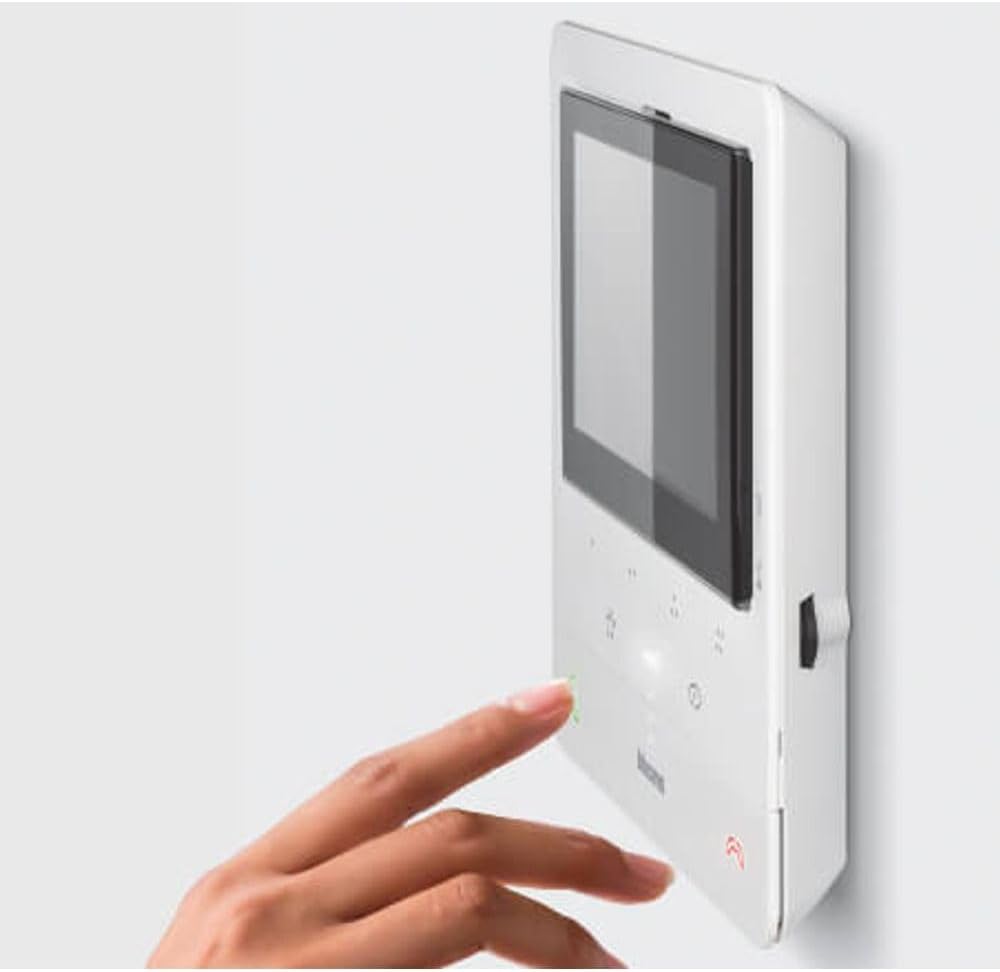
Figure 2.2: Side view of the Bticino 344682 Smart Indoor Monitor, illustrating its slim profile suitable for wall mounting.
3. Setup and Installation
The Bticino 344682 is designed for easy installation, typically requiring only a few minutes. It connects to the external button panel using a two-wire cable, eliminating the need for extensive masonry work.
3.1. Wiring and Power Supply
- Two-Wire Connection: Connect the internal monitor to the external button panel using a two-wire cable. The maximum recommended distance between the two devices is 100 meters. Note that the two-wire cable is not included in the package; you may use existing wiring if it is in good condition.
- Power Supply: The monitor is powered via a 30W plug-in adapter. An expandable cable, 1.85 meters long, is included with a special accessory for convenient power connection.
3.2. Wall Mounting
The monitor is designed for wall mounting. Ensure the mounting location provides stable support and allows for proper cable routing.

Figure 3.1: The Bticino 344682 monitor installed on a wall in a home environment.
3.3. Wi-Fi and App Configuration
The integrated Wi-Fi allows you to manage the intercom via the Door Entry Class100X app (available for Android and iOS). This enables remote answering of calls and opening of doors/gates.
- Network Requirements: A stable home Wi-Fi network with internet access is required to connect the Class100 X16E video intercom and your smartphone.
- App Installation: Download and install the "Door Entry CLASSE100X" app on your smartphone.
- Pairing: Follow the in-app instructions to pair your smartphone with the intercom monitor. This typically involves connecting to the intercom's temporary Wi-Fi network during setup and then configuring it to join your home Wi-Fi.
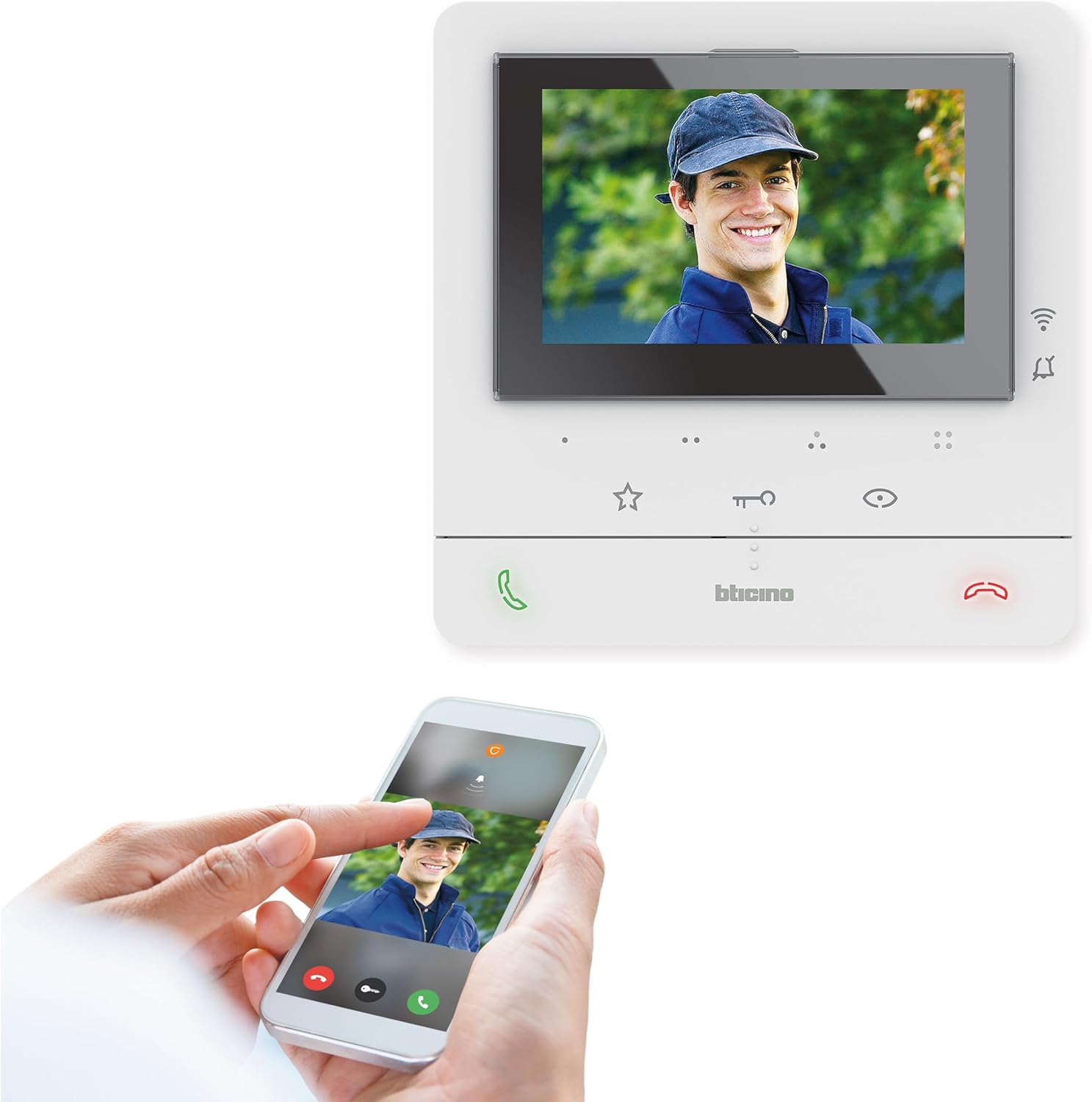
Figure 3.2: The Bticino 344682 monitor displaying a visitor, with a smartphone showing the corresponding app interface for remote interaction.
4. Operating Instructions
The Bticino 344682 offers various functionalities for convenient home access management.
4.1. Basic Intercom Functions
- Answering Calls: When a visitor presses the call button on the external panel, the indoor monitor will ring. You can answer the call by touching the appropriate icon on the screen.
- Viewing Visitors: The 5-inch color display provides a clear view of the visitor.
- Two-Way Communication: Utilize the integrated speakerphone for clear voice communication with the visitor.
- Opening Doors/Gates: The monitor allows you to open up to two entrances (e.g., a pedestrian gate and a vehicle gate) with a simple touch.
- Adjustments: You can adjust the ringtone volume, brightness, and color of the image directly from the monitor's settings.
4.2. Smartphone App Control
The Door Entry Class100X app extends the intercom's functionality to your smartphone, allowing you to:
- Answer intercom calls from anywhere, whether you are at home or away.
- View live video feed from the external panel.
- Open doors and gates remotely with a simple tap on your smartphone screen, eliminating the need for physical keys or remote controls.

Figure 4.1: Illustration of the Bticino 344682 monitor's seamless integration with the smartphone app for remote control and monitoring.
5. Maintenance
To ensure the longevity and optimal performance of your Bticino 344682 Smart Indoor Monitor, follow these simple maintenance guidelines:
- Cleaning: Use a soft, dry, or slightly damp cloth to clean the monitor's screen and casing. Avoid abrasive cleaners, solvents, or aerosol sprays, as these can damage the surface.
- Software Updates: Periodically check for firmware updates through the Door Entry Class100X app or Bticino's official website. Keeping the software updated ensures the best performance and security.
- Environmental Conditions: Ensure the monitor is installed in an indoor environment within the recommended temperature and humidity ranges to prevent damage.
6. Troubleshooting
If you encounter issues with your Bticino 344682 Smart Indoor Monitor, refer to the following common problems and solutions:
6.1. Connectivity Issues
- No Wi-Fi Connection:
- Check the quality of your home Wi-Fi signal. A weak signal can lead to unstable connections.
- Verify your internet service provider (ISP) contract and ensure there are no service interruptions.
- Review your router's configuration. Ensure it is properly set up and not blocking the intercom's connection.
- Restart your Wi-Fi router and the intercom monitor.
- App Not Connecting to Intercom:
- Ensure your smartphone has a stable data connection (Wi-Fi or mobile data).
- Verify that the "Door Entry CLASSE100X" app is updated to the latest version.
- Check the app's permissions on your smartphone to ensure it has necessary access (e.g., network access).
- Try restarting the app or reinstalling it if issues persist.
6.2. No Image/Sound from External Panel
- Check Wiring: Ensure the two-wire connection between the indoor monitor and the external panel is secure and undamaged.
- Power Supply: Verify that the monitor is receiving power and the power adapter is securely plugged in.
- External Panel Functionality: If possible, check the external panel for any signs of damage or malfunction.
6.3. Monitor Not Responding
- Power Cycle: Disconnect the power adapter from the monitor, wait for 10 seconds, and then reconnect it. This can resolve minor software glitches.
- Factory Reset: If the issue persists, consult the Bticino support website or contact customer service for instructions on performing a factory reset. Note that a factory reset will erase all settings.
7. Specifications
| Feature | Detail |
|---|---|
| Model Name | Classe 100X16E |
| Part Number | 344682 |
| Indoor/Outdoor Usage | Indoor |
| Compatible Devices | Smartphone |
| Power Source | Corded Electric |
| Connectivity Protocol | HomePlug |
| Controller Type | Push Button |
| Mounting Type | Wall Mount |
| Number of Items | 1 |
| Included Components | 1 x video door phone |
| Number of Channels | 4 |
| Wireless Communication Technology | Wi-Fi |
| Material | Metal |
| Wattage | 5 watts |
| Item Dimensions (L x W x H) | 17 x 17 x 2.5 centimetres |
| Item Weight | 340 g |
| Special Features | Motion Sensor |
8. Warranty and Support
For warranty information and technical support, please refer to the official Bticino website or contact their customer service department. Keep your purchase receipt as proof of purchase for warranty claims.
Bticino Official Website: www.bticino.com
For app-related queries, refer to the help section within the Door Entry Class100X app.