1. Introduction
This manual provides comprehensive instructions for the safe and efficient operation of your Bewinner 58mm Mini USB/Bluetooth Thermal Receipt Portable Printer. Please read this manual thoroughly before using the device and retain it for future reference.

Image: The Bewinner 58mm Mini USB/Bluetooth Thermal Receipt Portable Printer, a compact black device with a translucent blue cover, displaying a printed receipt.
2. Safety Information
- Do not disassemble or modify the printer. Unauthorized modifications can lead to electric shock, fire, or damage to the device.
- Use only the provided power adapter and accessories. Using incompatible accessories may cause damage or malfunction.
- Keep the printer away from water, moisture, and extreme temperatures.
- Avoid dropping or subjecting the printer to strong impacts.
- Ensure proper ventilation around the printer during operation.
- Dispose of batteries according to local regulations.
3. Package Contents
Please verify that all items listed below are included in your package:
- Bewinner Thermal Receipt Printer
- Power Adapter
- USB Cable
- Driver CD
- User Manual (this document)

Image: The Bewinner thermal printer, power adapter, USB cable, and driver CD, representing the typical package contents.
4. Product Overview
Familiarize yourself with the various components and ports of your thermal printer.

Image: A detailed diagram labeling the external components of the printer, including the charging indicator, paper out/power indicator, electric capacity lights, power switch, feeding button, mode switch, DC 9V input, USB port, and COM port.
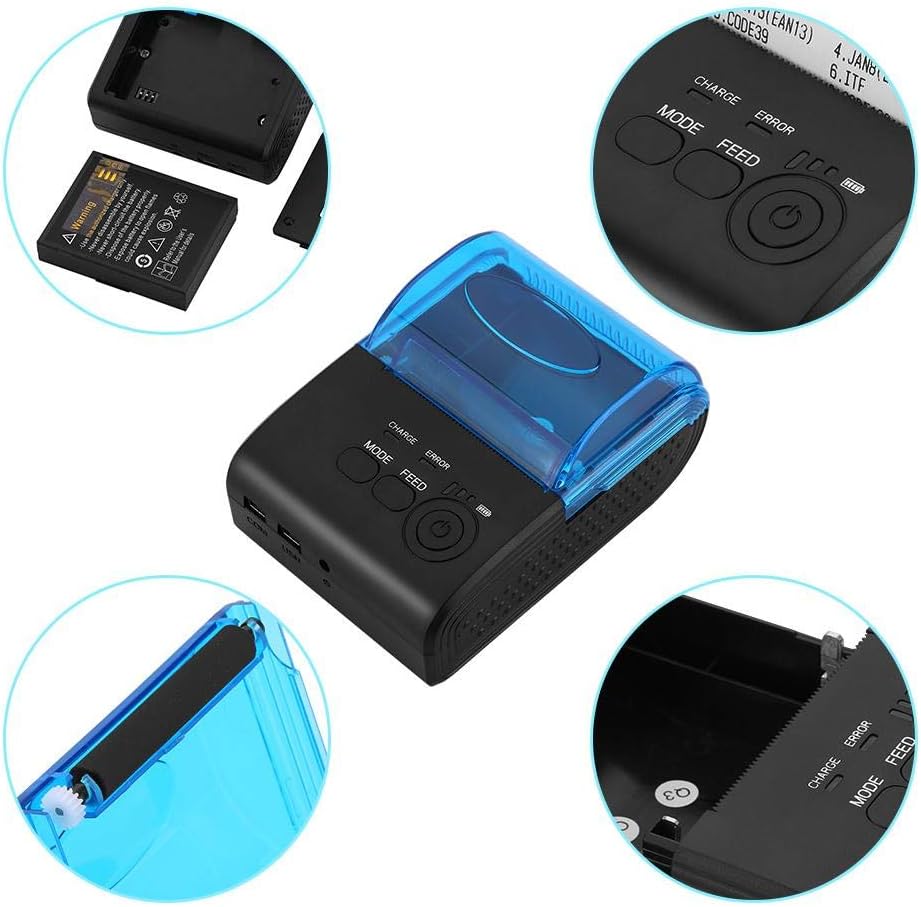
Image: A composite image showing close-up views of the printer's key areas: the battery compartment, the paper roll loading area, the control panel with MODE, FEED, and Power buttons, and the COM/USB ports.
5. Setup
5.1 Battery Installation
- Ensure the printer is powered off.
- Locate the battery compartment cover on the bottom of the printer.
- Slide or unclip the cover to open the compartment.
- Insert the provided lithium battery, ensuring the contacts align correctly.
- Close the battery compartment cover securely.

Image: The underside of the printer with the battery compartment open, showing the battery and its slot.
5.2 Paper Roll Installation
- Gently push the cover open button (if present) or lift the translucent blue cover to open the paper compartment.
- Insert a 58mm thermal paper roll into the compartment, ensuring the paper feeds from the bottom and the leading edge is straight.
- Pull a small amount of paper out past the print head.
- Close the cover firmly until it clicks into place.

Image: The printer with its translucent blue cover open, revealing the paper roll compartment, ready for paper insertion.
5.3 Charging the Printer
- Connect the provided power adapter to the DC 9V port on the side of the printer.
- Plug the power adapter into a suitable electrical outlet.
- The charging indicator light will illuminate during charging.
- Charge the printer fully before initial use.

Image: The Bewinner thermal printer shown alongside its power adapter, illustrating the charging connection.
5.4 Driver Installation
For USB connection with a computer, driver installation is required. The printer supports Windows, Vista, and Linux operating systems.
- Insert the provided Driver CD into your computer's CD-ROM drive.
- Follow the on-screen instructions to install the printer drivers.
- If your computer does not have a CD-ROM drive, please visit the Bewinner support website to download the latest drivers.
6. Operating Instructions
6.1 Powering On/Off
- To power on: Press and hold the Power button (usually marked with a circle and a vertical line) until the indicator lights illuminate.
- To power off: Press and hold the Power button again until the indicator lights turn off.
6.2 Connecting via USB
- Ensure the printer drivers are installed on your computer.
- Connect one end of the USB cable to the printer's USB port and the other end to your computer.
- Your computer should recognize the printer. You can then select it as your default printer in your application settings.
6.3 Connecting via Bluetooth
The printer supports Bluetooth 4.0 and 2.0 for wireless connection with Android and iOS devices.
- Ensure the printer is powered on and within range of your mobile device.
- On your mobile device, go to Bluetooth settings and enable Bluetooth.
- Search for available devices. The printer should appear as "Printer" or a similar name.
- Select the printer to pair. If prompted for a PIN, enter "0000" or "1234".
- Once paired, you can use compatible printing applications on your device to send print jobs to the printer.
6.4 Printing a Test Page
To confirm the printer is functioning correctly and to check its current settings:
- With the printer powered off, press and hold the "FEED" button.
- While holding "FEED", press and hold the "Power" button simultaneously.
- Release both buttons once the printer starts printing. A self-test page will be printed, showing firmware version, print method, and other settings.
Image: The Bewinner thermal printer actively printing a receipt, demonstrating its operational state.
7. Maintenance
7.1 Cleaning the Print Head
Regular cleaning of the print head ensures optimal print quality and extends the printer's lifespan.
- Ensure the printer is powered off and unplugged.
- Open the paper compartment cover.
- Gently wipe the thermal print head (the dark strip inside the cover) with a cotton swab lightly dampened with isopropyl alcohol.
- Allow the print head to dry completely before closing the cover and powering on the printer.
7.2 Battery Care
- To prolong battery life, avoid fully discharging the battery frequently.
- If the printer will not be used for an extended period, charge it to about 50% and store it in a cool, dry place.
- Recharge the battery every few months to prevent deep discharge.
7.3 Paper Handling
- Use only high-quality 58mm thermal paper.
- Store thermal paper in a cool, dry place away from direct sunlight and heat to prevent premature fading.
- Ensure the paper roll is inserted correctly to avoid paper jams.
8. Troubleshooting
| Problem | Possible Cause | Solution |
|---|---|---|
| Printer does not power on. | Low battery or power adapter not connected. | Charge the battery or connect the power adapter. Ensure the power button is pressed correctly. |
| No print output. | No paper, paper incorrectly loaded, or print head dirty. | Check paper roll and reload if necessary. Clean the print head. Verify connection (USB/Bluetooth) and driver installation. |
| Poor print quality. | Dirty print head or low battery. | Clean the print head. Ensure the battery is sufficiently charged. |
| Cannot connect via Bluetooth. | Bluetooth not enabled on device, printer not in pairing mode, or incorrect PIN. | Ensure Bluetooth is enabled on your device. Restart the printer. Re-attempt pairing with PIN "0000" or "1234". |
| Paper jam. | Paper incorrectly loaded or foreign object in paper path. | Power off the printer. Open the paper compartment and carefully remove any jammed paper or obstructions. Reload paper correctly. |
9. Specifications
| Feature | Detail |
|---|---|
| Model | Bewinnerxo7snryhi4-02 |
| Printing Technology | Thermal |
| Print Width | 58mm |
| Print Speed | Up to 90mm/sec |
| Resolution | 203 DPI |
| Connectivity | USB, Bluetooth 4.0/2.0 |
| Supported OS | Windows, Vista, Linux, Android, iOS |
| Battery | 7.4V DC, 1500mAh Rechargeable Lithium Battery |
| Charging Mode | DC 9V/1.5A |
| Working Temperature | -10~50℃ |
| Working Humidity | 10-90% |
| Dimensions | Approx. 105 x 75 x 52mm (4.13 x 2.95 x 2.04 inches) |
| Item Weight | Approx. 0.4 kg (14.1 ounces) |

Image: The Bewinner thermal printer with its dimensions clearly marked: 105mm length, 75mm width, and 52mm height.
10. Warranty and Support
This product comes with a limited warranty. For specific warranty terms and conditions, please refer to the documentation included with your purchase or contact Bewinner customer support.
If you encounter any issues or have questions not covered in this manual, please contact Bewinner customer support for assistance. Contact information can typically be found on the product packaging or the official Bewinner website.


