
1. Introduction
Thank you for purchasing the Guamar External Blu-ray Drive. This device is a versatile 5-in-1 external optical drive designed to read and write Blu-ray, DVD, and CD discs, while also functioning as an SD/TF card reader and a 2-port USB 3.0 hub. Its portable and slim design makes it ideal for use with laptops and desktop computers. This manual provides detailed instructions for setup, operation, maintenance, and troubleshooting to ensure optimal performance and longevity of your device.
2. What's in the Box
Please check the package contents upon unboxing:
- 1x Guamar 5-in-1 External Blu-ray Burner
- 1x USB 3.0/USB Type-C Adapter
- 1x Power Cable
- 1x Storage Carrying Case
- 1x User Manual (this document)
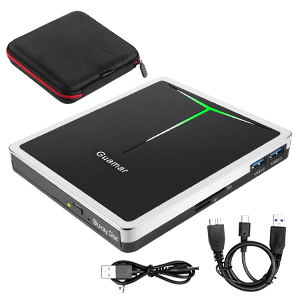
Image: The Guamar External Blu-ray Drive shown with its USB 3.0 cable, USB Type-C adapter, and protective carrying case.
3. Product Features
The Guamar External Blu-ray Drive offers a range of features for enhanced functionality:
- 5-in-1 Functionality: This device combines a Blu-ray/DVD/CD drive with an SD card reader, TF card reader, and two USB 3.0 ports.
- Wide Disc Compatibility: Supports reading and writing of BD (Blu-ray Disc), DVD, and CD formats. It also supports 3D Blu-ray Discs.
- High-Speed Data Transfer: Equipped with USB 3.0 and Type-C interfaces for fast and stable data transmission.
- Plug & Play: No external drivers are required for most operating systems. Simply connect the drive to your computer.
- Multi-purpose Hub: The integrated SD/TF card readers allow for easy transfer of photos and videos. The two USB 3.0 ports can connect other USB devices like flash drives, mice, keyboards, or external hard drives.
- Portable Design: Slim and lightweight, making it easy to carry in the included storage case.
- Indicator Light: A color-changing light on the surface indicates operation status.
- Noise Reduction & Error Correction: Designed for stable and reliable performance.

Image: The Guamar External Blu-ray Drive in use, connected to a laptop, highlighting its multi-functionality with disc, SD card, TF card, and USB devices.
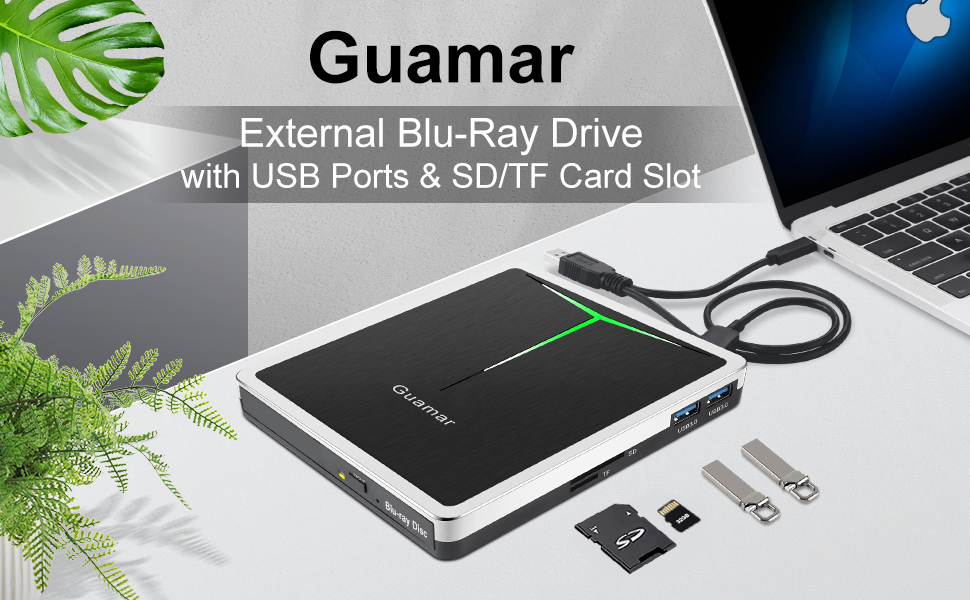
Image: A visual representation of the drive's capabilities, such as data backup, media playback, software installation, and file transfer.
4. Setup Instructions
Follow these steps to set up your Guamar External Blu-ray Drive:
- Connect to Computer:
- For laptops: Connect the integrated USB 3.0 or Type-C cable directly to an available USB 3.0 or Type-C port on your laptop.
- For desktop computers: It is recommended to connect the drive to a USB/USB Type-C port located on the motherboard (usually on the back of the computer) for stable power supply and data transfer.
- Power Connection (Optional): In some cases, especially with older computers or when using multiple power-intensive USB devices, the included power cable may be necessary to ensure sufficient power. Connect the power cable to the drive and a USB power source (e.g., a USB wall adapter or another USB port on your computer).
- Automatic Recognition: The drive is Plug & Play. Your operating system should automatically detect and install the necessary drivers within seconds. No manual driver installation is typically required.
- Software Installation (for Blu-ray/DVD Playback/Burning): While the drive is plug-and-play for basic recognition, dedicated software is required to play Blu-ray or DVD movies, or to burn discs. Ensure you have compatible playback/burning software installed on your computer. For Blu-ray playback, professional software such as Mac Blu-ray Player, ideer Blu-ray Player, or similar is recommended.
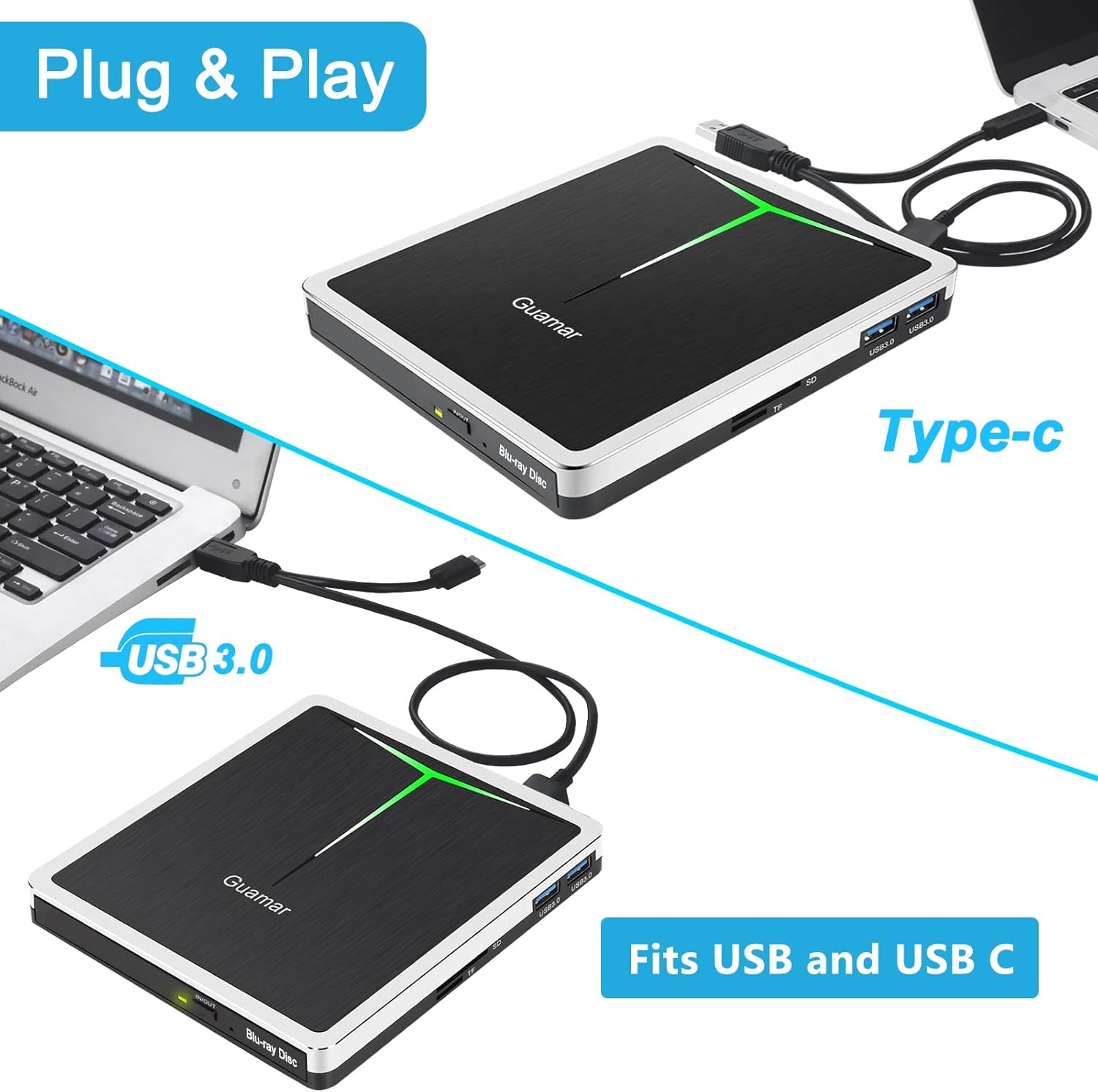
Image: The drive's dual USB 3.0 and Type-C connectivity options for easy plug-and-play setup with various computers.
5. Operating Instructions
5.1 Inserting and Ejecting Discs
- Inserting a Disc: Press the Ejection Button on the front of the drive. The disc tray will open. Carefully place your Blu-ray, DVD, or CD disc onto the tray with the label side facing up. Gently push the tray back into the drive until it clicks shut.
- Ejecting a Disc: Press the Ejection Button again. The tray will open, allowing you to remove the disc. Alternatively, you can eject the disc through your computer's operating system (e.g., right-click the drive icon and select 'Eject').
- Forced Ejection: In case of power failure or if the Ejection Button does not work, locate the small hole next to the Ejection Button. Insert a straightened paperclip into this hole and push gently to manually open the disc tray.
5.2 Reading Discs
Once a disc is inserted and recognized by your computer:
- Data Discs: The disc contents will appear in your file explorer. You can access files, copy them to your computer, or run applications directly from the disc.
- Movie Discs (Blu-ray/DVD): Open your preferred Blu-ray or DVD playback software. Select the option to play from the optical drive. Ensure your software supports the specific disc format (e.g., 3D Blu-ray).
- Audio CDs: Use your computer's media player software to play audio tracks.
5.3 Writing/Burning Discs
To burn data to a Blu-ray, DVD, or CD, you will need compatible burning software:
- Insert a blank recordable disc (BD-R, BD-RE, DVD-R, DVD+R, CD-R, etc.) into the drive.
- Open your disc burning software.
- Follow the software's instructions to select files, choose burning options, and start the burning process.
5.4 Using the SD/TF Card Readers
The drive includes dedicated slots for SD and TF (MicroSD) cards:
- Insert your SD or TF card into the corresponding slot until it clicks into place.
- The card will appear as a removable drive in your computer's file explorer.
- You can transfer files to and from the card.
- Note: The SD and TF card slots cannot be used simultaneously. Please choose one at a time. However, either card slot can be used concurrently with the two USB 3.0 ports.
5.5 Using the USB 3.0 Ports
The two integrated USB 3.0 ports function as a hub:
- Connect USB devices such as flash drives, external hard drives, mice, keyboards, or smartphones for data transfer or charging.
- These ports operate at USB 3.0 speeds, offering fast data transfer for compatible devices.

Image: Detail of the integrated SD, TF, and USB 3.0 ports, demonstrating the drive's multi-functional hub capabilities.
6. Compatibility
The Guamar External Blu-ray Drive is designed for broad compatibility:
- Operating Systems: Fully compatible with Windows 7, Windows 8, Windows 10, Windows 11, Windows XP, Windows Vista, Linux, and all versions of Mac OS.
- Hardware Platforms: Works with PC laptops and desktop computers.
- Unsupported Devices/Formats: This external Blu-ray drive does not support 4K HD Discs, iPad, Tablets, TV, Projectors, Chrome OS devices, Car entertainment systems, or Smart Phones.
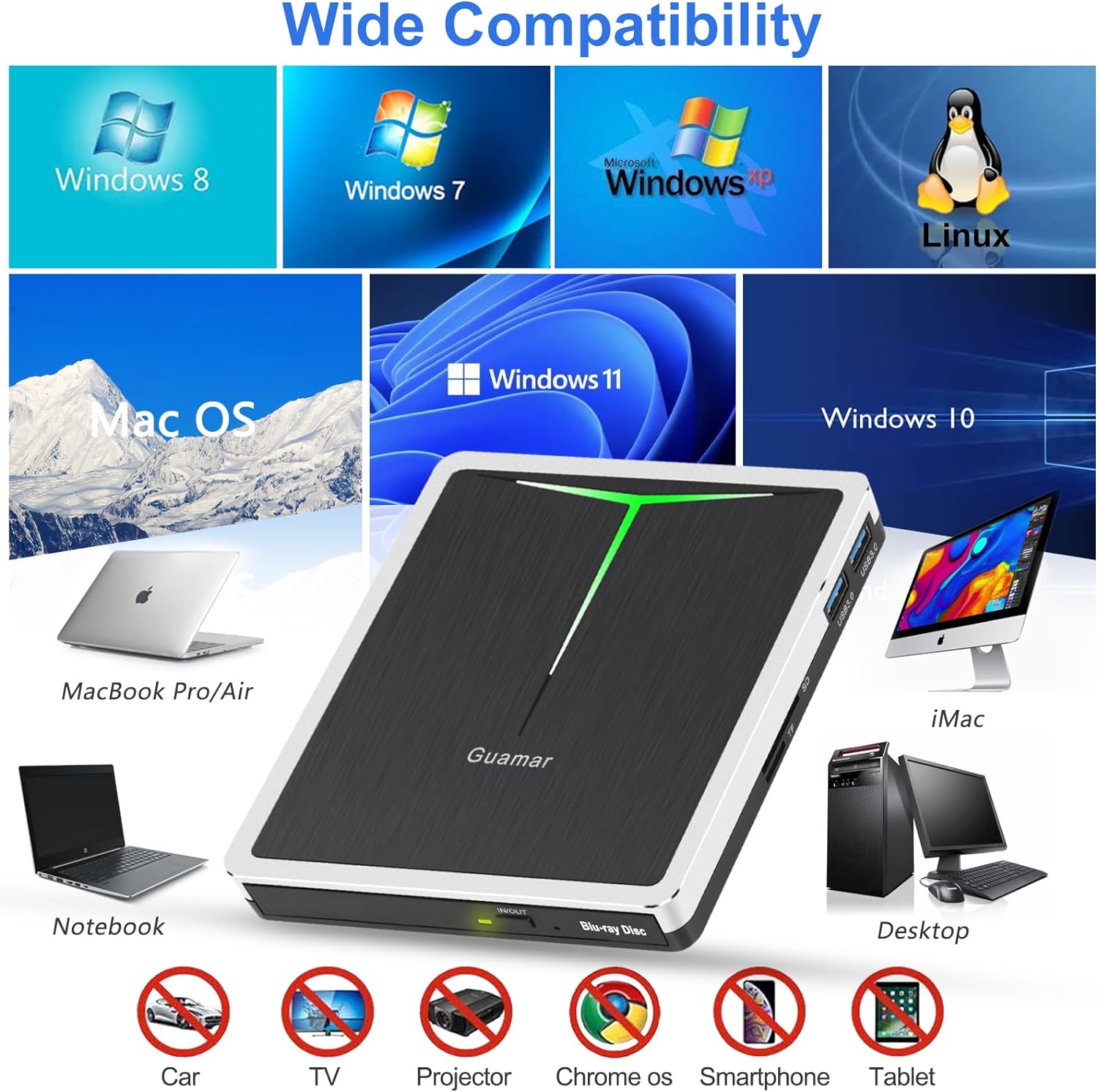
Image: Visual guide to the drive's wide compatibility with various computer operating systems and its limitations with certain devices.
7. Maintenance
Proper care ensures the longevity and performance of your Blu-ray drive:
- Cleaning: Use a soft, dry cloth to wipe the exterior of the drive. Do not use liquid cleaners or abrasive materials. For the optical lens, use a specialized optical drive cleaning disc sparingly.
- Handling Discs: Always handle discs by their edges. Avoid touching the data surface. Store discs in their cases to prevent scratches and dust accumulation.
- Storage: When not in use, store the drive in its included carrying case to protect it from dust, impacts, and scratches. Keep it in a cool, dry place away from direct sunlight and extreme temperatures.
- Power Off: Always safely eject discs and disconnect the drive from your computer when not in use or before transporting it.
- Avoid Liquids: Keep the drive away from water and other liquids to prevent internal damage.
8. Troubleshooting
If you encounter issues, refer to the following common problems and solutions:
| Problem | Possible Cause | Solution |
|---|---|---|
| Drive not recognized by computer | Insufficient power supply; Loose connection; Faulty USB port; Operating system issue. | 1. Ensure the drive is securely connected to a USB 3.0 or Type-C port. Try a different port. 2. For desktops, connect to a motherboard USB port (rear ports). 3. Use the included power cable if the drive is not receiving enough power. 4. Restart your computer. 5. Check Device Manager (Windows) or System Information (Mac) to see if the drive is listed. |
| Cannot play Blu-ray/DVD movies | Missing or incompatible playback software; Disc region code; Corrupted disc. | 1. Install dedicated Blu-ray/DVD playback software (e.g., Mac Blu-ray Player, ideer Blu-ray Player). 2. Ensure your software supports the specific disc format (e.g., 3D Blu-ray). 3. Verify the disc is clean and undamaged. 4. Check if the disc's region code matches your player's or software's settings. |
| Cannot burn discs | No burning software; Incorrect disc type; Disc full or damaged. | 1. Install disc burning software. 2. Use a blank, recordable disc (BD-R, DVD-R, CD-R). 3. Ensure the disc has sufficient free space. 4. Try a different blank disc. |
| SD/TF card not detected | Card not fully inserted; Card corrupted; SD/TF slots used simultaneously. | 1. Ensure the card is fully and correctly inserted. 2. Remember that SD and TF cards cannot be used at the same time. 3. Test the card in another device to check for corruption. 4. Reconnect the drive to your computer. |
| Drive makes unusual noise | Unbalanced disc; Drive placed on an uneven surface; Internal component issue. | 1. Ensure the disc is properly seated in the tray and not warped. 2. Place the drive on a flat, stable surface. 3. If the noise persists and affects performance, contact customer support. |
If these solutions do not resolve your issue, please contact Guamar customer service for further assistance.
9. Specifications
Technical details of the Guamar External Blu-ray Drive:
| Feature | Detail |
|---|---|
| Brand | Guamar |
| Model Number | fdg-498 |
| Hardware Platform | PC |
| Operating System Compatibility | Windows 7/8/10/11/XP/Vista, Linux, Mac OS |
| Item Weight | 1.3 pounds (approx. 0.59 kg) |
| Product Dimensions (LxWxH) | 5.87 x 5.59 x 0.8 inches (approx. 14.9 x 14.2 x 2.0 cm) |
| Color | Black |
| Hardware Interface | USB 3.0, USB Type-C |
| Optical Storage Read Speed | 6X BD-ROM, 8X DVD-ROM, 24X CD-ROM |
| Optical Storage Write Speed | 6X BD-R |
| Special Features | Backward Compatible, Error Correction, Noise Reduction Technology, Portable & Lightweight, Support TF/SD Card Reader |
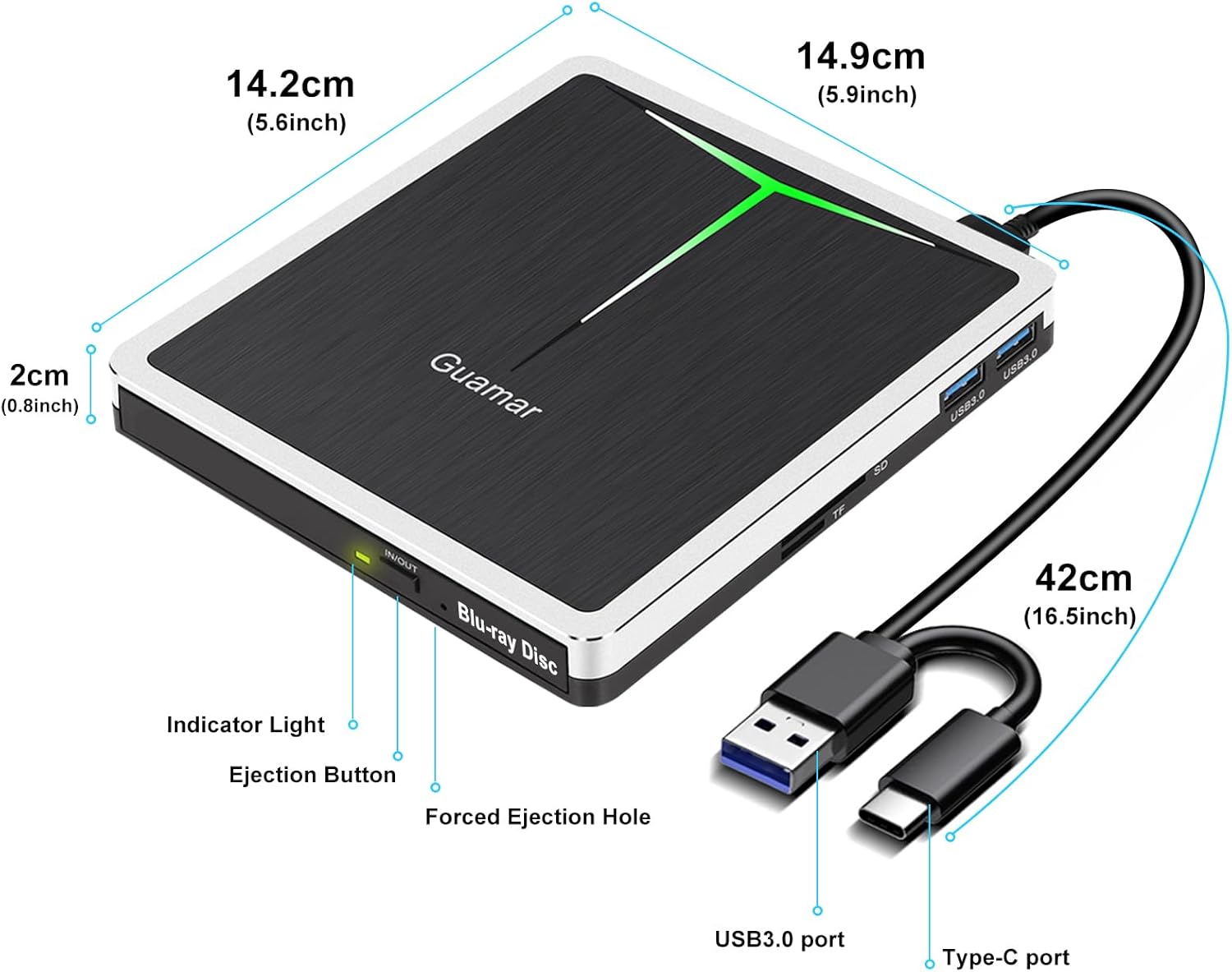
Image: Detailed diagram of the drive's physical dimensions and labeled components.

Image: Overview of the drive's performance specifications and key design features.
10. Warranty & Support
Guamar is committed to providing high-quality products and customer satisfaction.
- Warranty: This Guamar External Blu-ray Drive comes with a 2-year support period from the date of purchase. This warranty covers manufacturing defects and product quality issues under normal use.
- Customer Service: If you encounter any problems with your Guamar external Blu-ray/DVD drive, please do not hesitate to contact our customer service team. We aim to resolve issues within 24 hours.
- Contact Information: Please refer to the contact details provided on the product packaging or the official Guamar website for the most up-to-date support channels.