
1. Introduction
Thank you for choosing the Zeerkeer TK905 Professional Waterproof Real-Time GPS Tracker. This device is designed to provide reliable and accurate tracking for a variety of assets, including trucks, cars, motorcycles, freezers, and boats. With its robust features and user-friendly interface, you can monitor your valuables with confidence. Please read this manual carefully before using the device to ensure proper operation and maximize its lifespan.
2. Safety Information
- Ensure the device is installed by a qualified professional if you are unsure about electrical connections.
- Do not attempt to open or modify the device, as this will void the warranty and may cause damage.
- Keep the device away from extreme temperatures, direct sunlight, and corrosive materials.
- Use only the provided USB cable for charging.
- Dispose of the device and its components responsibly according to local regulations.
3. Package Contents
Upon opening your Zeerkeer TK905 package, please verify that all items listed below are present and in good condition:
- 1 x Zeerkeer TK905 GPS Tracker
- 1 x USB Cable
- 1 x Storage Bag
- 1 x Micro SIM Adapter
- 1 x Nano SIM Adapter

Image: Contents of the Zeerkeer TK905 GPS Tracker package, including the tracker, USB cable, storage bag, and SIM card adapters.
4. Product Overview
4.1 Key Features
- Real-time Positioning: GPS/LBS positioning with accuracy up to 5 meters.
- Geo-Fence: Set up a security zone; receive app/SMS alerts if the device enters or exits the area.
- Route History: View up to 6 months of historical routes, with 3 months accessible via the app.
- Multiple Alarms: Includes mobile alarm, shock alarm, overspeed alarm, low power alarm, and anti-removal alarm.
- Waterproof Design: IP65 rated for stable operation in various environments.
- Long Battery Life: 5000mAh battery provides up to 90 days of standby time.
- Strong Magnetic Base: For easy and secure installation on metal surfaces.

Image: An overview of the Zeerkeer TK905 GPS Tracker highlighting its core functionalities: multi-alarm system, real-time location tracking, historical route playback, vehicle detection, and geo-fencing capabilities for comprehensive vehicle control.
4.2 Device Components

Image: Detailed views of the TK905 GPS Tracker, showcasing its physical features including the USB charging port, SIM card slot, a hole for attaching a lanyard, and the powerful magnetic base designed for secure attachment to vehicles. Text indicates 5000mAh battery and 90 days standby.
4.3 Dimensions

Image: A clear diagram illustrating the compact dimensions of the TK905 GPS Tracker: 0.87 inches (2.2 cm) in height, 2.83 inches (7.2 cm) in width, and 3.54 inches (9 cm) in length.
5. Setup
5.1 SIM Card Installation
The TK905 requires a 2G GSM SIM card (not included) with call, SMS, and internet data capabilities. Ensure the SIM card's PIN code and voicemail are disabled before insertion. Use the provided adapters if necessary.
- Open the SIM card slot cover on the device.
- Insert the prepared SIM card into the slot, ensuring correct orientation.
- Close the SIM card slot cover securely to maintain waterproofing.
5.2 Power Connection
The TK905 can be powered by its internal 5000mAh battery or connected to a vehicle's power supply (9-75V DC).
For Vehicle Battery Connection:
This method provides continuous power and is recommended for long-term tracking.
- Locate your vehicle's battery. If present, remove the battery cover to access the terminals.
- Ensure the surface where you intend to mount the tracker is clean and dry.
- Connect the RED cable (with fuse) to the positive (+) battery terminal.
- Connect the BLACK cable (ground) to the negative (-) battery terminal.
- Verify the LED indicators: BLUE solid indicates GPS is available; ORANGE solid indicates Internet is available.
- Secure the tracker in a discreet location using its strong magnetic base. Ensure the side with the GPS logo is oriented upwards for optimal signal reception.
Video: This video demonstrates the step-by-step installation process of a vehicle GPS tracker, showing how to connect it to a car's battery terminals.
5.3 App and Web Platform Setup
The Zeerkeer TK905 supports tracking via a mobile application (iOS/Android) and a web platform. Download the app by scanning the QR code provided in the product packaging or visiting http://www.mytkstar.net/download.htm.
- Register an account using the device's IMEI/ID number.
- Log in to the app or web platform to start tracking.
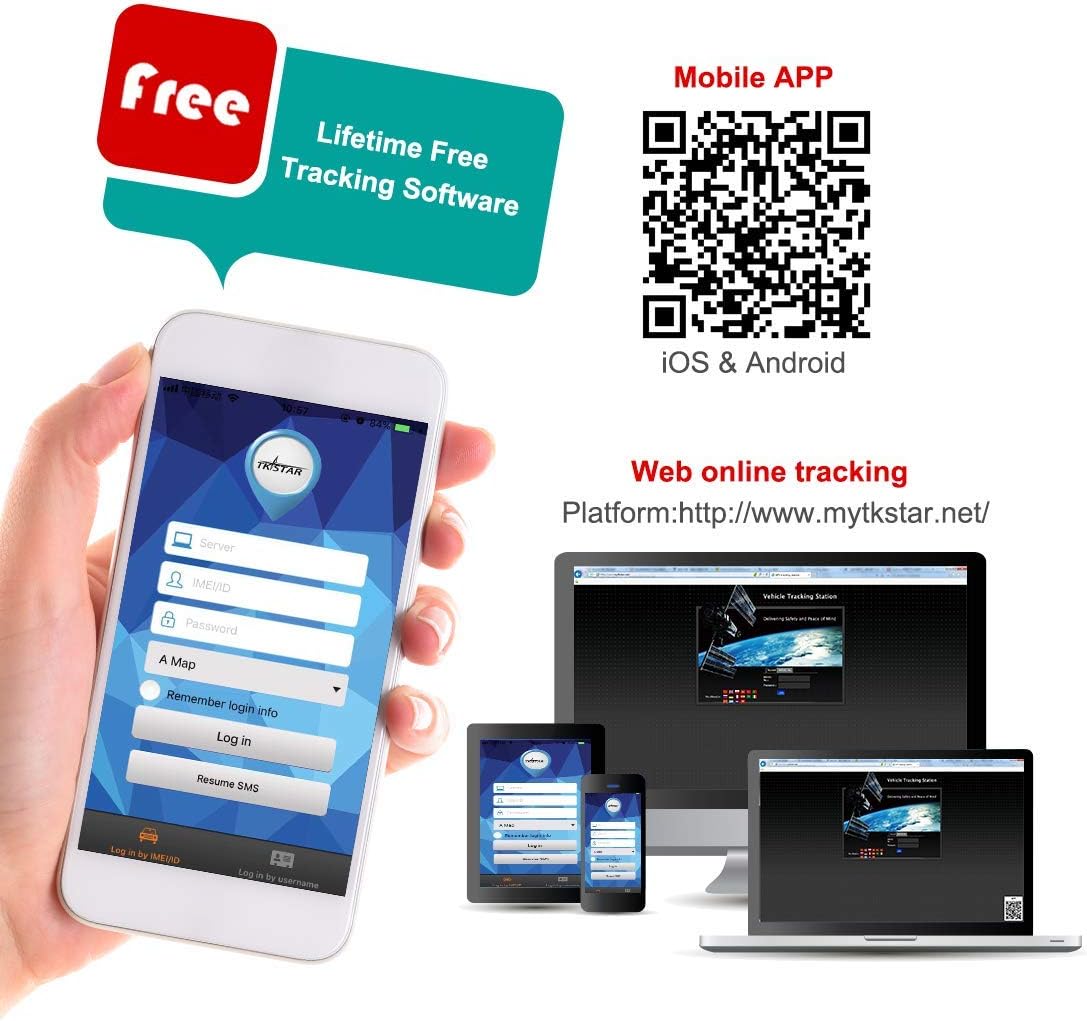
Image: This image shows the mobile application and web platform for the TKSTAR GPS tracker, illustrating how users can access tracking information on smartphones, tablets, and computers. A QR code is provided for easy mobile app download, and the web platform URL is visible.
6. Operating Instructions
6.1 Real-Time Tracking
Access the mobile app or web platform to view the current location of your TK905 tracker in real-time. The location is updated continuously, providing precise coordinates.
6.2 History Route Playback
The device stores historical route data for up to 6 months. You can review the movements of the past 3 months directly through the mobile application or web platform.

Image: App interface displaying a route playback function with map and satellite views, showing blue location markers along a tracked path in an urban area.
6.3 Geo-Fence (Electronic Fence)
Set up virtual boundaries (geo-fences) on the map. If the tracker enters or exits these predefined zones, you will receive an instant alert via the app or SMS.

Image: Geo-fence display showing a map view with blue markers and a radius range from 100 to 5000 meters, shown on the screen.
6.4 Alarms
- Shock Alarm: Receive an SMS alert if the device detects vibration or shock. Activate this feature in the app settings.
- Overspeed Alarm: Set a speed limit, and receive alerts if the tracker exceeds it. This alarm functions under continuous positioning mode.
- Anti-Removal (Loosing) Alarm: The device has an anti-removal induction sensor. If the tracker is removed or its sensor is uncovered, it will send a 'Loosing alarm' SMS to the admin number.
- Low Power Alarm: Receive an alert when the battery level is low, prompting you to recharge the device.

Image: Smartphone displaying a 'Shake Alarm' notification, indicating the GPS tracker has been shaken, with an illustration of a person attempting to steal a car.

Image: Smartphone displaying an 'Overspeed Alarm' notification, with a car driving fast on a road and a speedometer icon.

Image: Illustration of a GPS tracker being removed from the underside of a car, triggering a 'Loosing alarm' notification on a smartphone.
6.5 Sleep Modes
The TK905 features smart sleep modes to conserve battery life. The tracker can enter sleep mode after a configured time interval or upon detecting no movement. It can be woken up by shock, SMS commands, or a call.
6.6 Remote Voice Monitor
Send a 'Monitor-Password' command to the device. Then, call the SIM number in the tracker. The device will automatically pick up, allowing you to monitor the surrounding audio.

Image: Illustration of a remote voice monitor feature, showing a person on a phone call with a car in the background, indicating the ability to listen to the surroundings of the GPS tracker.
6.7 Fleet Management
The tracking platform allows for managing multiple trackers, making it suitable for fleet management. You can monitor several vehicles and users from a single interface.

Image: Smartphone screen displaying a list of GPS trackers with their status (online/offline) and battery levels, with a truck on a road in the background, illustrating fleet management.
7. Maintenance
- Charging: Recharge the device when the low power alarm is triggered. Use the provided USB cable.
- Cleaning: Wipe the device with a soft, dry cloth. Do not use harsh chemicals or abrasive cleaners.
- Waterproof Care: Although waterproof, avoid prolonged submersion or high-pressure water jets to ensure longevity. Ensure the SIM card slot cover is always securely closed.
- Storage: If storing for an extended period, charge the battery to about 50% and store in a cool, dry place.
8. Troubleshooting
| Problem | Possible Cause | Solution |
|---|---|---|
| Device cannot power on | Low battery or no power connection. | Charge the device or check the power connection to the vehicle battery. |
| No GPS signal | Device is in an area with poor GPS reception (e.g., indoors, underground) or not oriented correctly. | Move the device to an open area with a clear view of the sky. Ensure the GPS logo side is facing upwards. |
| No network connection (Orange LED off) | SIM card not inserted correctly, no data plan, or poor network coverage. | Check SIM card insertion. Verify SIM card has an active data plan. Move to an area with better network coverage. |
| App/Web platform shows incorrect location | Device is using LBS (cellular tower) positioning due to weak GPS signal, which is less accurate. | Ensure the device has a strong GPS signal (Blue LED solid). Location accuracy improves with GPS. |
| Alarms not working | Alarm settings are not configured in the app or SMS commands. | Check and configure alarm settings in the mobile application or via SMS commands. Ensure the admin number is correctly set. |
9. Specifications
| Feature | Description |
|---|---|
| Brand | Zeerkeer |
| Model Number | TK905 |
| Special Feature | Waterproof |
| Connectivity Technology | USB |
| Supported Application | Text message, Find my phone |
| Specific Uses for Product | Vehicle tracking, including cars, trucks, motorcycles, and boats |
| Material | Plastic, Rubber |
| Battery Life (Standby) | 90 days |
| Compatible Devices | Smartphone |
| Battery Capacity | 5000 Milliampere-hour (mAh) |
| GTIN / UPC | 699916415185 |
10. Warranty and Support
Your Zeerkeer TK905 GPS Tracker comes with a standard manufacturer's warranty. For specific warranty details, please refer to the documentation included in your product packaging or contact Zeerkeer customer support.
For technical support, troubleshooting assistance, or any questions regarding your device, please visit the official Zeerkeer website or contact their customer service team. Contact information can typically be found on the product packaging or the brand's official online presence.