
1. Introduction
This manual provides essential information for the safe and effective use of your Emanjor M5Y1K 40Wh 14.8V laptop battery. This battery is designed as a replacement for various Dell Inspiron 14, 15, and 17 series laptops. Please read this manual thoroughly before installation and operation to ensure optimal performance and safety.

Image: Emanjor M5Y1K 40Wh 14.8V Laptop Battery
2. Specifications
The Emanjor M5Y1K battery features the following technical specifications:
| Feature | Specification |
|---|---|
| Model Name | M5Y1K |
| Battery Type | Lithium-Ion |
| Voltage | 14.8V |
| Capacity | 40Wh / 2600mAh |
| Cells | 4-cell |
| Dimensions (L*W*H) | Approx. 10.6 x 1.5 x 0.75 inches |
| Item Weight | 9 ounces |
| Certifications | CE, FCC, RoHS |

Image: Key specifications of the M5Y1K laptop battery.

Image: Diagram illustrating the physical dimensions of the battery.
3. Compatibility
This Emanjor M5Y1K battery is compatible with a range of Dell Inspiron and Vostro laptop models. To ensure correct fitment, please verify your laptop's model and original battery part number.
Compatible Dell Laptop Models:
- Dell Inspiron 14 Series: 3000 series (3451, 3452, 3458, 3459, 3462, 3467), 5000 series (5451, 5452, 5455, 5458, 5459)
- Dell Inspiron 15 Series: 3000 series (3551, 3552, 3558, 3559, 3565, 3567), 5000 series (5545, 5551, 5552, 5555, 5558, 5559, 5758)
- Dell Inspiron 17 Series: 5000 series (5755, 5756, 5758, 5759)
- Dell Vostro Series: 3458, 3459, 3558, 3559
- Dell Latitude Series: 3460, 3560
- Dell P Series: P51F, P51F004, P47F, P63F, P60G, P64G, P28E, P65G, P52F
Compatible Dell Part Numbers:
- M5Y1K, M5YIK, MSY1K
- GXVJ3, HD4J0, HD4JO
- K185W, KI85W, WKRJ2
- VN3N0, VN3NO, OVN3N0
- 451-BBMG, 453-BBBP, 453-BBBR, 451-BBUD
- W6D4J, 6YFVW, 78V9D, 078V9D, 07G07, 007G07
- 1KFH3, 0991XP, 991XP
Important: There are different battery models for Dell Inspiron series. This product is specifically for the 40Wh Type M5Y1K. Please check your original battery's model type before purchase to avoid incompatibility.

Image: Comparison of M5Y1K and XCMRD battery types, highlighting the correct model.

Image: Instructions on how to identify your laptop's model and original battery part number.
4. Safety Information
Your safety is paramount. Please adhere to the following safety guidelines:
- Store the battery in a dry and cool place.
- Do NOT dispose of the battery in fire or water.
- Avoid exposing the battery to extreme temperatures (above 60°C/140°F or below 0°C/32°F).
- Do not disassemble, crush, puncture, or modify the battery.
- Keep the battery away from children and pets.
- If the battery shows signs of damage, swelling, or leakage, discontinue use immediately and dispose of it properly.
- Use only the original or a certified compatible charger for your laptop.
The Emanjor M5Y1K laptop battery incorporates multiple safety features, including short circuit protection, over-voltage protection, discharge protection, and over-current protection, to ensure safe operation and extend battery life.

Image: Diagram illustrating the intelligent security technology and multi-protection features of the battery.
5. Installation
Follow these steps to safely install your new Emanjor M5Y1K laptop battery:
- Power Off Laptop: Completely shut down your laptop and disconnect it from the AC adapter.
- Disconnect Peripherals: Remove any external devices such as USB drives, external monitors, etc.
- Access Battery Compartment: Depending on your Dell Inspiron model, you may need to unlock latches or remove screws to open the battery compartment. Refer to your laptop's specific service manual if unsure.
- Remove Old Battery: Carefully remove the old battery from its compartment.
- Insert New Battery: Align the Emanjor M5Y1K battery with the compartment and gently push it into place until it clicks or is securely seated. Ensure the battery clasp is firm.
- Secure Compartment: Close the battery compartment cover and secure any latches or screws.
- Power On: Connect the AC adapter and power on your laptop.
The battery is designed with a durable power interface and a strong ABS+PC shell for secure and stable connection.
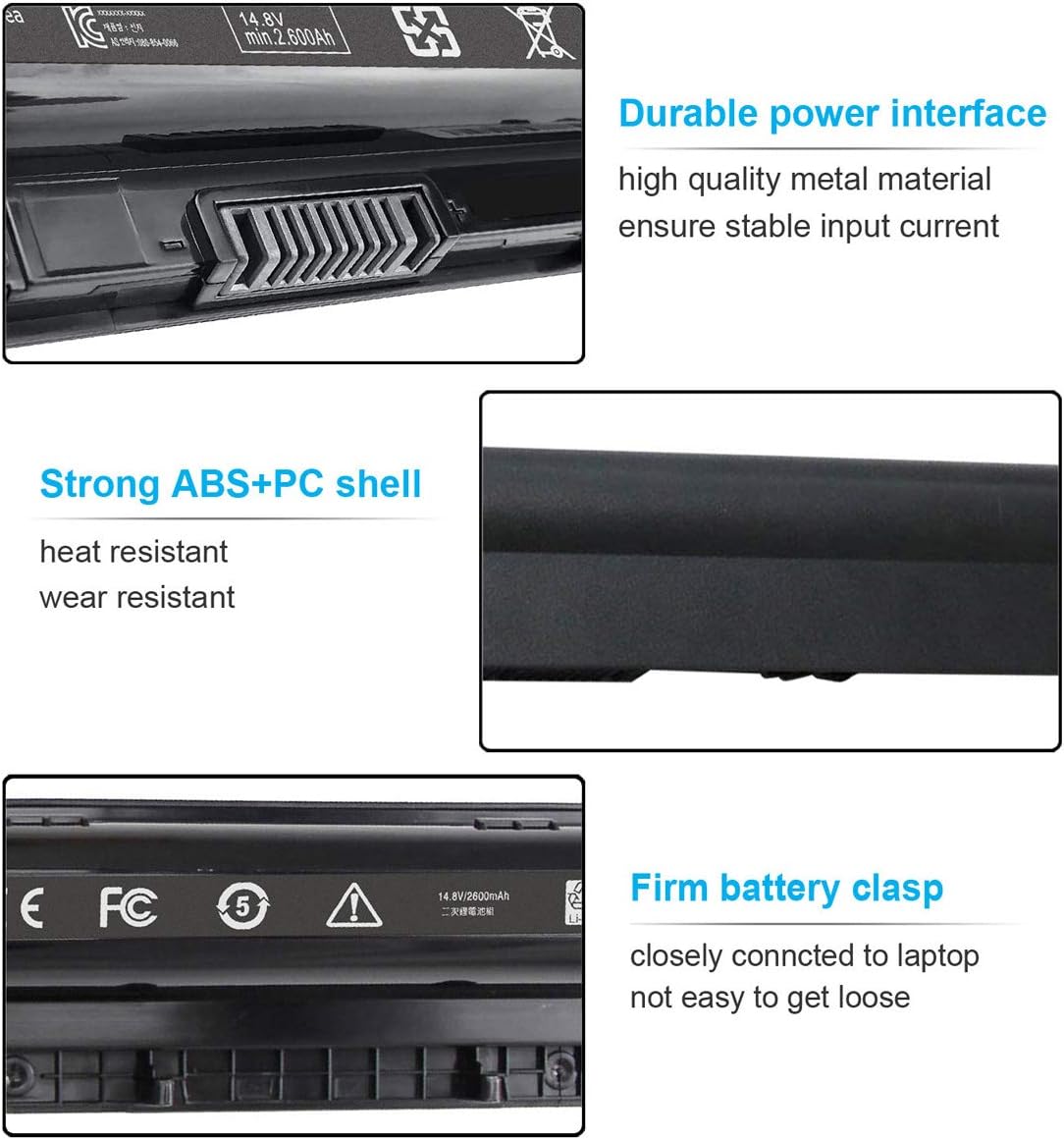
Image: Details on the battery's durable power interface, strong ABS+PC shell, and firm battery clasp.
6. Operating Instructions
Initial Use and Charging:
- Upon first installation, it is recommended to fully charge the battery to 100% before initial use.
- For optimal performance, allow the battery to discharge to about 10-15% before recharging. Avoid frequent full discharges to 0%.
- The battery is equipped with a smart control chip and Grade A cells for efficient power management and reliability.
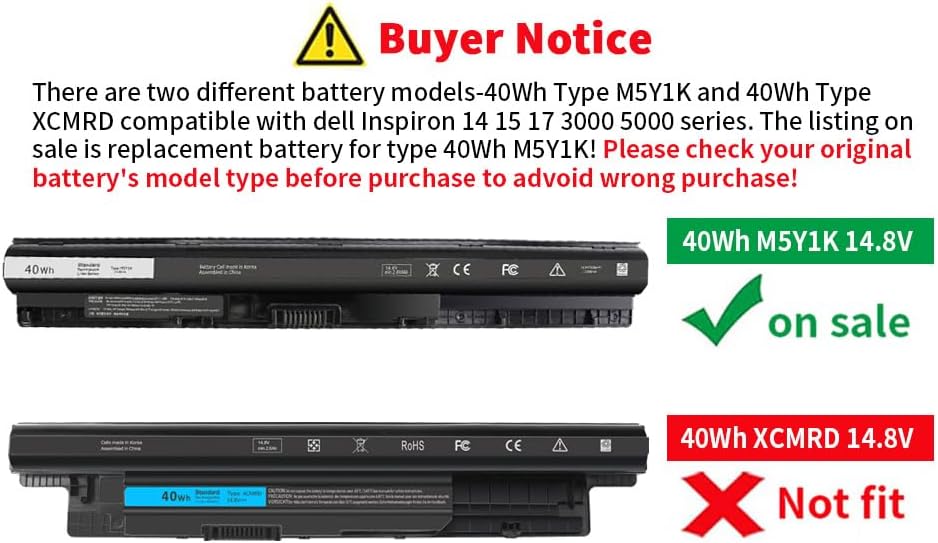
Image: Illustration of the battery's internal Grade A cells and smart control chip.
Estimated Usage Times:
Battery life varies significantly based on usage patterns, laptop settings, and applications. Below are general estimates:
- Daily Slight Usage (e.g., web browsing, light document work): 2.5 - 4 hours
- Heavy Study/Work Use (e.g., multiple applications, moderate brightness): 1.5 - 3 hours
- Entertainment (e.g., gaming, movie playback): 1 - 2 hours
Note: These are estimated times for reference only. Actual conditions, such as laptop system version, hardware age, operating software, screen brightness, and standby time, will affect battery performance.

Image: Visual representation of estimated battery life under various usage scenarios.
7. Maintenance
Proper maintenance can extend the lifespan of your laptop battery:
- Avoid Extreme Temperatures: Do not expose the battery to very hot or very cold environments. Optimal operating temperature is typically between 10°C and 35°C (50°F and 95°F).
- Regular Use: Use your laptop on battery power regularly. Avoid keeping it plugged in 24/7, as this can reduce battery health over time.
- Partial Discharge Cycles: Lithium-ion batteries benefit from partial discharge and charge cycles rather than full cycles. Aim to keep the charge between 20% and 80% when possible.
- Storage: If storing the battery for an extended period, charge it to about 50-60% and store it in a cool, dry place. Recharge it every few months to prevent deep discharge.
- Clean Contacts: Periodically clean the battery contacts on both the battery and the laptop with a dry, lint-free cloth to ensure a good connection.
8. Troubleshooting
If you encounter issues with your battery, consider the following troubleshooting steps:
- Battery Not Detected:
- Ensure the battery is correctly seated in its compartment. Remove and re-insert it.
- Restart your laptop.
- Check your laptop's BIOS/UEFI settings to see if the battery is recognized.
- Update your laptop's battery drivers via Device Manager (Windows) or system updates.
- Battery Not Charging:
- Verify that the AC adapter is properly connected and functioning. Try another compatible adapter if available.
- Check for any physical damage to the charging port or AC adapter cable.
- Perform a battery calibration (if supported by your laptop model) or a power cycle (remove battery, hold power button for 15-30 seconds, re-insert battery, then power on).
- Rapid Discharge:
- Adjust power settings in your operating system to a more power-efficient mode.
- Reduce screen brightness.
- Close unnecessary background applications.
- Disconnect unused peripherals.
- Check for any software or driver issues that might be causing excessive power consumption.
If issues persist after attempting these steps, contact customer support.
9. Disposal
Lithium-ion batteries contain materials that require special handling for disposal. Do not dispose of the battery with general household waste.
- Recycle: Take the battery to an authorized electronics recycling center or a designated battery collection point. Many electronics retailers offer battery recycling services.
- Local Regulations: Consult your local waste management authority for specific disposal guidelines and recycling options in your area.
- Safety: Before disposal, it is advisable to cover the battery terminals with non-conductive tape to prevent short circuits.
Proper disposal helps protect the environment and prevents potential hazards.
10. Warranty and Support
Your Emanjor M5Y1K laptop battery comes with a commitment to quality and customer satisfaction.
- Warranty: This product includes a 12-month replacement warranty.
- Return Policy: A 60-day money-back guarantee is provided.
- Certifications: The battery is CE, FCC, and RoHS certified, ensuring it meets high safety and environmental standards.
- Customer Service: For any questions, concerns, or technical assistance, please contact Emanjor customer support.

Image: Emanjor's commitment to customer service.