
1. Introduction
This manual provides detailed instructions for the safe and efficient use of your ILC 30W Bluetooth RGBW LED Flood Light. This outdoor floodlight features color-changing capabilities, warm white light, multiple dynamic modes, grouping, and timing functions, all controllable via a mobile application. Please read this manual thoroughly before installation and operation.
2. Safety Information
- Always disconnect power before installation, maintenance, or cleaning.
- Ensure the power supply voltage matches the product's requirements (265 volts AC).
- The floodlight unit is IP66 waterproof, suitable for outdoor use. However, the power plug is not waterproof. Ensure the plug connection is protected from moisture.
- Do not attempt to disassemble or modify the product. This may void the warranty and pose a safety risk.
- Keep the product away from flammable materials.
- If any damage is observed, discontinue use immediately and contact customer support.
3. What's in the Box
- Floodlight x2
- Instruction Manual
4. Specifications
| Brand | ILC |
| Model Number | BLFL-LFCA |
| Wattage | 30 watts |
| Brightness | 1200 lumens |
| Color Temperature | 2700 Kelvin (Warm White) |
| Light Color | RGB (16 Million Colors) |
| Control Method | App (Bluetooth 5.0) |
| Connectivity Protocol | Bluetooth |
| Indoor/Outdoor Usage | Outdoor |
| Water Resistance Level | IP66 Waterproof (fixture only) |
| Material | Glass, Plastic |
| Item Dimensions (L x W x H) | 7.87" x 4.72" x 5.11" |
| Cord Length | 6.56 feet (US 3 Head Plug) |

Figure 1: Product Dimensions

Figure 2: Heat Dissipation Design

Figure 3: US 3-Head Plug and Cord Length
5. Setup and Installation
5.1 Mounting
The ILC LED Flood Light is designed for wall mount installation. Use appropriate hardware (not included) to securely fasten the floodlight to a stable surface. Ensure the mounting location allows for proper light projection and access for power connection.
5.2 Power Connection
Connect the floodlight's power plug to a suitable AC power outlet. Remember that the plug itself is not waterproof and must be protected from rain and moisture. For outdoor use, consider using a weatherproof outlet cover or enclosure.
5.3 App Download and Connection (BRmesh APP)
The floodlight is controlled via the BRmesh mobile application. Follow these steps to connect your device:
- Download the App: Search for "BRmesh" in the Google Play Store (for Android) or Apple App Store (for iOS) and download the application. Alternatively, scan the QR code provided in the product packaging.
- Enable Bluetooth: Ensure Bluetooth is enabled on your mobile device.
- Launch App and Add Device: Open the BRmesh app and tap the '+' icon to add a new device. The app may provide an "Attachment Guide" for further assistance.
- Power Cycle Light: Switch the floodlight OFF, then switch it back ON. The light will enter pairing mode and be detected by the app.
- Connect: Scan for the light with your mobile device within the app. Connection should be established within seconds.

Figure 4: BRmesh App Connection Guide
For stable control, maintain a phone distance of 25-40 feet (approximately 7.6-12.2 meters) from the lighting fixture.
6. Operating Instructions
The ILC LED Flood Light offers extensive control options through the BRmesh app.
6.1 Color Control and Brightness Adjustment
- The app allows selection from 16 million colors.
- Adjust brightness from 0% to 100% for any chosen color or white light.
- Access warm white light at 2700K for daily illumination.

Figure 5: Dimmable Color and White Light

Figure 6: Color Wheel and Value Adjustment
6.2 Dynamic Modes and Scene Customization
- Choose from 12 preset dynamic modes for various occasions (e.g., holidays, parties).
- Utilize 12 application scenes for quick setup.
- Create custom DIY dynamic modes by selecting colors to flash or smoothly transition.

Figure 7: Multiple Scene Modes

Figure 8: Dynamic Lighting Effects
6.3 Music Rhythm Function
Activate the "music rhythm" function in the BRmesh app to synchronize the lights with music, creating an immersive audio-visual experience for parties and events.

Figure 9: Music Rhythm Mode
6.4 Timing Function
Set schedules within the app for the lights to automatically turn ON and OFF at specified times daily. The lights retain the last settings when powered on.
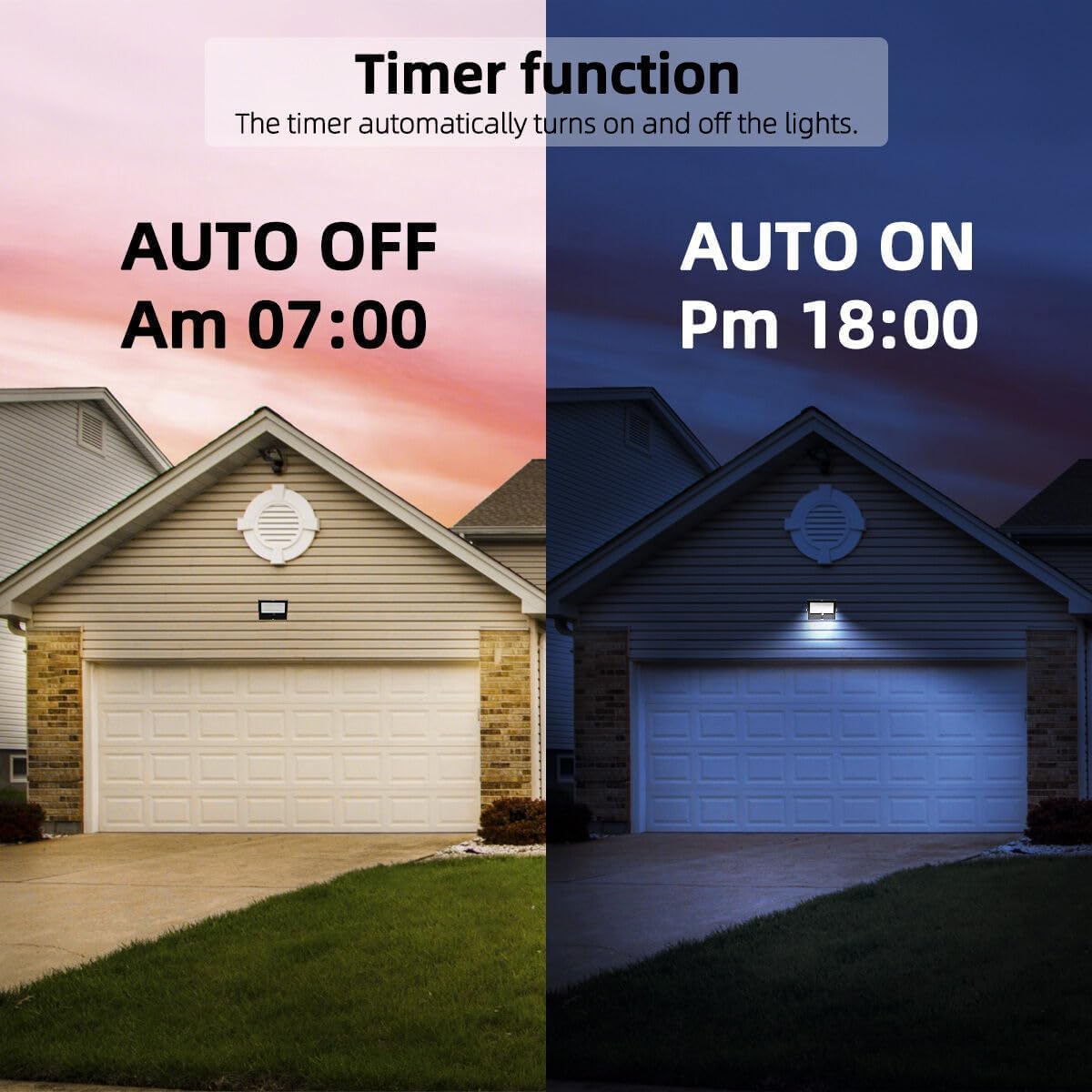
Figure 10: Automatic Timer Function
6.5 Grouping and Bluetooth Mesh
The floodlights utilize Bluetooth 5.0 and Bluetooth Mesh technology, allowing control of up to 64 lights simultaneously. This enables synchronized lighting effects across multiple fixtures and extends the control range through a mesh network.
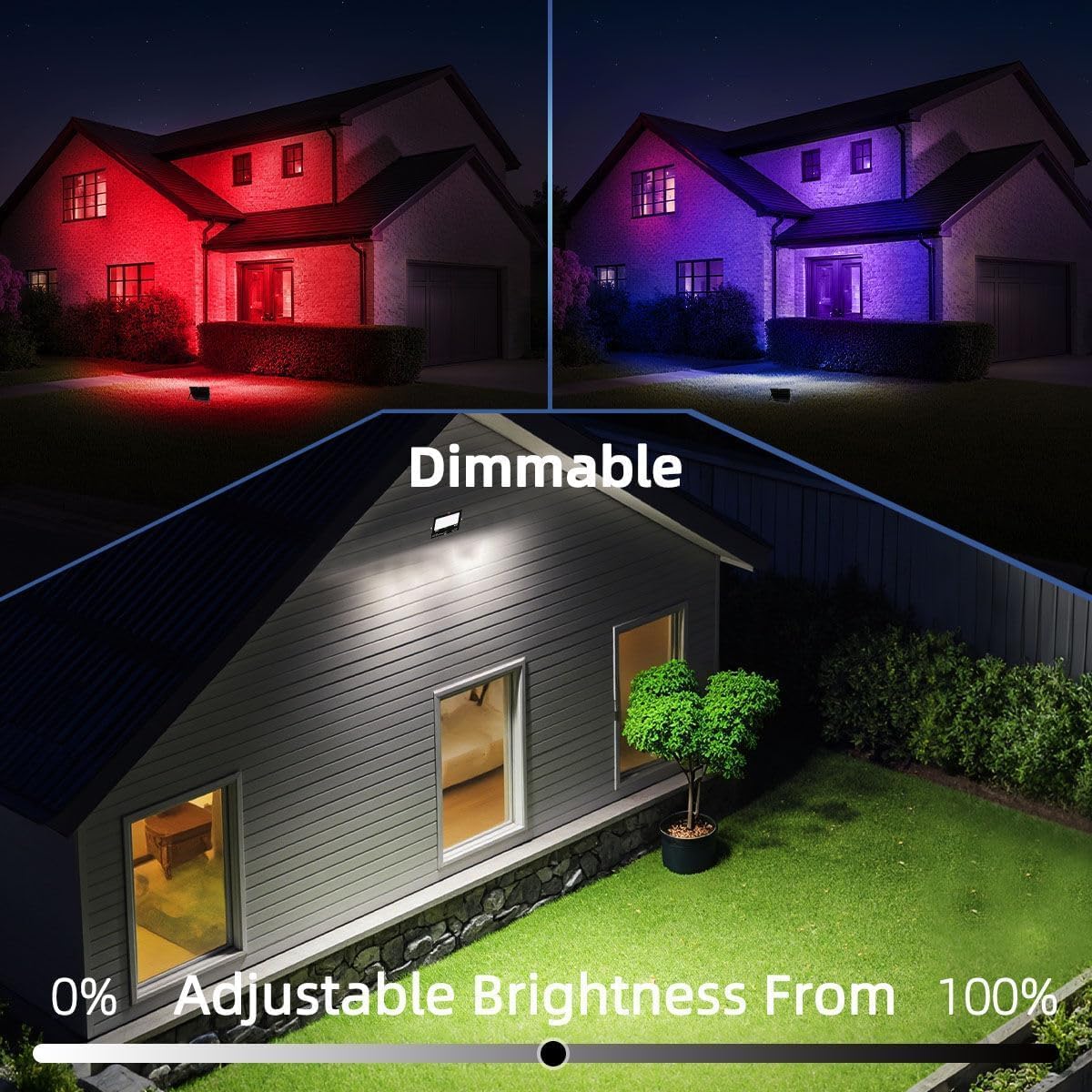
Figure 11: Bluetooth Mesh Technology Overview
7. Maintenance
- Cleaning: Ensure the floodlight is disconnected from power before cleaning. Wipe the exterior with a soft, damp cloth. Do not use abrasive cleaners or solvents.
- Inspection: Periodically inspect the power cord and plug for any signs of wear, cracks, or damage. If damage is found, replace the unit or have it professionally repaired to prevent electrical hazards.
- Weather Protection: While the light fixture is IP66 waterproof, the plug is not. Regularly check that the plug connection remains protected from water exposure.
8. Troubleshooting
| Problem | Possible Cause | Solution |
|---|---|---|
| Light does not turn on. | No power, loose connection, faulty outlet. | Check power supply, ensure plug is securely inserted, test outlet with another device. |
| Cannot connect to the app. | Bluetooth off, light not in pairing mode, app issue, distance too far. | Ensure Bluetooth is on, power cycle the light (OFF then ON), restart the app, move closer to the light (within 25-40 feet). |
| Lights lose connection frequently. | Interference, distance, app stability. | Reduce distance between phone and light, minimize other Bluetooth devices, ensure app is updated. |
| Power cord insulation is damaged. | Environmental exposure, wear and tear. | Immediately discontinue use. This is an electrical hazard. Contact customer support for replacement or professional repair. |
9. Warranty and Support
This ILC product comes with a Limited Warranty. For specific warranty terms and conditions, please refer to the documentation included with your purchase or contact ILC customer support.
If you encounter any issues or have questions regarding your ILC LED Flood Light, please contact ILC customer support through the retailer's platform or the official ILC website for assistance.