
1. Introduction
This manual provides essential instructions for the proper setup, operation, and maintenance of your MthsTec MC-BW-0001 External Blu-ray Drive. Please read this manual thoroughly before using the device to ensure optimal performance and longevity.
2. Product Overview
The MthsTec MC-BW-0001 is a versatile external optical drive designed for reading and writing Blu-ray, CD, and DVD discs. It features high-speed data transfer via USB 3.0 and Type-C interfaces, offering broad compatibility with various computer systems.

Figure 2.1: MthsTec External Blu-ray Drive with a disc partially ejected.
Key Features:
- Read/Write Capabilities: Supports Blu-ray, CD, and DVD formats.
- High-Speed Interface: USB 3.0 and Type-C for fast data transfer up to 5Gbps.
- Wide Compatibility: Compatible with Windows XP/7/8/10/11 and Mac OS.
- Portable Design: Slim and lightweight for easy transport.
- Plug & Play: No external drivers required for most operating systems.

Figure 2.2: Maximum Read/Write Speeds for CD, DVD, and Blu-ray discs.
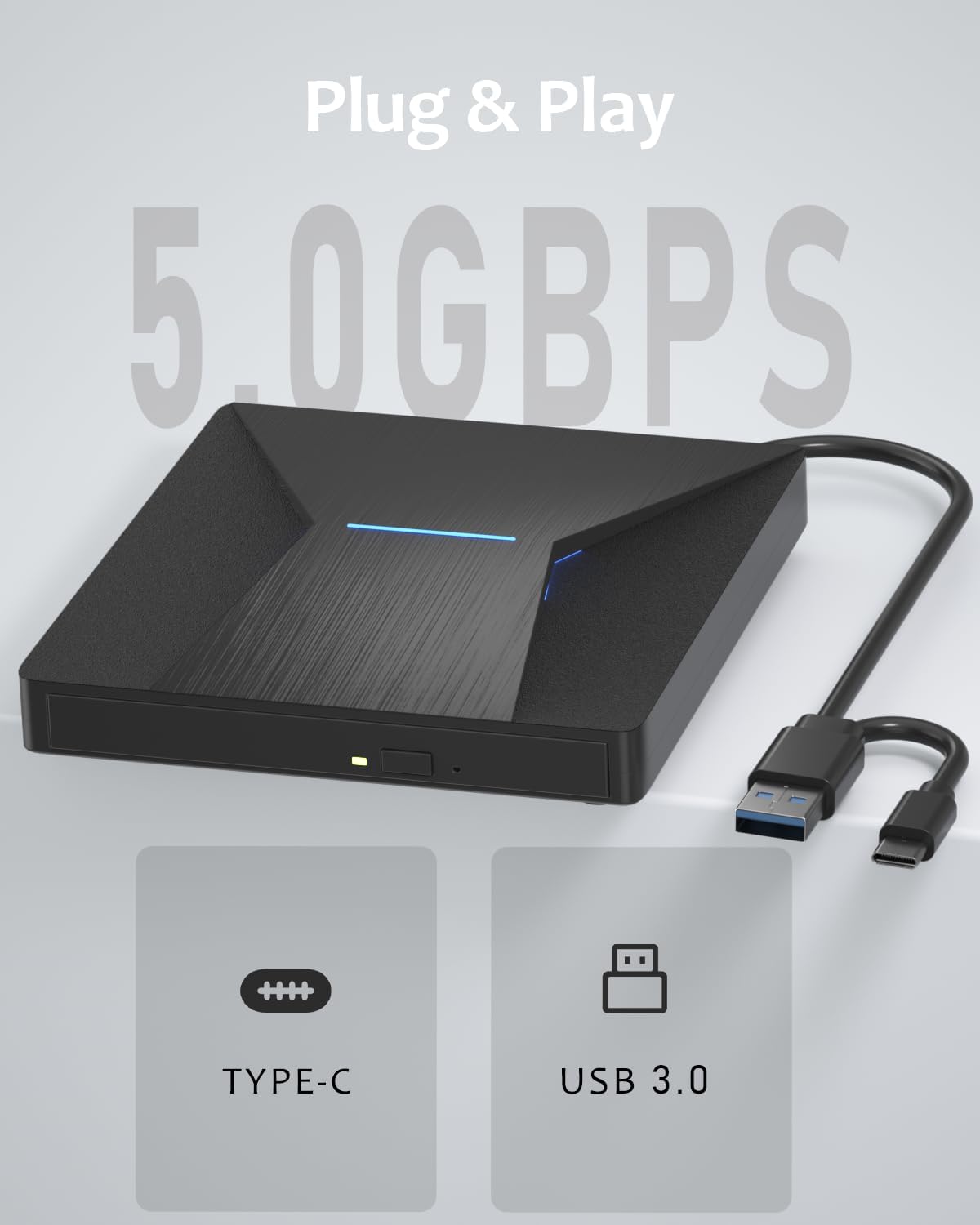
Figure 2.3: Integrated USB 3.0 and Type-C Connectivity.
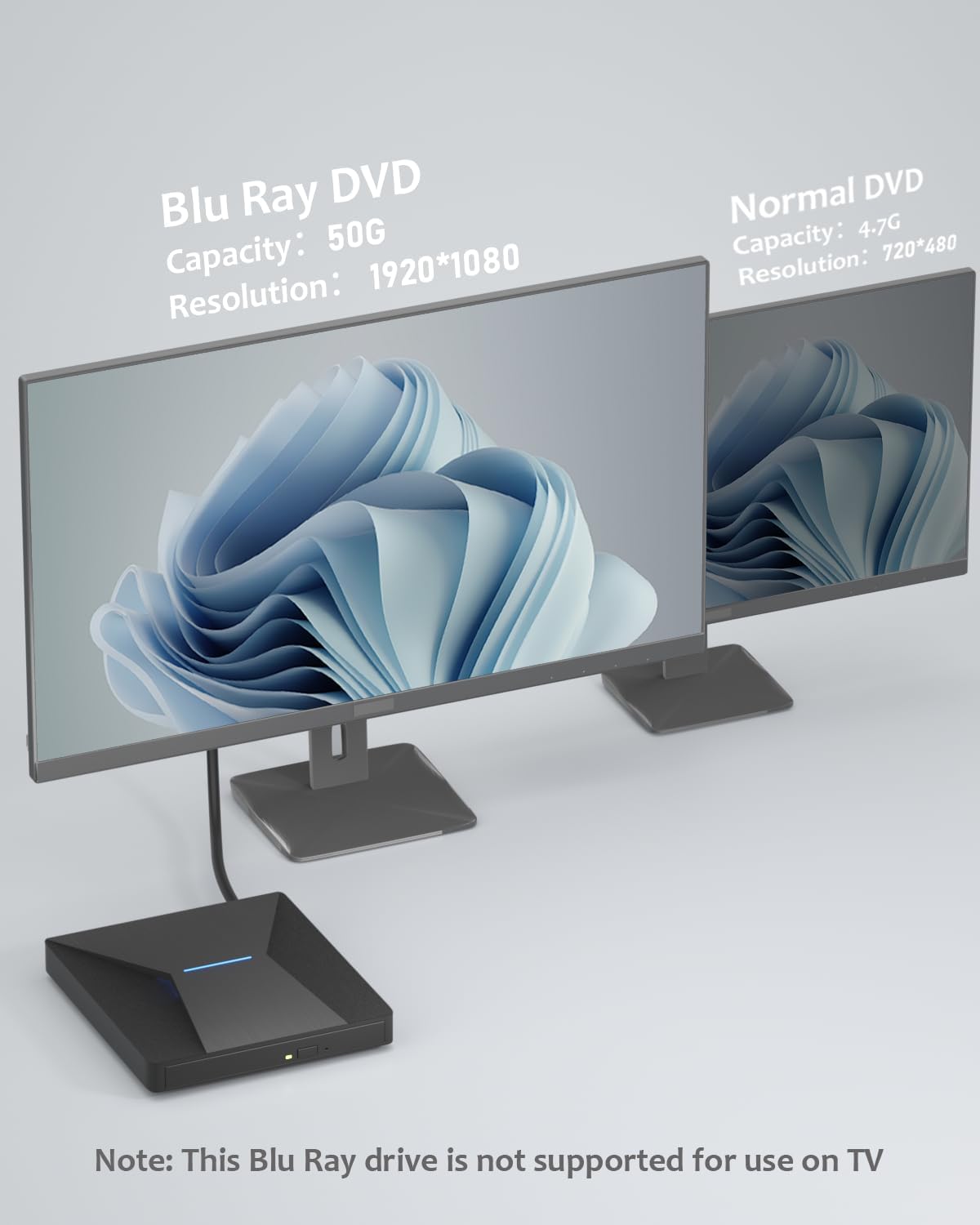
Figure 2.4: Blu-ray vs. DVD Capacity and Resolution Comparison. Note: This drive is not supported for use with TVs.
3. Setup
Follow these steps to set up your MthsTec External Blu-ray Drive:
- Unpack the Drive: Carefully remove the drive and any accessories from its packaging.
- Connect to Computer: The drive features an integrated USB cable with both USB 3.0 and Type-C connectors. Plug the appropriate connector into an available USB port on your laptop or desktop computer.
- Power Supply: The drive is typically powered directly via the USB connection. Ensure your computer's USB port provides sufficient power. If issues arise, try a different USB port or a powered USB hub.
- System Recognition: Your operating system (Windows or Mac OS) should automatically detect and install the necessary drivers. This is a plug-and-play device.
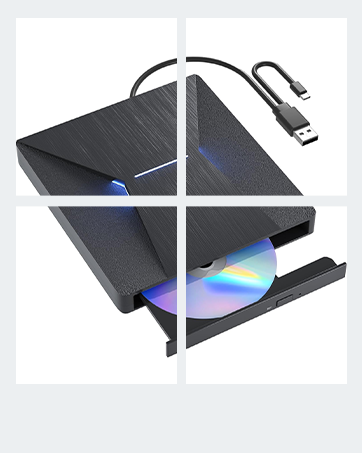
Figure 3.1: Connecting the external Blu-ray drive to a laptop.

Figure 3.2: Wide compatibility with various computer systems. Not compatible with mobile phones, cars, tablets, or TVs.
4. Operating Instructions
4.1 Inserting and Ejecting Discs
- Insert Disc: Press the eject button on the front of the drive. The disc tray will open. Carefully place the disc onto the tray with the label side facing up. Gently push the tray back into the drive until it clicks into place.
- Eject Disc: Press the eject button again, or use the eject function within your operating system's file explorer or media player software.
4.2 Playing Media and Accessing Data
Once a disc is inserted and recognized by your computer, you can perform various functions:
- Playing Movies: For Blu-ray movies, dedicated playback software is required (e.g., PowerDVD, Leawo, Macgo, VLC). The drive itself does not include this software. For DVDs and CDs, standard media players on your computer should suffice.
- Burning Discs: To burn data to Blu-ray, CD, or DVD discs, you will need compatible burning software.
- Accessing Files: The drive will appear as a removable storage device in your computer's file explorer. You can drag and drop files to and from the disc (if it's a writable disc and you have burning software).

Figure 4.1: Various applications for the external Blu-ray drive, including music, gaming, file management, and software installation.
4.3 Important Software Information
This Blu-ray burner external does not include playback software. You will need to download professional playback software yourself. We recommend downloading PowerDVD, Leawo, Macgo, or VLC. For Blu-ray 3D playback, ensure your computer hardware and software support 3D capabilities. You can use "Cyberlink BD&3D Advisor" to test your system's compatibility.
Video 4.1: Official MthsTec video demonstrating the features and usage of the external Blu-ray drive, including connection and disc insertion.
5. Maintenance
To ensure the longevity and optimal performance of your MthsTec External Blu-ray Drive, follow these maintenance guidelines:
- Cleaning: Use a soft, dry cloth to clean the exterior of the drive. Do not use liquid cleaners or abrasive materials. For the optical lens, use a specialized optical drive cleaning disc.
- Storage: When not in use, store the drive in a cool, dry place away from direct sunlight and extreme temperatures.
- Handling: Avoid dropping or subjecting the drive to strong impacts. Always handle discs by their edges to prevent scratches.
6. Troubleshooting
If you encounter issues with your MthsTec External Blu-ray Drive, refer to the following common problems and solutions:
- Drive Not Recognized:
- Ensure the USB cable is securely connected to both the drive and your computer.
- Try connecting to a different USB port on your computer.
- If using a desktop, try connecting to a USB port on the back of the computer (directly to the motherboard) for better power delivery.
- Restart your computer.
- Disc Not Reading/Writing:
- Check if the disc is clean and free of scratches or smudges.
- Ensure the disc is placed correctly on the tray, label side up.
- Verify that you have the correct software installed for the disc type (e.g., Blu-ray playback software).
- Try a different disc to rule out a faulty disc.
- Slow Performance:
- Ensure you are connected to a USB 3.0 or Type-C port for optimal speed. USB 2.0 ports will result in slower transfer rates.
- Close unnecessary applications running in the background.
- Drive Eject Button Not Working:
- Use the software eject function in your operating system.
- In emergencies, a small pin can be inserted into the manual eject hole (if available) to open the tray.
7. Specifications
| Model | MC-BW-0001 |
| Interface | USB 3.0, Type-C |
| Optical Storage Read Speed | BD: 6x, DVD: 8x, CD: 24x |
| Optical Storage Write Speed | BD: 6x, DVD: 8x, CD: 24x |
| Supported Disc Formats | Blu-ray, DVD-ROM, DVD-R, DVD+R, DVD-RW, DVD+RW, CD-ROM, CD-R, CD-RW |
| Operating System Compatibility | Windows XP/7/8/10/11, Mac OS |
| Item Weight | 14.4 ounces |
| Product Dimensions (LxWxH) | 5.74 x 6.18 x 1 inches |
8. Warranty and Support
MthsTec is committed to providing quality products and customer satisfaction. For any questions or assistance regarding your external Blu-ray drive, please contact MthsTec customer support. Refer to the product packaging or the official MthsTec website for specific warranty details and contact information.