
Introduction
This manual provides essential information for the safe and efficient operation of your VIOS TV3219 32-inch LED HD Television. Please read these instructions thoroughly before using the television and retain them for future reference. This television features a 32-inch LED HD display, HDMI, USB, and VGA connectivity, and integrated Wi-Fi.
1. Setup
1.1 Unpacking
Carefully remove the television from its packaging. Ensure all accessories are present: remote control, batteries, power cord, and stand components. Inspect the television for any damage during transit. If any damage is found, do not proceed with setup and contact customer support.
1.2 Stand Installation
Place the television screen-down on a soft, flat surface to prevent scratches. Align the television stands with the designated slots on the bottom of the TV. Secure the stands using the provided screws. Ensure the stands are firmly attached before placing the television upright.

Image: Front view of the VIOS TV3219 television with its two support stands attached, ready for placement on a flat surface.
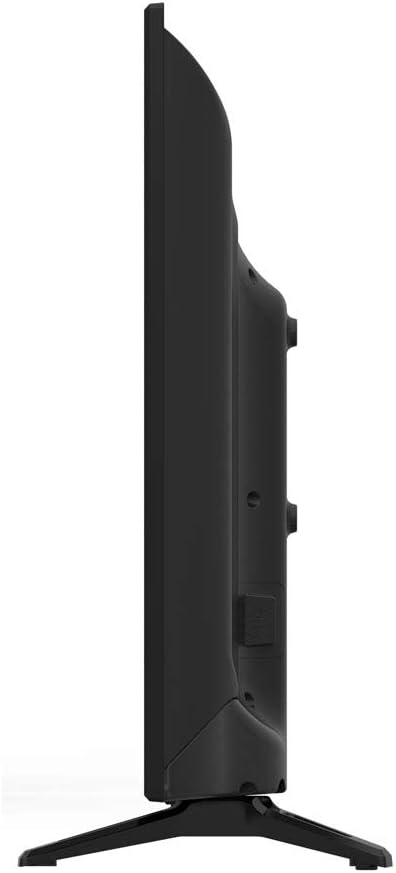
Image: Side profile of the VIOS TV3219, illustrating its slim design and the attached stand, suitable for tabletop mounting.
1.3 Connecting Devices
Your VIOS TV3219 supports multiple input sources. Identify the appropriate port for your device.
- HDMI: Connect high-definition devices such as Blu-ray players, gaming consoles, or set-top boxes to the HDMI ports.
- USB: Insert USB flash drives for media playback (photos, videos, music) into the USB port.
- VGA: Connect a computer or laptop using a VGA cable for video output.
- Power: Connect the power cord to the TV's power input and then to a wall outlet.

Image: Rear view of the VIOS TV3219, highlighting the various input ports including HDMI, USB, and VGA for connecting external devices.
1.4 Initial Power On
After connecting all necessary cables, plug the power cord into an electrical outlet. Press the power button on the remote control or on the television itself. Follow the on-screen instructions for initial setup, including language selection and channel scanning.
2. Operating Instructions
2.1 Basic Controls
Use the provided remote control to navigate the television's functions. Common buttons include:
- Power: Turns the TV on or off.
- Source/Input: Selects the input source (HDMI, USB, VGA, TV).
- Volume +/-: Adjusts the sound level.
- Channel +/-: Changes TV channels.
- Menu: Accesses the main settings menu.
- Navigation Arrows (Up/Down/Left/Right) & OK: Navigates menus and confirms selections.
2.2 Input Source Selection
To switch between connected devices, press the Source or Input button on your remote control. A list of available inputs will appear on the screen. Use the navigation arrows to select the desired input (e.g., HDMI 1, USB, VGA) and press OK.
2.3 Picture Settings
Access the Menu and navigate to Picture Settings to adjust display options. You can modify:
- Picture Mode: Standard, Dynamic, Movie, User.
- Brightness: Adjusts the overall luminance.
- Contrast: Controls the difference between light and dark areas.
- Color: Adjusts color saturation.
- Sharpness: Enhances edge detail.
- Aspect Ratio: Selects screen display format (e.g., 16:9, 4:3).
2.4 Sound Settings
From the Menu, go to Sound Settings. Options include:
- Sound Mode: Standard, Music, Movie, User.
- Bass/Treble: Adjusts low and high frequency sounds.
- Balance: Adjusts sound output between left and right speakers.
- Surround Sound: Activates virtual surround sound (2.0 channel configuration).
2.5 Wi-Fi Connection
To connect your television to a wireless network:
- Press the Menu button on your remote.
- Navigate to Network Settings.
- Select Wi-Fi and turn it On.
- Choose your desired network from the list of available networks.
- Enter the network password using the on-screen keyboard and press OK to connect.
2.6 Smart Features (Browser)
Your television includes a basic web browser. Once connected to Wi-Fi, you can access the browser through the main menu or a dedicated button on the remote (if available). Use the navigation arrows and OK button to navigate web pages. An external USB keyboard and mouse (not included) may enhance the browsing experience.
3. Maintenance
3.1 Cleaning the Television
Before cleaning, ensure the television is turned off and unplugged from the power outlet. Use a soft, dry, lint-free cloth to gently wipe the screen and cabinet. For stubborn marks, lightly dampen the cloth with water or a specialized screen cleaner. Do not use abrasive cleaners, waxes, or solvents as they can damage the finish.
3.2 Storage
If storing the television for an extended period, unplug it and cover it with a soft cloth to protect it from dust. Store in a cool, dry place away from direct sunlight and extreme temperatures.
4. Troubleshooting
Refer to the following table for common issues and their solutions. If the problem persists, contact customer support.
| Problem | Possible Cause | Solution |
|---|---|---|
| No power | Power cord not connected; Power outlet not working; TV is off. | Ensure power cord is securely plugged in. Test the outlet with another device. Press the power button on the remote or TV. |
| No picture, but sound is present | Incorrect input source selected; Backlight issue. | Press the Source/Input button and select the correct input. Check if the backlight setting is too low. |
| No sound, but picture is present | Volume is muted or too low; Incorrect audio output selected. | Unmute the TV or increase volume. Check sound settings in the menu. |
| Remote control not working | Batteries are dead or incorrectly inserted; Obstruction between remote and TV. | Replace batteries. Ensure correct polarity. Remove any obstructions. Point remote directly at the TV's IR sensor. |
| Cannot connect to Wi-Fi | Incorrect password; Router is too far or off; Network interference. | Verify Wi-Fi password. Restart your router. Move TV closer to router or reduce interference. |
5. Specifications
| Feature | Detail |
|---|---|
| Brand | VIOS |
| Model | TV3219 |
| Screen Size | 32 Pulgadas (32 Inches) |
| Display Technology | LED |
| Resolution | 720p (HD) |
| Refresh Rate | 60 Hz |
| Aspect Ratio | 16:9 |
| Connectivity | HDMI, USB, VGA, Wi-Fi |
| Total USB Ports | 1 |
| Audio Output | 2.0 Channel Surround Sound |
| Compatible Internet Services | Browser |
| Mounting Type | Table Stand |
| Compatible Devices | Videoconsola, Televisor, Tablet, Ordenador portátil, Celular |
6. Warranty and Support
For warranty information and customer support, please refer to the warranty card included with your product or visit the official VIOS website. Keep your purchase receipt as proof of purchase for warranty claims. Do not attempt to repair the television yourself, as this may void your warranty.
For technical assistance or service inquiries, please contact VIOS customer support through their official channels.