Introduction
This manual provides comprehensive instructions for the setup, operation, maintenance, and troubleshooting of your Honeywell Xenon 1950 1D/2D Scanner. Please read this guide thoroughly before using the device to ensure proper functionality and to maximize its lifespan.

Figure 1: Honeywell Xenon 1950 1D/2D Scanner with its integrated cable.
Setup
Follow these steps to correctly set up your Honeywell Xenon 1950 scanner.
1. Unpacking
Carefully remove all components from the packaging. Ensure the scanner and its integrated cable are present.
2. Connecting the Scanner
The Honeywell Xenon 1950GSR-2-R model features an RS232 interface. For USB connectivity, a compatible cable (sold separately) may be required.
- Identify the Port: Locate the appropriate RS232 or USB port on your host device (desktop or laptop computer).
- Connect the Cable: Insert the scanner's cable connector firmly into the corresponding port on your host device.

Figure 2: Rear view of the scanner illustrating the cable connection point.
3. Driver Installation (if necessary)
For most modern operating systems, the scanner will be recognized automatically. If prompted, install the necessary drivers from the Honeywell support website or the provided installation media.
4. Power On
The scanner draws power directly from the host device via the connected cable. Once connected, the scanner is ready for operation.
Operating Instructions
The Honeywell Xenon 1950 is designed for efficient 1D and 2D barcode scanning.
1. Scanning a Barcode
- Aim: Point the scanner's window at the barcode you wish to scan.
- Activate: Press and hold the trigger button located on the handle. An illumination pattern will project from the scanner's window.
- Scan: Position the scanner so that the entire barcode is within the illumination pattern. The scanner will emit an audible beep and/or a visual indicator (e.g., green light) upon a successful read.

Figure 3: Front view of the scanner, highlighting the scanning window and illumination area.
2. Reading Indicators
- Successful Read: A short beep and/or a green LED indicator.
- Unsuccessful Read: No beep or a different tone, and no green LED. Reposition the scanner and try again.
3. Scanning Distance
The scanner features a Standard Range (SR) focus, optimized for typical scanning distances. Adjust the distance between the scanner and the barcode for optimal performance.
Maintenance
Proper maintenance ensures the longevity and performance of your scanner.
1. Cleaning the Scanner
- Exterior: Use a soft, clean cloth dampened with water or a mild cleaning solution. Do not use abrasive cleaners or solvents.
- Scanning Window: Gently wipe the scanning window with a lint-free cloth. Avoid scratching the surface.
2. Cable Care
Avoid bending or twisting the cable excessively. Ensure the cable is not pinched or subjected to heavy objects, which can damage internal wiring.
Troubleshooting
If you encounter issues with your scanner, refer to the following common problems and solutions.
| Problem | Possible Cause | Solution |
|---|---|---|
| Scanner does not power on. | Cable not properly connected or host device port issue. | Ensure the cable is securely connected to both the scanner and the host device. Try a different port on the host device. |
| Scanner does not read barcodes. | Barcode damaged, incorrect scanning technique, or scanner configuration. | Ensure the barcode is clear and undamaged. Adjust scanning distance and angle. Refer to the full user guide for advanced configuration options. |
| No data transmitted to host device. | Driver issue or incorrect interface settings. | Verify driver installation. Check the host device's settings for the correct RS232 or USB interface configuration. |
For more complex issues, please consult the full product documentation or contact Honeywell technical support.
Specifications
Key technical specifications for the Honeywell Xenon 1950 1D/2D Scanner (Model: 1950GSR-2-R).
- Scanner Type: 1D/2D Imager
- Interfaces: RS-232, USB Cable (RS-485 also supported by the series)
- Power Consumption (Typical): 2.5 W
- Sensor Type: LED
- Dimensions (L x W x H): Approximately 1.1 x 9.7 x 6.5 inches
- Item Weight: Approximately 4.8 ounces
- Manufacturer: Honeywell
- Compatible Devices: Desktop, Laptop
- Power Source: Corded Electric
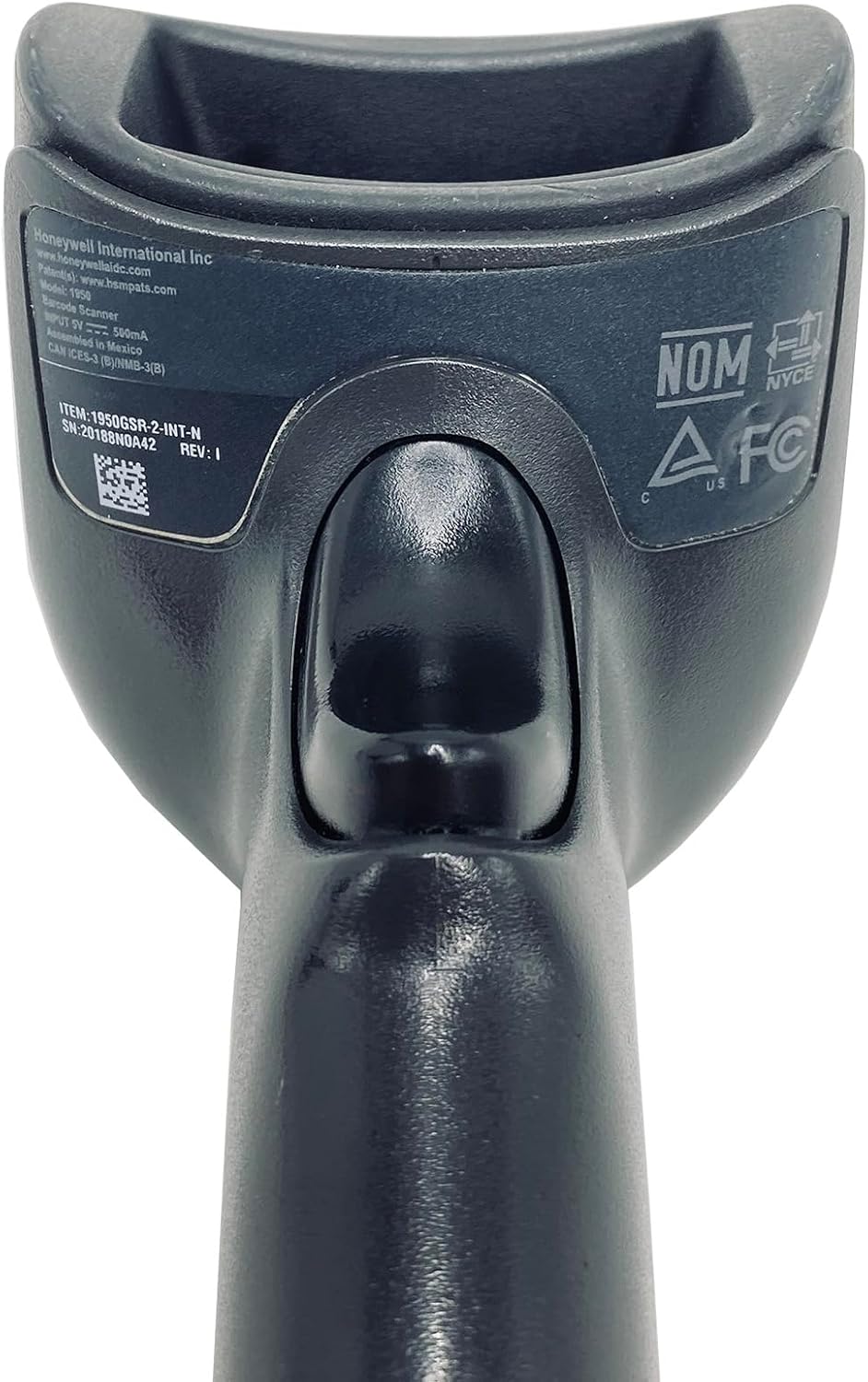
Figure 4: Product label on the scanner's base, displaying model number and certification marks.
Warranty Information
For detailed warranty information regarding your Honeywell Xenon 1950 1D/2D Scanner, please refer to the warranty card included with your product or visit the official Honeywell website. Warranty terms and conditions may vary by region and purchase date.
Customer Support
If you require technical assistance, have questions about product functionality, or need to report an issue, please contact Honeywell customer support. Contact details can typically be found on the Honeywell website or in the product packaging.
Online Resources: Honeywell Support Website