
Introduction
This manual provides detailed instructions for the installation, operation, and maintenance of your GIGABYTE GA-A320M-H AMD AM4 motherboard. This motherboard is designed to support AMD Ryzen 3000, 2000, and 1000 series processors, as well as Athlon processors with Radeon Vega Graphics and 7th Gen A-series/Athlon X4 processors. It features a Hybrid Digital VRM Solution, NVMe PCIe 3.0 x4 M.2 slot, and Realtek GbE LAN. Please read this manual thoroughly before proceeding with installation to ensure proper setup and functionality.

Figure 1: GIGABYTE GA-A320M-H Motherboard and its retail packaging. This image provides an overview of the product as it appears when unboxed.
Key Features
- Processor Support: Compatible with AMD 3rd Gen Ryzen, 2nd Gen Ryzen, 1st Gen Ryzen, 2nd Gen Ryzen with Radeon Vega Graphics, 1st Gen Ryzen with Radeon Vega Graphics, Athlon with Radeon Vega Graphics, 7th Gen A-series, and Athlon X4 Processors.
- Memory: Features Dual Channel Non-ECC Unbuffered DDR4 memory support with 2 DIMM slots, supporting up to 32GB RAM.
- Power Delivery: Equipped with a Hybrid Digital VRM Solution utilizing Low RDS(on) MOSFETs for stable power delivery.
- Storage: Includes an Ultra-Fast NVMe PCIe 3.0 x4 & SATA Mode M.2 slot for high-speed storage devices.
- Cooling: Smart Fan 5 technology with 5 temperature sensors and 2 hybrid fan headers for optimized cooling control.
- Connectivity: Realtek GbE LAN with cFosSpeed internet accelerator software for improved network performance.
Setup and Installation
Before beginning installation, ensure your system is powered off and disconnected from the mains. Handle the motherboard by its edges to avoid static discharge.
1. Motherboard Overview

Figure 2: Top-down view of the GIGABYTE GA-A320M-H motherboard, highlighting the CPU socket, DIMM slots, PCIe slots, and M.2 slot. This perspective is useful for identifying component locations during installation.
Familiarize yourself with the layout of the motherboard, including the CPU socket (AM4), DDR4 DIMM slots, PCIe expansion slots, M.2 slot, SATA ports, and various headers for front panel connections.
2. CPU Installation
- Locate the AM4 CPU socket on the motherboard.
- Lift the load lever on the side of the socket.
- Carefully align the triangular mark on your AMD processor with the corresponding mark on the socket.
- Gently place the CPU into the socket without forcing it. It should sit flush.
- Lower the load lever to secure the CPU in place.
3. CPU Cooler Installation
Follow the instructions provided with your specific CPU cooler. Ensure thermal paste is applied correctly between the CPU and the cooler's base. Connect the CPU fan cable to the "CPU_FAN" header on the motherboard.
4. RAM (Memory) Installation
- Open the clips on both ends of the DDR4 DIMM slots.
- Align the notch on the DDR4 memory module with the key in the DIMM slot.
- Press down firmly on both ends of the memory module until the clips snap into place.
- For dual-channel operation, refer to the motherboard manual for recommended slot population (typically slots 1 and 2, or 2 and 4).
5. M.2 SSD Installation
- Locate the M.2 slot on the motherboard.
- Remove the M.2 screw and standoff from the motherboard.
- Insert the M.2 SSD into the slot at a 30-degree angle.
- Gently push the SSD down and secure it with the screw and standoff.
6. Graphics Card (PCIe) Installation
- Open the retention clip on the PCIe x16 slot.
- Align your graphics card with the slot and press down firmly until it is fully seated and the retention clip snaps shut.
- Secure the graphics card to your PC case with a screw.
- Connect any necessary PCIe power cables from your power supply to the graphics card.
7. Power Connections
- Connect the 24-pin ATX main power connector from your power supply to the corresponding header on the motherboard.
- Connect the 8-pin (or 4-pin) ATX 12V CPU power connector to the header near the CPU socket.
8. Front Panel and I/O Connections

Figure 3: Rear I/O panel of the GIGABYTE GA-A320M-H motherboard, showing various ports including USB, LAN, audio, HDMI, and DVI. This panel is where external devices connect.
Connect the front panel cables from your PC case (Power Switch, Reset Switch, HDD LED, Power LED) to the corresponding headers on the motherboard. Also connect USB 2.0/3.0 headers and audio headers. Refer to the detailed pinout diagram in the full GIGABYTE manual for precise connections.
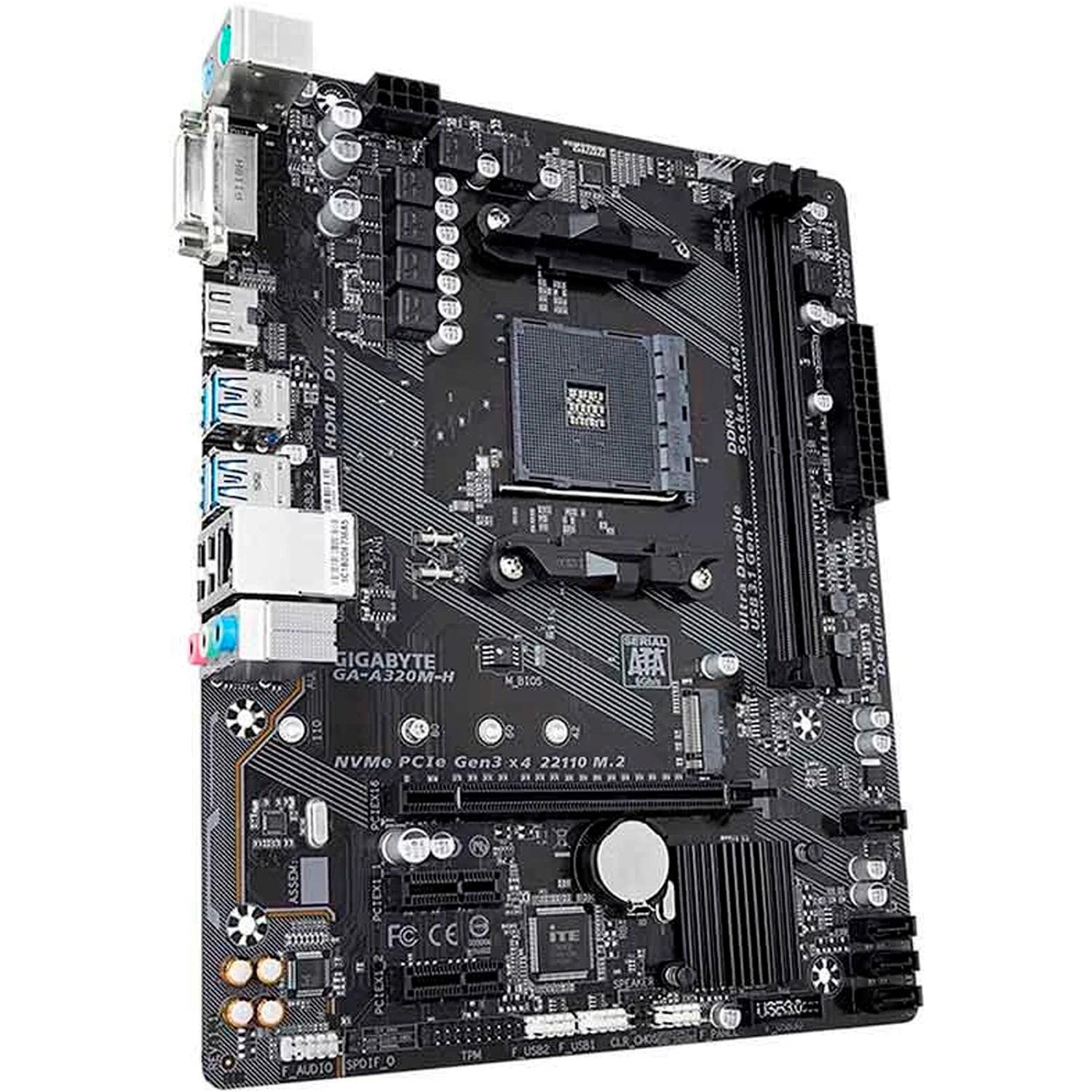
Figure 4: Angled view of the GIGABYTE GA-A320M-H motherboard, showcasing the various ports and connectors, including the M.2 slot and rear I/O. This view helps in visualizing component placement.
Operating Instructions
1. Initial Boot and BIOS/UEFI Setup
- After all components are installed and connected, power on your system.
- Press the DEL key repeatedly during startup to enter the BIOS/UEFI setup utility.
- Configure boot order, enable XMP for memory (if applicable), and set other system preferences. Save changes and exit.
2. Operating System and Driver Installation
- Insert your operating system installation media (USB drive or DVD).
- Follow the on-screen prompts to install your operating system.
- Once the OS is installed, install the latest drivers for your motherboard chipset, LAN, audio, and any other integrated components from the GIGABYTE website or the provided driver CD/USB.
Maintenance
- Dust Removal: Regularly clean your PC case and motherboard components using compressed air to prevent dust buildup, which can affect cooling and performance. Ensure the system is powered off and unplugged before cleaning.
- BIOS/UEFI Updates: Periodically check the GIGABYTE website for BIOS/UEFI updates. Updates can improve system stability, compatibility, and performance. Follow the instructions provided by GIGABYTE carefully when performing a BIOS update.
Troubleshooting
If you encounter issues, consider the following common troubleshooting steps:
- No Display:
- Ensure monitor cables are securely connected to the graphics card or motherboard (if using integrated graphics).
- Verify that the graphics card is properly seated in its PCIe slot and any required power cables are connected.
- Try reseating RAM modules.
- System Won't Boot:
- Check all power connections (24-pin ATX, 8-pin CPU, PCIe power).
- Ensure CPU and RAM are correctly installed.
- Clear CMOS (refer to motherboard manual for jumper location or battery removal method).
- Peripheral Not Detected:
- Verify the device is properly connected.
- Install or update relevant drivers.
- Check BIOS/UEFI settings to ensure the port or device is enabled.
- System Instability/Crashes:
- Ensure all drivers are up to date.
- Check CPU and GPU temperatures.
- Run memory diagnostic tools to check for RAM errors.
- Consider updating the BIOS/UEFI.
Specifications
| Feature | Detail |
|---|---|
| Brand | GIGABYTE |
| Model | GA-A320M-H |
| CPU Socket | Socket AM4 |
| Compatible Processors | AMD 1st, 2nd, 3rd Generation Ryzen, AMD A-Series, AMD Athlon |
| Chipset | AMD A320 |
| RAM Memory Technology | DDR4 |
| Memory Slots | 2 x DDR4 DIMM slots |
| Max RAM Capacity | 32 GB |
| Graphics Card Interface | PCI Express |
| Storage Interface | NVMe PCIe 3.0 x4 M.2, SATA 6Gb/s |
| LAN | Realtek GbE LAN |
| USB Ports | Total 4 (Rear I/O, plus internal headers) |
| Product Dimensions | 24.4 x 19.5 x 0.5 cm |
| Item Weight | 100 g |
Support and Warranty
Technical Support
For further technical assistance, driver downloads, or BIOS updates, please visit the official GIGABYTE support website: GIGABYTE Support
Product Warranty
This GIGABYTE motherboard is covered by a manufacturer's warranty. Please refer to the warranty card included with your product or visit the GIGABYTE website for detailed warranty terms and conditions specific to your region. Keep your proof of purchase for warranty claims.


