
1. Introduction
The Bysameyee USB Digital Microscope is a versatile tool designed for magnifying small objects, offering a magnification range from 40X to 1000X. It features 8 adjustable LED lights for optimal illumination and is compatible with various operating systems, including Windows, Mac, Linux, and Android devices with OTG functionality. This manual provides detailed instructions for setting up, operating, maintaining, and troubleshooting your digital microscope.
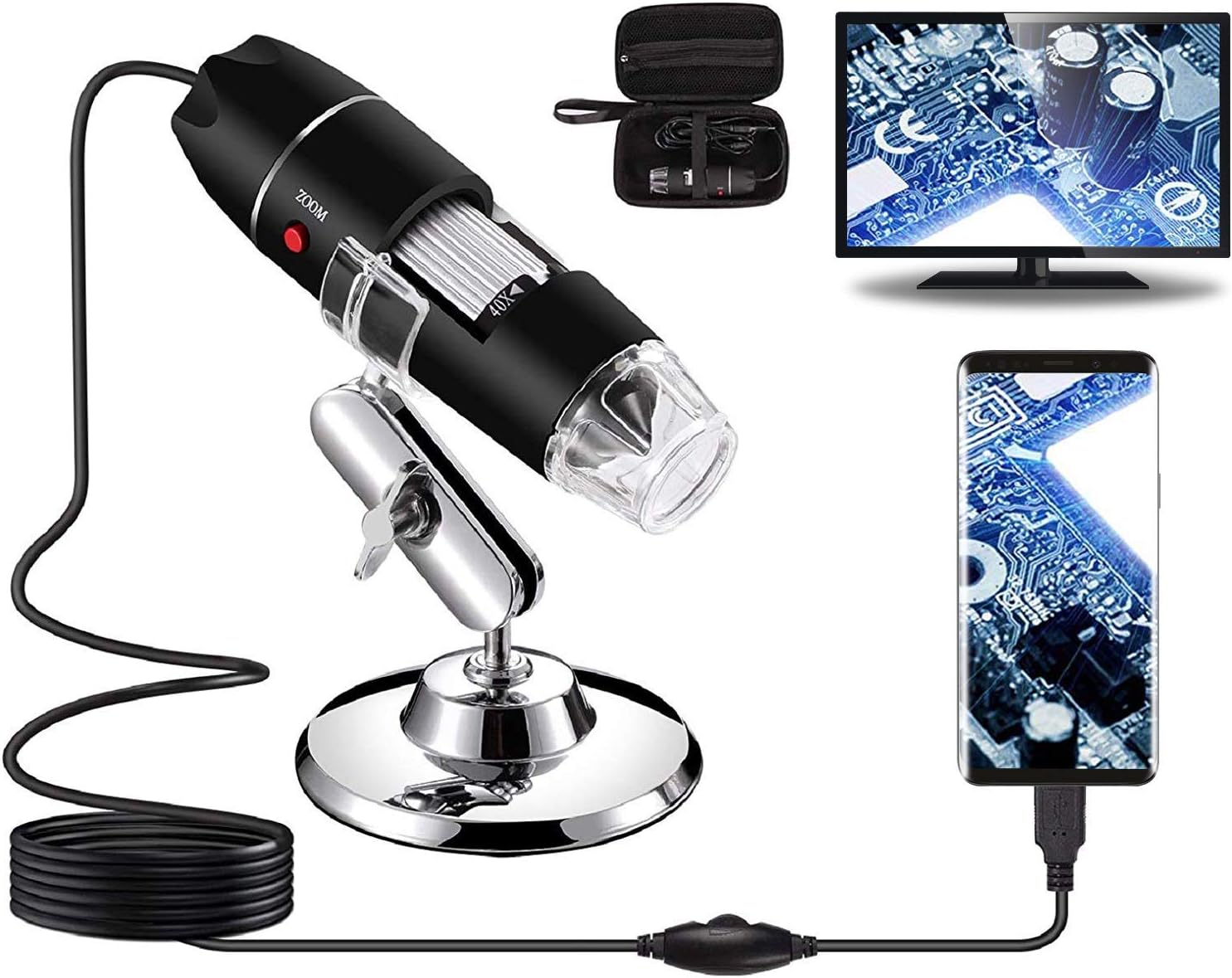
Image showing the Bysameyee USB Digital Microscope with its metal stand, connected via USB cable to a computer monitor displaying a circuit board, and a smartphone also displaying a circuit board. The microscope itself is black with a clear lens and an adjustable focus wheel.
2. Package Contents
Please verify that all items listed below are included in your package:
- Bysameyee USB Digital Microscope
- Metal Stand
- Carrying Case
- Calibration Ruler
- CD Driver (for Windows software)
- Type-C Adapter
- User Manual

Image displaying the complete package contents: a zippered carrying case, the digital microscope, a metal stand, a calibration ruler, a CD driver, a Type-C adapter, a user manual, and a wrist strap.
3. System Requirements & Compatibility
Operating System Compatibility:
- Windows: XP, Vista, 7, 8, 10, 11
- Mac: OS X 10.5 and above
- Linux: Kernels 2.6.26 and above
- Android: Phones with OTG function (requires UVC camera support). Not compatible with iOS (iPhone/iPad).
Device Connectivity:
The microscope features a 3-in-1 USB connector, supporting standard USB, Micro USB, and Type-C connections for broad device compatibility.
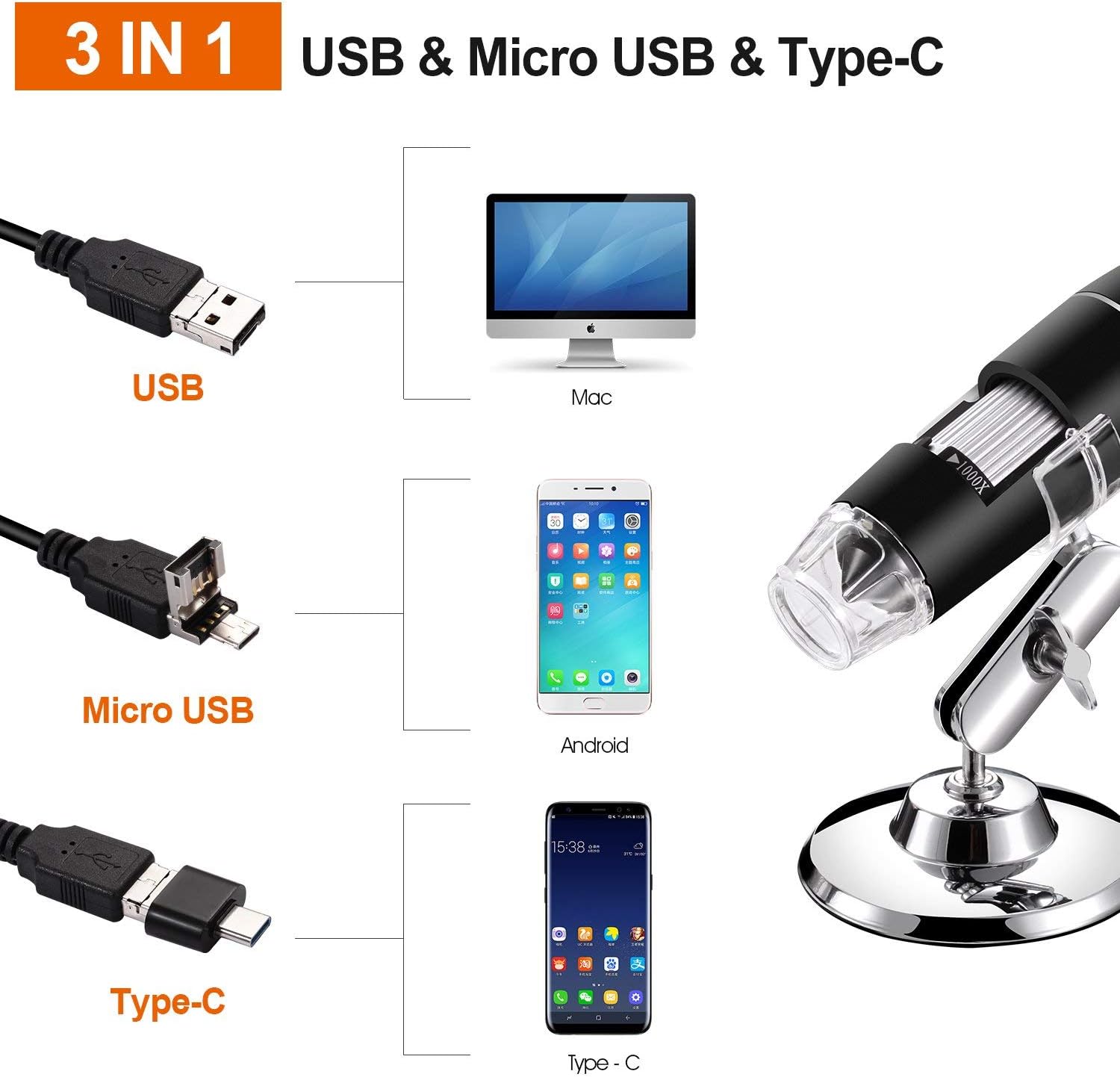
Diagram illustrating the 3-in-1 connectivity options: standard USB for Mac computers, Micro USB for Android phones, and Type-C USB for newer Android phones, all connecting to the digital microscope.
Tested Device Compatibility:

A table detailing compatible devices and operating systems, including Windows, Linux, Mac OSX, and various Samsung, Redmi, Xiaomi, OPPO, Nubia, HTC, VIVO, Meizu, Motorola, LG, Sony, letv, Google, ZTE, ASUS, TECLAST, Pantech, and Huawei phone models. It notes that the list is of tested models and Android phones require OTG function and UVC camera support.
4. Software Installation
For Windows Users:
Install the professional software, Amcap, from the provided CD. If your computer lacks a CD drive, please contact Bysameyee customer support for a download link. Windows 10 users may also utilize the system-integrated webcam application.
For Mac Users:
You can use the built-in "Photo Booth" application directly. Alternatively, software like "Quick Camera" is also compatible.
For Android Users:
Download a compatible UVC camera application from your device's app store. Ensure your Android phone supports OTG functionality. You can verify OTG support by downloading a free app like "USB OTG Checker."
5. Hardware Setup
- Assemble the Stand: Attach the microscope holder to the metal base. The stand allows for 180-degree tilt and 360-degree rotation for flexible viewing angles.
- Mount the Microscope: Securely place the digital microscope into the holder on the stand.
- Connect to Device: Plug the USB connector of the microscope into your computer or Android device. Use the appropriate adapter (Micro USB or Type-C) if necessary.

Detailed diagram of the Bysameyee USB Digital Microscope highlighting its features: 8 LED lights, ZOOM button, SNAP button, 40X-1000X stepless magnification, rotary button for focus, and dimensions. The stand allows 180-degree tilt and 360-degree rotation.
6. Operating Instructions
6.1 Connecting the Microscope
Once the software is installed and the microscope is physically connected to your device, open the installed application. The live view from the microscope should appear on your screen.
6.2 Adjusting Magnification and Focus
The microscope offers 40X to 1000X stepless magnification. Rotate the focus wheel on the microscope body to adjust the magnification and bring the object into clear focus. For optimal viewing, adjust the distance between the microscope lens and the object.
6.3 Controlling LED Illumination
The microscope is equipped with 8 built-in LED lights. Use the LED dimming wire control knob located on the USB cable to adjust the brightness of the lights. The diffuser ensures soft, non-dazzling illumination of the viewed object.
6.4 Capturing Images and Videos
With the installed software, you can capture still images (screenshots) and record videos. Please note that the SNAP and ZOOM buttons on the microscope body are only functional with Windows systems, as the proprietary software for these functions is designed for Windows.
6.5 Using Measurement Software (Windows Only)
The measurement software included with the Windows application allows for precise measurements of magnified objects. This feature is exclusively available for Windows users.

Image of the digital microscope on its stand, connected to a laptop displaying a magnified view of a circuit board on its screen. The microscope is positioned over a small circuit board on the desk.

Image showing a person using the digital microscope to inspect a printed circuit board (PCB). The microscope is on its stand, and the magnified image is displayed on a computer monitor and a smartphone.
7. Care and Maintenance
- Cleaning: Use a soft, dry cloth to clean the microscope body. For the lens, use a specialized lens cleaning cloth and solution to avoid scratches.
- Storage: Store the microscope in its carrying case when not in use to protect it from dust and physical damage.
- Handling: Avoid dropping the device or exposing it to extreme temperatures or humidity.
8. Troubleshooting
- No Image on Screen:
- Ensure the microscope is securely connected to your device's USB port.
- Verify that the correct software or application is open and selected as the camera source.
- For Android, confirm OTG function is enabled and the device supports UVC cameras.
- SNAP/ZOOM Buttons Not Working:
- These buttons are only functional when connected to a Windows system using the dedicated software. They are not recognized by Mac or Android applications.
- Poor Image Quality:
- Adjust the focus wheel carefully.
- Vary the distance between the microscope lens and the object.
- Adjust the LED light brightness using the control knob.
- Ensure the lens is clean and free of dust or smudges.
- Android Device Not Recognizing Microscope:
- Confirm your Android device has OTG functionality and it is enabled in settings.
- Ensure the installed app supports UVC cameras.
- Try a different USB OTG adapter if available.
9. Technical Specifications
- Model Number: SA-00
- Magnification: 40X to 1000X
- Illumination: 8 LED lights (adjustable brightness)
- Power Source: Corded Electric (5 Volts)
- Connectivity: USB (3-in-1: Standard USB, Micro USB, Type-C)
- Material: Metal (stand), Plastic (microscope body)
- Item Weight: Approximately 9.1 ounces
- Package Dimensions: 8.07 x 7.52 x 1.93 inches
10. Warranty and Customer Support
For warranty information or technical assistance, please refer to the documentation included with your purchase or contact Bysameyee customer support directly. Details can typically be found on the manufacturer's official website or through the retailer where the product was purchased.