Introduction
The Amazon Echo Show 8 (1st Gen, 2019 release) is a smart display designed to enhance your daily life with Alexa. Featuring an 8-inch HD screen and stereo sound, it allows you to manage your day, connect with loved ones through video calls, enjoy entertainment, control smart home devices, and personalize your experience. This manual provides detailed instructions to help you get the most out of your device.
What's in the Box
Upon unboxing your Echo Show 8, ensure all components are present:
- Echo Show 8 device
- Power adapter (30W) with cable (4.9 ft.)
- Quick start guide
Setup
Setting up your Echo Show 8 is a straightforward process, often simplified by Amazon Wi-Fi simple setup technology.
- Power On: Connect the power adapter to your Echo Show 8 and plug it into a wall outlet. The device will power on automatically.
- Language Selection: Follow the on-screen prompts to select your preferred language.
- Wi-Fi Connection: Select your Wi-Fi network from the list and enter the password. The Echo Show 8 supports dual-band Wi-Fi (802.11a/b/g/n/ac).
- Amazon Account Login: Log in with your Amazon account credentials. If you don't have one, you will be prompted to create one.
- Device Registration: Your device will register to your Amazon account.
- Time Zone and Location: Confirm your time zone and location settings.
- Tutorial: The device may offer a brief tutorial on how to navigate and use its features.
The Alexa app is compatible with Fire OS, Android, and iOS devices and is also accessible via your web browser for further management and customization.
Operating Your Echo Show 8
The Echo Show 8 can be operated using voice commands with Alexa or through its touch screen interface.
Voice Commands (Alexa)
Simply say "Alexa" followed by your command. Examples include:
- "Alexa, what's the weather?"
- "Alexa, play music."
- "Alexa, call [contact name]."
- "Alexa, show me my photos."
- "Alexa, turn off the lights."

Image: Echo Show 8 displaying current weather conditions, demonstrating its ability to provide glanceable information.
Touch Screen Navigation
Swipe down from the top of the screen to access quick settings and the home menu. Swipe left from the right edge to view cards with suggestions and information. Tap on icons and options to interact with the device.
Features
The Echo Show 8 offers a wide range of features to simplify and enrich your daily routines:
- Video Calling & Messaging: Connect with friends and family who have the Alexa app or an Echo device with a screen. Make announcements to other devices in your home.

Image: A user making a video call on the Echo Show 8, highlighting its communication capabilities.
- Entertainment: Ask Alexa to show you movie trailers, TV shows, movies, or the news. Listen to radio stations, podcasts, and audiobooks.
- Smart Home Control: Voice control compatible devices or manage them on the easy-to-use display. Ask Alexa to show you security cameras, control lights, and adjust thermostats.

Image: The Echo Show 8 displaying a live feed from a nursery camera, illustrating its smart home monitoring feature.
- Personalization: Show off your albums from Amazon Photos. Customize your home screen. Create morning routines to start your day.
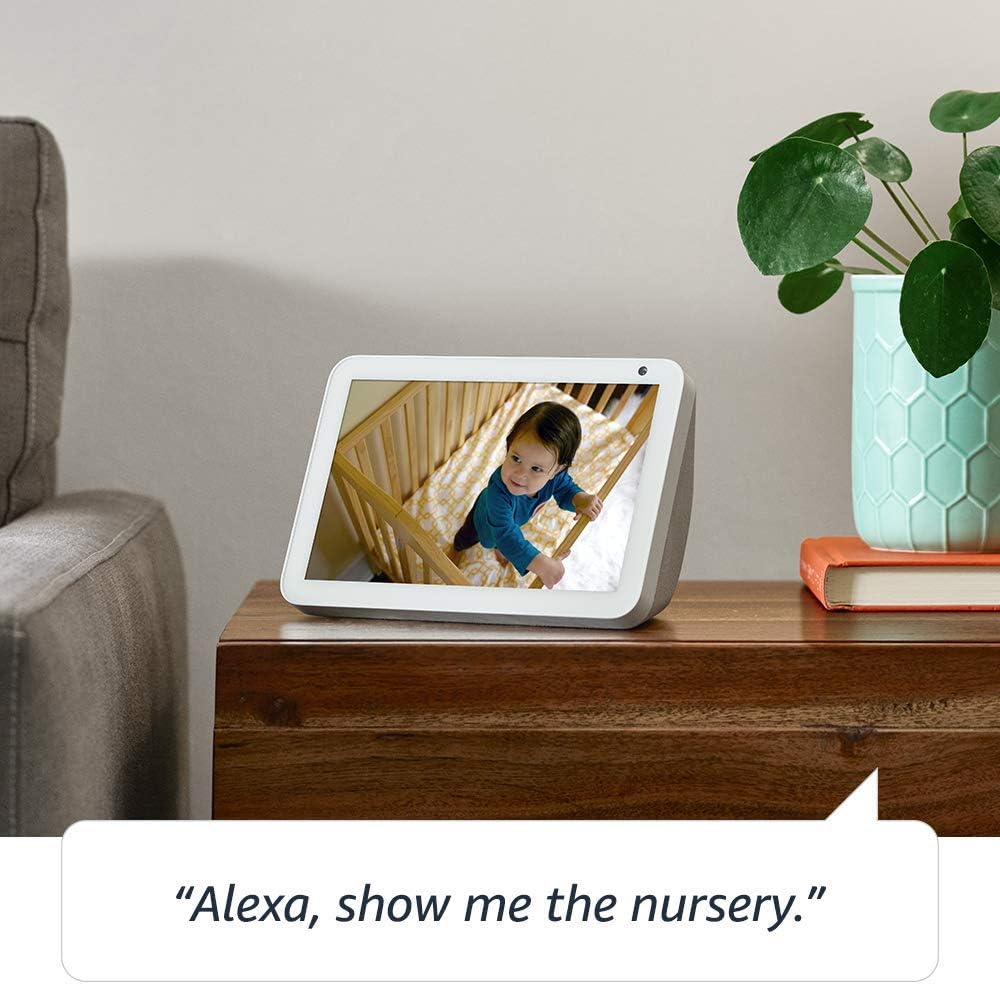
Image: The Echo Show 8 displaying a scenic photo from a user's Amazon Photos album, demonstrating its personalization options.
- Daily Assistance: Cook along to step-by-step recipes. Easily update to-do lists and calendars. Glance at weather and traffic on your way out.
Privacy Features
The Echo Show 8 is designed with privacy in mind, offering several controls:
- Microphone/Camera Off Button: Electronically disconnect the microphones and camera with one press of a button.
- Built-in Camera Shutter: Slide the built-in shutter to physically cover the camera lens.

Image: A finger activating the physical camera shutter on the Echo Show 8, demonstrating a privacy control feature.
- Wake Word Technology: Alexa devices are designed to detect only your chosen wake word (e.g., "Alexa").
- Streaming Indicators: Visual indicators show when Alexa is streaming your request to the cloud.
- Voice Recording Management: The ability to view and delete your voice recordings through the Alexa app or Alexa Privacy Hub.
For more information, visit the Alexa Privacy Hub.
Maintenance
To ensure the longevity and optimal performance of your Echo Show 8, follow these maintenance guidelines:
- Cleaning: Use a soft, lint-free cloth to clean the screen and exterior. Avoid abrasive cleaners or sprays directly on the device.
- Placement: Place the device on a stable, flat surface away from direct sunlight, heat sources, and moisture. Ensure proper ventilation.
- Software Updates: The device automatically receives software updates. Ensure it is connected to Wi-Fi to receive these updates, which improve performance and add new features.
Troubleshooting
If you encounter issues with your Echo Show 8, try the following steps:
- No Power:
- Ensure the power adapter is securely connected to both the device and a working power outlet.
- Try a different power outlet.
- Wi-Fi Connection Issues:
- Verify your Wi-Fi password is correct.
- Restart your Wi-Fi router and modem.
- Move the Echo Show 8 closer to your Wi-Fi router.
- Alexa Not Responding:
- Ensure the microphone is not muted (check the microphone/camera off button).
- Speak clearly and at a normal volume.
- Try restarting the device by unplugging it for a few seconds and plugging it back in.
- Screen Issues:
- If the screen is unresponsive, try restarting the device.
- Ensure the screen is clean and free of smudges.
- Factory Reset: As a last resort, you can perform a factory reset. This will erase all your personal data and settings. To do this, go to Settings > Device Options > Reset to Factory Defaults.
Specifications
| Feature | Detail |
|---|---|
| Size | 7.9”x 5.4”x 3.9” (200mm x 135mm x 99mm) |
| Weight | 36.6 oz (1037 grams) |
| Display | 8.0” touch screen |
| Camera | 1MP camera with built-in shutter |
| Wi-Fi Connectivity | Dual-band Wi-Fi supports 802.11a/b/g/n/ac Wi-Fi networks. Does not support connecting to ad-hoc (or peer-to-peer) Wi-Fi networks. |
| Bluetooth Connectivity | Advanced Audio Distribution Profile (A2DP) support for audio streaming from your mobile device to Echo Show 8 or from Echo Show 8 to your Bluetooth speaker. Audio/Video Remote Control Profile (AVRCP) for voice control of connected mobile devices. Hands-free voice control is not supported for Mac OS X devices. Bluetooth speakers requiring PIN codes are not supported. |
| Audio | 2.0” (52 mm) neodymium speakers with passive bass radiator |
| System Requirements | Echo Show 8 comes ready to connect to your WiFi. The Alexa app is compatible with Fire OS, Android, and iOS devices and also accessible via your web browser. Supported operating systems. Certain skills and services may require subscription or other fees. |
| Processor | MediaTek MT 8163 |
| Language | Alexa speaks English and Spanish |
Accessibility Features
The Echo Show 8 includes various accessibility features to personalize Alexa to your abilities:
- Tap to Alexa: Access Alexa via touch through on-screen tiles or a keyboard.
- Adaptive Listening: Provides more time to finish speaking before Alexa responds.
- Preferred Speaking Rate: Control how fast or slow Alexa speaks.
- Alexa Captioning, Call Captioning, Closed Captioning: Provide text captions for supported content.
- Show and Tell: Helps customers who are blind or visually impaired identify products by saying “Alexa, what am I holding.”
- VoiceView Screen Reader: Enables access for customers who are blind or visually impaired.
- Screen Magnifier: Enables zooming in/out and panning around the screen.
- Notify When Nearby: Plays notification sounds when you’re detected near your Echo device.
- Kindle Read Aloud: Alexa can read your Kindle books aloud.
- Real Time Text: Enables typing live text in a video call.
- Additional settings include Color Inversion, Color Correction, Request Sound, and more.
To enable these features, go to Settings → Accessibility on your Echo Show 8.
Warranty and Support
Your Certified Refurbished Echo Show 8 comes with a 1-year limited warranty and service, similar to a new device. Use of Echo Show 8 is subject to Amazon's terms and conditions.
For further assistance, visit the Amazon Device Support page or contact Amazon Customer Service.


