

1. Introduction
This manual provides comprehensive instructions for the setup, operation, maintenance, and troubleshooting of your ZHONGJI A3D Touch Point of Sale (POS) System. Please read this manual thoroughly before operating the system to ensure proper functionality and longevity.
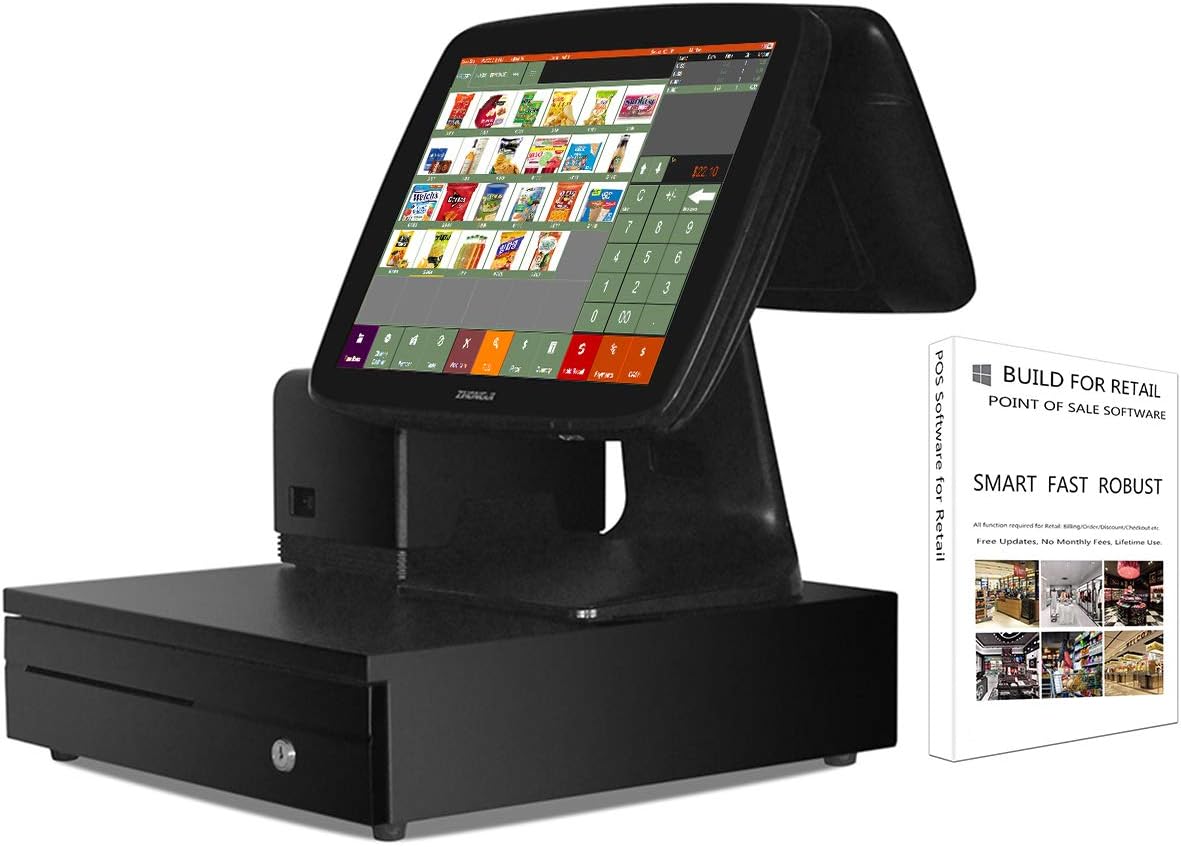
Figure 1.1: The ZHONGJI A3D Touch POS System, including the main unit, customer display, and accompanying software package.
2. System Setup
Follow these steps to correctly set up your ZHONGJI A3D Touch POS System.
2.1 Unpacking and Component Identification
Carefully remove all components from the packaging. Verify that all items listed below are present:
- 15-inch Touch Screen PC with integrated main unit
- 11.6-inch Customer Display
- 3 1/8'' Thermal Receipt Printer
- Stainless Steel Cash Drawer
- Power Adapter and Cable
- Keyboard & Mouse set (gift)
- 10 rolls Thermal Papers (gift)
2.2 Connecting Peripherals
- Connect the Customer Display: Attach the 11.6-inch customer display to the main unit. Ensure the connection is secure.
- Connect the Thermal Receipt Printer: Connect the thermal printer to one of the USB ports on the main unit.
- Connect the Cash Drawer: Connect the cash drawer to the printer using the RJ11/RJ12 cable. The printer will control the cash drawer.
- Connect Keyboard and Mouse: If using external keyboard and mouse, connect them to available USB ports.
- Power Connection: Connect the power adapter to the main unit and then plug it into a power outlet.

Figure 2.1: Rear view of the POS system, highlighting the various ports for peripheral connections including USB, HDMI, VGA, and LAN.
2.3 Initial Power On
Press the power button on the main unit. The system will boot up, displaying the Windows 10 operating system. The pre-installed POS software will be ready for use.
3. Operating Instructions
This section outlines the basic operation of the ZHONGJI A3D Touch POS System.
3.1 Navigating the Touch Screen Interface
The 15-inch main display is a touch screen. Use your finger or a stylus to interact with the software. The 11.6-inch customer display shows transaction details to the customer.
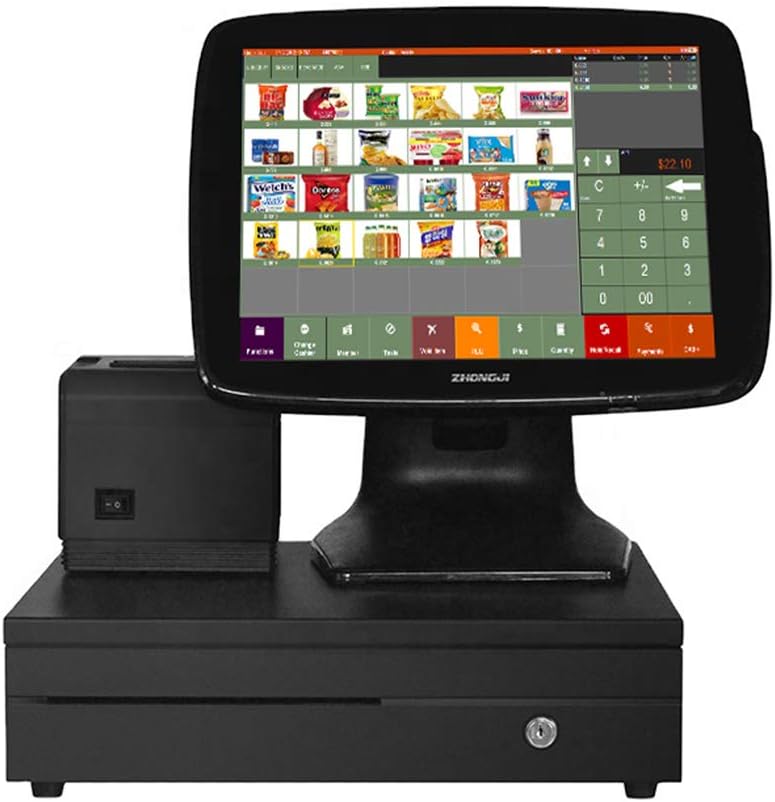
Figure 3.1: The main touch screen interface displaying typical sales operations, including item selection and numerical input.
3.2 Processing Sales Transactions
- Item Entry: Tap on the product images or use the search function to add items to the transaction.
- Quantity Adjustment: Adjust the quantity of each item as needed.
- Payment: Once all items are added, select the payment option (e.g., Cash, Card).
- Cash Handling: For cash payments, enter the amount received. The system will calculate change and automatically open the cash drawer.
- Receipt Printing: A receipt will automatically print after the transaction is completed.
4. Maintenance
Regular maintenance ensures optimal performance and extends the lifespan of your POS system.
4.1 Cleaning the System
- Touch Screen: Use a soft, lint-free cloth lightly dampened with a screen cleaner or water. Avoid harsh chemicals.
- Exterior: Wipe down the exterior surfaces with a soft, dry cloth.
- Printer: Periodically clean the printer's print head and paper path according to the printer's specific instructions.
4.2 Replacing Thermal Paper
When the printer runs out of paper, open the printer cover, remove the old roll, and insert a new 3 1/8'' thermal paper roll, ensuring the paper feeds correctly through the slot before closing the cover.
4.3 Software Updates
Periodically check for software updates for the Windows operating system and the POS application to ensure security and optimal performance. Follow on-screen prompts for any available updates.
5. Troubleshooting
This section addresses common issues you might encounter with your POS system.
- System Not Powering On:
- Ensure the power cable is securely connected to both the system and the power outlet.
- Verify the power outlet is functional.
- Touch Screen Unresponsive:
- Restart the system.
- Ensure the screen is clean and free of debris.
- Printer Not Printing:
- Check if the printer is powered on and connected via USB.
- Verify that thermal paper is loaded correctly and not jammed.
- Ensure the printer drivers are correctly installed (usually pre-configured).
- Cash Drawer Not Opening:
- Ensure the cash drawer is securely connected to the printer.
- Verify that the printer is functioning correctly, as it controls the cash drawer.
- Check POS software settings for cash drawer configuration.
- Software Errors:
- Restart the POS application or the entire system.
- If persistent, contact customer support.
6. Specifications
Detailed technical specifications for the ZHONGJI A3D Touch POS System.
| Feature | Detail |
|---|---|
| Main Display | 15-inch Touch Screen PC |
| Customer Display | 11.6-inch Display |
| Processor | Intel Core i5 |
| RAM | 8GB |
| Storage | 128GB SSD |
| Operating System | Windows 10 |
| Connectivity | WiFi Receiver |
| Ports | 6x USB, 1x HDMI, 1x VGA, 1x LAN, 2x Audio Output |
| Included Peripherals | 3 1/8'' Thermal Receipt Printer, Stainless Steel Cash Drawer |
| Software | Activated POS Software (No Monthly Fees, Lifetime Use) |
| Product Dimensions | 14 x 10 x 14 inches |
| Item Weight | 30.8 pounds |
| Manufacturer | DINGJIAN |
| Date First Available | June 6, 2019 |

Figure 6.1: Visual representation of key internal specifications, including the Windows operating system, CPU, RAM, and storage.
7. Warranty and Support
ZHONGJI provides comprehensive support for your A3D Touch POS System.
- Software Service: The system includes free lifetime software service for the pre-installed POS application.
- Technical Assistance: For any technical issues or inquiries, please contact ZHONGJI customer service. Email is often the most effective method for support.
- Remote Assistance: Remote training and assistance are available for software-related issues.