
1. Introduction
This manual provides comprehensive instructions for the setup, operation, maintenance, and troubleshooting of your ZHONGJI A3D Point of Sale (POS) System. Please read this manual thoroughly before using the product to ensure proper functionality and longevity.
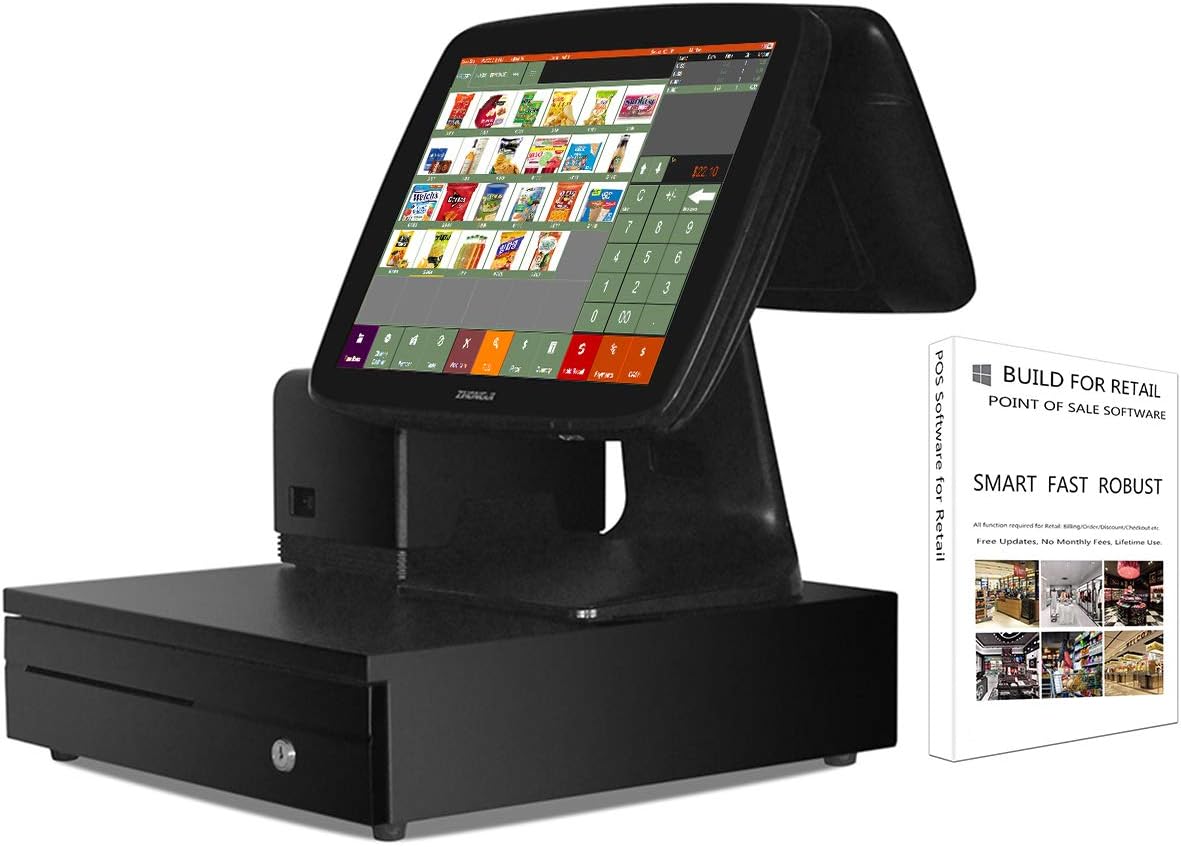
Figure 1: ZHONGJI A3D POS System with accompanying software box.
2. Product Overview
2.1 Key Features
- Integrated 15-inch Touch Screen PC with an 11.6-inch Customer Display.
- Includes a 3 1/8'' Thermal Receipt Printer and a Stainless Steel Cash Drawer.
- Pre-installed POS Software with no monthly fees, designed for lifetime use.
- Powered by Motherboard CPU I5, 8GB RAM, 128GB SSD, and WiFi Receiver, running Windows 10.
- Multi-functional interfaces: 6 USB Ports, 1 HDMI, 1 VGA, 1 LAN Port, and 2 Audio Output.
2.2 Components
The ZHONGJI A3D POS System typically includes the following components:
- Main POS Unit (15-inch touch screen PC)
- Customer Display (11.6-inch)
- Thermal Receipt Printer
- Cash Drawer
- Power Adapter
- Keyboard & Mouse Set (gift)
- Thermal Paper Rolls (10 rolls, gift)
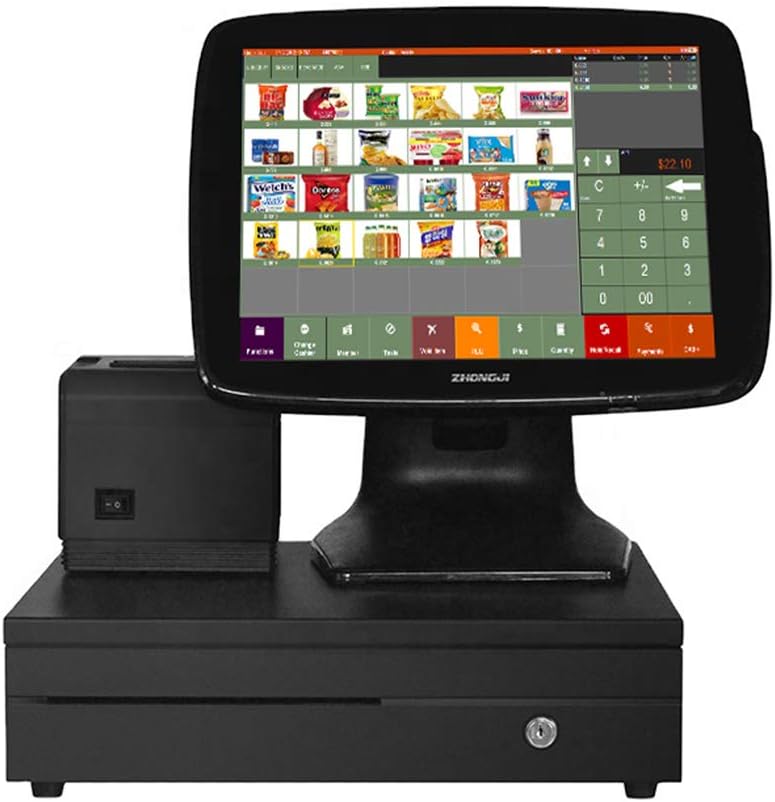
Figure 2: Front view of the ZHONGJI A3D POS System, showing the main touch screen, printer, and cash drawer.

Figure 3: Side view of the ZHONGJI A3D POS System, highlighting the integrated customer display.

Figure 4: Rear view of the ZHONGJI A3D POS System, showing the customer display from the back.
3. Setup Instructions
3.1 Unpacking and Placement
- Carefully remove all components from the packaging.
- Place the main POS unit on a stable, flat surface. Ensure adequate ventilation around the unit.
- Position the cash drawer and thermal printer in their desired locations, ensuring they are easily accessible.
3.2 Connecting Peripherals
- Connect the thermal receipt printer to the main POS unit using the appropriate cable (e.g., USB or LAN).
- Connect the cash drawer to the thermal printer. The cash drawer typically connects via an RJ11/RJ12 cable to the printer, which then triggers the drawer to open upon print command.
- Connect the provided keyboard and mouse to the available USB ports on the main unit.
- Plug the power adapter into the main POS unit and then into a power outlet.
3.3 Initial Power-On and Software Configuration
- Press the power button on the main POS unit. The system will boot into Windows 10.
- Upon first boot, follow any on-screen prompts for initial Windows setup (e.g., language, time zone).
- The POS software is pre-installed. Locate and launch the POS application.
- Refer to the software's internal help or a separate software manual for detailed configuration of products, prices, taxes, and other settings.

Figure 5: The ZHONGJI A3D POS System displaying the Windows 10 operating system, with hardware specifications.
Video 1: This video demonstrates the setup and basic operation of the ZHONGJI A3D Touch POS System, including physical assembly and initial software navigation.
4. Operating Instructions
4.1 Basic Transaction Process
- Log in to the POS software using your credentials.
- Select items for sale by tapping on their icons on the touch screen or by scanning their barcodes using a compatible barcode scanner (if connected).
- Adjust quantities as needed.
- Proceed to the payment screen.
- Select the payment method (e.g., cash, card).
- Complete the transaction. The thermal printer will automatically print a receipt, and the cash drawer will open if a cash transaction is processed.
Video 2: This video provides an overview of the POS software interface and its core functionalities, guiding users on how to navigate and utilize the system's features.
Video 3: This video illustrates the quick sale process within the POS software, demonstrating how to efficiently process transactions.
4.2 Product Management
The POS software allows for comprehensive product management:
- Adding New Products: Navigate to the 'Product Management' section. Enter product details such as name, price, barcode (UPC), category, and stock levels.
- Editing Existing Products: Select a product from the list to modify its details.
- Stock Management: Update inventory levels manually or through integrated scanning features.
Video 4: This video demonstrates how to add and manage products within the ZHONGJI Touch POS System software.
5. Maintenance
5.1 General Cleaning
- Regularly clean the touch screen with a soft, lint-free cloth and a non-abrasive screen cleaner.
- Wipe down the exterior of the POS unit, printer, and cash drawer with a damp cloth. Avoid harsh chemicals.
- Ensure no dust or debris accumulates in the printer's paper path or around the barcode scanner.
5.2 Printer Maintenance
- Replace thermal paper rolls as needed. Ensure the new roll is inserted correctly according to the printer's instructions.
- Clean the printer's thermal print head periodically with an alcohol swab to maintain print quality.
5.3 Software Updates
Periodically check for software updates to ensure optimal performance and security. Follow the instructions provided within the POS software for updating.
6. Troubleshooting
6.1 Common Issues and Solutions
| Issue | Possible Cause | Solution |
|---|---|---|
| System not powering on | Power cable disconnected, power outlet issue | Check all power connections. Try a different power outlet. |
| Touch screen unresponsive | Software glitch, screen calibration needed | Restart the system. Recalibrate the touch screen via Windows settings. |
| Printer not printing | Out of paper, paper jam, cable disconnected, driver issue | Check paper supply and clear any jams. Verify printer cable connection. Reinstall printer drivers if necessary. |
| Cash drawer not opening | Not connected to printer, printer not configured to open drawer | Ensure cash drawer is securely connected to the printer. Check POS software settings for cash drawer configuration. |
7. Specifications
- Product Dimensions: 14 x 10 x 14 inches
- Item Weight: 30.8 pounds
- ASIN: B07SJ3SC4P
- Date First Available: June 6, 2019
- Manufacturer: DINGJIAN
- Operating System: Windows 10
- Processor: Intel Core i5 (Motherboard CPU I5)
- RAM: 8GB
- Storage: 128GB SSD
- Connectivity: WiFi, 6 USB Ports, 1 HDMI, 1 VGA, 1 LAN Port, 2 Audio Output

Figure 6: A visual comparison highlighting the advantages of a modern POS system over traditional electronic cash registers.
8. Warranty and Support
ZHONGJI provides free lifetime software service for this POS system. For any technical assistance, troubleshooting, or inquiries regarding your product, please contact ZHONGJI customer support. Details for contacting support are typically found on the product packaging or through the pre-installed software's help section.