
Introduction
This manual provides essential information for the proper setup, operation, and maintenance of your CINO AINIX A680BT-SR-BS/USB High-Performance 2D Cordless Imager. This 2D imager incorporates FuzzyScan imaging technology, enabling it to read barcode symbols displayed on LCD screens. Its robust over-molded design ensures durability, while its advanced features provide excellent reading performance across various applications.
Product Components
The product package for the A680BT-SR-BS/USB typically includes the following items:
- A680BT-SR Main Unit (Cordless Imager)
- Cradle
- Rechargeable Battery
- USB Cable
- AC Adapter
- Quick Start Guide

Image: The CINO AINIX A680BT-SR-BS/USB 2D Cordless Imager resting in its charging cradle. The scanner is black with gray accents, and the cradle is also black. The CINO logo is visible on both the scanner and the cradle.
Setup
1. Battery Installation
- Locate the battery compartment on the imager.
- Insert the rechargeable battery, ensuring correct polarity.
- Close the battery compartment securely.
2. Cradle Connection
- Connect the AC adapter to the cradle's power input port.
- Plug the AC adapter into a power outlet.
- Optionally, connect the USB cable from the cradle to your host device (e.g., computer) for data transmission.
3. Initial Charging
Place the imager into the cradle to begin charging. Ensure the charging indicator light on the imager or cradle illuminates, indicating a successful connection. Allow the battery to fully charge before initial use.
Operating Instructions
1. Powering On/Off
Press and hold the trigger button for a few seconds to power on the imager. A beep or indicator light will confirm it is active. To power off, typically press and hold the trigger again, or it may enter sleep mode automatically when placed in the cradle.
2. Bluetooth Pairing
The A680BT-SR-BS/USB utilizes Bluetooth V4.0 LE for low power consumption and connectivity to Android and iOS devices. Refer to the Quick Start Guide for specific pairing instructions, which usually involve scanning a pairing barcode or entering a pairing mode on the imager, then connecting from your host device's Bluetooth settings. Class 1 Bluetooth allows communication up to approximately 100m in open environments.
3. Scanning Barcodes
Point the imager's scanning window at the barcode symbol. Press the trigger button to activate the scanner. The imager will emit a light beam or aiming pattern. Ensure the entire barcode is within the aiming pattern for optimal reading. A successful scan is typically indicated by a beep and/or a green LED light. This device can read major 1D and 2D symbols, including postal barcodes, and mobile symbols displayed on smartphones and tablets. It achieves high resolution of 0.07mm (Code39) and 0.12mm (QRCode), and can read JAN codes from approximately 40cm at 0.33mm resolution.
Maintenance
Cleaning
To maintain optimal performance, keep the scanning window clean. Use a soft, lint-free cloth lightly dampened with water or a mild, non-abrasive cleaning solution. Do not use harsh chemicals or abrasive materials, as these can damage the scanning window. Ensure the device is powered off before cleaning.
Battery Care
To prolong battery life, avoid fully discharging the battery frequently. Recharge the battery when the low battery indicator appears. If the imager will not be used for an extended period, store it with a partial charge (around 50%) in a cool, dry place.
Durability
The A680BT-SR-BS/USB features an over-molded design, providing excellent drop durability of 1.8m onto concrete. It also has an IP42 rating for dust and drip protection. While robust, avoid unnecessary drops or exposure to extreme conditions to ensure longevity.
Troubleshooting
- Imager not powering on: Ensure the battery is correctly installed and fully charged. Connect the imager to the cradle and AC adapter to confirm charging.
- Cannot read barcodes: Verify the barcode is not damaged or smudged. Ensure the scanning window is clean. Check that the imager is correctly aimed and the entire barcode is within the aiming pattern. Confirm the barcode type is supported by the imager.
- Bluetooth connection issues: Ensure the imager is in pairing mode and within range of the host device. Check the host device's Bluetooth settings to ensure it is discoverable and the imager is selected. Try restarting both the imager and the host device.
- No data transmission: If connected via USB, ensure the USB cable is securely connected to both the cradle and the host device. If using Bluetooth, confirm successful pairing and that the host application is configured to receive data from the imager.
If problems persist, consult the detailed user manual (if available) or contact customer support.
Specifications
| Feature | Description |
|---|---|
| Model | A680BT-SR-BS/USB |
| Brand | CINO |
| Manufacturer | PC Worth |
| Power Source | Battery-powered |
| Connectivity Technology | Bluetooth V4.0 LE, USB Cable |
| Communication Range | Up to approximately 100m (Class 1 Bluetooth) |
| Resolution (Code39) | 0.07mm |
| Resolution (QRCode) | 0.12mm |
| Drop Durability | 1.8m onto concrete |
| Ingress Protection (IP) Rating | IP42 (Dust and Drip Protection) |
| ASIN | B07S993L3Y |
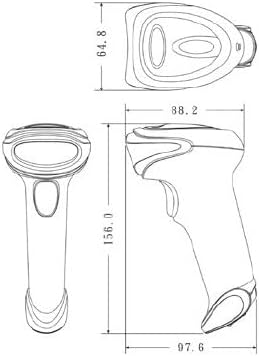

Image: Technical drawings illustrating the dimensions of the CINO A680BT scanner (left) and its cradle (right) from multiple perspectives.
Warranty Information
This product is covered by a standard manufacturer's warranty. Please refer to the warranty card included in your product packaging or visit the official CINO website for detailed terms and conditions, including warranty period and coverage. Keep your proof of purchase for warranty claims.
Support
For technical assistance, product inquiries, or service requests, please contact your local dealer or the official CINO support channels. Contact information can typically be found on the manufacturer's website or in the documentation provided with your product.