
Introduction
The Combrite GM205 Wired USB Gaming Mouse is designed to enhance your computing and gaming experience with its advanced features and ergonomic design. This manual provides comprehensive instructions for setting up, operating, customizing, and maintaining your mouse to ensure optimal performance and longevity.
Key features include 7 programmable buttons, adjustable DPI settings up to 4800, vibrant RGB LED lighting, and a comfortable optical sensor for precise tracking. The included Combrite C-Mouse software allows for extensive customization to suit individual user preferences, whether for gaming or general office tasks.
Product Features
- 7 Programmable Buttons: Customize each button for specific functions using the Combrite C-Mouse software.
- Adjustable DPI: Optical sensor with adjustable DPI from 200 to 4800, ideal for various applications including FPS and MOBA games. Default DPI settings are 800-1200-1600-2400.
- Chroma RGB Backlight: Features rainbow LED lighting with 7 different color modes, offering up to 16.8 million customizable colors for a personalized aesthetic.
- Ergonomic Design: Comfortable rubberized coating and scroll wheel, designed for extended use without discomfort.
- High-Precision Optical Sensor: Ensures accurate and responsive tracking for superior performance.
- Plug and Play USB Connectivity: Easy setup with a 1.5-meter braided USB cable.
- Built-in Memory: Onboard memory to save custom profiles.
- Durable Switches: Switches rated for 20,000,000 clicks lifespan.
- PTFE Mouse Feet: For smooth gliding on various surfaces.
Setup Instructions
- Connect the Mouse: Plug the USB connector of the Combrite GM205 mouse into an available USB port on your computer. The mouse is plug-and-play compatible and should be recognized automatically by your operating system (Windows 7/8.1/10, Mac OS, Linux).
- Install Software (Optional but Recommended): For full customization of buttons, DPI, and RGB lighting, download the Combrite C-Mouse software from the official Combrite website. Follow the on-screen instructions to complete the installation.
- Initial Test: Once connected, move the mouse and click the left and right buttons to ensure basic functionality.

Image: The Combrite GM205 mouse, ready for connection to a computer via its braided USB cable.
Operating Instructions
Basic Operation
- Left Click: Primary action.
- Right Click: Secondary action, typically opens context menus.
- Scroll Wheel: Scroll up/down for navigation. Pressing the scroll wheel acts as a middle click.
DPI Adjustment
The mouse features a dedicated DPI button (typically located behind the scroll wheel) to cycle through preset DPI levels. By default, these are 800, 1200, 1600, and 2400 DPI. The LED lighting may change color to indicate the current DPI setting.
RGB Lighting Modes
The mouse features dynamic RGB lighting. The lighting modes can be adjusted through the Combrite C-Mouse software. Options include rainbow breathing style and various single-color options.

Image: Multiple Combrite GM205 mice showcasing different RGB LED color options, including a rainbow breathing effect.
Customization with Combrite C-Mouse Software
The Combrite C-Mouse software unlocks the full potential of your GM205 mouse, allowing you to personalize its functions to your exact needs.
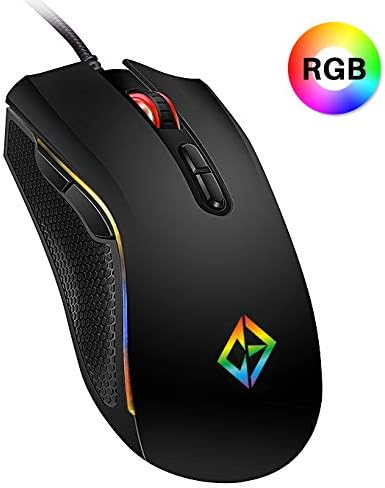
Image: A screenshot of the Combrite C-Mouse Software interface, showing options for programming 7 buttons and adjusting DPI settings.
Button Programming
- Open the Combrite C-Mouse software.
- Select the button you wish to program from the graphical interface.
- Choose from a variety of functions, including single key presses, macro commands, multimedia controls, or launching applications.
- Save your changes to the mouse's onboard memory.
DPI Settings
- Within the software, you can precisely set custom DPI levels ranging from 200 to 4800.
- Configure multiple DPI stages and assign them to the DPI cycle button for quick switching during use.
RGB Lighting Customization
- Access the lighting settings in the software to choose from various effects, colors, and brightness levels.
- Personalize the mouse's appearance to match your setup or mood.
Maintenance
- Cleaning: Use a soft, dry cloth to wipe the surface of the mouse. For stubborn dirt, slightly dampen the cloth with water. Avoid using harsh chemicals or abrasive materials.
- Sensor Cleaning: Occasionally, use a cotton swab lightly dampened with rubbing alcohol to gently clean the optical sensor on the underside of the mouse. Ensure no liquid enters the mouse.
- Cable Care: Avoid sharp bends or excessive pulling on the braided USB cable to prevent damage.
Troubleshooting
- Mouse Not Responding:
- Ensure the USB cable is securely plugged into a working USB port.
- Try plugging the mouse into a different USB port or another computer to rule out port or system issues.
- Restart your computer.
- Inaccurate Tracking:
- Clean the optical sensor on the underside of the mouse.
- Ensure you are using the mouse on a suitable surface (e.g., a mouse pad). Highly reflective or uneven surfaces can affect tracking.
- Adjust the DPI settings using the DPI button or the C-Mouse software.
- Buttons Not Working/Programmable Functions Not Activating:
- Verify that the Combrite C-Mouse software is installed and that your custom profiles are loaded.
- Ensure the software is running in the background if required for specific functions.
- Check for any software updates for the C-Mouse application.
- RGB Lighting Not Working/Incorrect:
- Check the lighting settings within the Combrite C-Mouse software.
- Ensure the mouse is receiving sufficient power from the USB port.
Specifications
| Brand | Combrite |
| Model Number | GM205 |
| Connectivity Technology | USB Wired |
| Movement Detection Technology | Optical |
| DPI Range | 200 - 4800 DPI (Adjustable) |
| Number of Buttons | 7 (Programmable) |
| Lighting | Chroma RGB LED (Rainbow, 7 modes, 16.8 million colors) |
| Cable Length | 1.5 meters (Braided) |
| Switch Lifespan | 20,000,000 clicks |
| Product Dimensions | 12.7 x 7.01 x 0.1 cm |
| Weight | 202 grams |
| Compatible Operating Systems | Windows 10, Windows 7, Windows 8.1, Mac OS, Linux |
| Recommended Use | Gaming |
Warranty and Support
For information regarding warranty coverage and technical support for your Combrite GM205 Gaming Mouse, please refer to the warranty card included with your product or visit the official Combrite website. The website typically provides the most up-to-date information on product support, driver downloads, and contact details for customer service.
Ensure you have your product model number (GM205) and proof of purchase available when contacting support.

