
1. Introduction
The Zoom F6 is a professional multitrack field recorder designed for demanding audio capture scenarios. It features 32-bit float recording technology and dual A/D converters, providing an extended dynamic range. Its compact size, robust construction, and versatile power options make it suitable for various field recording applications.

Image: The Zoom F6 Multitrack Field Recorder, showcasing its compact design and control layout.
2. Key Features
- 32-Bit Float Recording: Prevents audio clipping and preserves dynamic range.
- 6 High-Gain, Low-Noise Mic Preamps: Ensures clear audio capture from multiple sources.
- Records 6 Inputs & Stereo Mix: Simultaneous recording of individual tracks and a stereo mix.
- Ambisonics, WAV & MP3 Formats: Supports various recording formats for flexibility.
- Dual A/D Converters: Enhances dynamic range and audio fidelity.
- Time Code: Provides accurate synchronization for professional productions.
- Multiple Power Options: Supports AA batteries, L-type batteries, and USB power.
- Wireless Control: Bluetooth connectivity for remote operation via a dedicated app.

Image: The side view of the Zoom F6, highlighting its six professional-grade preamps for high-quality audio input.
3. What's in the Box
Upon opening the package, verify that all the following items are included:
- F6 Multitrack Field Recorder
- Camera mount adapter
- AA batteries (x4)
- Quick start guide
- Cubase LE and Wavelab LE download codes
4. Setup
4.1 Powering the F6
The F6 can be powered using AA batteries, an optional Sony L-type battery, or via a USB power pack.
- AA Batteries: Insert four AA batteries into the battery compartment. Ensure correct polarity.
- L-Type Battery: An optional Sony L-type battery can be installed for extended recording times.
- USB Power: Connect a micro USB cable to the F6 and a compatible USB power adapter or power bank.
4.2 Connecting Inputs
The F6 features six XLR/TRS combo inputs. Connect your microphones or line-level sources to these inputs. Phantom power (+24V/+48V) can be supplied to condenser microphones via the F6 menu settings.

Image: The Zoom F6 connected to a tablet, illustrating its compact form factor and potential for integration with other devices.
4.3 Initial Configuration
Upon first power-on, you may need to set the date, time, and basic recording parameters. Navigate through the menu using the control buttons and display screen.
5. Operating Instructions
5.1 Basic Recording
- Power On: Press and hold the power button.
- Input Level Adjustment: Use the individual input gain knobs (1-6) to set appropriate recording levels. Monitor the on-screen meters to avoid clipping.
- Select Recording Mode: Access the menu to choose between Linear (16/24-bit), Float (32-bit), or Dual (16/24-bit + 32-bit) recording modes.
- Start Recording: Press the red RECORD button. The button will illuminate, and the display will show recording status.
- Stop Recording: Press the STOP button.

Image: The front panel of the Zoom F6, displaying active recording levels and timecode information.
5.2 32-Bit Float Recording
The F6's 32-bit float recording capability allows for an extremely wide dynamic range, effectively eliminating the risk of digital clipping. This means that even if input levels are set too low or too high during recording, the audio can be recovered and adjusted in post-production without quality loss.

Image: The Zoom F6 screen displaying the "Float (32bit)" recording mode selection, emphasizing its clip-free audio capability.
5.3 USB Audio Interface Functionality
The F6 can function as a 6-in/4-out USB audio interface, allowing it to be connected to a computer for direct recording or live streaming. This feature integrates the F6's high-quality preamps and converters into your digital audio workstation (DAW) setup.
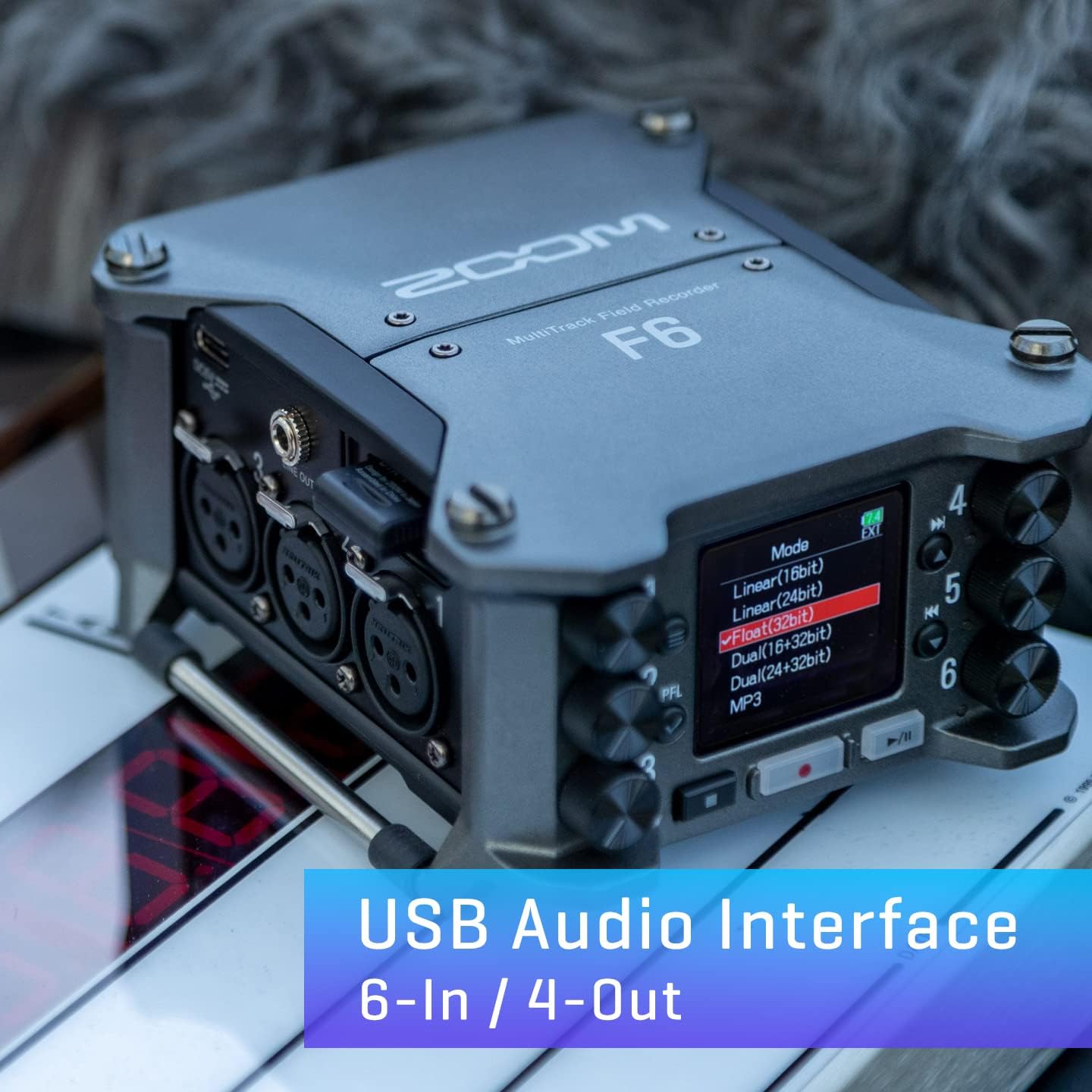
Image: The Zoom F6 connected via USB, illustrating its use as a 6-input, 4-output audio interface.
5.4 Zoom AutoMix™
The AutoMix function automatically adjusts the levels of multiple input channels to maintain a consistent overall mix. This is particularly useful in situations with multiple speakers or varying sound sources, reducing the need for constant manual level adjustments.

Image: The Zoom F6 display showing the AutoMix menu option, indicating its automatic level adjustment feature.
5.5 Timecode Synchronization
The F6 supports accurate timecode input and output, allowing for precise synchronization with video cameras and other audio devices. This is crucial for professional film and video production workflows.
5.6 Wireless Control
The F6 can be controlled wirelessly via Bluetooth using a dedicated application on a smartphone or tablet. This enables remote operation, monitoring, and adjustment of settings, which is beneficial when the recorder is placed in an inaccessible location.
6. Maintenance
To ensure the longevity and optimal performance of your Zoom F6, follow these maintenance guidelines:
- Cleaning: Use a soft, dry cloth to clean the exterior of the unit. Avoid abrasive cleaners or solvents.
- Storage: Store the F6 in a cool, dry place away from direct sunlight and extreme temperatures. If storing for extended periods, remove batteries.
- Firmware Updates: Periodically check the Zoom official website for firmware updates to ensure your device has the latest features and bug fixes.
7. Troubleshooting
If you encounter issues with your F6, consider the following common troubleshooting steps:
- No Power: Check battery installation and charge level. Ensure external power supply is connected correctly.
- No Audio Input: Verify microphone connections, phantom power settings (if applicable), and input gain levels.
- Distorted Audio: Check input gain levels to ensure they are not too high. If using 32-bit float, distortion during recording is unlikely, but check monitoring levels.
- Recording Errors: Ensure the SD card is properly inserted, has sufficient free space, and is formatted correctly.
- Device Not Recognized by Computer: Check USB cable connection and ensure the F6 is in USB Audio Interface mode.
For further assistance, refer to the comprehensive manual available on the Zoom website or contact Zoom customer support.
8. Specifications
| Item Weight | 2.42 pounds |
| Product Dimensions | 4.5 x 3.68 x 2.25 inches (11.43 x 9.35 x 5.72 cm) |
| Model Number | F6 |
| Batteries | 4 AA batteries (included), L-type battery compatible |
| Compatible Devices | MP3 Player (as a source), Computers (as USB Audio Interface) |
| Hardware Interface | USB |
| Supported Software | Cubase LE, Wavelab LE |
| Media Format | WAV |
| Headphones Jack | 3.5 millimeters |
| Memory Storage Capacity | 8 GB (typical card size, device supports larger) |

Image: The Zoom F6 held in a hand, illustrating its compact and portable design with dimensions.
9. Warranty and Support
For detailed warranty information and customer support, please refer to the official Zoom website or the documentation included with your product. Keep your purchase receipt as proof of purchase for warranty claims.
Online Resources: Visit the Zoom Store on Amazon for product information and accessories.


