
Dell i3470-5244BLK-PUS
Dell Inspiron 3470 Desktop User Manual
Model: i3470-5244BLK-PUS
Introduction
This manual provides essential information for setting up, operating, maintaining, and troubleshooting your Dell Inspiron 3470 Desktop. The Dell Inspiron 3470 is a compact and efficient desktop computer designed for everyday use, featuring a 9th Gen Intel Core i5-9400 processor, 12GB DDR4 RAM, a combination of 1TB HDD and 128GB SSD for storage, and a DVD-RW drive, running on Windows 10 Pro.
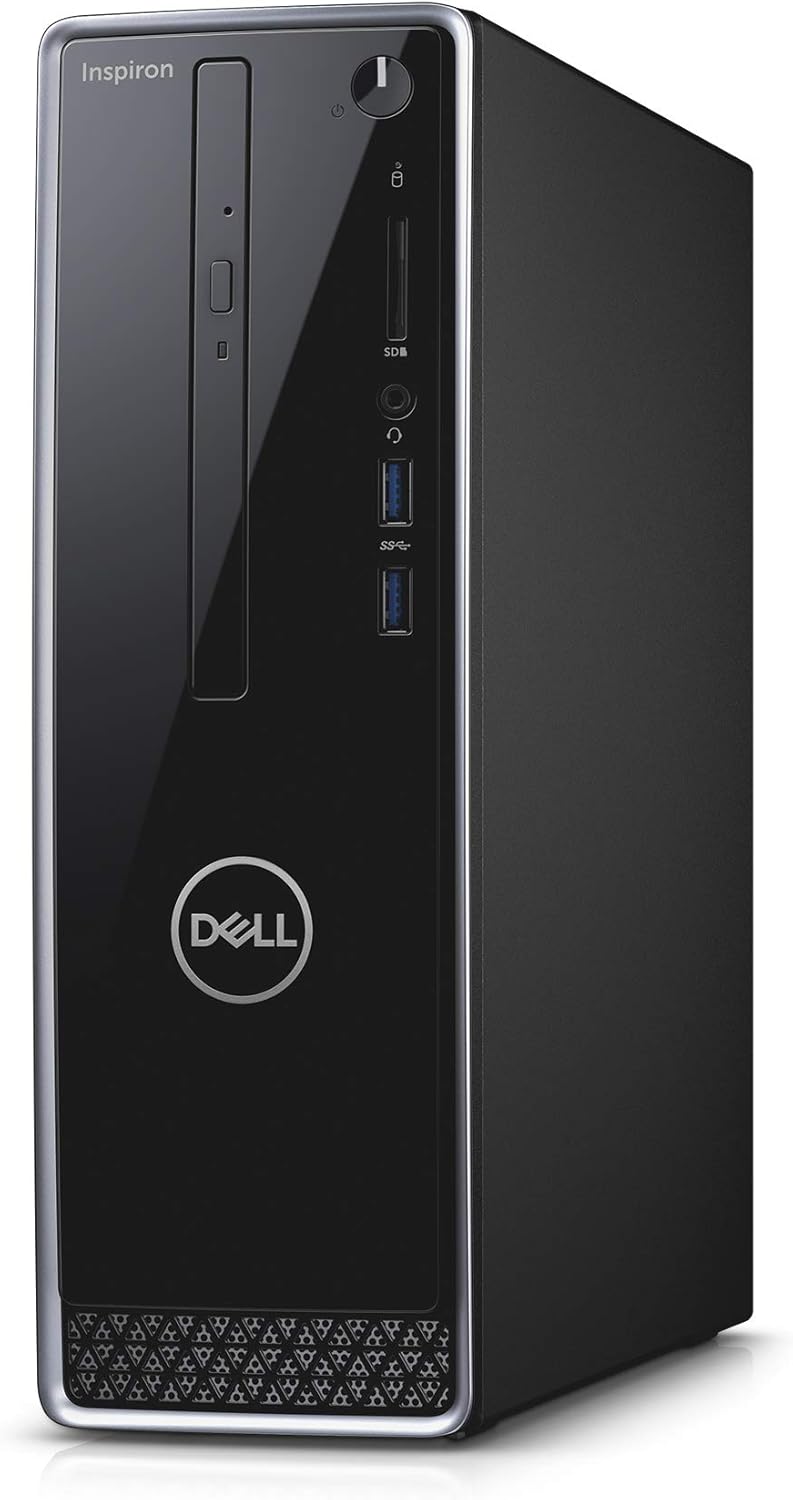
Image: Front and side view of the Dell Inspiron 3470 Desktop tower, showcasing its compact design and black finish.
What's in the Box
Verify that all components are present in the packaging:
- Dell Inspiron 3470 Desktop Tower
- Wired Keyboard
- Wired Mouse
- Power Adapter

Image: The Dell Inspiron 3470 Desktop tower positioned next to the included wired keyboard and mouse, illustrating the complete basic setup.
Setup
- Unpack the System: Carefully remove the desktop, keyboard, mouse, and power adapter from their packaging.
- Connect Peripherals:
- Connect your monitor to the appropriate video output port (HDMI or VGA) on the back of the desktop.
- Connect the wired keyboard and mouse to the available USB ports (front or back).
- If using an Ethernet connection, plug the network cable into the Ethernet port.

Image: Close-up front view of the Dell Inspiron 3470 Desktop, highlighting the power button, SD card slot, headphone jack, and USB ports for easy access.
- Connect Power: Plug the power adapter into the power port on the back of the desktop, then plug the other end into a wall outlet or surge protector.
- Initial Boot-up: Press the power button on the front of the desktop. The system will guide you through the Windows 10 Pro setup process, including language selection, network connection, and user account creation.
Operating
- Power On/Off: Press the power button on the front panel to turn the computer on. To shut down, click the Start button in Windows, then select Power > Shut down.
- Using the Optical Drive: The integrated DVD-RW drive allows you to read and write to DVDs and CDs. Press the eject button on the drive to open the tray, insert your disc, and close the tray.
- Connecting USB Devices: Utilize the USB 2.0 and USB 3.0 ports for connecting external devices such as external hard drives, printers, or USB flash drives. USB 3.0 ports offer faster data transfer speeds.
- Network Connectivity: The system supports both wired Ethernet and wireless (Wi-Fi) connections. Configure your network settings through the Windows 10 network and internet settings.
Maintenance
- Cleaning: Regularly clean the exterior of the desktop with a soft, dry cloth. Use compressed air to clear dust from vents and ports to ensure proper airflow and prevent overheating.
- Software Updates: Keep your Windows operating system and drivers updated to ensure optimal performance and security. Windows Update can be accessed through Settings > Update & Security.
- Data Backup: Regularly back up important data to an external drive or cloud storage to prevent data loss.
- Disk Management: Periodically check disk usage and consider moving large files from the SSD to the HDD if the SSD is nearing capacity, to maintain system speed.
Troubleshooting
| Problem | Possible Solution |
|---|---|
| No Power / System Not Starting |
|
| No Display on Monitor |
|
| Slow Performance |
|
| Optical Drive Not Reading Discs |
|
Specifications
| Feature | Detail |
|---|---|
| Processor | Intel Core i5-9400 (6-Core, 4.1GHz with Intel Turbo Boost Technology) |
| Operating System | Windows 10 Pro 64-bit English |
| RAM | 12GB DDR4 RAM (2666 MHz) |
| Storage | 128GB Solid State Drive (SSD) + 1TB 7200RPM 3.5" SATA HDD |
| Optical Drive | DVD-RW (Reads and Writes to DVD/CD) |
| Graphics | Intel UHD Graphics 630 (Integrated) |
| USB Ports | 4 x USB 2.0, 1 x USB 3.0 |
| Wireless Connectivity | Bluetooth (Wi-Fi capability not explicitly listed, but common for desktops) |
| Dimensions (Approx.) | 19.1 x 15.6 x 10.2 inches (Package Dimensions) |
| Weight (Approx.) | 14.4 pounds |
Warranty and Support
Your Dell Inspiron 3470 Desktop includes a 2-year Onsite Dell Warranty after remote diagnosis. For technical assistance, warranty claims, or additional support resources, please visit the official Dell Support website or contact Dell customer service.
For the most up-to-date support information, drivers, and troubleshooting guides, refer to the Dell support portal using your product's service tag.