
Vivitar AMZE1VIVTR375BLK
Vivitar 42" Selfie Stick User Manual
Model: AMZE1VIVTR375BLK
Introduction
This manual provides comprehensive instructions for the Vivitar 42" Selfie Stick with Built-in Shutter Release and Folding Clamp. Please read this manual carefully before using the product to ensure proper operation and longevity.

Image: The Vivitar 42" Selfie Stick in use, demonstrating its extended length and phone compatibility.
Product Features
- Extends up to 42 inches for wide-angle shots and group photos.
- Universal phone holder designed to secure multiple device sizes.
- Compact and foldable design for easy portability, ideal for travel.
- Built-in shutter release for convenient photo and video capture.
- Wired connection (3.5mm audio jack) eliminates the need for Bluetooth pairing or battery charging for the shutter function.
- Compatible with most iOS and Android smartphones, including iPhone Xs/XS max/XR/X/8/8P/7/7P/6s/6/5, Galaxy S9/8/7/6/Note, Nubia, and Huawei models.
Package Contents
Please ensure all items are present in the package:
- Vivitar 42" Selfie Stick
- Integrated Phone Holder
- Built-in 3.5mm Audio Cable
Setup
- Unfold the Selfie Stick: Gently extend the telescopic pole to your desired length. The pole can extend up to 42 inches.
- Adjust the Phone Holder: The phone holder is foldable. Carefully unfold it to create the cradle for your smartphone.
- Insert Your Smartphone: Place your smartphone securely into the adjustable phone holder. Ensure the phone is firmly gripped and balanced. The holder is designed to accommodate various phone sizes.
- Connect the Audio Cable: Locate the 3.5mm audio jack on your smartphone. Plug the integrated audio cable from the selfie stick into your phone's audio jack. This connection enables the built-in shutter release function.
Note: For phones without a 3.5mm audio jack, an adapter (not included) may be required. The built-in shutter only works with iOS and Android smartphones via the audio jack connection.
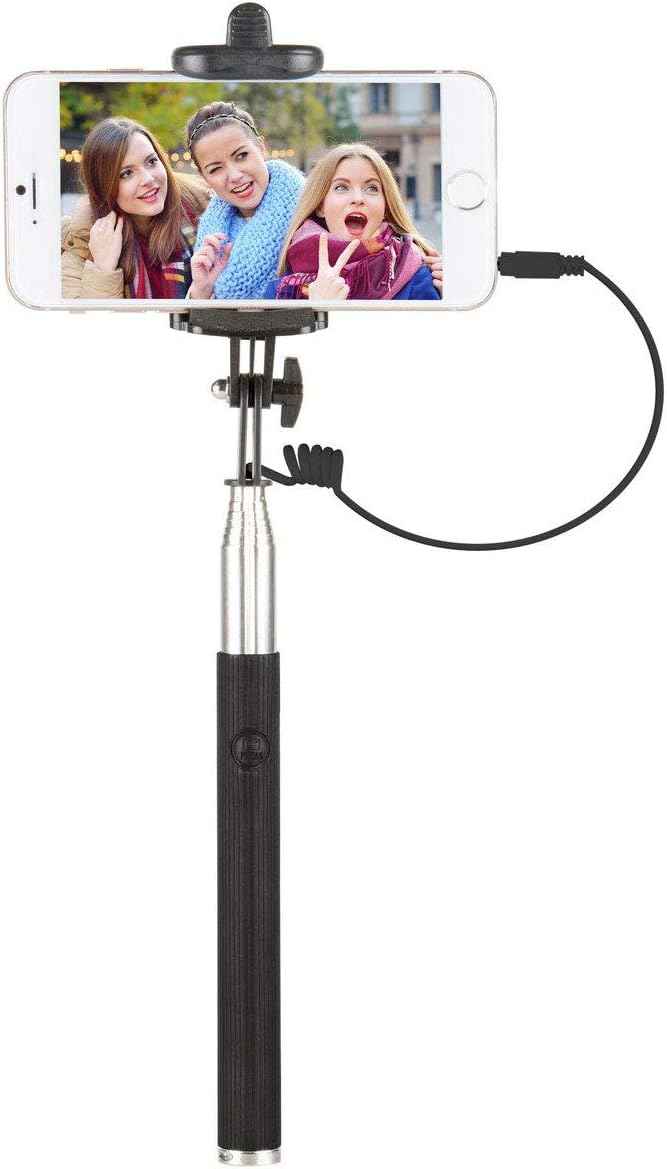
Image: Close-up of the Vivitar Selfie Stick with a smartphone inserted and the audio cable connected, ready for use.
Operating Instructions
- Power On Your Phone: Ensure your smartphone is powered on and unlocked.
- Open Camera Application: Launch your phone's default camera application.
- Position for Photo/Video: Extend the selfie stick to the desired length and angle. Adjust the phone holder's tilt to frame your shot.
- Capture Photo: Press the shutter button located on the handle of the selfie stick. This will trigger your phone's camera to take a photo.
- Record Video: To record video, switch your phone's camera application to video mode. Press the shutter button on the handle to start recording, and press it again to stop recording.
- Retract and Store: After use, carefully remove your smartphone. Retract the telescopic pole and fold the phone holder for compact storage.

Image: A group of individuals using the Vivitar Selfie Stick to capture a group photo in a winter environment.
Maintenance
- Cleaning: Wipe the selfie stick with a soft, dry cloth. Do not use abrasive cleaners or solvents.
- Storage: Store the selfie stick in a cool, dry place away from direct sunlight and extreme temperatures.
- Handle with Care: Avoid dropping the selfie stick or subjecting it to strong impacts, as this may damage the internal components or the phone holder.
- Cable Care: Do not pull on the audio cable forcefully. Always grasp the plug when disconnecting it from your phone.
Troubleshooting
| Problem | Possible Cause | Solution |
|---|---|---|
| Shutter button does not work. |
|
|
| Phone is not secure in the holder. |
|
|
| Selfie stick feels unstable when extended. |
|
|
Specifications
| Feature | Detail |
|---|---|
| Model Number | AMZE1VIVTR375BLK |
| Brand | Vivitar |
| Maximum Extension Length | 42 inches (approx. 106.7 cm) |
| Folded Size | Compact |
| Item Weight | 6.8 ounces (approx. 193 grams) |
| Shutter Type | Wired (3.5mm audio jack) |
| Compatibility | iOS and Android smartphones (iPhone Xs/XS max/XR/X/8/8P/7/7P/6s/6/5, Galaxy S9/8/7/6/Note, Nubia, Huawei) |
| UPC | 843342181767 |
Warranty and Support
The Vivitar 42" Selfie Stick comes with a one-year limited warranty from the date of purchase. This warranty covers manufacturing defects and workmanship under normal use.
For warranty claims, technical support, or product inquiries, please contact Vivitar customer service. Refer to the product packaging or Vivitar's official website for the most current contact information.
Please retain your proof of purchase for warranty validation.
Related documentsAMZE1VIVTR375BLK


Ask a question about this manual
Ask about setup, troubleshooting, compatibility, parts, safety, or missing instructions. Manuals+ will review the question and use this page’s manual context to help answer it.