
1. Introduction
Thank you for choosing the KingsDragon RC Robot Toy Model 917. This intelligent robot offers remote control, gesture sensing, and programmable actions for an engaging play experience. Please read this manual thoroughly before use to ensure proper operation and safety.
Safety Information
- WARNING: CHOKING HAZARD – Small parts. Not for children under 3 years.
- Adult supervision is recommended during play.
- Do not operate the robot near water or in wet conditions.
- Keep hair, loose clothing, and fingers away from moving parts.
- Use only the provided charging cable and follow charging instructions carefully.

Image: The KingsDragon RC Robot Toy Model 917 in blue and white, accompanied by its remote control.
2. Setup
2.1 Unboxing and Components
Carefully remove all components from the packaging. Ensure the following items are present:
- KingsDragon RC Robot Toy Model 917
- Remote Control
- USB Charging Cable
- Instruction Manual (this document)
2.2 Charging the Robot
The robot is powered by a built-in Lithium Polymer battery. Before first use, fully charge the robot.
- Locate the charging port on the robot (typically on the back or chest).
- Connect the small end of the USB charging cable to the robot's charging port.
- Connect the larger end of the USB charging cable to a USB power source (e.g., computer USB port, power bank, or USB wall adapter).
- The charging indicator light on the robot will illuminate during charging and turn off or change color when fully charged.
- A full charge typically takes approximately 2 hours and provides about 60 minutes of playtime.

Image: The robot connected via USB cable to a laptop for charging. The image illustrates various compatible USB power sources such as cellphone chargers, computers, portable chargers, and car chargers.
2.3 Remote Control Battery Installation
(Note: Battery type for the remote control is not specified in the provided data. Please refer to the physical remote control or packaging for specific battery requirements, typically AA or AAA batteries.)
- Open the battery compartment on the back of the remote control.
- Insert the required batteries, ensuring correct polarity (+/-).
- Close the battery compartment securely.
3. Operating Instructions
3.1 Powering On/Off
- To power on the robot, locate the ON/OFF switch (usually on the back or chest) and slide it to the "ON" position. The robot's LED eyes will light up.
- To power on the remote control, press the power button.
- To power off, slide the robot's switch to "OFF" and press the remote control's power button.
3.2 Remote Control Operation
Use the remote control to direct the robot's movements and activate various functions.
- Movement Controls: Use the directional buttons to move the robot forward, backward, turn left, and turn right.
- Slide Movement: The robot can slide forward, backward, left, and right.
- Dance Mode: Press the "Dance" button to activate pre-programmed dance routines with music.
- Music/Song Mode: Press the "Music" or "Song" button to play various melodies.
- Patrol Mode: Activate patrol mode for the robot to move around autonomously, often with obstacle avoidance.
- Demo Mode: Press "Demo" for a demonstration of the robot's capabilities.
3.3 Hand Gesture Control
The robot features gesture sensing technology, allowing it to respond to specific hand movements.
- Forward Gesture: Move your hand forward in front of the robot's sensor.
- Backward Gesture: Move your hand backward in front of the robot's sensor.
- Turn Left/Right Gesture: Move your hand to the left or right in front of the robot's sensor to make it turn in that direction.
- The robot's eyes will illuminate with bright blue LED lights when it moves.
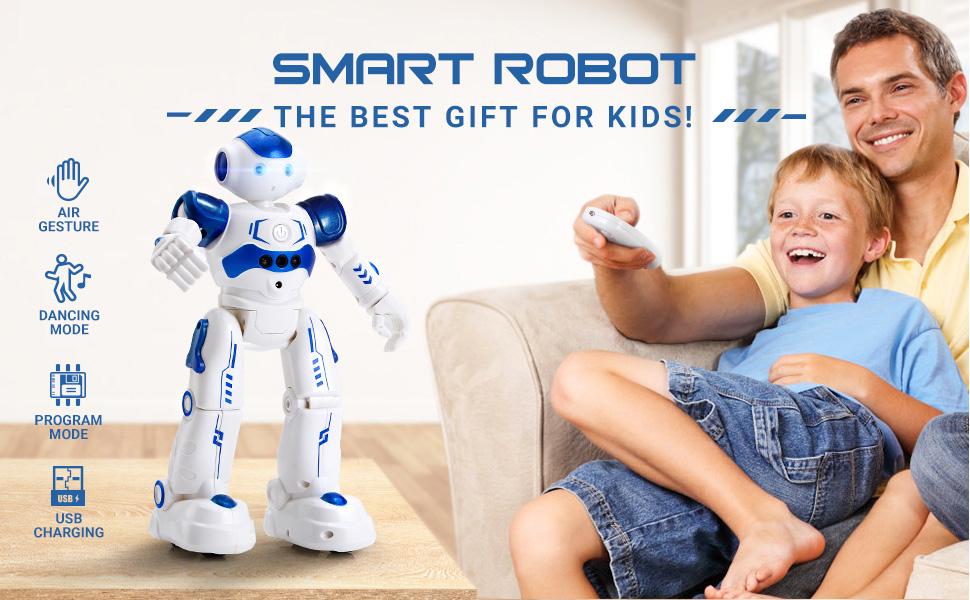
Image: A diagram showing how to use hand gestures (forward, backward, turn left/right) to control the robot's movement.
3.4 Intelligent Programming Mode
Program the robot to perform a sequence of up to 50 actions.
- Press the "Program" button on the remote control.
- Input your desired sequence of movements (e.g., forward, turn left, dance, etc.) using the remote control buttons.
- After inputting all desired actions (up to 50), press the "Program" button again to save the sequence.
- The robot will then execute the programmed actions one by one.

Image: The robot illustrating the steps for programming mode, showing the remote control and robot's movements.
4. Maintenance
4.1 Cleaning
- Wipe the robot and remote control with a soft, dry cloth.
- Do not use harsh chemicals or abrasive cleaners.
- Avoid getting water into any electronic components.
4.2 Storage
- When not in use for extended periods, turn off both the robot and the remote control.
- Store the robot in a cool, dry place, away from direct sunlight and extreme temperatures.
- If the remote control uses removable batteries, consider removing them during long storage to prevent leakage.
5. Troubleshooting
| Problem | Possible Cause | Solution |
|---|---|---|
| Robot does not turn on. | Battery is low or depleted. | Charge the robot's battery fully. |
| Remote control not working. | Remote control batteries are low or incorrectly installed. | Replace remote control batteries, ensuring correct polarity. |
| Robot not responding to commands. | Out of range; interference; robot or remote not paired. | Ensure robot and remote are within operating range. Turn both off and on again to re-establish connection. Avoid obstacles. |
| Gesture control is inconsistent. | Insufficient lighting; sensor obstruction; incorrect gesture. | Ensure adequate lighting. Clear any obstructions from the robot's sensor. Practice gestures as shown in the manual. |
| Robot moves slowly or erratically. | Low battery; wheels obstructed. | Recharge the robot. Check wheels for debris or hair and clean if necessary. |
6. Specifications
- Brand: KingsDragon
- Model: 917
- Product Dimensions: 6.3 x 3.3 x 10.4 inches (16 x 8.5 x 26.5 cm)
- Item Weight: 1.15 pounds (0.52 kg)
- Material: Non-toxic ABS Plastic
- Robot Battery: 1 Lithium Polymer battery (included, built-in)
- Charging Time: Approximately 2 hours
- Playtime: Approximately 60 minutes
- Recommended Age: 3 years and up
- Control Methods: Remote Control, Hand Gesture Sensing
- Programmable Actions: Up to 50 steps

Image: A detailed view of the robot highlighting its dimensions (height, width, depth) and key features like LED eyes, on-off switch, motion sensing, charging port, flexible arms, integrated wheels, and surround stereo.
7. Warranty and Support
For warranty information, technical support, or any questions regarding your KingsDragon RC Robot Toy Model 917, please refer to the contact information provided on the product packaging or visit the official KingsDragon website.
You can also visit the KingsDragon Store on Amazon for more information: KingsDragon Store