
COVVY BL-033
COVVY BL-033 Portable Digital Voice Recorder User Manual
Model: BL-033 | Brand: COVVY
1. Introduction
This manual provides detailed instructions for the operation and maintenance of your COVVY BL-033 Portable Digital Voice Recorder. This device is designed for high-quality audio recording and playback, featuring an 8GB internal memory, MP3 player functionality, and a compact design. Please read this manual thoroughly to ensure proper use and to maximize the device's capabilities.

Image 1.1: The COVVY BL-033 Portable Digital Voice Recorder.
This image displays the front view of the COVVY BL-033 Portable Digital Voice Recorder, highlighting its compact size and LCD screen. The device is silver-colored with a speaker grille at the bottom and control buttons for recording, stopping, and playback.

Image 1.2: Compact and portable design.
This image demonstrates the compact size of the COVVY BL-033, showing it held comfortably in a hand and fitting easily into a suit pocket, emphasizing its portability for discreet recording or personal use.
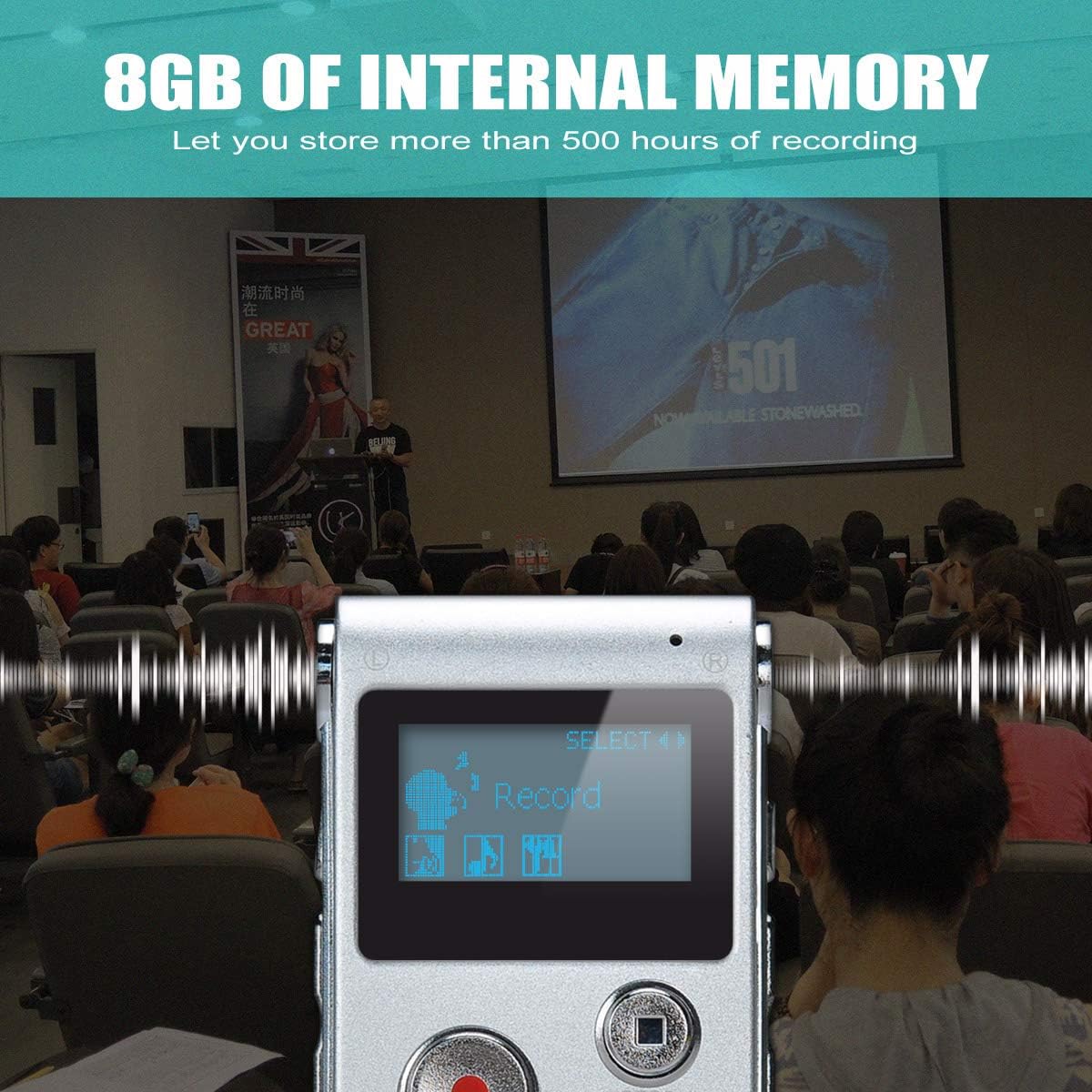
Image 1.3: 8GB internal memory capacity.
This image highlights the 8GB internal memory of the COVVY BL-033, indicating its capability to store over 500 hours of recordings. The device is shown in a classroom or lecture setting, suggesting its utility for extended recording sessions.
2. Product Overview
2.1 Package Contents
- COVVY BL-033 Digital Voice Recorder
- USB Cable
- Earphones
- Telephone Recording Adapter (may be included with some models)
- User Manual (this document)

Image 2.1: COVVY BL-033 with included accessories.
This image shows the COVVY BL-033 Digital Voice Recorder alongside its standard accessories, including a pair of black earphones and a USB cable, indicating a complete package for immediate use.
2.2 Device Components and Controls

Image 2.2: Labeled diagram of the COVVY BL-033 controls.
This detailed diagram illustrates the various components and controls of the COVVY BL-033 Digital Voice Recorder. Key features labeled include the Left Mic, A-B Repeat button, Volume Up/Down buttons, USB Port, Screen, Record Lamp, Record Key, Stop Key, Play/Pause button, Speaker, Right Mic, Menu Key, Previous/Next track buttons, Power Switch, Line-in port, and Headset Jack. This provides a comprehensive guide to the device's physical interface.
- Left/Right Mic: Integrated microphones for audio input.
- A-B Repeat: Used to repeat a specific segment of an audio file.
- VOL UP/DN: Adjusts volume levels.
- USB Port: For charging and data transfer to a computer.
- Screen: LCD display for menu navigation and status indication.
- Record Lamp: Indicator light for recording status.
- Record Key (REC): Initiates recording.
- Stop Key (STOP): Stops recording or playback.
- Play/Pause Key (PLAY/PAUSE): Starts or pauses playback.
- Speaker: Built-in speaker for audio output.
- Menu Key: Accesses device settings and options.
- Previous/Next: Navigates through files or menu options.
- Power Switch: Turns the device on or off.
- Line-in: Audio input for external sources.
- Headset Jack: 3.5mm port for earphones.
3. Setup
3.1 Charging the Device
- Locate the USB port on the side of the recorder.
- Connect the small end of the provided USB cable to the recorder's USB port.
- Connect the larger end of the USB cable to a computer's USB port or a compatible USB wall adapter (not included).
- The device's screen will indicate charging status. A full charge typically takes a few hours.
Note: Ensure the device is fully charged before first use for optimal battery life.
3.2 Powering On/Off
- To power on, slide the Power Switch to the "ON" position.
- To power off, slide the Power Switch to the "OFF" position.
4. Operating Instructions
4.1 Recording Audio
- Ensure the device is powered on.
- Press the REC (Record) button to start recording. The Record Lamp will illuminate.
- Speak clearly into the device's microphones.
- To pause recording, press the PLAY/PAUSE button. Press it again to resume.
- To stop recording, press the STOP button. The recording will be saved automatically.
Tip: For optimal recording quality, ensure the device is placed on a stable surface and away from excessive background noise.
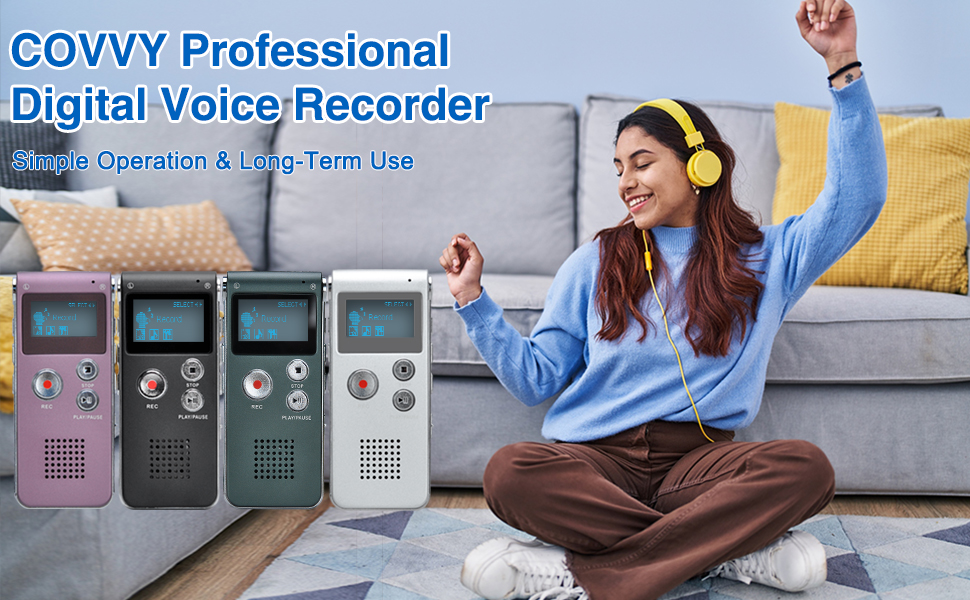
Image 4.1: Overview of multi-function voice recorder capabilities.
This image highlights the multi-functional aspects of the voice recorder, including high-quality recording, timing recording, recording monitor, music playback, and A-B repeat. The device is shown on a desk with a notebook and coffee, suggesting its use in various professional or personal settings.
4.2 Voice Activated Recording (VOR)
The device supports Voice Activated Recording, which starts recording automatically when sound is detected and pauses when silence occurs.
- Access the device's menu by pressing the Menu Key.
- Navigate to the "VOR" or "Voice Activated" setting using the Previous/Next buttons.
- Select "ON" to enable VOR. You may also be able to adjust sensitivity levels.
- Exit the menu. When you press REC, the device will now record in VOR mode.
4.3 Playing Back Recordings and MP3 Files
- Ensure the device is powered on.
- Use the Previous/Next buttons to navigate through your saved recordings or MP3 files.
- Press the PLAY/PAUSE button to start playback.
- Adjust the volume using the VOL UP/DN buttons.
- To pause playback, press PLAY/PAUSE again.
- To stop playback, press the STOP button.

Image 4.2: Device used for music playback.
This image depicts a person relaxing on a couch, listening to music through earphones connected to the COVVY BL-033 recorder, illustrating its functionality as an MP3 player.
4.4 A-B Repeat Function
The A-B repeat function allows you to loop a specific segment of an audio file.
- During playback, press the A-B Repeat button at the desired starting point (A).
- Press the A-B Repeat button again at the desired ending point (B).
- The segment between A and B will now loop continuously.
- Press the A-B Repeat button a third time or the STOP button to exit A-B repeat mode.

Image 4.3: A-B repeat function for learning.
This image shows a child using the COVVY BL-033 recorder while studying, illustrating the utility of the A-B repeat function for educational purposes, such as repeating specific audio segments for memorization or transcription.
4.5 Telephone Recording
The COVVY BL-033 supports telephone conversation recording using the included telephone recording adapter (if applicable to your package). This feature allows you to record calls directly from a landline phone.
- Connect the telephone recording adapter to your landline phone.
- Connect the recorder's Line-in port to the adapter using the appropriate cable.
- Initiate a call on your phone.
- Press the REC button on the voice recorder to begin recording the conversation.
- Press STOP to end the recording.
Note: Always ensure you comply with local laws and regulations regarding call recording, including obtaining consent from all parties involved.
4.6 Transferring Files to a Computer
The device functions as a USB flash drive, allowing easy transfer of recorded files and other data.
- Connect the recorder to your computer using the provided USB cable.
- The computer should recognize the device as a removable disk.
- Open the device's folder to access your recorded audio files (typically in WAV format) and other stored data.
- Drag and drop files to and from your computer as needed.
- Safely eject the device from your computer before disconnecting the USB cable.

Image 4.4: Data transfer via USB.
This image shows the COVVY BL-033 Digital Voice Recorder connected to a laptop via a USB cable, demonstrating the ease of transferring recorded audio files or other data between the device and a computer.
5. Maintenance
- Cleaning: Use a soft, dry cloth to clean the device. Avoid liquid cleaners or abrasive materials.
- Storage: Store the device in a cool, dry place away from direct sunlight and extreme temperatures.
- Battery Care: To prolong battery life, avoid fully discharging the battery frequently. Charge the device regularly, even if not in use.
- Data Backup: Regularly back up important recordings to your computer to prevent data loss.
6. Troubleshooting
| Problem | Possible Cause | Solution |
|---|---|---|
| Device does not power on. | Low battery or power switch in OFF position. | Charge the device. Ensure the power switch is in the ON position. |
| Cannot record. | Insufficient memory or device is in playback mode. | Delete old files to free up space. Ensure the device is not playing back a file. |
| Poor recording quality. | Microphone too far from source, high background noise, or low battery. | Move closer to the sound source. Record in a quieter environment. Ensure battery is charged. |
| Computer does not recognize device. | Faulty USB cable or port, or driver issue. | Try a different USB cable or port. Restart your computer. |
7. Specifications
- Brand: COVVY
- Model: BL-033
- Internal Memory: 8 GB
- Recording Formats: WAV (also supports MP3, WMA, ASF for playback)
- Battery Type: Lithium-ion (included)
- Battery Life: Approximately 30 hours of continuous recording (fully charged)
- Dimensions: 1.1 x 3.5 x 8 cm (0.43 x 1.38 x 3.15 inches)
- Weight: 130 grams (4.58 ounces)
- Screen: LCD
- Interface: USB 1.1/2.0
- Compatible Devices: MP3 Player, PC
- Connector Types: AUX, USB, 3.5mm Headphone Jack
8. Warranty and Support
For warranty information and technical support, please refer to the documentation provided at the time of purchase or contact your retailer. Keep your proof of purchase for any warranty claims.
Ask a question about this manual
Ask about setup, troubleshooting, compatibility, parts, safety, or missing instructions. Manuals+ will review the question and use this page’s manual context to help answer it.