
1. Product Overview
The Samsung QN82Q80RAFXZA Flat 82-Inch QLED 4K Q80 Series Ultra HD Smart TV delivers a stunning visual experience with dazzling colors and exceptional detail. Powered by Quantum dots, this QLED UHD TV provides 4x the resolution (3,840 x 2,160) of Full HD 1080p HDTV and over a billion shades of color.
Key features include the Quantum Processor 4K, which intelligently upscales content to 4K-level picture quality, and Quantum HDR 12x with HDR10+ for incredible picture realism. Direct Full Array Backlight 8x ensures ultra-deep blacks and pure whites. The ultra-viewing angle minimizes glare and maintains vibrant picture quality from various seating positions. For gamers, the Dynamic Black Equalizer and FreeSync VRR technology offer enhanced visibility and lower-lag gaming speed.
The TV also features an innovative Ambient Mode, allowing the screen to blend seamlessly with your home décor by displaying patterns, lighting, photos, or artwork. Smart features include the OneRemote, Bixby voice command, an on-screen universal guide, SmartThings home appliance and device control, and compatibility with Alexa and Google Assistant.

Figure 1.1: Front view of the Samsung QN82Q80RAFXZA 82-Inch QLED 4K Smart TV.
2. What's in the Box
Verify that all components are present in the packaging:
- 82" TV with Stand
- User Manual
- Power Cord
- OneRemote (TM1950C) with batteries
- VESA Wall Mount Support (brackets not included)

Figure 2.1: Included accessories and TV dimensions.
3. Setup
3.1 Unpacking and Placement
Carefully remove the TV and all components from the packaging. Place the TV on a stable, flat surface or mount it on a wall using a compatible VESA wall mount (sold separately). Ensure adequate ventilation around the TV.
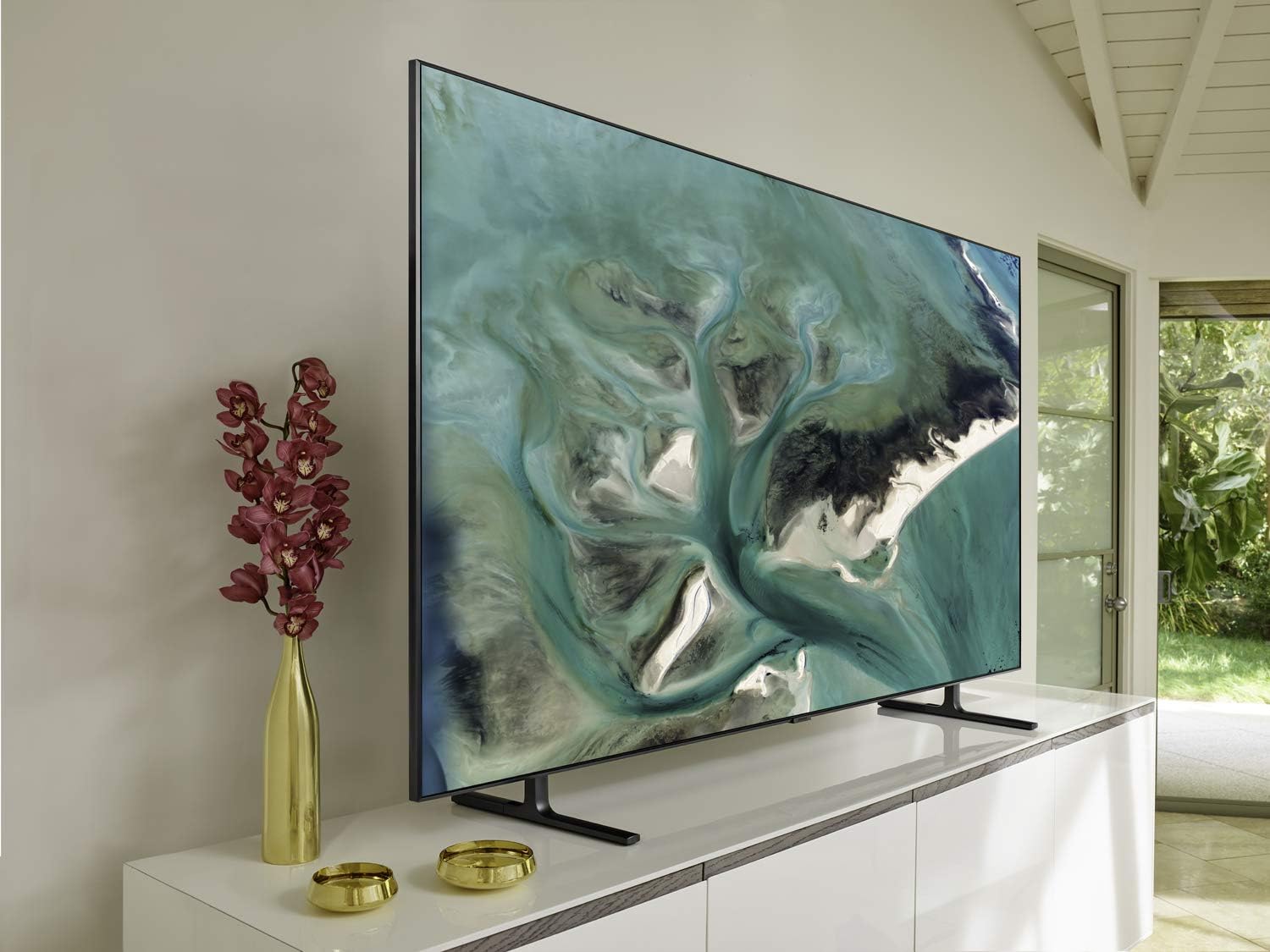
Figure 3.1: Example of TV placement on a media console.
3.2 Connecting Power
- Connect the power cord to the TV's power input.
- Plug the other end of the power cord into a wall outlet.
3.3 Connecting External Devices
Use HDMI cables to connect external devices such as Blu-ray players, game consoles, or soundbars to the HDMI ports on the TV. USB devices can be connected to the USB ports.
4. Operating Instructions
4.1 Power On/Off
Press the Power button on the OneRemote or on the TV itself to turn the TV on or off.
4.2 Using the OneRemote
The included OneRemote provides intuitive control. Utilize the voice command feature by pressing the microphone button and speaking your commands to search for content or navigate menus. The remote also allows quick access to popular streaming services.
4.3 Navigating Smart Hub
The Smart Hub is your central access point for apps, live TV, and connected devices. Use the directional pad on the remote to navigate through the various sections and select your desired content or application (e.g., Netflix, YouTube, Prime Video, ESPN).
4.4 Picture Modes
Adjust the picture settings to optimize your viewing experience:
- Dynamic: Recommended for sports and bright environments, enhancing color and brightness.
- Movie: Ideal for watching films in a dark room, providing accurate colors and cinematic quality.
- Standard: A balanced setting suitable for most content.
- Natural: Provides a comfortable viewing experience by reducing eye strain.
4.5 Ambient Mode
When the TV is off, activate Ambient Mode to display decorative content, information, or blend the TV screen with your wall. You can use the SmartThings app on your smartphone to take a picture of your wall, allowing the TV to replicate its color and pattern for a seamless integration.
5. Maintenance
5.1 Cleaning the Screen
Gently wipe the screen with a soft, dry microfiber cloth. For stubborn smudges, lightly dampen the cloth with water or a screen-cleaning solution specifically designed for electronics. Avoid using harsh chemicals or abrasive materials.
5.2 Software Updates
Ensure your TV's software is up to date for optimal performance and access to the latest features. Navigate to Settings > Support > Software Update to check for and install available updates.
5.3 General Care
Keep the TV away from direct sunlight, heat sources, and excessive moisture. Do not block the ventilation openings on the back of the TV. Unplug the TV during lightning storms or when it will be unused for extended periods.
6. Troubleshooting
If you encounter issues with your Samsung QLED TV, refer to the following common troubleshooting steps:
- No Power: Ensure the power cord is securely connected to both the TV and a working wall outlet. Try plugging another device into the same outlet to confirm it has power. If the issue persists, a power supply component may require professional inspection.
- No Picture/Sound: Verify that the correct input source is selected. Check all cable connections (HDMI, audio) between the TV and external devices. Restart connected devices.
- Network Connectivity Issues: Check your Wi-Fi router and ensure it is powered on and functioning correctly. Reconnect the TV to your Wi-Fi network via Settings > General > Network > Open Network Settings.
- Remote Control Not Responding: Replace the batteries in the OneRemote. Ensure there are no obstructions between the remote and the TV.
For more detailed troubleshooting, consult the TV's built-in e-Manual (accessible via Smart Hub) or visit the Samsung support website.
7. Specifications
| Feature | Specification |
|---|---|
| Brand Name | SAMSUNG |
| Model Number | QN82Q80RAFXZA |
| Screen Size | 82 Inches |
| Display Technology | QLED |
| Resolution | 4K (3840 x 2160) |
| Refresh Rate | 120 Hz |
| Product Dimensions | 82 x 11 x 48 inches (with stand) |
| Item Weight | 0.01 Ounces (Note: This weight is likely incorrect in source data and refers to packaging material or a component, not the full TV.) |
| Color Name | CARBON SILVER |
| Connectivity Technology | Bluetooth, HDMI, USB, Wireless |
| Aspect Ratio | 16:9 |
8. Warranty and Support
This product is covered by Samsung's standard manufacturer's warranty. For specific warranty terms and conditions, please refer to the warranty card included with your product or visit the official Samsung support website. In case of any issues or for technical assistance, please contact Samsung Customer Support.
You can find additional support resources, FAQs, and contact information on the Samsung Support Website.