
HP M428fdn
HP LaserJet Pro MFP M428fdn Monochrome All-in-One Printer User Manual
Model: M428fdn
1. Introduction
The HP LaserJet Pro MFP M428fdn is a monochrome all-in-one printer designed for business environments. It offers print, scan, copy, and fax functionalities. This device features an intuitive touchscreen control panel, automatic two-sided printing, and the ability to print directly from a USB drive. It incorporates HP Wolf Pro Security for data protection and includes features to promote energy efficiency and reduce paper waste.
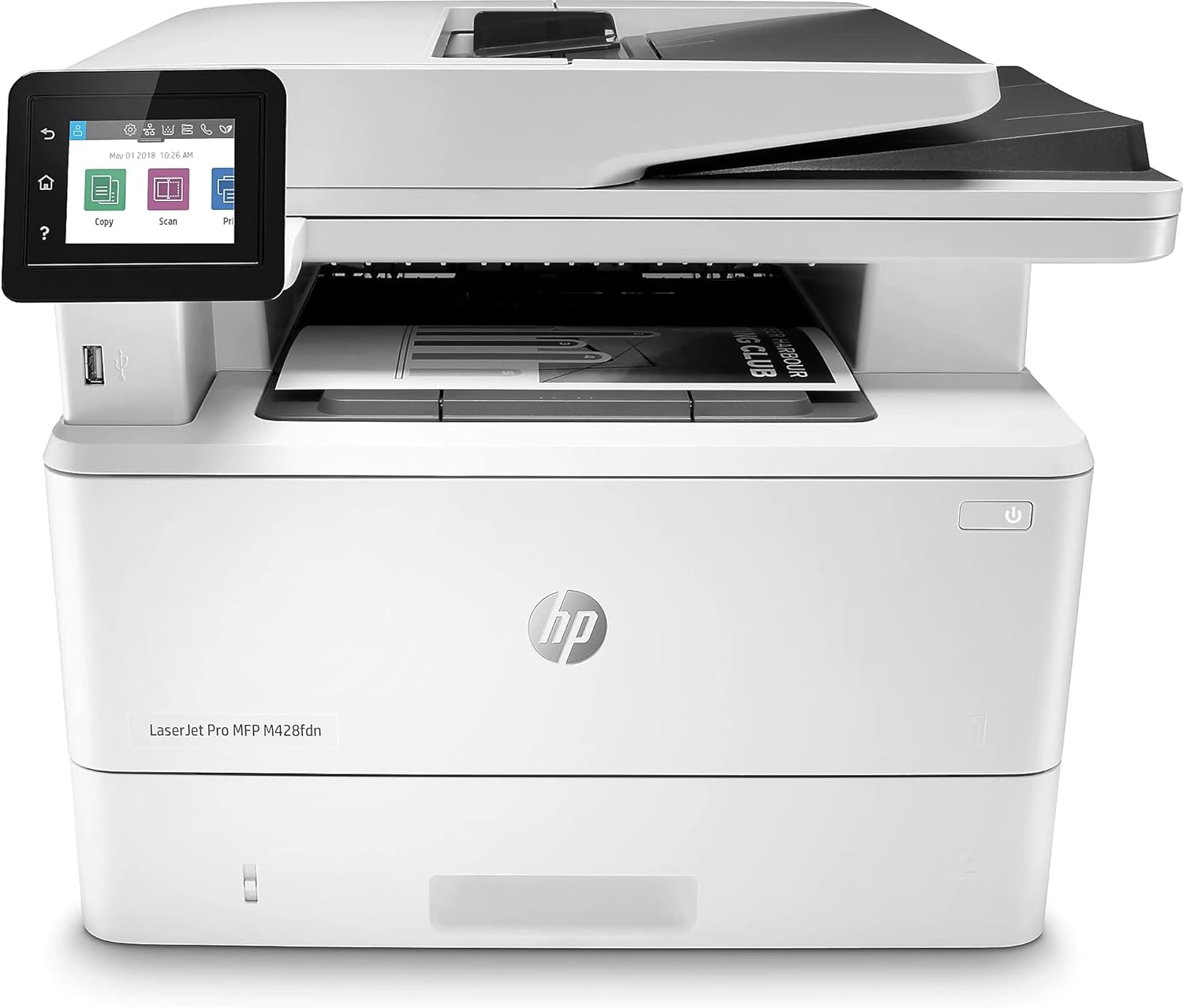
Figure 1: Front view of the HP LaserJet Pro MFP M428fdn printer.
2. What's in the Box
Verify that all components are present upon unpacking:
- HP LaserJet Pro M428fdn Printer
- Preinstalled HP Black LaserJet Toner Cartridge (58A for AMS, yield ~3,000 pages)
- Getting started guide
- Support flyer
- Warranty guide
- Regulatory flyer
- Power cord
- Phone cord
3. Setup Instructions
3.1 Unpacking and Placement
- Remove the printer from its packaging and remove all packing materials, tapes, and protective films.
- Place the printer on a stable, level surface with adequate ventilation.
- Ensure sufficient space around the printer for paper trays and access to ports.
3.2 Connecting Power and Network
- Connect the power cord to the printer and then to a grounded electrical outlet.
- For network connectivity, connect an Ethernet cable from your network router or switch to the Ethernet port on the back of the printer.
- Optionally, connect a USB 2.0 cable from your computer to the USB port on the back of the printer for direct connection.
- Connect the phone cord to the fax port if fax functionality will be used.

Figure 2: Rear view of the printer, illustrating USB 2.0 (for PC connection), USB port (for job storage), Fax port, and Ethernet port.
3.3 Loading Paper
- Open the paper input tray.
- Adjust the paper guides to the correct paper size.
- Load paper into the tray, ensuring it is flat and within the guides. The printer supports various media types including plain paper, card stock, envelopes, glossy photo paper, and labels.
- Close the paper input tray. The total input capacity is 350 sheets (standard tray). An optional 550-sheet tray is available.
3.4 Initial Power On and Software Installation
- Press the power button to turn on the printer.
- Follow the on-screen prompts on the 2.7-inch color touchscreen for initial setup, including language selection and network configuration.
- Install the necessary printer drivers and software on your computer. These can typically be found on the HP support website for your specific model.
4. Operation
The HP LaserJet Pro MFP M428fdn offers multiple functions accessible via its touchscreen control panel.
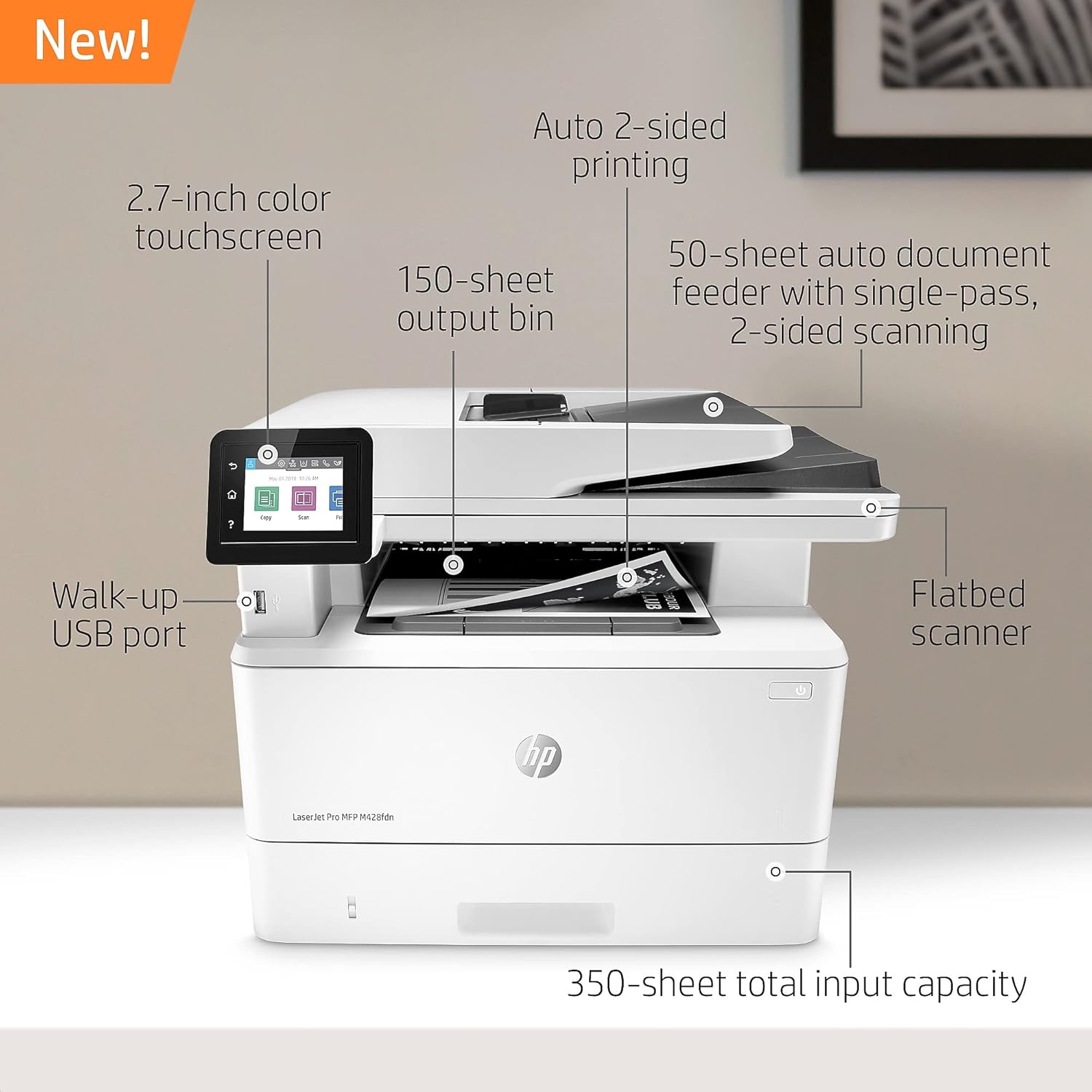
Figure 3: Key features of the printer, including the 2.7-inch color touchscreen, 150-sheet output bin, 50-sheet auto document feeder, flatbed scanner, walk-up USB port, and 350-sheet total input capacity.
4.1 Printing
The printer supports print speeds of up to 40 pages per minute (ppm) for monochrome documents and features automatic two-sided printing.
- From your computer, open the document or image you wish to print.
- Select the print option from the application.
- Choose the HP LaserJet Pro MFP M428fdn from the list of available printers.
- Adjust print settings such as paper size, orientation, and duplex printing options as needed.
- Click 'Print'.
Walk-Up USB Printing
You can print Microsoft Office-formatted files and PDFs directly from a USB drive. Insert the USB drive into the walk-up USB port on the front of the printer and follow the instructions on the touchscreen.

Figure 4: A user inserting a USB drive into the front port for direct printing.
4.2 Scanning
The printer features a flatbed scanner and a 50-sheet automatic document feeder (ADF) with single-pass, two-sided scanning capabilities.
- Place your document on the flatbed scanner glass or load multiple pages into the ADF.
- On the printer's touchscreen, select the 'Scan' option.
- Choose your scan destination (e.g., computer, network folder, email, USB drive).
- Adjust scan settings such as resolution, color mode, and file format.
- Initiate the scan.
4.3 Copying
The printer can copy documents at speeds up to 38 ppm for black and white. It supports automatic two-sided copying.
- Place your document on the flatbed scanner glass or load multiple pages into the ADF.
- On the printer's touchscreen, select the 'Copy' option.
- Enter the number of copies required.
- Adjust settings such as two-sided copying, lightness/darkness, and paper type.
- Press 'Start Copy'.
4.4 Faxing
The printer includes fax functionality. Ensure the phone cord is connected to the fax port and a telephone line.
- Place your document on the flatbed scanner glass or load multiple pages into the ADF.
- On the printer's touchscreen, select the 'Fax' option.
- Enter the recipient's fax number.
- Adjust any necessary fax settings.
- Press 'Send Fax'.

Figure 5: A hand interacting with the printer's touchscreen, demonstrating ease of use for workflow automation.
5. Maintenance
5.1 Toner Cartridge Replacement
Use Original HP 58A/58X toner cartridges for optimal performance and to avoid issues such as reprints or wasted supplies. The printer is designed to work only with cartridges containing original HP chips or circuitry.
- When the toner level is low, a message will appear on the control panel.
- Open the toner cartridge access door.
- Remove the old toner cartridge by pulling it straight out.
- Unpack the new HP toner cartridge and gently shake it to distribute the toner.
- Insert the new cartridge into the slot until it clicks into place.
- Close the toner cartridge access door.
5.2 Cleaning the Printer
Regular cleaning helps maintain print quality and extends the life of the printer.
- Exterior: Wipe the exterior surfaces with a soft, lint-free cloth dampened with water.
- Scanner Glass: Clean the scanner glass with a soft cloth and a non-abrasive glass cleaner.
- ADF Rollers: Refer to the printer's internal menu or the HP support website for specific instructions on cleaning the Automatic Document Feeder rollers if paper feed issues occur.
6. Troubleshooting
This section addresses common issues you might encounter with your HP LaserJet Pro MFP M428fdn printer.
6.1 General Printing Issues
- Printer Not Responding: Ensure the printer is powered on and connected to the network or computer. Check all cables. Restart both the printer and the computer.
- Paper Jams: Follow the on-screen instructions to clear paper jams. Always pull paper in the direction of the paper path to avoid tearing.
- Poor Print Quality: Check toner levels. Ensure you are using appropriate paper for your print job. Clean the printer if necessary.
6.2 Network Connectivity Issues
- Unable to Connect to Network: Verify the Ethernet cable is securely connected. Check network settings on the printer's touchscreen. Ensure your network router is functioning correctly.
- Scanning to Network Folder Issues: The M428fdn may have limitations with scanning directly to Network Attached Storage (NAS) devices. Consider scanning to a USB drive or a computer on the network as an alternative.
6.3 Toner Cartridge Compatibility
This printer utilizes dynamic security features. Periodic firmware updates may be applied. The printer is designed to function exclusively with cartridges that incorporate an original HP chip. Cartridges using non-HP chips or circuitry may not operate or may cease to operate. For more information, visit www.hp.com/learn/ds.
7. Specifications
| Feature | Detail |
|---|---|
| Model Name | M428fdn |
| Functions | Print, Scan, Copy, Fax |
| Printing Technology | Laser (Monochrome) |
| Max Print Speed (Monochrome) | Up to 40 ppm |
| Max Copy Speed (Black & White) | 38 ppm |
| Duplex Printing | Automatic |
| Scanner Type | Sheetfed, Flatbed |
| Automatic Document Feeder (ADF) | 50 sheets, single-pass 2-sided scanning |
| Max Input Sheet Capacity | 900 (with optional tray) |
| Output Sheet Capacity | 150 sheets |
| Control Panel | 2.7-inch Color Touchscreen |
| Connectivity Technology | Ethernet, USB 2.0 |
| Compatible Devices | Laptops, PC (Android, iOS via app) |
| Memory Storage Capacity | 512 MB |
| Maximum Media Size | 8.5 x 14 inch |
| Supported Print Media | Card stock, Envelopes, Glossy photo paper, High-resolution paper, Labels, Plain paper |
| Power Consumption | 510 watts (active printing) |
| Product Dimensions (D x W x H) | 12.72" x 15.35" x 16.54" |
| Item Weight | 27.8 pounds |
8. Warranty and Support
The HP LaserJet Pro MFP M428fdn comes with a one-year limited hardware warranty. For assistance, HP provides 24-hour, 7 days a week web support. Refer to the included warranty guide or the HP support website for full terms and conditions.
9. Important Information
9.1 Legal Disclaimer
This printer employs dynamic security measures, which may be updated periodically through firmware updates. The printer is designed to operate exclusively with cartridges containing an original HP chip. Cartridges that utilize non-HP chips or circuitry may not function as intended or may cease to function. For further details, please visit www.hp.com/learn/ds.
9.2 Visible Screen Diagonal
The visible screen diagonal of the control panel is 3 inches (7 cm).
Ask a question about this manual
Ask about setup, troubleshooting, compatibility, parts, safety, or missing instructions. Manuals+ will review the question and use this page’s manual context to help answer it.