
1. Introduction
The RayCue USB 3.0 to HDMI Adapter is designed to expand your display capabilities by connecting your Windows computer to an HDMI-enabled monitor, projector, or TV. This adapter allows for high-definition video output up to 1080p, enhancing productivity and entertainment by enabling multiple display modes.

Image: The RayCue USB 3.0 to HDMI Adapter, a compact gray device with a USB-A connector on one end and an HDMI output port on the other, designed for easy connectivity.
2. Product Features
- High-Definition Resolution: Supports video resolutions up to 1920x1080 (Full HD 1080p) for clear and crisp visuals.
- Super Speed Transmission: Leverages USB 3.0 technology for fast and smooth signal transmission. Backward compatible with USB 2.0, though resolution may be limited to 800x600.
- Versatile Display Functions: Supports Primary, Extended, and Mirror display modes to suit various needs.
- Easy to Use: Plug and play functionality, requiring no external power adapter.
Usage Scenarios:
- Conduct presentations on a large screen.
- Improve work efficiency with a split screen setup.
- Enjoy high-definition movies on a larger display.
- Monitor real-time stock quotes while viewing other alerts.
- Synchronize images and videos for an enhanced visual experience.
- Display documents on one screen during video conferences.
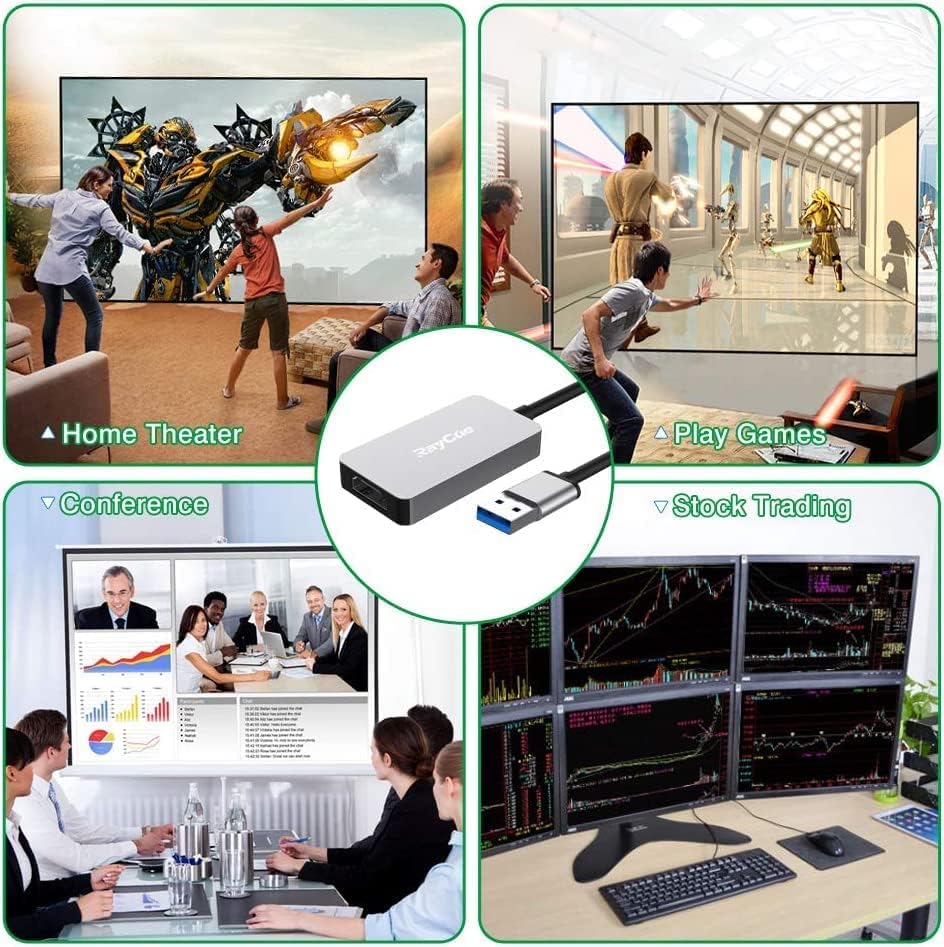
Image: Examples of how the adapter can be used, such as for home theater entertainment, playing games on a larger screen, conducting conferences, and managing multiple displays for stock trading.
3. Package Contents
The package includes the following item:
- 1 x RayCue USB 3.0 to HDMI Adapter
4. Compatibility
Supported Operating Systems:
- Windows 7
- Windows 8
- Windows 8.1
- Windows 10
- Windows XP
Unsupported Operating Systems:
- Mac OS
- Linux
- Vista
- Chrome OS
Note: While the adapter is backward compatible with USB 2.0 ports, the maximum resolution when connected to a USB 2.0 port may be limited to 800x600.
Image: A visual representation of operating system compatibility, indicating support for various Windows versions and non-support for Mac OS, Linux, and Vista.
5. Setup Instructions
5.1 Driver Installation
- Connect the USB 3.0 end of the adapter to an available USB 3.0 port on your Windows computer.
- The adapter may appear as a removable drive. Open 'This PC' or 'My Computer' and locate the new drive.
- Open the drive and run the installer for Windows (usually found in a folder named 'Windows').
- Follow the on-screen prompts to complete the driver installation.
- Restart your computer after the installation is complete.
Important: Please turn off your computer's anti-virus software and firewall temporarily before installing the driver software to prevent potential conflicts.
5.2 Connecting the Adapter
- Ensure the driver is installed and your computer has been restarted.
- Connect the USB 3.0 end of the adapter to a USB 3.0 port on your computer. For optimal performance and resolution, use a blue-colored USB 3.0 port.
- Connect an HDMI cable (not included) from your external display (monitor, projector, or TV) to the HDMI port on the adapter.
- Power on your external display.

Image: A comparison showing USB 3.0 offers significantly faster data transmission (5Gbps) compared to USB 2.0 (480Mbps), crucial for high-resolution video output.
6. Operating Modes
After connecting the adapter and external display, you can configure the display mode through your Windows settings. Press the Windows key + P simultaneously to open the Project menu and select your desired mode:
- Duplicate (Mirror Mode): Displays the same content on both your computer screen and the external display.
- Extend Mode: Extends your desktop across both screens, allowing you to have different applications open on each display for increased workspace.
- Second Screen Only: Displays content only on the external display, turning off your computer's primary screen.

Image: Illustration of Extend Mode, which converts a small screen to a large one, and Mirror Mode, which shows identical content on two screens.
7. Troubleshooting & Precautions
Common Issues and Solutions:
- Screen Flickering: This can be related to your computer's performance and configuration. Try lowering the display resolution or closing other running programs.
- No Display/Low Resolution: Ensure the adapter is connected to a USB 3.0 port. If using a USB 2.0 port, the resolution will be limited to 800x600. Verify that the correct drivers are installed.
- Driver Installation Issues: Temporarily disable your antivirus software and firewall before installing the driver.
Precautions:
- This USB 3.0 to HDMI adapter is not compatible with Mac OS, Vista, or Linux operating systems.
- For optimal performance, always use a USB 3.0 port.
- Ensure all cables are securely connected.
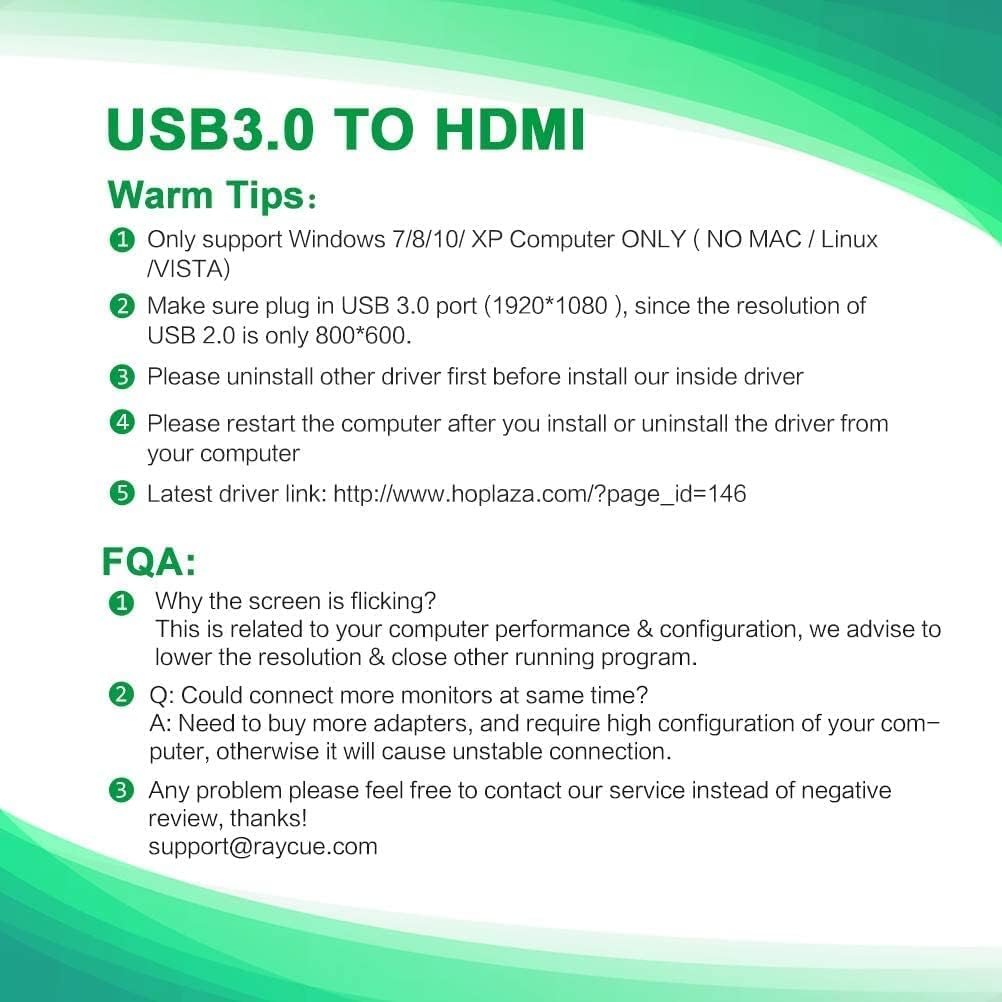
Image: A summary of warm tips and frequently asked questions, emphasizing Windows-only compatibility, the importance of USB 3.0, and driver installation steps.
8. Specifications
| Feature | Detail |
|---|---|
| Interface | 1 x USB 3.0 port, 1 x HDMI port |
| Compatible System | Windows 7/8/10/XP operation system |
| Max Resolution | 1920x1080 (Full HD 1080p) |
| Video Function | Primary, Extended, Mirror |
| Product Dimensions | 5.1 x 2.7 x 0.7 inches |
| Item Weight | 1.44 ounces |
| Color | Gray |
9. Warranty & Support
For any product-related inquiries, technical support, or warranty information, please contact RayCue customer service. Refer to the product packaging or the official RayCue website for contact details.
Email: support@raycue.com