
RSHTECH RSH-A37
RSHTECH 7-Port Powered USB 3.0 Hub (Model RSH-A37) User Manual
Model: RSH-A37
1. Introduction
This manual provides detailed instructions for the installation, operation, and maintenance of your RSHTECH 7-Port Powered USB 3.0 Hub. This device expands a single USB port into seven, offering four USB 3.0 data transfer ports and three dedicated fast-charging ports. It is designed to enhance connectivity and charging capabilities for various devices.
2. Package Contents
Please verify that all items listed below are included in your package:
- 1 x RSHTECH 7-Port USB Hub (Model RSH-A37)
- 1 x Detachable 1m (3.3 ft) USB 3.0 Cable
- 1 x AC Power Adapter (12V/3A)
- 1 x User Manual (this document)

Image: Contents of the RSHTECH 7-Port USB Hub package, showing the hub, USB 3.0 cable, 12V/3A power adapter, and the user manual.
3. Product Features
- 7-Port Expansion: Converts one USB port into four USB 3.0 data ports and three fast-charging ports.
- High-Speed Data Transfer: Four blue USB 3.0 ports support data transfer speeds up to 5Gbps.
- Fast Charging Capability: Three red charging ports deliver optimal charging current up to 2.4 amps, designed for rapid charging of compatible devices. Requires the included power adapter for activation.
- Individual On/Off Switches: Each port features an independent on/off switch with an LED indicator for power status. Ports retain their last set status upon power restoration.
- External Power Supply: Includes a 36W (12V/3A) power adapter to ensure stable power delivery for all connected devices, especially power-hungry peripherals and for activating fast-charging ports.
- Broad Compatibility: Compatible with Windows 2000/XP/Vista/7/8/10/11, Mac OS, Linux 9 and above. Backward compatible with USB 2.0/1.1. Supports devices like desktops, laptops, digital cameras, gaming consoles (PS4, Xbox), smartphones, and tablets.

Image: An exploded view diagram of the USB hub, highlighting the 2.4A Max Quick Charge Ports, USB 3.0 Data Ports, DC Power Adapter input, and the USB 3.0 Data Cable connection to a computer.
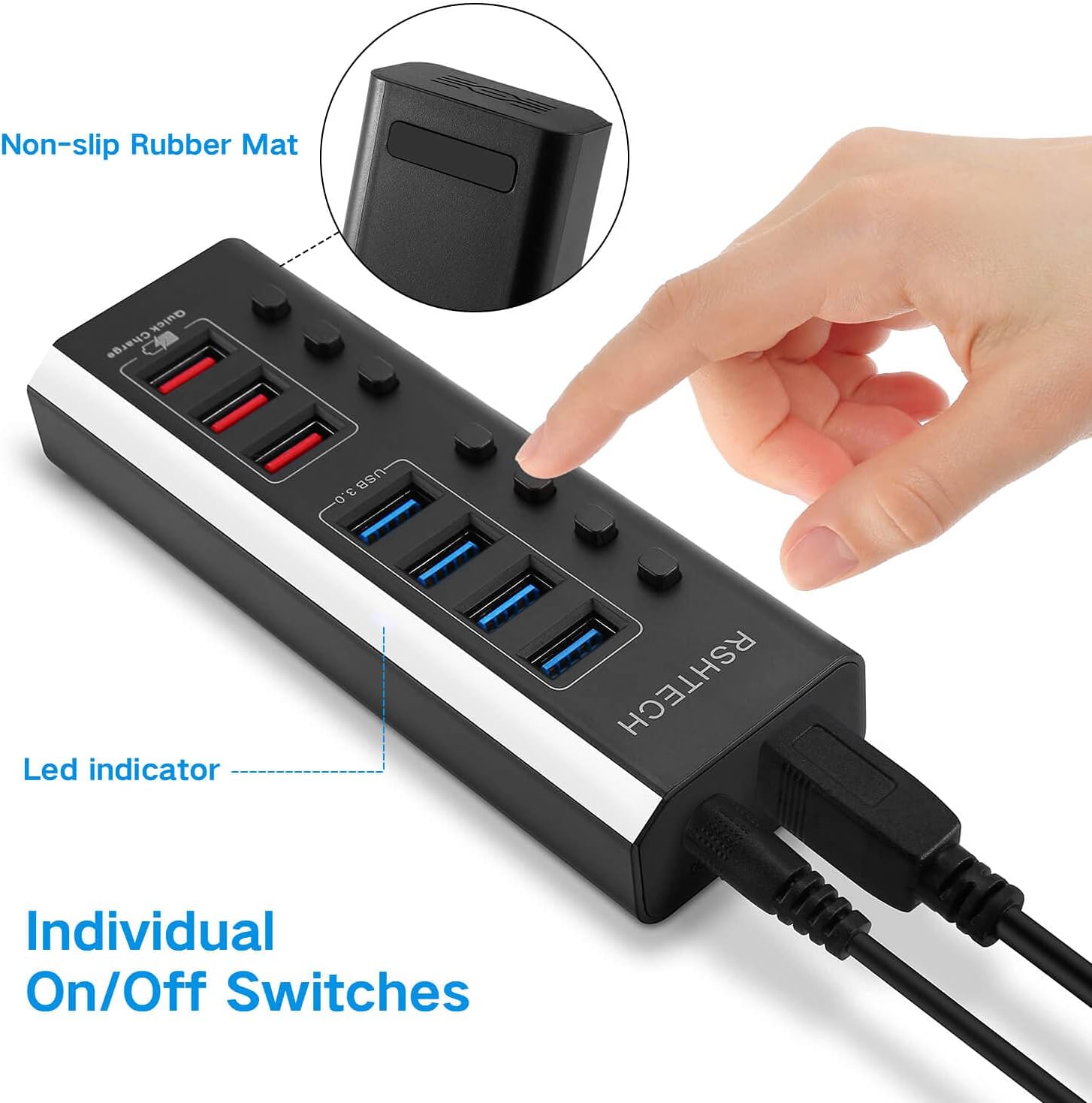
Image: A hand pressing one of the individual on/off switches on the USB hub, with LED indicators visible next to each port.
4. Setup Instructions
- Connect the Power Adapter: Plug the included 12V/3A AC power adapter into the DC 12V input port on the RSHTECH USB Hub. Then, plug the power adapter into a standard electrical outlet. This step is crucial for stable operation, especially when connecting multiple devices or using the fast-charging ports.
- Connect to Your Computer: Use the provided detachable USB 3.0 cable to connect the USB 3.0 input port on the hub to an available USB 3.0 port on your computer (laptop, desktop, etc.).
- Connect Your Devices: You can now connect your USB devices to the available ports on the hub.
- For data transfer, use the blue USB 3.0 data ports.
- For fast charging, use the red fast-charging ports. Note that fast-charging ports do not support data transfer.
- Power On Devices: Press the individual on/off switch for each port you wish to activate. The corresponding LED indicator will illuminate when the port is active.

Image: The RSHTECH 7-Port USB Hub with its power adapter and USB 3.0 cable connected, ready for use.

Image: An illustration demonstrating that a 12V power supply provides sufficient power for power-hungry devices and more stable data transmission compared to a 5V supply, showing various compatible devices.
5. Operating Instructions
Once the hub is set up, operating it is straightforward:
- Data Transfer: Plug your USB flash drives, external hard drives, keyboards, mice, or other data peripherals into the blue USB 3.0 data ports. Ensure the individual switch for the port is turned on. Data transfer speeds can reach up to 5Gbps with compatible USB 3.0 devices.
- Fast Charging: Connect your smartphones, tablets, or other USB-chargeable devices to the red fast-charging ports. These ports are designed to deliver power efficiently. Remember that the fast-charging ports do not support data transfer.
- Individual Port Control: Use the on/off switches to manage power to individual ports. This allows you to conserve power or disconnect a device without physically unplugging it. The LED indicator next to each switch shows the port's active status.

Image: The USB hub in use, connected to a laptop, an external solid-state drive (SSD), and a USB flash drive, illustrating its function as a data transfer hub.

Image: The USB hub on a desk, charging a smartphone and a wireless charging pad, with a gaming controller also connected, showcasing its fast-charging functionality.
Important Considerations:
- 2.4Ghz Wireless Devices: 2.4Ghz wireless devices, such as wireless keyboard or mouse receivers, may experience interference when in close proximity to a USB 3.0 cable. If you encounter issues, connect the powered USB 3.0 hub to a USB 2.0 port on your computer, or use an extension cable to distance the wireless dongles or receivers from the USB 3.0 cable.
- Power Adapter Requirement: The fast-charging ports and stable operation with multiple power-hungry devices require the AC power adapter to be connected.
6. Maintenance
To ensure the longevity and optimal performance of your RSHTECH USB Hub, follow these maintenance guidelines:
- Cleaning: Use a soft, dry cloth to clean the exterior of the hub. Avoid using liquid cleaners, aerosols, or solvents, as these may damage the device.
- Storage: When not in use for extended periods, store the hub in a cool, dry place away from direct sunlight and extreme temperatures.
- Handling: Avoid dropping the hub or subjecting it to strong impacts. Do not attempt to disassemble or modify the device, as this will void the warranty and may cause damage.
- Cable Care: Ensure that the USB cable and power adapter cable are not bent sharply or placed under heavy objects, which could damage the internal wiring.
7. Troubleshooting
If you encounter issues with your RSHTECH USB Hub, please refer to the following common solutions:
- Device Not Recognized:
- Ensure the hub's power adapter is securely connected and plugged into a working outlet.
- Verify that the USB cable connecting the hub to your computer is securely plugged in at both ends.
- Check if the individual on/off switch for the specific port is activated (LED should be on).
- Try connecting the device directly to your computer's USB port to confirm the device itself is functional.
- Test the device on a different port on the hub.
- Restart your computer.
- Slow Data Transfer Speed:
- Ensure both the hub and your connected device are USB 3.0 compatible. USB 2.0 devices will operate at USB 2.0 speeds.
- Confirm the hub is connected to a USB 3.0 port on your computer.
- Avoid connecting 2.4Ghz wireless receivers directly adjacent to the USB 3.0 cable or hub, as this can cause interference.
- Devices Not Charging / Slow Charging:
- Ensure the AC power adapter is connected to the hub and a power outlet. The fast-charging ports require external power.
- Confirm you are using one of the red fast-charging ports.
- Verify the charging cable for your device is functional and properly connected.
- Note that devices not supporting quick charge protocols will only perform normal charging.
- Intermittent Connection:
- Check all cable connections (power adapter, USB data cable, device cables) for looseness.
- Ensure the hub is receiving stable power.
- If using a 2.4Ghz wireless device, try relocating it or using an extension cable to minimize interference.
8. Specifications
| Model Number | RSH-A37 |
| Product Dimensions | 5.5 x 1.8 x 1 inches (14 x 4.6 x 2.5 cm) |
| Item Weight | 13.6 ounces (385.6 grams) |
| Hardware Interface | USB 3.0 (backward compatible with USB 2.0/1.1) |
| Data Transfer Speed | Up to 5Gbps (USB 3.0 ports) |
| Charging Output | Up to 2.4A per port (Fast Charging ports) |
| Power Adapter | 12V/3A (36W) |
| Special Features | Individual On/Off Switches, Quick Charging Ports |
| Compatible Devices | Desktops, Laptops, Digital Cameras, Gaming Consoles, Smartphones, Tablets |

Image: A graphic illustrating the significant speed difference between USB 2.0 (480Mbps) and USB 3.0 (5120Mbps), emphasizing the fast transmission capabilities of the hub.
9. Warranty and Support
RSHTECH products are designed for reliability and performance. For warranty information or technical support, please refer to the contact details provided with your purchase documentation or visit the official RSHTECH website. Please have your product model number (RSH-A37) and purchase details ready when contacting support.
Related documentsRSH-A37


Ask a question about this manual
Ask about setup, troubleshooting, compatibility, parts, safety, or missing instructions. Manuals+ will review the question and use this page’s manual context to help answer it.