1. Product Overview
The DASAN ZHONE SOLUTIONS ZNID-GPON-2424A1-NA is an advanced Indoor GPON Optical Network Terminal (ONT) designed to deliver high-performance triple-play services (data, voice, and video) over a fiber-to-the-home (FTTH) network. This device integrates dual-band 802.11ac WiFi, multiple Gigabit Ethernet ports, and voice capabilities to provide a comprehensive connectivity solution for residential and small business environments.
Its compact design and robust feature set ensure reliable and high-speed internet access, seamless voice communication, and efficient data handling.
2. Key Features
- ITU G.984 GPON Standard: Ensures compatibility and high-speed fiber optic connectivity.
- Dual-Band 802.11ac WiFi: Supports 2.4 GHz and 5.8 GHz frequencies for ultra-fast wireless speeds and broad coverage.
- 4 Gigabit Ethernet Ports (GE): Provides high-speed wired connections for multiple devices.
- 2 FXS Voice Ports: Enables reliable voice services with SIP and MGCP protocol support.
- USB Port: For future expansion or specific applications.
- Triple-Play QoS: Quality of Service features to prioritize voice, video, and data traffic.
- Flexible Management: Supports web interface, CLI, GPON-standard OMCI, USP, Zhone Network Management System (ZMS), and TR-069 compatible ACS.
3. Hardware Description
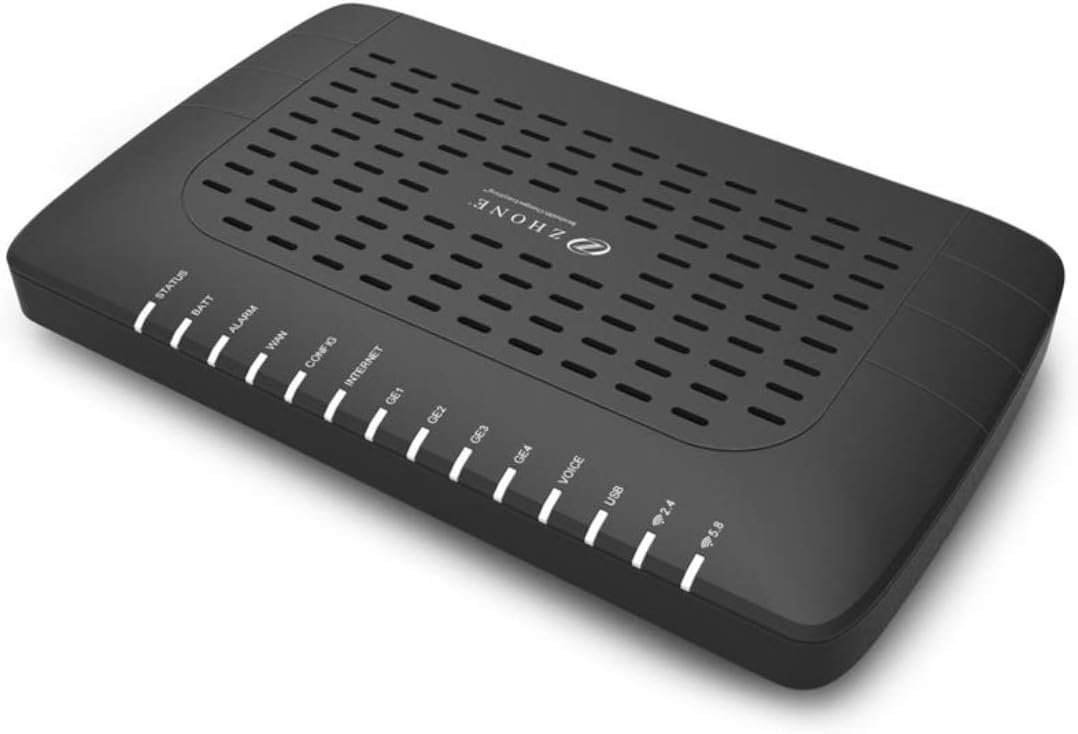
Figure 1: Front Panel of ZNID-GPON-2424A1-NA ONT
The image displays the DASAN ZHONE SOLUTIONS ZNID-GPON-2424A1-NA GPON ONT, a black rectangular device with a vented top surface. The front panel features a series of LED indicators, from left to right: STATUS, BATT (Battery), ALARM, WAN, CONFIG, INTERNET, GE1, GE2, GE3, GE4, VOICE, USB, 2.4 (for 2.4GHz WiFi), and 5.8 (for 5.8GHz WiFi). These indicators provide real-time status of the device's operation and connectivity.
3.1. LED Indicators
| Indicator | Status | Description |
|---|---|---|
| STATUS | Solid Green | Device is powered on and operating normally. |
| BATT | Solid Green | Battery backup is present and charged (if applicable). |
| ALARM | Solid Red | Indicates a system fault or error. Refer to troubleshooting. |
| WAN | Solid Green | GPON link is established. |
| CONFIG | Solid Green | Device configuration is complete. |
| INTERNET | Solid Green | Internet connectivity is active. |
| GE1-GE4 | Solid Green | Corresponding Ethernet port is connected. Blinking indicates activity. |
| VOICE | Solid Green | Voice service is active. Blinking indicates call activity. |
| USB | Solid Green | USB device is connected and active. |
| 2.4 | Solid Green | 2.4 GHz WiFi is active. Blinking indicates data transfer. |
| 5.8 | Solid Green | 5.8 GHz WiFi is active. Blinking indicates data transfer. |
3.2. Rear Panel Ports
The rear panel of the ZNID-GPON-2424A1-NA ONT typically includes the following ports:
- Optical Port (SC/APC): For connecting the fiber optic cable from the GPON network.
- GE1-GE4 Ports: RJ-45 ports for Gigabit Ethernet connections to computers, switches, or other network devices.
- POTS1-POTS2 Ports (FXS): RJ-11 ports for connecting analog telephones.
- USB Port: Type A USB port for connecting compatible USB devices.
- Power Input: For connecting the provided power adapter.
- Reset Button: A recessed button for factory reset (use with caution).
4. Setup Guide
4.1. Unpacking and Placement
- Carefully unpack the ONT and all accessories from the box.
- Place the ONT on a flat, stable surface in a central location to maximize WiFi coverage.
- Ensure adequate ventilation around the device. Avoid placing it in enclosed spaces or near heat sources.
- Keep the device away from direct sunlight and moisture.
4.2. Connecting the ONT
- Fiber Optic Connection: Connect the fiber optic cable from your service provider to the Optical Port on the ONT. Ensure the connectors are clean and properly seated. Handle fiber optic cables with extreme care. Do not bend excessively.
- Ethernet Devices: Connect your computers, smart TVs, gaming consoles, or other wired devices to the GE1-GE4 ports using standard Ethernet cables.
- Telephones: Connect analog telephones to the POTS1 or POTS2 ports using RJ-11 phone cables.
- Power Connection: Connect the provided power adapter to the Power Input port on the ONT, then plug the adapter into a suitable electrical outlet.
4.3. Powering On
Once all connections are secure, the ONT will power on automatically. Observe the LED indicators on the front panel:
- The STATUS LED should turn solid green.
- The WAN LED should turn solid green, indicating a successful GPON link.
- The INTERNET LED should turn solid green once internet connectivity is established.
- The 2.4 and 5.8 WiFi LEDs should turn solid green, indicating wireless networks are active.
Initial setup and configuration may be performed automatically by your service provider. If manual configuration is required, refer to the web interface section.
5. Operating the ONT
5.1. WiFi Connectivity
The ONT broadcasts two wireless networks: 2.4 GHz and 5.8 GHz (5 GHz). You can find the default WiFi network name (SSID) and password on a label usually located on the bottom or back of the device.
- On your wireless device (laptop, smartphone, tablet), search for available WiFi networks.
- Select the SSID corresponding to your ONT (e.g., "ZHONE_XXXX_2.4G" or "ZHONE_XXXX_5G").
- Enter the WiFi password (WPA2-PSK key) when prompted.
- Once connected, the respective 2.4 or 5.8 LED on the ONT will blink to indicate data activity.
For optimal performance, connect devices that are closer to the ONT or require higher bandwidth (e.g., streaming devices) to the 5 GHz network. Devices further away or older devices may perform better on the 2.4 GHz network.
5.2. Ethernet Connectivity
Wired connections provide the most stable and fastest network access. Simply connect an Ethernet cable from your device to any of the GE1-GE4 ports on the ONT. The corresponding GE LED will illuminate and blink with data activity.
5.3. Voice Services
If your service plan includes voice services, connect your analog telephone to one of the POTS ports. Once the VOICE LED is solid green, you should be able to make and receive calls. Consult your service provider for specific dialing instructions or features.
5.4. Accessing the Web Interface
Advanced settings and configurations can be managed through the ONT's web-based interface. You will need the ONT's IP address, username, and password, typically provided by your service provider or found on the device label.
- Open a web browser on a device connected to the ONT (wired or wireless).
- Enter the ONT's IP address (e.g.,
http://192.168.1.1) into the address bar and press Enter. - Enter your username and password when prompted.
- From the web interface, you can configure WiFi settings, view connection status, manage port forwarding, and more.
Important: Do not change settings unless you are familiar with their function, as incorrect configurations can disrupt your service.
6. Maintenance
- Cleaning: Use a soft, dry cloth to clean the exterior of the ONT. Do not use liquid cleaners or aerosols.
- Ventilation: Ensure the ventilation holes are not blocked to prevent overheating.
- Firmware Updates: Firmware updates are typically managed by your service provider. Do not attempt manual firmware updates unless instructed.
- Rebooting: If you experience connectivity issues, try rebooting the ONT by unplugging the power adapter for 10 seconds and then plugging it back in.
7. Troubleshooting
| Problem | Possible Cause | Solution |
|---|---|---|
| No Power / STATUS LED Off | Power adapter not connected or faulty. | Ensure power adapter is securely connected to the ONT and a working power outlet. Try a different outlet. |
| No Internet / INTERNET LED Off | No GPON signal; Service outage; Configuration issue. | Check WAN LED status. If off, contact your service provider. Reboot the ONT. Verify configuration settings if you have access. |
| No WiFi / 2.4 or 5.8 LED Off | WiFi disabled; Device too far; Interference. | Check WiFi settings via web interface. Move closer to the ONT. Reduce interference from other devices. Reboot the ONT. |
| No Dial Tone / VOICE LED Off | Phone not connected; Service issue. | Ensure phone is correctly plugged into POTS port. Contact your service provider. |
| Slow Speeds | Network congestion; WiFi interference; Outdated device drivers. | Try a wired connection. Optimize WiFi channel. Update network drivers on your devices. Contact service provider if issue persists. |
| ALARM LED Solid Red | Critical system error. | Reboot the ONT. If the alarm persists, contact your service provider immediately. |
If you are unable to resolve an issue using the troubleshooting steps above, please contact your service provider for further assistance.
8. Specifications
| Feature | Detail |
|---|---|
| Model | ZNID-GPON-2424A1-NA |
| GPON Standard | ITU G.984 |
| WiFi Standard | 802.11b/g/n/ac Dual-Band (2.4 GHz & 5.8 GHz) |
| Ethernet Ports | 4 x 10/100/1000 Mbps Gigabit Ethernet (RJ-45) |
| Voice Ports | 2 x FXS (RJ-11) |
| USB Port | 1 x USB Type A |
| Color | Black |
| Power Supply | External Power Adapter (specific voltage/current not provided, assume standard) |
| Management | Web UI, CLI, OMCI, USP, ZMS, TR-069 |
9. Warranty and Support
For warranty information and technical support, please contact your Internet Service Provider (ISP) or the vendor from whom you purchased this device. DASAN ZHONE SOLUTIONS products are typically supported through their authorized distributors and service partners.
Keep your purchase receipt and product serial number handy when contacting support.
- Service Provider Contact: Refer to your service agreement or bill for support contact details.
- DASAN ZHONE SOLUTIONS Website: For general product information and documentation, visit the official DASAN ZHONE SOLUTIONS website.


