
Introduction
This manual provides detailed instructions for the proper use and installation of the TYT MD-2017/MD-398 USB Programming Cable. This cable is designed to connect your compatible DMR two-way radio to a personal computer, enabling you to program radio settings, frequencies, and other parameters using dedicated software.
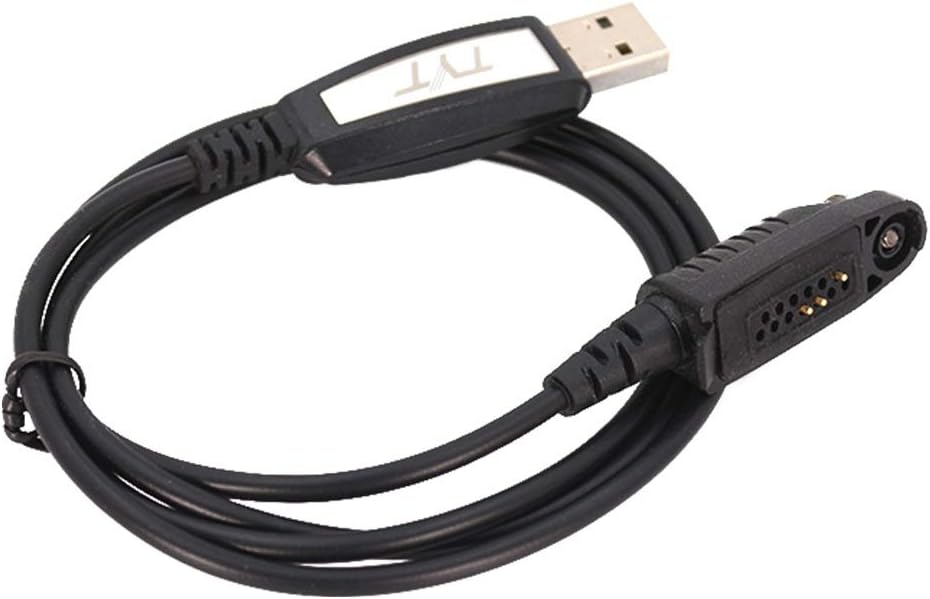
Figure 1: TYT MD-2017/MD-398 USB Programming Cable. This image shows the complete programming cable, featuring a USB connector on one end and a multi-pin connector for the radio on the other, with the TYT logo visible on the USB housing.
Product Overview
The TYT MD-2017/MD-398 USB Programming Cable is an essential accessory for managing your compatible DMR two-way radio. It facilitates direct communication between your radio and a computer for configuration purposes.
- Purpose: Connects your radio to a PC for programming settings and frequencies.
- Compatibility: Designed for TYT MD-2017 and MD-398 DMR radios, including IP67 waterproof series. Also compatible with Retevis RT82, RT83, RT87, and VETOMILE V-2017 walkie-talkies.
- Connectivity: Features a standard USB connector for direct connection to a computer's USB port.
- Operating System Support: Compatible with Windows XP, Windows 7, Windows 8, and Windows 10.
Setup Instructions
Follow these steps to set up your programming cable and prepare your computer for radio programming.
1. Driver Installation
- Obtain Drivers: Before connecting the cable, ensure you have the correct USB driver for the programming cable. These drivers are typically provided on a mini-CD with the cable or can be downloaded from the official TYT website or the website of your radio manufacturer.
- Install Drivers: Run the driver installation executable. Follow the on-screen prompts to complete the installation. It is recommended to install drivers before connecting the cable to the computer.
- Verify Installation: After installation, connect the USB programming cable to an available USB port on your computer. Open Device Manager (search for "Device Manager" in Windows). Look under "Ports (COM & LPT)" for an entry like "USB Serial Port (COMX)", where X is a number. Note this COM port number, as it will be needed for the programming software.

Figure 2: USB Connector. This image shows a close-up of the USB-A connector end of the programming cable, featuring the TYT logo on its housing.
2. Software Installation
- Obtain Software: Download the appropriate programming software (CPS - Customer Programming Software) for your specific radio model (e.g., TYT MD-2017 CPS, MD-398 CPS) from the manufacturer's website. Ensure the software version is compatible with your radio's firmware.
- Install Software: Run the CPS installation executable and follow the on-screen instructions.
3. Connecting the Cable to the Radio
- Power Off Radio: Ensure your radio is powered off before connecting the programming cable.
- Connect to Radio: Locate the programming port on your radio (typically a multi-pin accessory port). Carefully align the multi-pin connector of the programming cable with the radio's port and insert it firmly. Some connectors may have a screw to secure the connection.
- Connect to PC: Plug the USB end of the programming cable into an available USB port on your computer.
- Power On Radio: Once both ends are securely connected, power on your radio.

Figure 3: Radio Connector. This image shows a close-up of the multi-pin connector end of the programming cable, designed to interface with compatible two-way radios.
Operating Instructions
Once the cable and software are installed, you can proceed with programming your radio.
- Launch CPS: Open the Customer Programming Software (CPS) for your radio on your computer.
- Select COM Port: In the CPS, navigate to the communication settings or port selection. Choose the COM port number identified during the driver installation (e.g., COM3, COM4).
- Read from Radio: To retrieve the current configuration from your radio, select the "Read from Radio" or "Download" option within the CPS. This will transfer the radio's settings to the software.
- Modify Settings: Make the desired changes to frequencies, channels, contacts, and other parameters within the CPS interface.
- Write to Radio: After making changes, select the "Write to Radio" or "Upload" option to transfer the new configuration from the software to your radio. Ensure the radio remains connected and powered on during this process.
- Verify: Once programming is complete, disconnect the cable, power cycle your radio, and verify that the new settings are correctly applied.
Refer to your specific radio's CPS manual for detailed instructions on using the software features.
Compatibility
This programming cable is compatible with a range of DMR two-way radios and computer operating systems.
Compatible Radios:
- TYT MD-2017 (including IP67 Waterproof Series)
- TYT MD-398
- Retevis RT82
- Retevis RT83
- Retevis RT87
- VETOMILE V-2017
Supported Operating Systems:
- Windows XP
- Windows 7
- Windows 8
- Windows 10
Troubleshooting
If you encounter issues during programming, refer to the following common troubleshooting steps.
- Cable Not Detected:
- Ensure drivers are correctly installed. Check Device Manager for "USB Serial Port" under "Ports (COM & LPT)".
- Try a different USB port on your computer.
- Restart your computer after driver installation.
- Cannot Connect to Radio:
- Verify the cable is securely connected to both the radio and the computer.
- Ensure the radio is powered on.
- Confirm the correct COM port is selected in the programming software.
- Check that you are using the correct programming software (CPS) for your specific radio model and firmware version.
- Programming Errors:
- Ensure the radio's battery is sufficiently charged.
- Do not disconnect the cable or power off the radio during a read/write operation.
- If using a virtual machine, ensure the USB device is correctly passed through to the guest OS.
Specifications
| Model | MD-2017/MD-398 Programming Cable |
|---|---|
| Cable Type | USB |
| Connector Type | USB (Male-to-Male) |
| Compatible Devices | Laptop, Personal Computer, TYT MD-2017, TYT MD-398, Retevis RT82, RT83, RT87, VETOMILE V-2017 Radios |
| Supported OS | Windows XP, Windows 7, Windows 8, Windows 10 |
| Manufacturer | QuanZhou TYT Electronics Co., Ltd |
| Dimensions | Approximately 5.99 x 5 x 3.99 cm (packaged) |
| Weight | Approximately 81.65 g (packaged) |
Maintenance
Proper care will extend the life of your programming cable.
- Storage: Store the cable in a cool, dry place, away from direct sunlight and extreme temperatures.
- Cleaning: Use a soft, dry cloth to clean the cable. Do not use liquid cleaners or solvents.
- Handling: Avoid bending or kinking the cable sharply, especially near the connectors, to prevent internal wire damage. Always grasp the connector housing when plugging or unplugging, not the cable itself.
- Inspection: Periodically inspect the cable and connectors for any signs of wear, damage, or corrosion.
Warranty and Support
For warranty information and technical support, please refer to the documentation provided with your radio or contact the manufacturer directly. TYT Electronics Co., Ltd. provides support for their products.
You can typically find support resources, driver downloads, and software updates on the official TYT website or the website of your radio's brand (e.g., Retevis, VETOMILE).


