
1. Product Overview
The CEM T-10 Thermal Imaging Camera is a compact device designed to transform your Android smartphone or tablet into an extended-range thermal imager. It features a 206x156 thermal sensor and a 36-degree field-of-view lens, enabling detection of temperatures ranging from -40°F to 626°F (-40°C to 330°C). This device operates without internal batteries, drawing power directly from your connected mobile device via its USB-C interface. It is suitable for various applications, including identifying heat leaks, inspecting electrical panels, and detecting objects in low-light conditions.
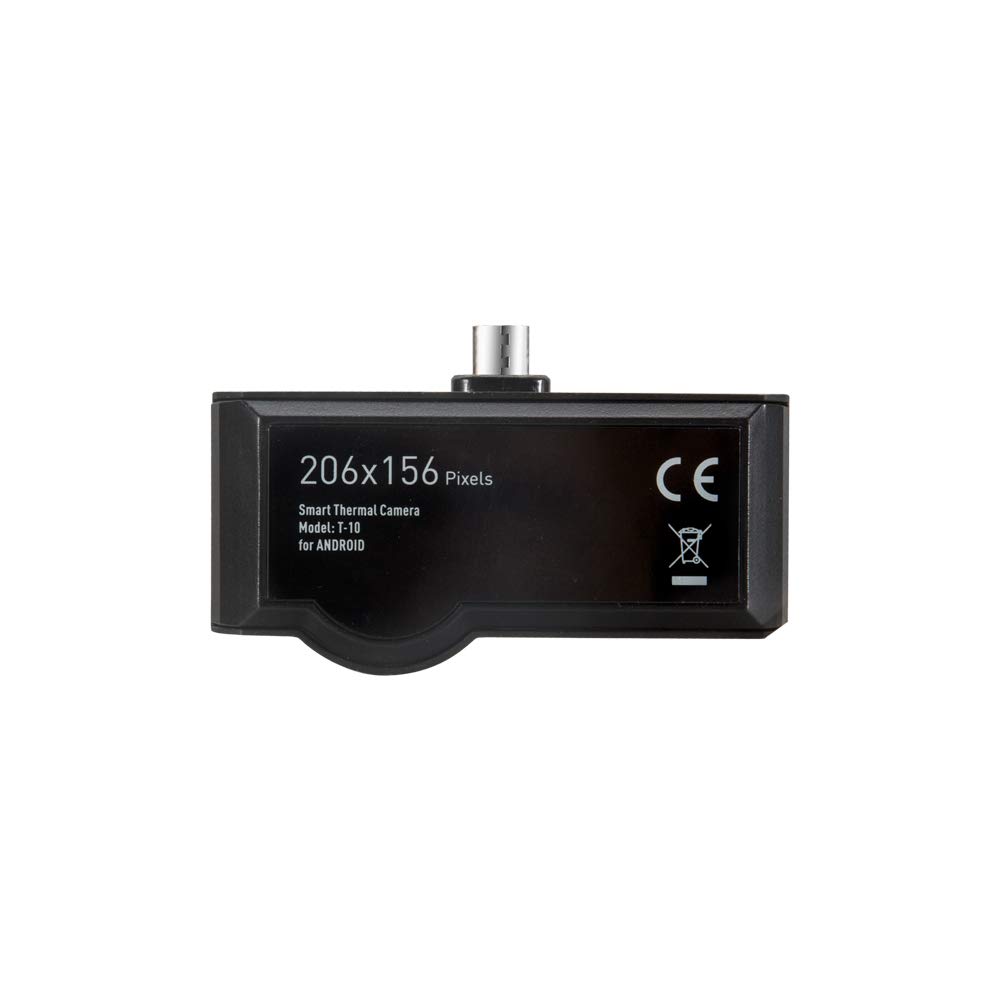
Image 1.1: The CEM T-10 Thermal Imaging Camera, showing its compact design, 206x156 pixel resolution, and USB-C connector.
2. Setup Guide
2.1 Unboxing and Initial Inspection
Upon receiving your CEM T-10, carefully unbox all components. The package typically includes the thermal imaging camera, a protective carrying case, and a user manual. Inspect the device for any visible damage before proceeding.

Image 2.1: The CEM T-10 package contents, showing the thermal camera, its protective case, and the instruction manual.
2.2 App Installation
- Locate the official CEM thermal imaging application on your smartphone's app store (e.g., Google Play Store for Android).
- Download and install the application. Ensure your device meets the minimum system requirements for the app.
2.3 Connecting the Device
- Ensure your smartphone or tablet has a clean and functional USB-C port. Dust or debris in the port can prevent proper connection.
- Carefully plug the CEM T-10 thermal camera into your device's USB-C port. The camera is designed to be powered by your phone, so no external power source is needed for the camera itself.
- Upon successful connection, the installed thermal imaging app should automatically launch or prompt you to open it. If it does not, manually open the app.
3. Operating Instructions
3.1 Basic Operation
- Once the app is open and the camera is connected, the live thermal feed will appear on your screen.
- The CEM T-10 features a focusable lens. Rotate the lens ring to achieve a clear thermal image of your target.
- The app typically displays temperature readings, often including spot temperature, high-low temperature, and threshold modes.

Image 3.1: A smartphone displaying the thermal imaging app interface, showing temperature data and various measurement tools.
3.2 Advanced Features
- Color Palettes: The app offers 9 different color palettes to visualize thermal data. Experiment with different palettes to find the one best suited for your application and visual preference.
- Measurement Modes: Utilize features like Point, Line, and Area measurement tools within the app to analyze specific regions of interest.
- High-Low Temperature Threshold: Set specific temperature thresholds to highlight areas exceeding or falling below a defined range.
- Auto Emissivity: The device supports auto emissivity settings, which helps in obtaining more accurate temperature readings by adjusting for different surface materials.
- Photo and Video Capture: The app allows you to capture thermal images and videos directly to your smartphone's gallery.

Image 3.2: The CEM T-10 in use, attached to a smartphone, demonstrating its application in inspecting a ceiling for thermal anomalies.

Image 3.3: The CEM T-10 being used to inspect an electrical panel, highlighting its utility in identifying overheating components.
4. Maintenance
4.1 Cleaning the Device
- Gently wipe the camera lens and body with a soft, lint-free cloth.
- For stubborn dirt, slightly dampen the cloth with water or a mild lens cleaning solution. Avoid harsh chemicals or abrasive materials.
- Ensure the USB-C connector is free from dust and debris. Use a dry, soft brush or compressed air if necessary.
4.2 Storage
- When not in use, store the CEM T-10 in its provided protective carrying case to prevent damage from impacts or dust.
- Store the device in a cool, dry place, away from direct sunlight and extreme temperatures.
5. Troubleshooting
This section addresses common issues encountered during the use of the CEM T-10 Thermal Imaging Camera.
- Device Not Recognized / "DATA ERR" Message:
- Ensure the USB-C port on your smartphone is clean and free of debris. A dirty port can prevent a proper connection.
- Verify that the CEM T-10 is fully inserted into the USB-C port.
- Check for app updates. Outdated software can sometimes cause connectivity issues.
- Test the camera with another compatible Android device if available, to rule out a phone-specific issue. Some phone models may have compatibility challenges.
- App Freezing or Crashing:
- Close and restart the application.
- Clear the app's cache and data through your phone's settings.
- Ensure your phone's operating system is up to date.
- If the issue persists, uninstall and reinstall the app.
- Image Artifacts / Pixels When Returning to Camera Mode:
- This can sometimes occur after viewing captured images or switching app functions. Restarting the live view or the app usually resolves this.
- Incorrect Temperature Unit Display:
- If you select Fahrenheit but the color scale bar shows Celsius, check the app's settings for any secondary temperature display options or ensure the primary unit selection is correctly applied.
- Poor Image Quality / Blurry Images:
- Adjust the focus ring on the CEM T-10 lens until the image is clear.
- Ensure the lens is clean and free from smudges or dust.
6. Specifications
| Feature | Specification |
|---|---|
| Model Number | T-10 |
| Thermal Sensor Resolution | 206 x 156 pixels |
| Field of View (FOV) | 36° |
| Frame Rate | < 9 Hz |
| Detection Temperature Range | -40°F to 626°F (-40°C to 330°C) |
| Lens | Focusable |
| Power Source | Powered by connected smartphone (no internal battery) |
| Connectivity | USB-C (Type C) |
| Color Palettes | 9 options |
| Special Modes | High-Low temperature Threshold mode, Auto Emissivity |
| Item Weight | 454 g |
| Package Dimensions | 17.8 x 9.6 x 5.1 cm |
7. Warranty and Support
7.1 Warranty Information
Specific warranty terms and conditions for the CEM T-10 Thermal Imaging Camera are typically provided by the manufacturer or the authorized seller at the time of purchase. Please refer to your purchase documentation or contact the seller directly for detailed warranty information, including coverage period and claim procedures.
7.2 Technical Support
For technical assistance, troubleshooting beyond this manual, or inquiries regarding product functionality, please contact the manufacturer's customer support or your authorized retailer. Contact information can usually be found on the product packaging, the manufacturer's official website, or your purchase invoice.


