
1. Introduction
The Giveet Portable USB Bluetooth Audio Transmitter Adapter (Model JGZH-B25) enables Bluetooth audio transmission from various devices such as PCs, laptops, Mac computers, and game consoles (PS4, Nintendo Switch) to Bluetooth-enabled audio receivers like headphones, speakers, and soundbars. This adapter is designed for audio transmission only and does not support data transfer or connection to devices like keyboards, mice, or mobile phones.
This manual provides essential information for the correct installation, operation, and maintenance of your device. Please read it thoroughly before use.
2. Product Overview and Features
The Giveet JGZH-B25 is a compact USB Bluetooth audio transmitter featuring an external antenna for enhanced signal strength and range. It supports Bluetooth V5.0 chipset with low latency capabilities, ideal for eliminating lip-sync delay when paired with compatible low-latency headphones or speakers.
Key Features:
- Bluetooth Audio Transmission: Exclusively for audio, not for data or HID devices.
- Low Latency Support: Reduces audio delay to less than 40ms when used with low-latency devices.
- Extended Range: External antenna provides a stronger signal for a wider transmission range (up to 20m/60ft in open air).
- Dual Link Capability: Connects to two Bluetooth audio devices simultaneously.
- Voice Chat Support: Enables voice communication for online calls and gaming.
- Plug and Play: No driver installation required for most operating systems (Windows, macOS, Linux).
- Auxiliary Connection: Can connect to audio devices via a 3.5mm Aux port if USB is not supported.

Image: The Giveet USB Bluetooth Audio Transmitter connects to various audio devices like TWS earbuds, Bluetooth soundbars, indoor/outdoor speakers, and Bluetooth headphones. It can transmit audio from sources such as Nintendo Switch, PS4, PC, and laptops.

Image: This image demonstrates the dual link feature, showing two individuals simultaneously listening to TV audio via Bluetooth headphones with no noticeable lip-sync delay, indicating low latency performance.

Image: The external antenna design of the Giveet USB Bluetooth Audio Transmitter is highlighted, illustrating its capability to provide a strong, long-range audio signal to various Bluetooth devices like headphones and portable speakers within a home environment.
3. Setup Instructions
Follow these steps to set up your Giveet USB Bluetooth Audio Transmitter.
3.1. Initial Connection (PC/Mac/Laptop)
- Insert the Transmitter: Plug the Giveet JGZH-B25 into an available USB port on your PC, laptop, or Mac. The device will be recognized as a sound card named "B25" in your system's audio settings.
- Power On Bluetooth Device: Turn on your Bluetooth headphones or speaker and set them to pairing mode. Refer to your audio device's manual for specific pairing instructions.
- Pairing: The transmitter will automatically search for and connect to nearby Bluetooth audio devices in pairing mode. The LED indicator on the transmitter will show its status (e.g., blinking for pairing, solid for connected).
- Select Audio Output: On your computer, navigate to your sound settings and select "B25" as the audio output device.

Image: The Giveet USB Bluetooth Audio Transmitter is shown connected to a laptop, emphasizing its plug-and-play functionality and driver-free operation across Android, Windows, and Mac OS platforms. A person is shown using a headset for music and chat.

Image: This image illustrates the simple and intelligent connection process of the Giveet USB Bluetooth Audio Transmitter. It shows the device plugged into a laptop, enabling easy connection to Bluetooth headsets or stereo speakers.
3.2. Setup for PS4
- Connect Transmitter: Plug the Giveet JGZH-B25 into an available USB port on your PS4 console.
- Access PS4 Settings: Go to Settings > Devices > Audio Devices.
- Disable Automatic Output Switching: Uncheck the box for "Switch Output Device Automatically".
- Select Output Device: Click on "Output Device" and select "USB Headset".
- Verify Connection: Return to the Audio Devices menu to confirm that "USB Headset" is displayed as the Output Device.
3.3. Auxiliary (AUX) Connection
If your audio source device does not have a USB port or does not support USB audio output, you can use the 3.5mm AUX input on the transmitter.
- Connect AUX Cable: Plug one end of a 3.5mm audio cable (not included) into the AUX port of the Giveet JGZH-B25 and the other end into the audio output jack of your source device (e.g., TV, MP3 player).
- Power On Bluetooth Device: Turn on your Bluetooth headphones or speaker and set them to pairing mode.
- Pairing: The transmitter will automatically search for and connect to nearby Bluetooth audio devices.
4. Operating Instructions
4.1. Pairing with Bluetooth Audio Devices
Once the transmitter is powered on (via USB or AUX), it will automatically enter pairing mode. Ensure your Bluetooth headphones or speakers are also in pairing mode. The devices should connect automatically. If not, briefly press the button on the transmitter to initiate pairing search.
4.2. Dual Link Functionality
The Giveet JGZH-B25 supports connecting to two Bluetooth audio devices simultaneously. To use dual link:
- Connect the first Bluetooth audio device as described in Section 3.1 or 3.2.
- Once the first device is connected, put the second Bluetooth audio device into pairing mode.
- Briefly press the button on the Giveet JGZH-B25 transmitter. It will search for and connect to the second device.
Note: For optimal performance and to avoid lip-sync delay, ensure both connected devices support low latency codecs.
4.3. Voice Chat Functionality
When connected to a device that supports voice input (e.g., a headset with a microphone), the Giveet JGZH-B25 enables voice chat for applications like Skype calls or in-game communication. Ensure your system's audio input settings are correctly configured to use the microphone from your connected Bluetooth headset.
Important: When using voice chat mode, the audio quality for music or game sound may be reduced. This is a characteristic of Bluetooth profiles that prioritize voice communication over high-fidelity stereo audio.
5. Maintenance
To ensure the longevity and optimal performance of your Giveet USB Bluetooth Audio Transmitter, follow these simple maintenance guidelines:
- Cleaning: Wipe the device with a soft, dry cloth. Do not use liquid cleaners or solvents.
- Storage: Store the device in a cool, dry place away from direct sunlight and extreme temperatures.
- Handling: Avoid dropping the device or subjecting it to strong impacts. Do not attempt to disassemble or modify the transmitter, as this will void the warranty.
- Connectivity: Ensure the USB port and any connected cables are free from dust and debris.
6. Troubleshooting
If you encounter issues with your Giveet USB Bluetooth Audio Transmitter, refer to the following common problems and solutions:
6.1. No Audio / Cannot Connect
- Check Power: Ensure the transmitter is properly plugged into a powered USB port. The LED indicator should be active.
- Pairing Mode: Verify that your Bluetooth headphones/speakers are in pairing mode.
- Audio Output Selection: On your computer/PS4, confirm that "B25" (or "USB Headset" for PS4) is selected as the default audio output device.
- Restart Devices: Try unplugging and re-plugging the transmitter, and restarting your Bluetooth audio device.
- Distance/Obstacles: Ensure your Bluetooth audio device is within range and there are no significant obstacles blocking the signal.
6.2. Audio Delay (Lip-Sync Issues)
- Low Latency Support: For minimal delay, both the transmitter and your Bluetooth audio device must support low latency codecs (e.g., aptX Low Latency). If your headphones/speakers do not support low latency, some delay may be unavoidable.
- Interference: Reduce potential interference from other wireless devices (Wi-Fi routers, other Bluetooth devices).
6.3. Volume Control Issues
- System Volume: Some users report that the system volume control on the computer may not directly affect the output volume of the "B25" device. Adjust volume directly on your Bluetooth headphones/speakers or within the application playing audio (e.g., Netflix, YouTube).
6.4. Microphone Not Working (Linux)
- Linux Compatibility: While the transmitter works as an audio output device on Linux, microphone functionality may require additional configuration or may not be fully supported depending on your Linux distribution and kernel version. Check for system updates or community forums for specific solutions.
6.5. Poor Audio Quality / Clicking Noise
- Interference: Move the transmitter and your audio device away from other electronic devices that might cause interference.
- Signal Strength: Ensure the external antenna is positioned optimally for the best signal.
- Source Quality: Verify the audio source quality.
7. Specifications
| Feature | Detail |
|---|---|
| Model Number | JGZH-B25 |
| Product Dimensions | 1.97 x 1.18 x 0.31 inches |
| Item Weight | 2.39 ounces |
| Hardware Interface | Bluetooth, USB |
| Data Link Protocol | Bluetooth, USB |
| Compatible Devices | Desktop, Laptop, Mac, PS4, Nintendo Switch (Audio only) |
| Color | Black |
| UPC | 634923459432 |
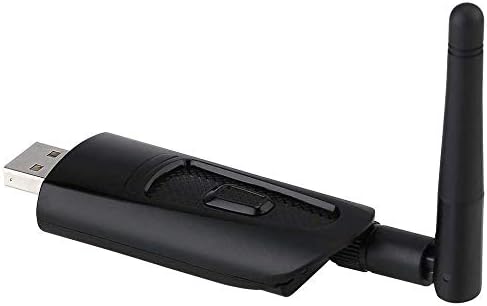
Image: A detailed view of the Giveet USB Bluetooth Audio Transmitter, showcasing its compact design and external antenna.
8. Warranty Information
Giveet products are designed and manufactured to the highest quality standards. This product is covered by a limited warranty from the date of purchase. The warranty covers defects in materials and workmanship under normal use.
The warranty does not cover damage caused by accident, misuse, abuse, neglect, improper installation, unauthorized repairs, or modifications. For specific warranty terms and conditions, please refer to the documentation included with your purchase or contact Giveet customer support.
9. Customer Support
If you have any questions, require technical assistance, or need to report an issue with your Giveet Portable USB Bluetooth Audio Transmitter, please contact our customer support team.
- Online Support: Visit the official Giveet website for FAQs, troubleshooting guides, and contact forms.
- Email Support: Refer to your product packaging or the Giveet website for the most current email address.
Please have your product model number (JGZH-B25) and purchase information ready when contacting support.