
DJI CP.TR.00000004.02
DJI FPV Air Unit Instruction Manual
Model: CP.TR.00000004.02
Product Overview
The DJI FPV Air Unit is an advanced digital image transmission module designed for First-Person View (FPV) applications. It features ultra-low-latency high-definition digital video transmission, capable of recording video at 1080P/60Fps. This system supports eight frequency channels, enabling multiple pilots to fly simultaneously without interference.
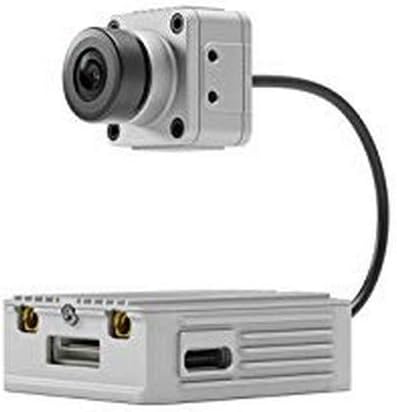
Figure 1: DJI FPV Air Unit and Camera Module. This image displays the compact design of the air unit, which houses the video transmission components, connected to the camera module via a flexible cable.
Package Contents
Verify that all components are present in your package:
- DJI FPV Air Unit Module
- DJI FPV Camera
- Antennas (typically 2)
- Connection Cables (power, data)
- Mounting Screws
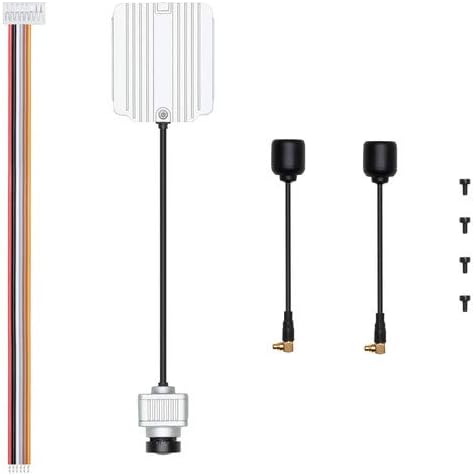
Figure 2: Included Components. This image shows the DJI FPV Air Unit, its camera, two antennas, and the necessary wiring harness for installation.
Safety Information
Read all instructions and warnings carefully before use. Failure to do so may result in damage to the product or personal injury.
- Power Supply: Ensure the power supply voltage is within the specified range (7.4-17.6 V). Incorrect voltage can damage the unit.
- Heat Dissipation: The Air Unit generates heat during operation. Ensure adequate airflow and avoid enclosing it in confined spaces without ventilation.
- Antenna Placement: Always operate the Air Unit with antennas properly connected. Operating without antennas can damage the transmitter.
- Environmental Conditions: Avoid exposing the unit to extreme temperatures, moisture, or dust.
- Firmware Updates: Always follow official DJI instructions for firmware updates. Incorrect procedures can render the unit inoperable.
Setup
1. Physical Installation
Mount the DJI FPV Air Unit and camera securely onto your drone frame. Ensure the camera is positioned to provide a clear field of view and the Air Unit has sufficient space for heat dissipation.
- Connect the camera to the Air Unit using the provided cable.
- Attach the antennas to the Air Unit's MMCX connectors. Ensure they are securely fastened.
- Connect the power and data cables from the Air Unit to your flight controller (FC) according to your FC's wiring diagram. Pay close attention to voltage and UART connections.

Figure 3: Top View of Air Unit. This image highlights the various ports and connectors on the DJI FPV Air Unit, including the antenna ports and the main data/power connector.
2. Initial Power-Up and Firmware Update
After physical installation, connect the drone to a power source. The Air Unit's LED indicator will illuminate. It is highly recommended to update the firmware to the latest version for optimal performance and compatibility.
- Download the DJI Assistant 2 (DJI FPV Series) software from the official DJI website.
- Connect the Air Unit to your computer via a USB-C cable.
- Launch DJI Assistant 2, log in with your DJI account, and select your device.
- Follow the on-screen prompts to update the firmware. During the update, ensure the Air Unit is well-ventilated to prevent overheating. A small fan directed at the unit is recommended.
3. Pairing with DJI FPV Goggles
To establish a video link, the Air Unit must be paired with compatible DJI FPV Goggles.
- Power on both the DJI FPV Goggles and the DJI FPV Air Unit.
- Press the link button on the Air Unit (refer to the product diagram for location). The LED indicator will flash green.
- Press the link button on the DJI FPV Goggles. The goggles will beep continuously.
- Once successfully linked, the LED indicators on both devices will turn solid green, and a live video feed will appear in the goggles.
Operating Instructions
1. Video Recording
The DJI FPV Air Unit supports onboard video recording at 1080P/60Fps. A microSD card (not included) is required for recording.
- Insert a compatible microSD card into the Air Unit's card slot.
- Recording can be initiated and stopped via the DJI FPV Goggles interface or through a configured button on your flight controller/remote control.
- Recorded files are saved in MP4 format on the microSD card.

Figure 4: Left Side View. This image shows the left side of the Air Unit, prominently featuring the microSD card slot for video recording.
2. Frequency Channels
The Air Unit operates on eight frequency channels, allowing multiple users to fly in proximity. Channel selection is typically managed through the DJI FPV Goggles settings.
- Ensure all pilots in the same area are on different channels to avoid signal interference.
- Perform a channel scan in the goggles to identify the clearest channel before flight.
Maintenance
- Cleaning: Use a soft, dry cloth to clean the Air Unit and camera. Avoid using liquids or solvents.
- Storage: Store the unit in a cool, dry place away from direct sunlight and extreme temperatures.
- Overheating Prevention: The Air Unit can generate significant heat, especially during prolonged ground operation or firmware updates. Always ensure adequate ventilation. Consider adding a small fan for cooling during setup or extended idle times.
- Antenna Care: Regularly check antennas for damage. Damaged antennas can severely impact signal quality and range.
Troubleshooting
| Problem | Possible Cause | Solution |
|---|---|---|
| No video feed in goggles | Not paired; loose cable connection; power issue. | Ensure Air Unit and goggles are paired. Check all cable connections (power, camera). Verify power supply. |
| Air Unit overheats quickly | Insufficient airflow; prolonged ground operation. | Ensure unit is in an open area or use a fan during setup/idle. Avoid prolonged operation without active cooling. |
| Poor video quality/signal drops | Damaged antennas; interference; incorrect channel. | Check antennas for damage. Change frequency channel. Ensure line of sight. |
| Cannot update firmware | Connection issue; software error; overheating. | Ensure stable USB connection. Restart DJI Assistant 2. Provide cooling during update. |
Specifications
| Brand | DJI |
| Model Name | DJI FPV Air Unit |
| Item Model Number | CP.TR.00000004.02 |
| Product Type | Unmanned Aerial Vehicle Component |
| Video Capture Resolution | 1080p |
| Effective Still Resolution | 4 MP |
| Connectivity Technology | Wi-Fi |
| Item Weight | 0.035 ounces (approx. 1 gram) |
| Product Dimensions | 5.75"L x 2.2"W x 5.75"H |
| Package Dimensions | 2.2 cm L X5.6 cm W X14.6 cm H |
| Material | Plastic |
| Country Of Origin | China |
| UPC | 810020960914 |
Warranty and Support
DJI products typically come with a limited warranty. For detailed warranty terms, service requests, and technical support, please visit the official DJI website or contact DJI customer service directly. Keep your proof of purchase for warranty claims.
Related Documents - CP.TR.00000004.02
 |
DJI Digital FPV System Uživatelská příručka Uživatelská příručka pro systém DJI Digital FPV, která podrobně popisuje jeho komponenty (Air Unit, Goggles, Remote Controller), instalaci, provoz, údržbu a technické specifikace pro FPV létání. |
 |
DJI O3 Air Unit User Manual and Specifications Comprehensive user manual and technical specifications for the DJI O3 Air Unit, covering installation, operation, maintenance, compatible accessories, and troubleshooting. |
 |
Runcam Link Digital FPV Air Unit: Specifications and Connection Guide Comprehensive guide to the Runcam Link Digital FPV Air Unit, covering its advanced video transmission capabilities, technical specifications, connection diagrams, activation process, and linking methods for FPV drone enthusiasts. |
 |
DJI O3 Air Unit: User Manual, Installation, and Operation Guide Comprehensive user manual for the DJI O3 Air Unit, detailing its features, installation, activation, firmware updates, linking procedures, operation with compatible DJI goggles and remote controllers, maintenance, and technical specifications. |
 |
DJI Goggles Integra FAQ - Compatibility, Features, and Usage Guide Frequently asked questions about DJI Goggles Integra, covering product compatibility, usage precautions, differences from other models, vision correction, connectivity, and recording features. |
 |
DJI Avata 2 User Manual: Your Guide to FPV Flight Explore the DJI Avata 2 User Manual for comprehensive instructions on operating your FPV drone. Learn about setup, flight controls, safety guidelines, and features of the DJI Avata 2, DJI Goggles 3, and DJI RC Motion 3. |
Ask a question about this manual
Ask about setup, troubleshooting, compatibility, parts, safety, or missing instructions. Manuals+ will review the question and use this page’s manual context to help answer it.