
Introduction
Thank you for choosing the xsmart USB C to Lightning OTG Adapter. This compact and durable adapter is designed to expand the connectivity of your iOS devices, including iPhones and iPads with a Lightning port. It supports On-The-Go (OTG) functionality, allowing you to connect various USB peripherals, and also facilitates audio output and fast charging.
This manual provides detailed instructions on how to set up, operate, and maintain your adapter, along with troubleshooting tips and product specifications.
Product Overview
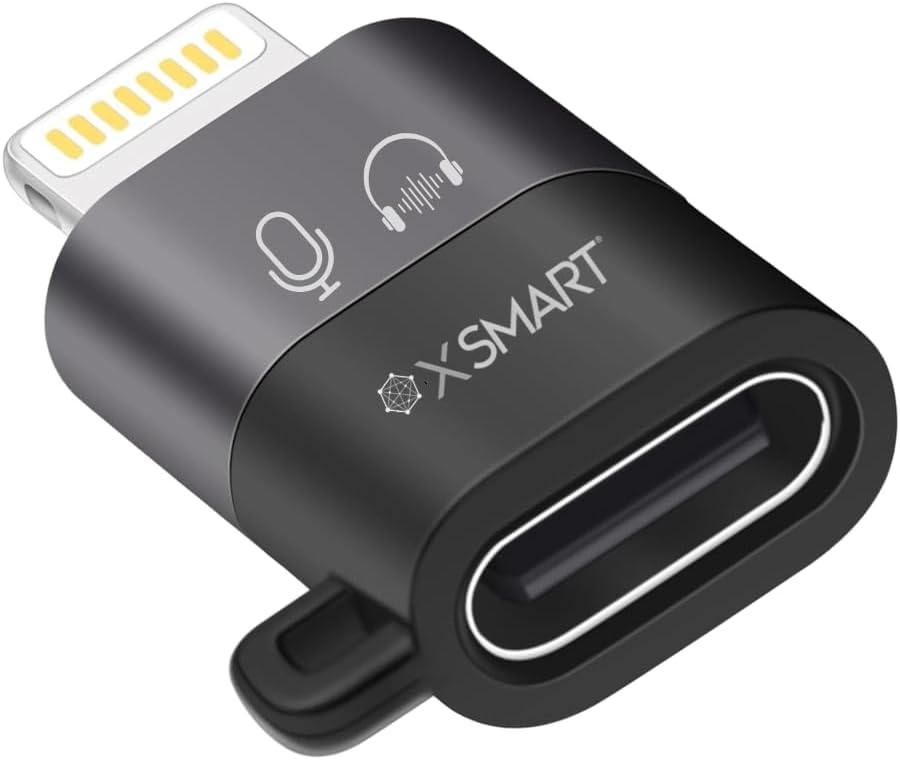
Image: Front view of the xsmart USB C to Lightning OTG Adapter, showcasing its compact design with a Lightning connector on one end and a USB-C port on the other, along with microphone and headphone icons indicating audio support.
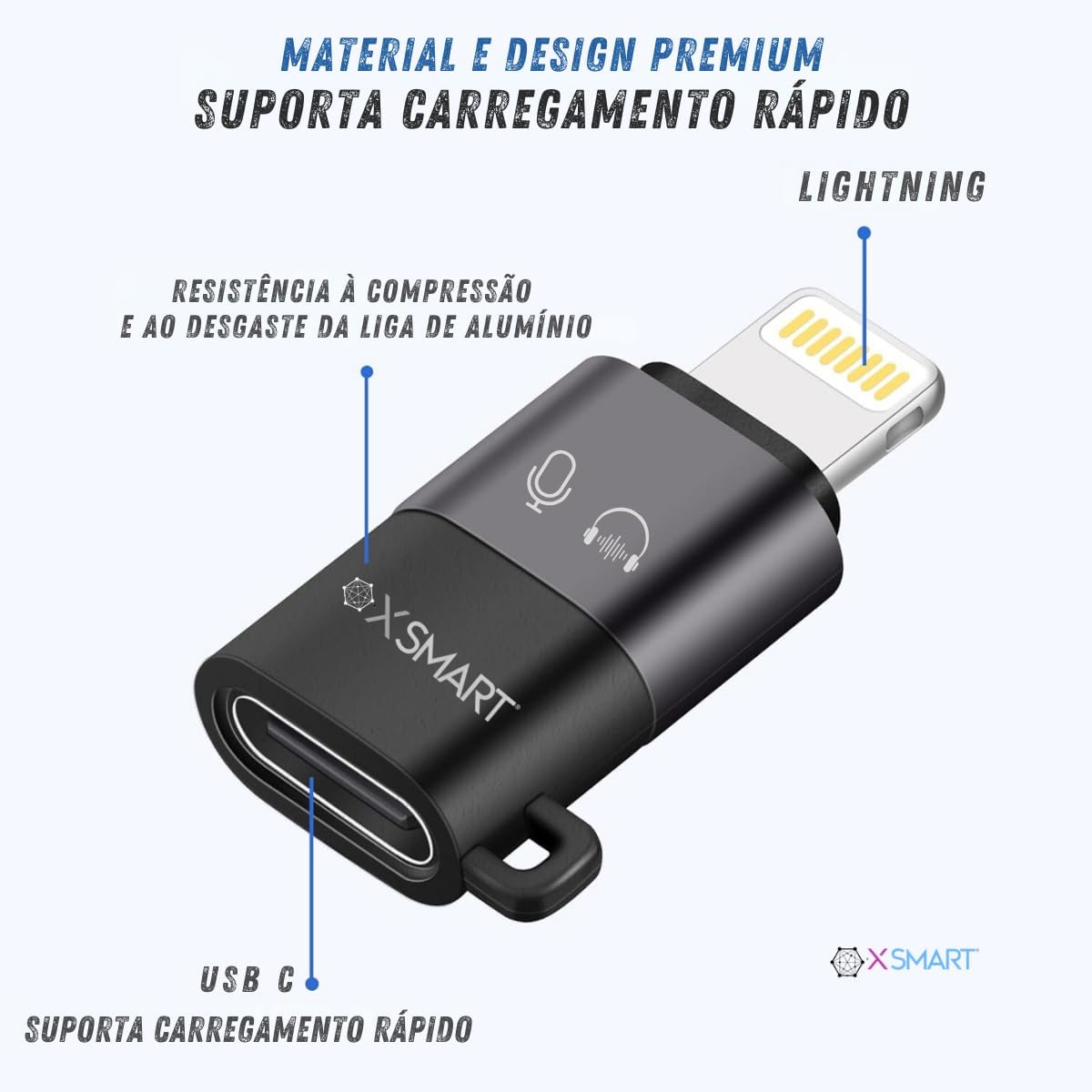
Image: Diagram illustrating the premium material and fast charging capabilities of the adapter. It highlights the Lightning connector, the USB-C port, and the aluminum alloy construction for compression and wear resistance.
The xsmart adapter features a Lightning connector for your iOS device and a USB-C female port for connecting various peripherals. It is built with a durable aluminum alloy structure, ensuring longevity and reliability.
Setup and Installation
The xsmart USB C to Lightning OTG Adapter is designed for plug-and-play functionality, requiring no driver installation.
- Connecting Peripherals: Insert the Lightning connector of the adapter into your iPhone or iPad's Lightning port. Then, connect your USB-C peripheral (e.g., USB flash drive, camera card reader, keyboard, mouse) to the USB-C female port on the adapter.
- Accessing Files (for USB drives/card readers):
- After connecting a USB drive or camera card reader, open the "Files" app on your iOS device.
- Tap on "Browse" and locate your USB disk. You can then view and manage files directly from your iPhone or iPad.
- Enabling Mouse Keys (for mouse operation):
- If you are connecting a mouse, you may need to enable "Mouse Keys" for normal operation.
- Navigate to Settings > Accessibility > Touch > AssistiveTouch > Mouse Keys. Enable this feature to use your mouse.
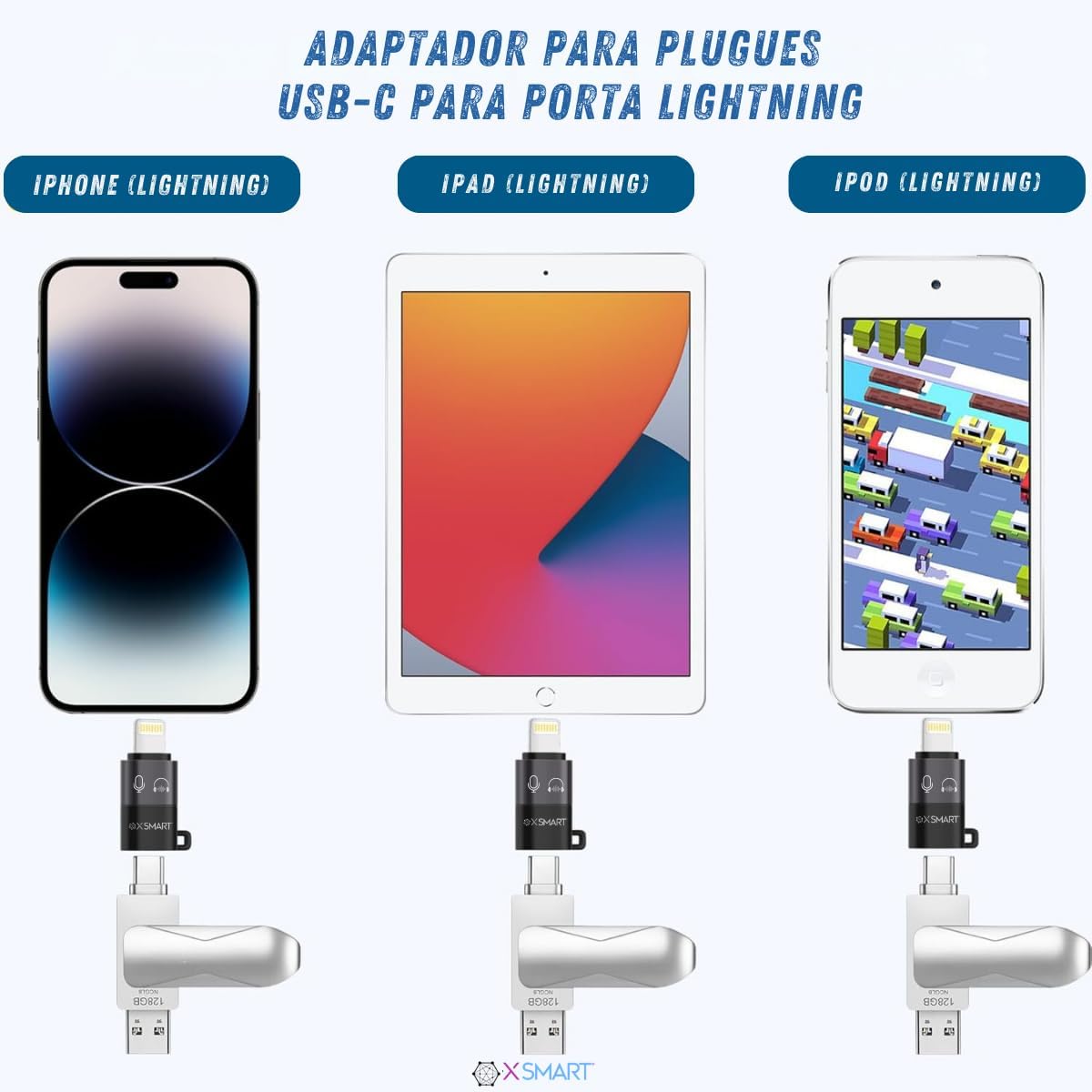
Image: Visual guide showing the adapter connected to an iPhone, iPad, and iPod, demonstrating how a USB flash drive can be connected via the adapter to these Lightning-port devices.
Operating Instructions
OTG Functionality
The adapter supports USB OTG (On-The-Go) function, allowing you to connect a wide range of USB peripherals to your iOS device. This includes:
- Card Readers
- U Disks / USB Flash Drives
- Keyboards
- Mice
- MIDI Keyboards
- Lapel Microphones
- Digital Headphones
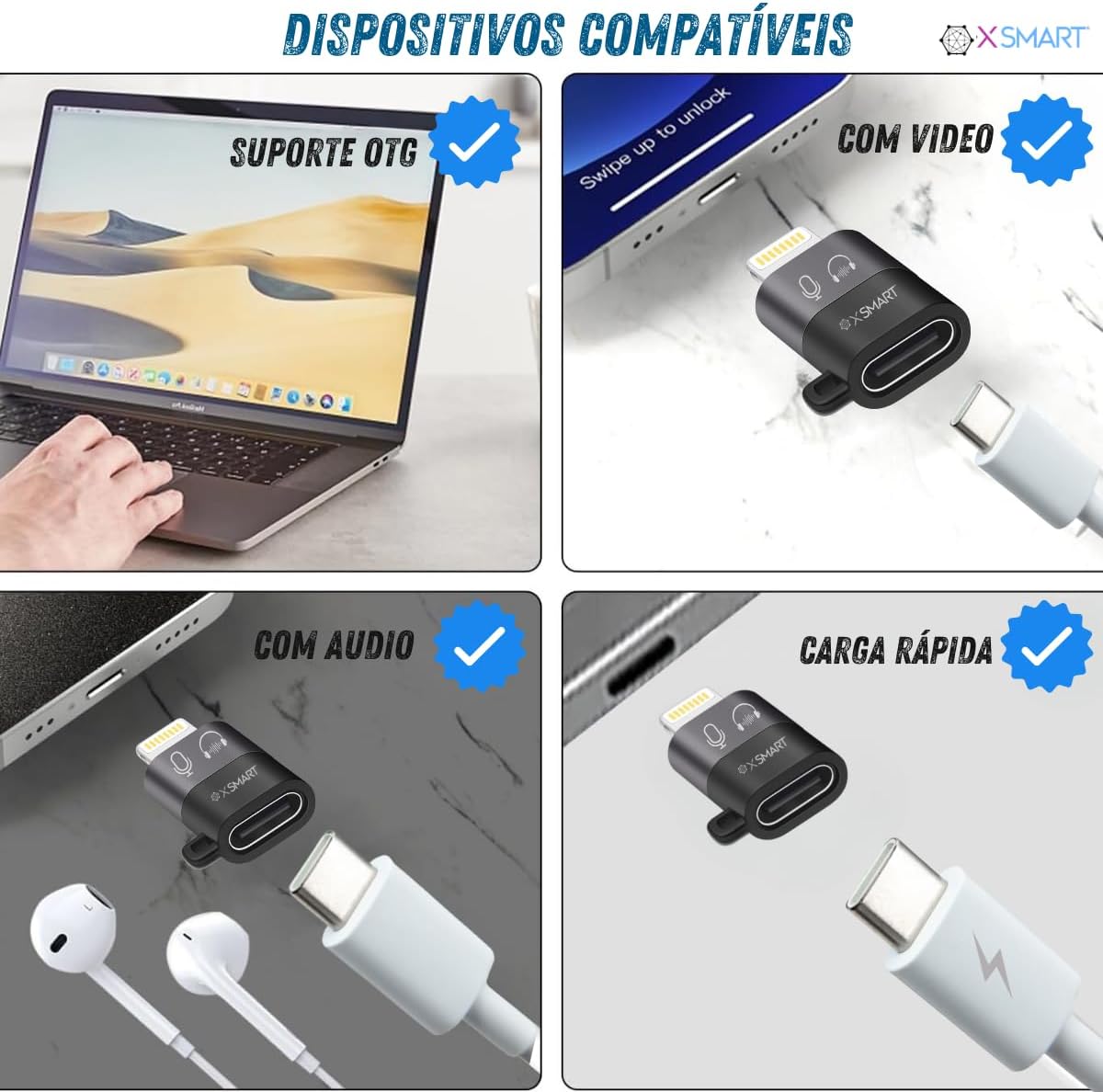
Image: Four panels demonstrating the adapter's compatibility: OTG support with a laptop, video output capability, audio support with earphones, and fast charging functionality.
Audio Support
The adapter supports audio output, allowing you to connect headphones or microphones with a USB-C connector to your Lightning-enabled iOS device. This is particularly useful for connecting lapel microphones for recording or digital headphones for enhanced audio experience.
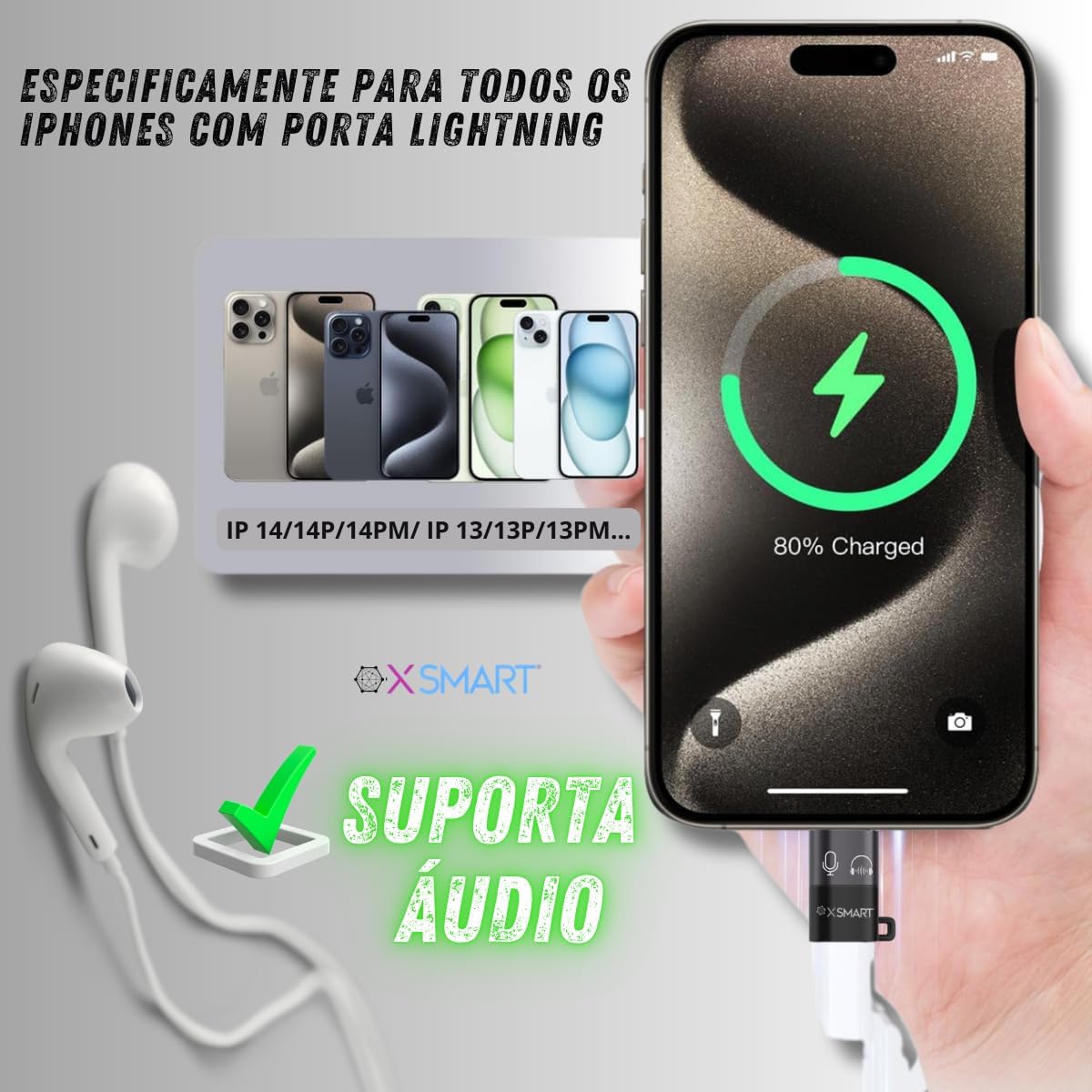
Image: An iPhone connected to the adapter, which is then connected to wired earphones, emphasizing the adapter's audio support feature. The image also shows various iPhone models in the background, indicating broad compatibility.
Charging Support
The adapter supports 10W (5V/2A) charging for your iOS devices. This allows you to charge your device while using other peripherals connected via the adapter.
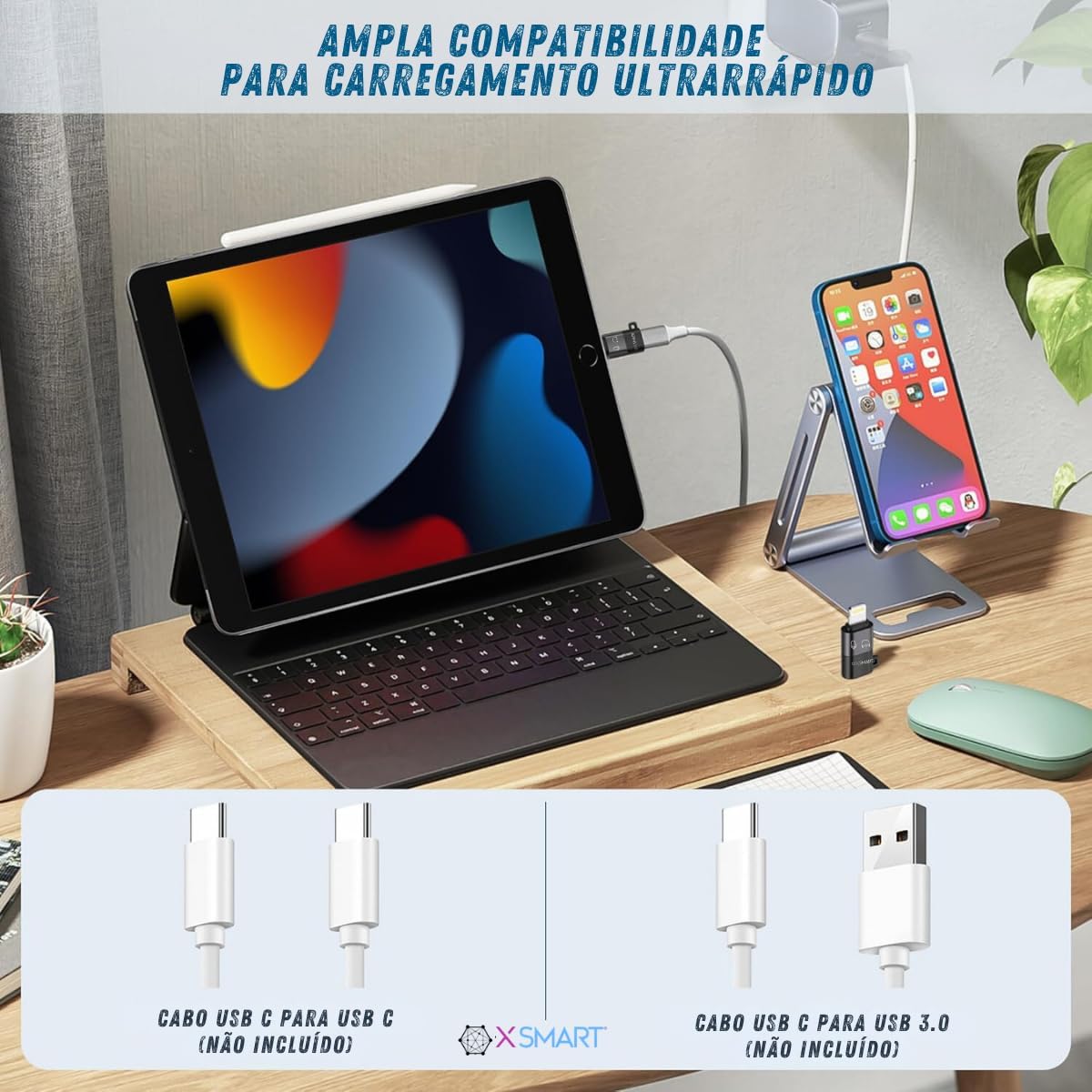
Image: A setup showing an iPad and an iPhone connected to the adapter, which is then connected to charging cables. The image highlights the adapter's wide compatibility for ultra-fast charging, illustrating the use of USB-C to USB-C and USB-C to USB 3.0 cables (not included).
Maintenance
To ensure the longevity and optimal performance of your xsmart USB C to Lightning OTG Adapter, please follow these maintenance guidelines:
- Keep Clean: Regularly wipe the adapter with a soft, dry cloth to remove dust and debris. Avoid using liquid cleaners or abrasive materials.
- Store Properly: When not in use, store the adapter in a cool, dry place away from direct sunlight and extreme temperatures.
- Handle with Care: Avoid bending or twisting the adapter excessively, especially at the connectors, to prevent internal damage.
- Protect Connectors: Ensure the Lightning and USB-C ports are free from foreign objects before connecting.
Troubleshooting
If you encounter issues with your xsmart USB C to Lightning OTG Adapter, please refer to the following common problems and solutions:
- Adapter Not Recognized / Intermittent Connection:
- Ensure both the Lightning connector and the USB-C peripheral are fully and securely inserted into the adapter and your device.
- Try disconnecting and reconnecting the adapter and the peripheral.
- Clean the Lightning port on your iOS device and the adapter's connectors with a dry, soft brush to remove any lint or debris.
- Test the adapter with a different peripheral or iOS device to determine if the issue lies with the adapter or the connected device.
- Camera Card Reader Not Working (e.g., with iPhone 14):
- While the adapter supports camera card readers, compatibility can sometimes vary with specific iOS versions or device models (e.g., some users reported issues with iPhone 14).
- Ensure your iOS device is updated to the latest software version.
- Verify that the card reader itself is functioning correctly with other devices.
- Try restarting your iOS device after connecting the adapter and card reader.
- No Data Transfer (e.g., with Car Multimedia System):
- The adapter is primarily designed for OTG peripheral connectivity and charging. While it supports data transfer for devices like USB flash drives, its compatibility with specific car multimedia systems for data transfer (e.g., CarPlay, Android Auto) may be limited or not supported.
- Check your car's multimedia system manual for specific requirements for data transfer from external devices.
- Ensure the USB-C cable used for connection supports data transfer, not just charging.
- Charging Not Working:
- Ensure the power source and USB-C charging cable are functional.
- Verify that the charging cable is securely connected to the adapter's USB-C port and the power source.
- The adapter supports 10W (5V/2A) charging. Ensure your power adapter provides sufficient power.
If the problem persists after trying these steps, please contact xsmart customer support for further assistance.
Specifications
| Attribute | Detail |
|---|---|
| Brand | xsmart |
| Manufacturer | xsmart technologies |
| Model Number (ASIN) | B07R8R2VDL |
| Compatible Devices | Cellular Phones (iPhone 14/13/12/11/SE/X/XR/XS/8/7/6/6s/Pro Max Plus mini, iPod Nano 7, iPod Touch 5, iPad 9/8/6/5, iPad Pro, iPad Air 1/2/3, iPad mini 5/4/3/2, Airpods 1/2/3, Airpods Pro) |
| Number of Units | 1 |
| Power Source Type | Not applicable (powered by connected device/charger) |
| Battery Operated | No |
| Number of Ports | 2 (1x Lightning Male, 1x USB-C Female) |
| Color | Black |
| Specific Product Uses | Headphones, Mobile Phone, Data Transfer (OTG) |
| Connector Type | Lightning (Input), USB-C (Output) |
| Product Weight | 15 g |
| Package Dimensions | 5.7 x 3.8 x 2.4 cm |
| Available Since | April 28, 2019 |
Warranty Information
The xsmart USB C to Lightning OTG Adapter comes with a 30-day manufacturer's warranty from the date of purchase. This warranty covers defects in materials and workmanship under normal use.
Please retain your proof of purchase for any warranty claims. The warranty does not cover damage caused by misuse, accident, unauthorized modification, or normal wear and tear.
Customer Support
For any questions, technical assistance, or warranty claims regarding your xsmart USB C to Lightning OTG Adapter, please contact xsmart customer support through the retailer's platform or the official xsmart website.
Please have your product model number (ASIN: B07R8R2VDL) and purchase details ready when contacting support to ensure a quicker resolution.